

If you set Backup Email, you can access cubeLMS through Backup Email and view and download your completed training history and Certificate.
* Data Backup Conditions
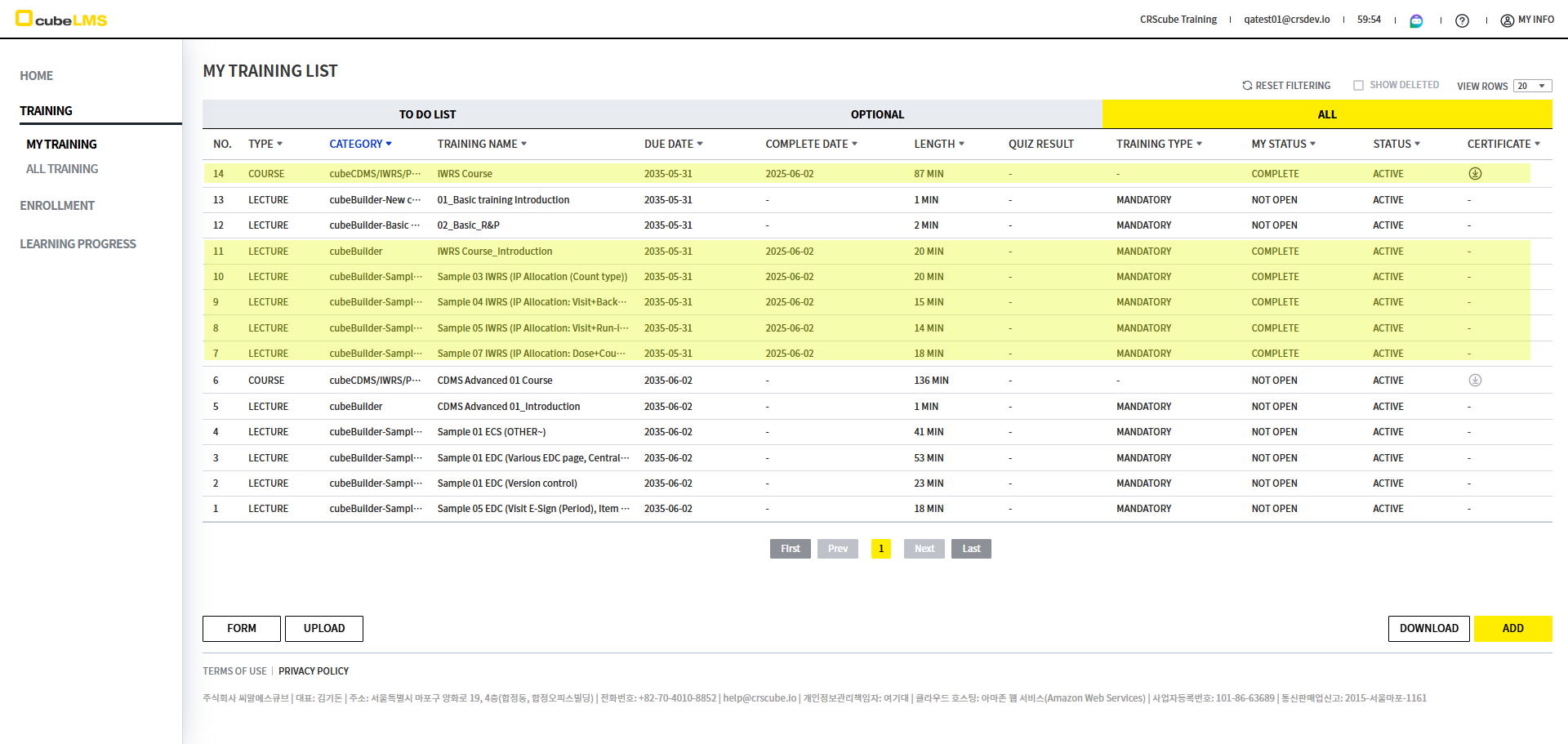
Only completed Training, excluding previous training, can be backed up to Backup Email.
* Data Backup Precautions
Before backing up the data, be sure to check the following Important Notes first.
-
Once registered, Backup Email cannot be deleted or modified.
-
Backup Email can be set only for the companies below. For other companies, this item is displayed as disabled.
-
CRScube Training
-
CRScube Training CHN
-
CRScube Training JPN
-
CRScube Training ENG
-
-
If the email account you want to register has ever been registered as a User in cubeLMS, registration is not allowed.
-
Lecture with the category 'Previous Training' cannot be backed up.
Step 1. Initial My Information setup
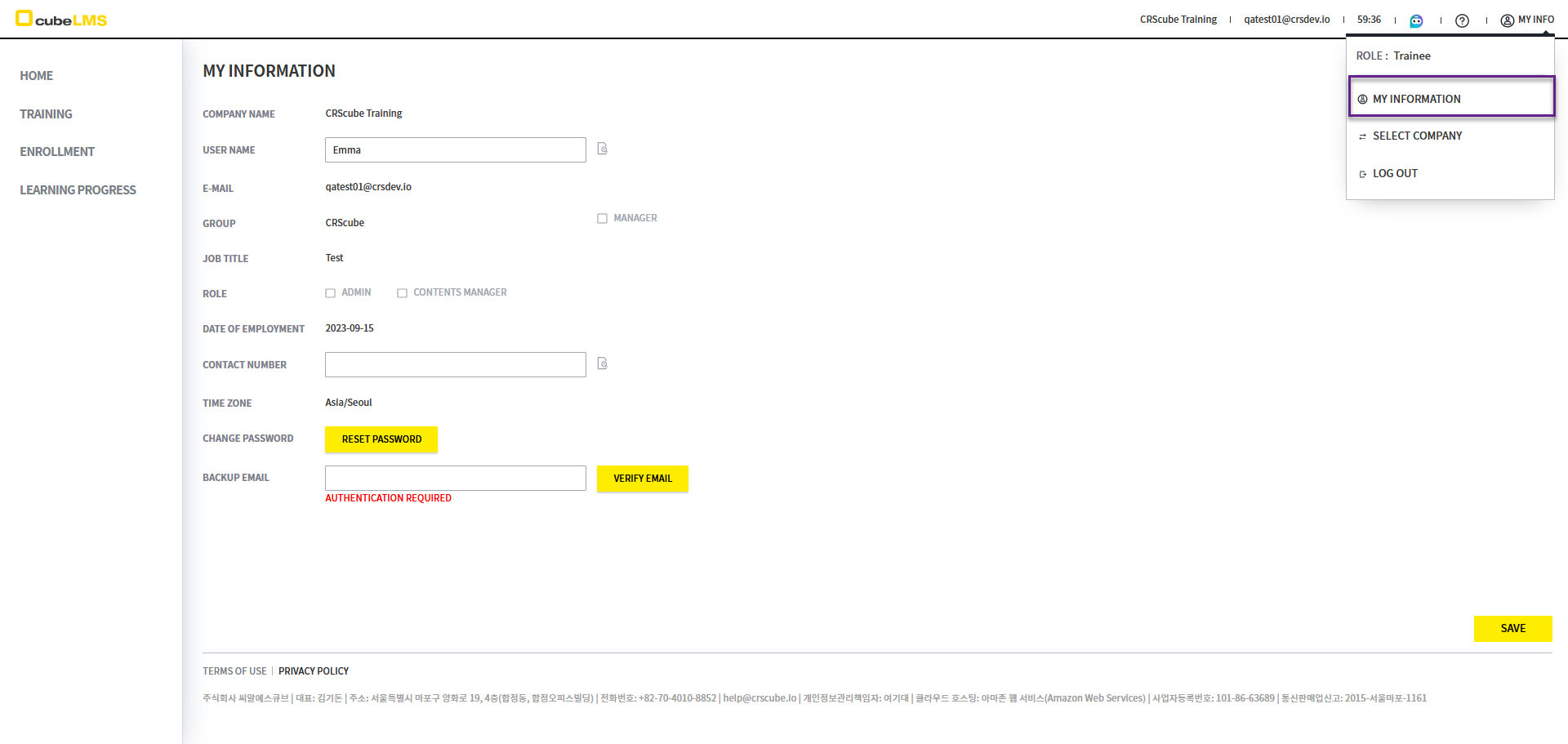
01. In the account currently taking the Training, access My Information through the Tool Bar on the right.
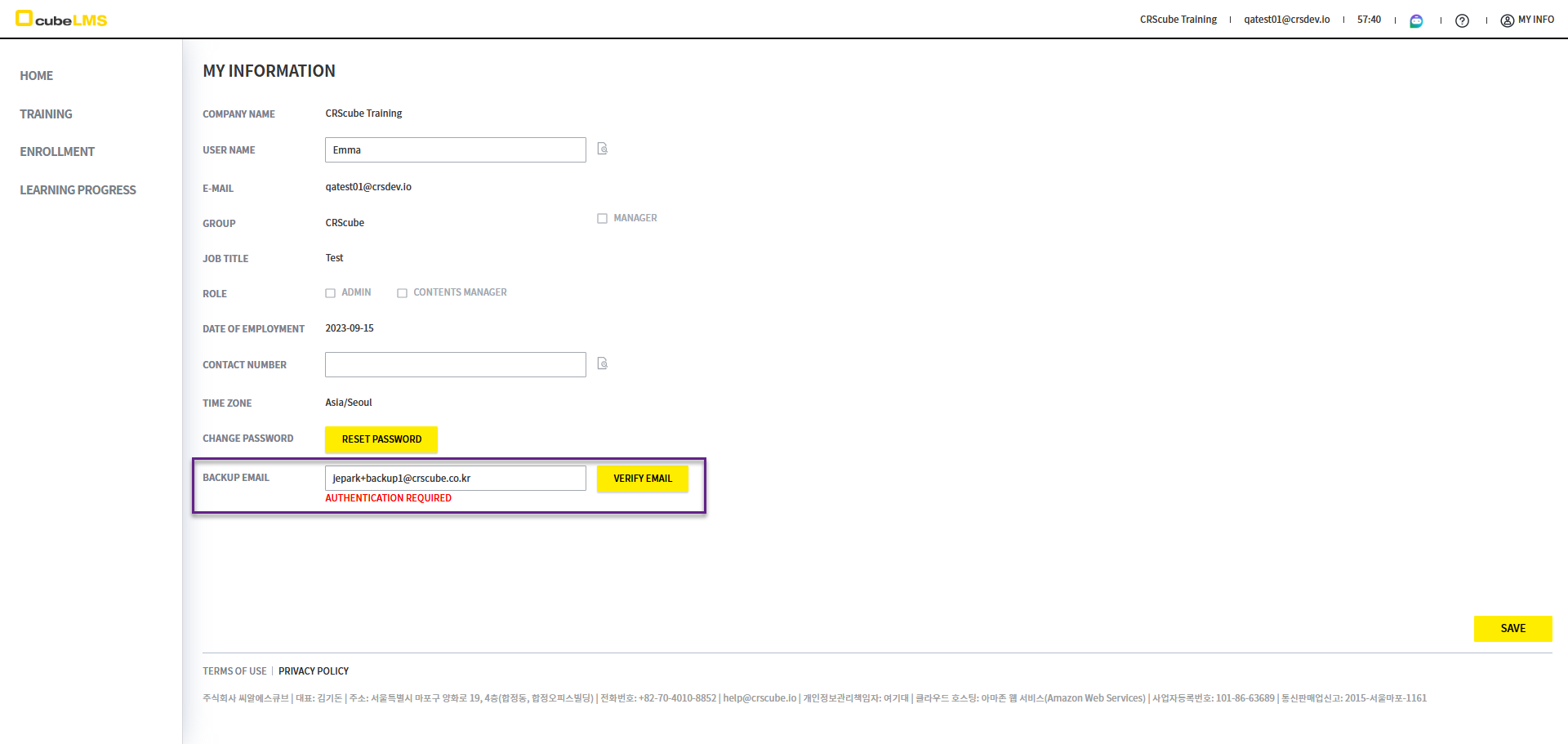
02. Backup Email: Enter the email you want to set as Backup Email and click the 'Verify Email' button.
03. After clicking the 'Verify Email' button, when a popup appears stating that the email has been sent, the 'Backup Email Confirmation' email will be sent to that account.
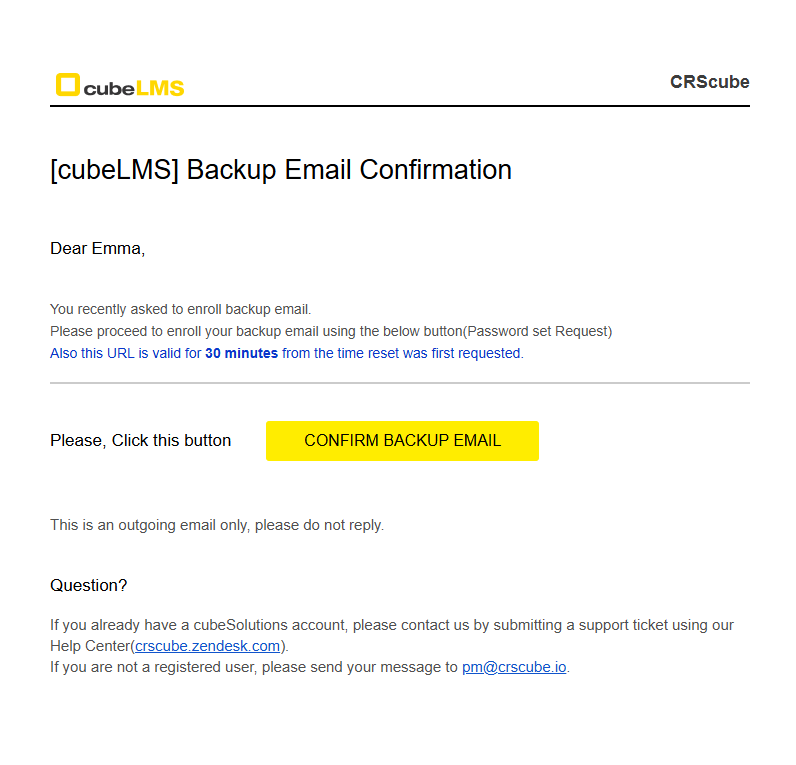
04. In the 'Backup Email Confirmation' email, click the Confirm Backup Email button.
Email Notes
-
The verification button in the email is valid for 30 minutes.
-
If you click the 'Confirm Backup Email' button after 30 minutes have passed since the email was received, the Invalid Certificate page indicating that verification failed is displayed, and the 'Password Set Request' email that allows you to set a password is also not sent.
-
If 30 minutes have passed, enter the Backup Email again on the My Information screen and select the Verify Email button and repeat.
-
Email Notes: Backup Email Confirmation / Registration
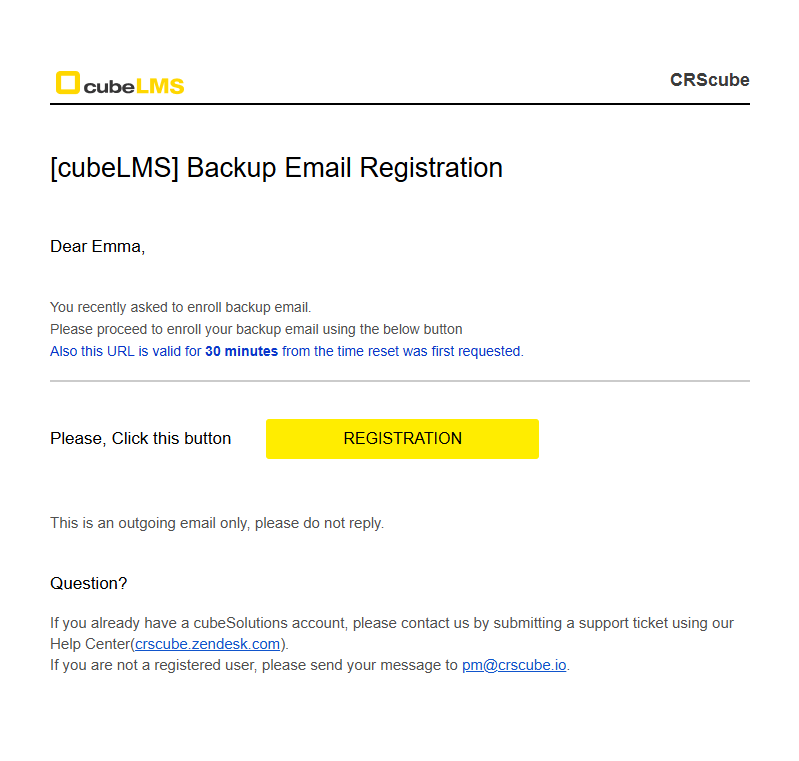
If the account registered as Backup Email has previously been registered in a CRScube Solution, Backup Email Confirmation is not sent. Instead, Backup Email Registration is sent.
-
If you receive Backup Email Registration, log in by entering the password for the Email account registered as Backup Email that was previously used in cubeSolution.
-
If you have forgotten Password, go to the cubeSolution where you used that account, not cubeLMS, reset the password through 'Find your password', and then log in to cubeLMS.
If you click the '05. Confirm Backup Email' button, an email will be sent to that email address so you can set the account password.
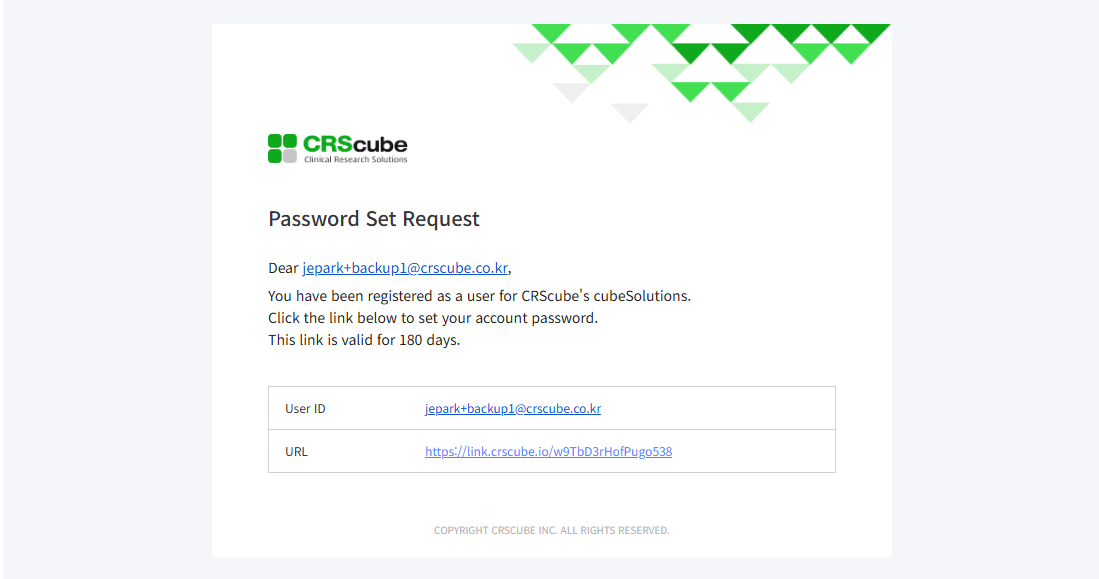
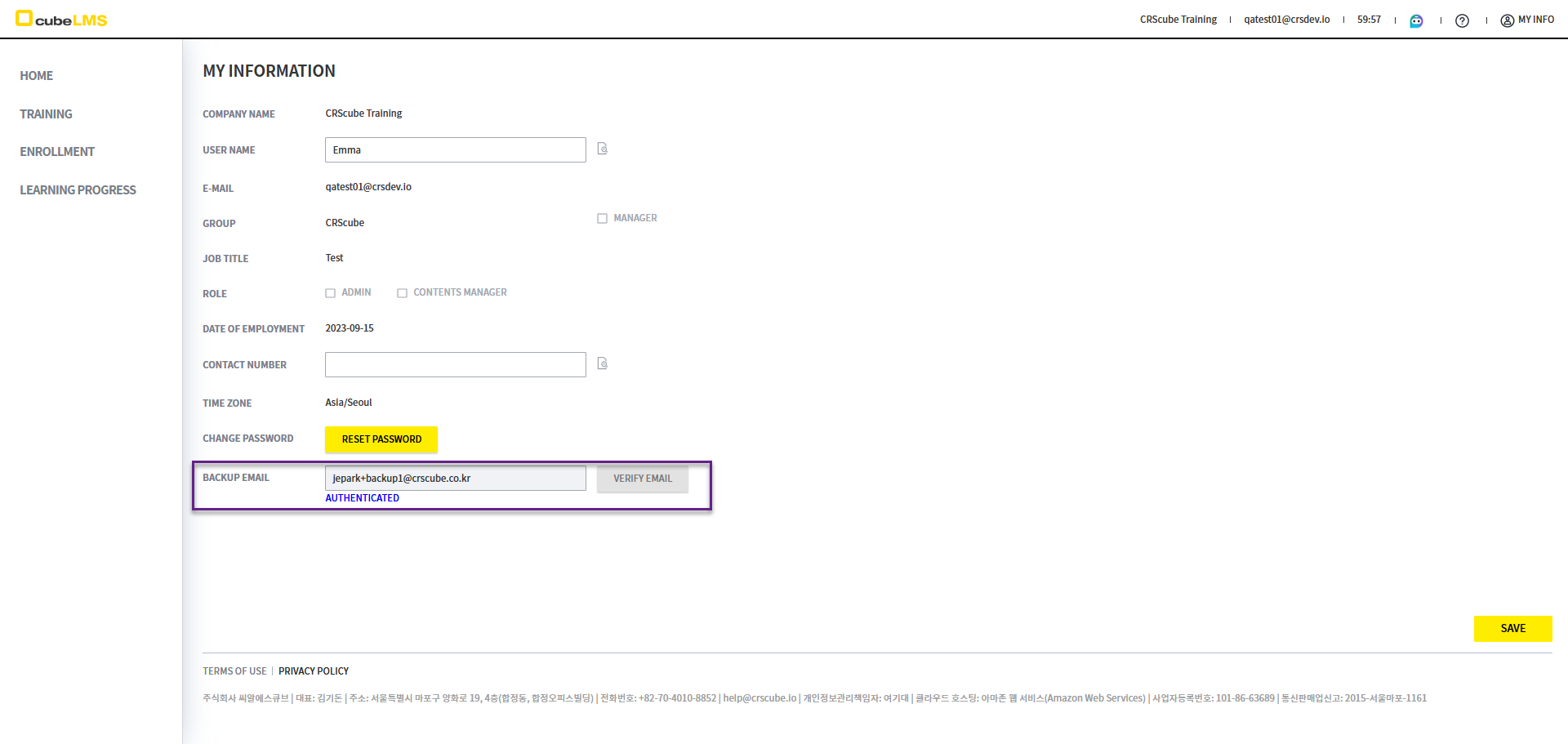
06. Once password setup is complete, return to the cubeLMS My Information screen and click refresh to confirm that the Backup Email has been registered.
-
When Backup Email registration succeeds, 'Authenticated' is displayed below the input field, and the input field and the 'Verify Email' button are disabled.
Step 2. Backup Email First Login
01. On the cubeLMS login screen, enter the Backup Email account set up in Step 1 and log in.
02. When you first log in, a Privacy Policy consent pop-up appears, and clicking the screen takes you to the detailed Privacy Policy page.
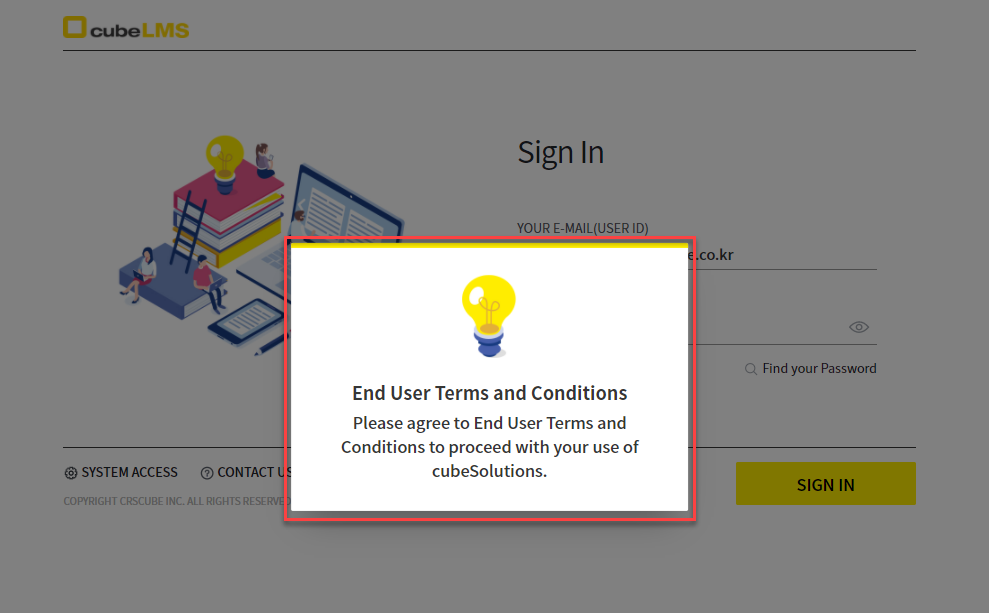
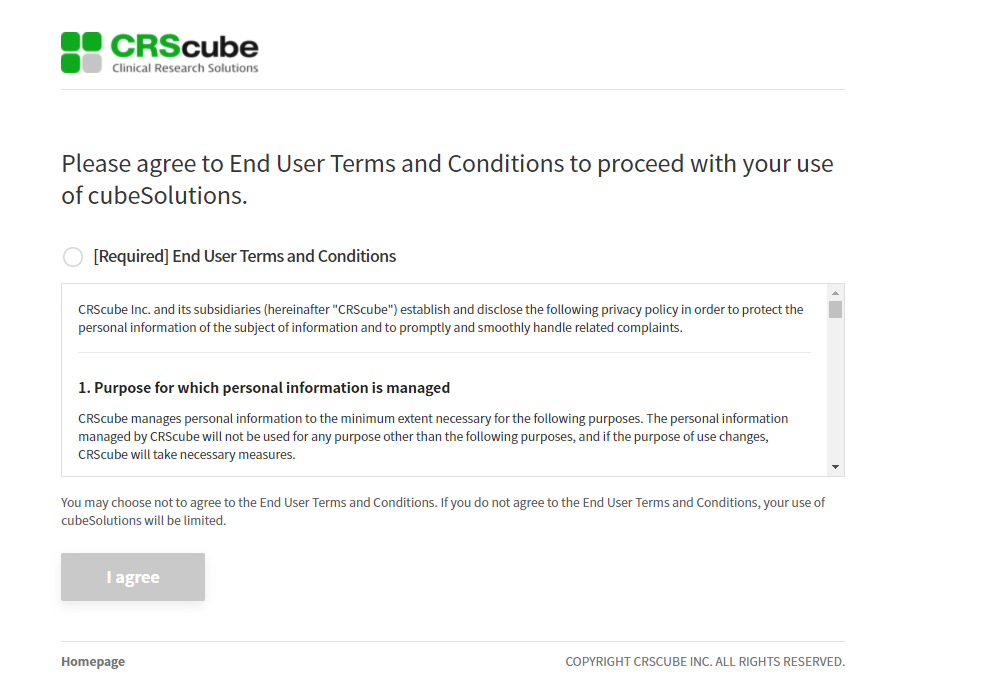
03. If you agree to the Privacy Policy, you will be taken to the page showing that your consent has been saved.
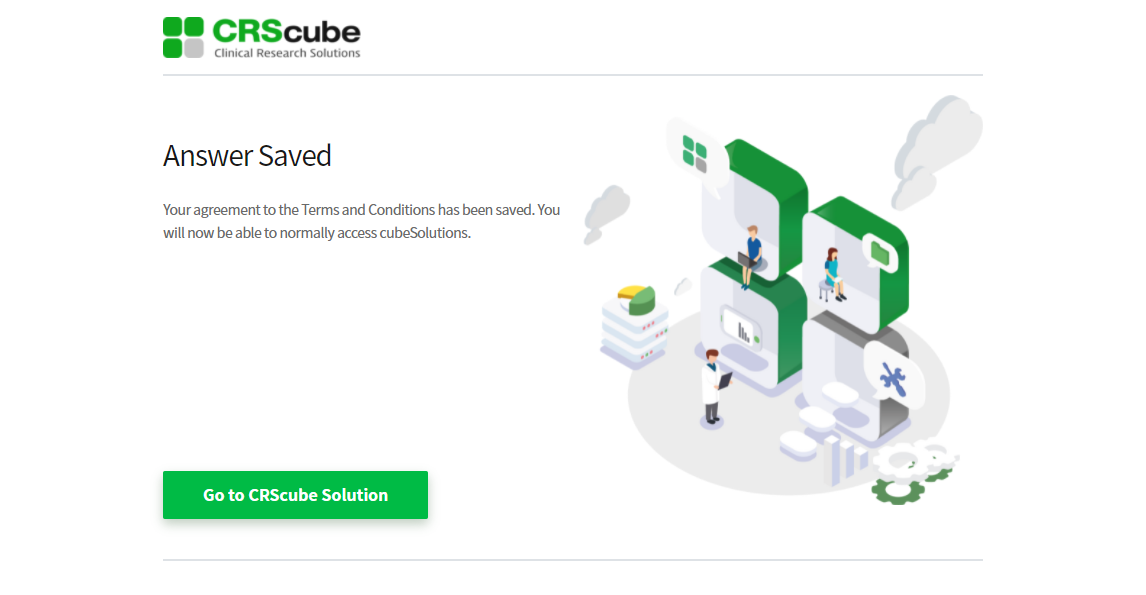
04. Try logging in again on the cubeLMS login screen.
05. After you log in successfully, you can now access the Training History menu.
-
Then, Training completed in the Trainee account is automatically backed up.
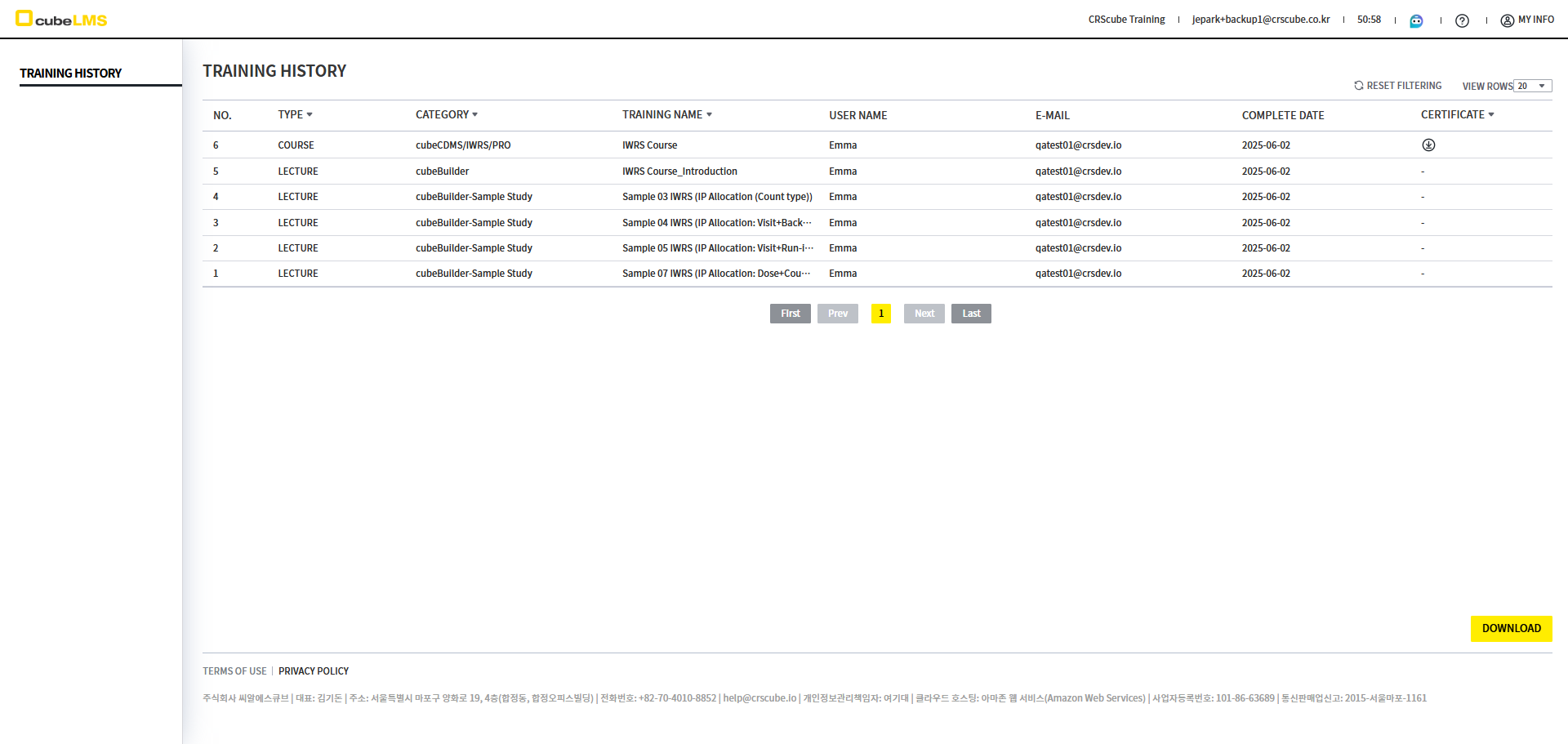
Training History Table Description Guide
For each column in the Training History table, please refer to the manual - 'ENG_TRAINING HISTORY' section.