In All List, you can view all assigned Training and register Previous Training.
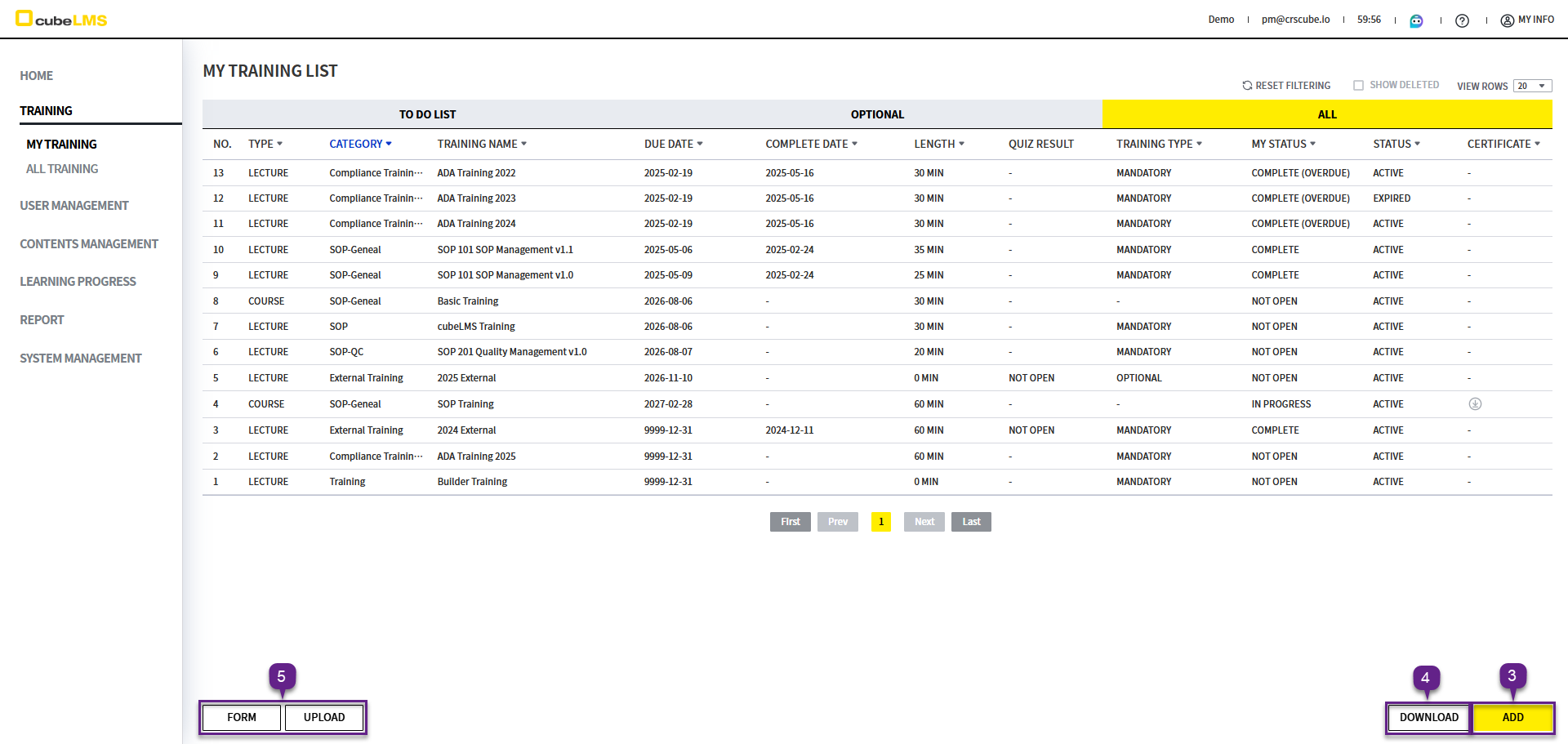
TRAINING LIST
-
All assigned Training is listed, regardless of completion status.
-
Click each row to go to the detail page where you can take Training.
-
Addbutton: User can directly register Training taken in the past. -
Downloadbutton: You can download the list as an Excel document. If you set a filter, only the filtered results are downloaded. -
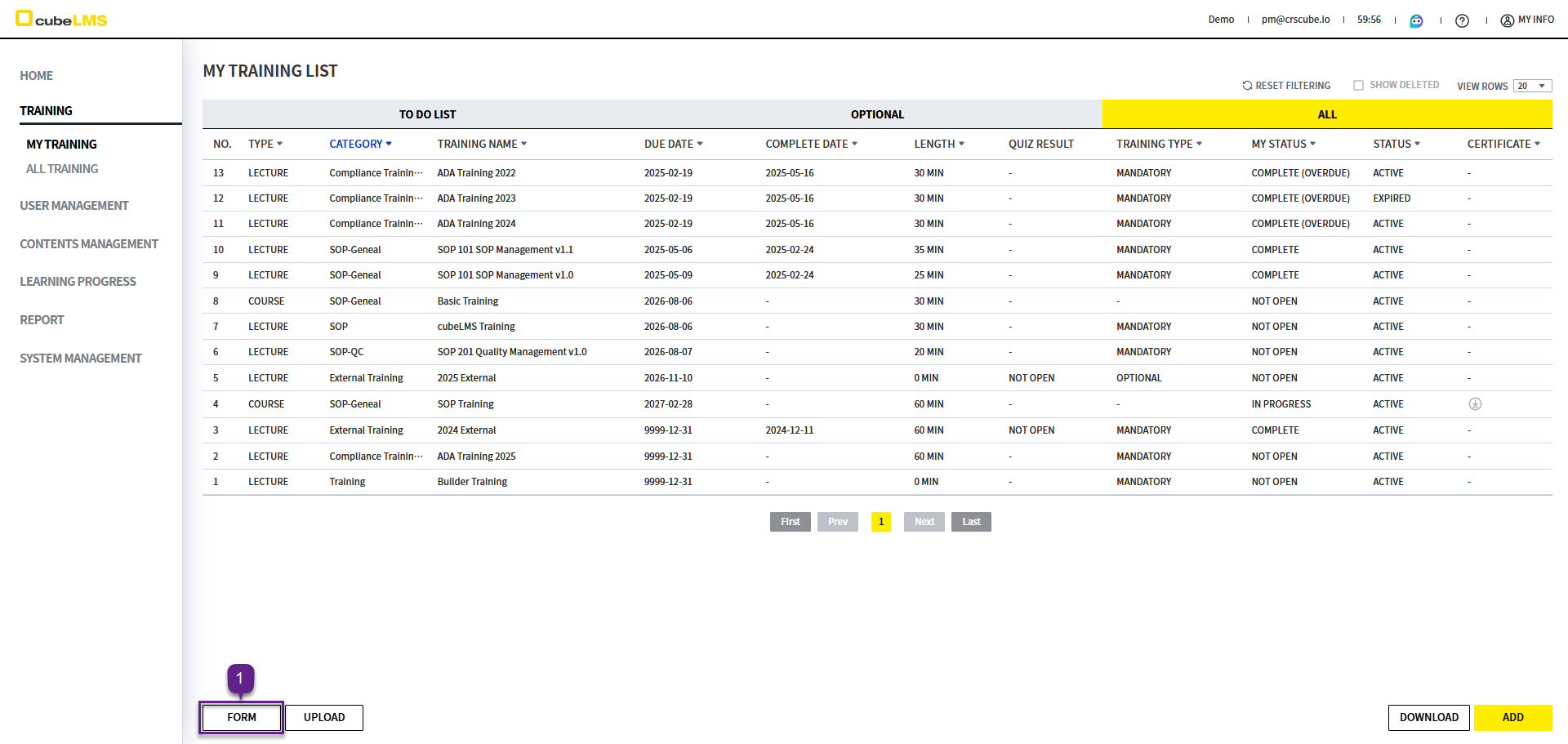
Form, Uploadbutton: You can bulk upload Training taken in the past as an Excel file. See below for details.
-
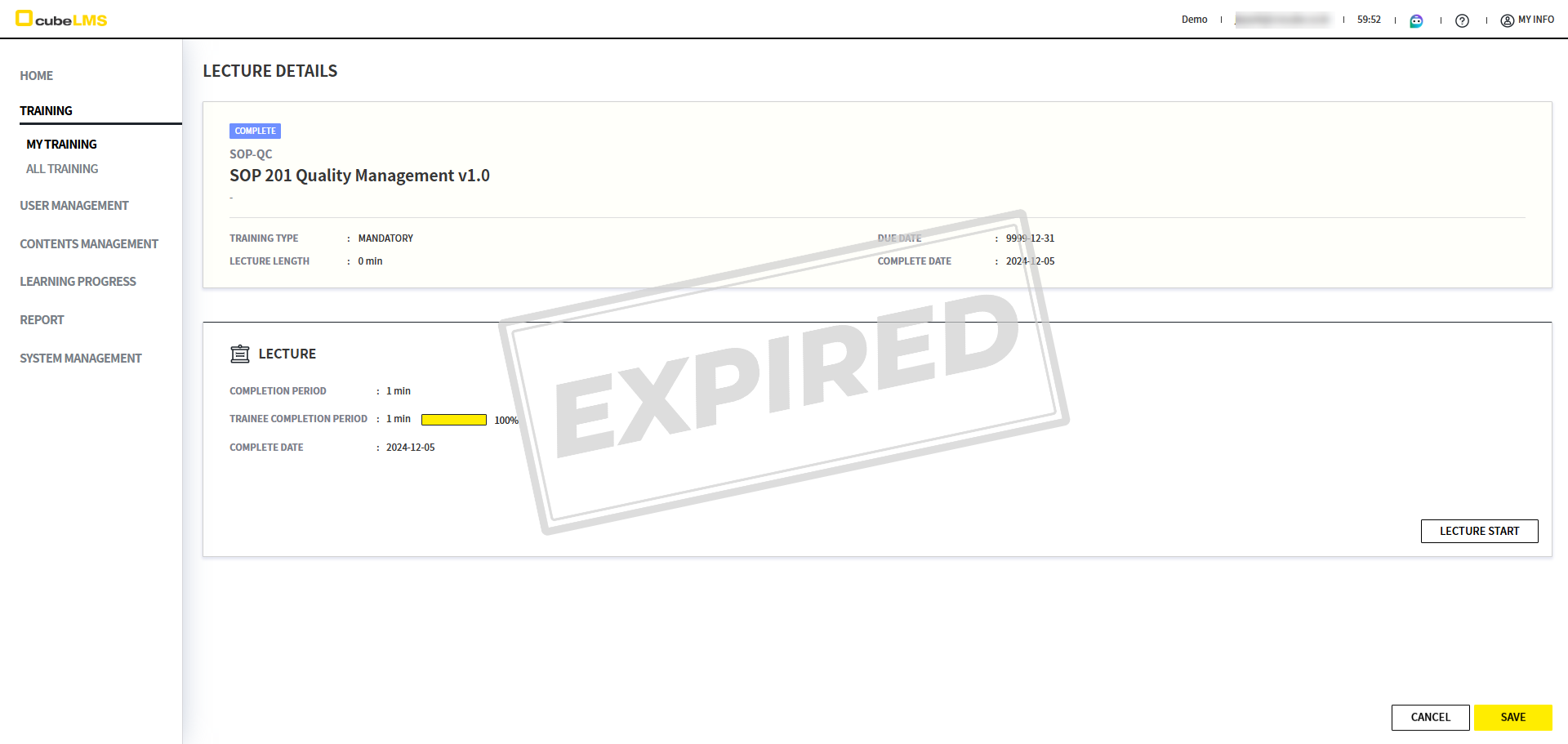
Expired Lecture:A watermark is displayed when you enter the detail screen.
ADD SELF-REPORTED-TRAINING (MANUAL)
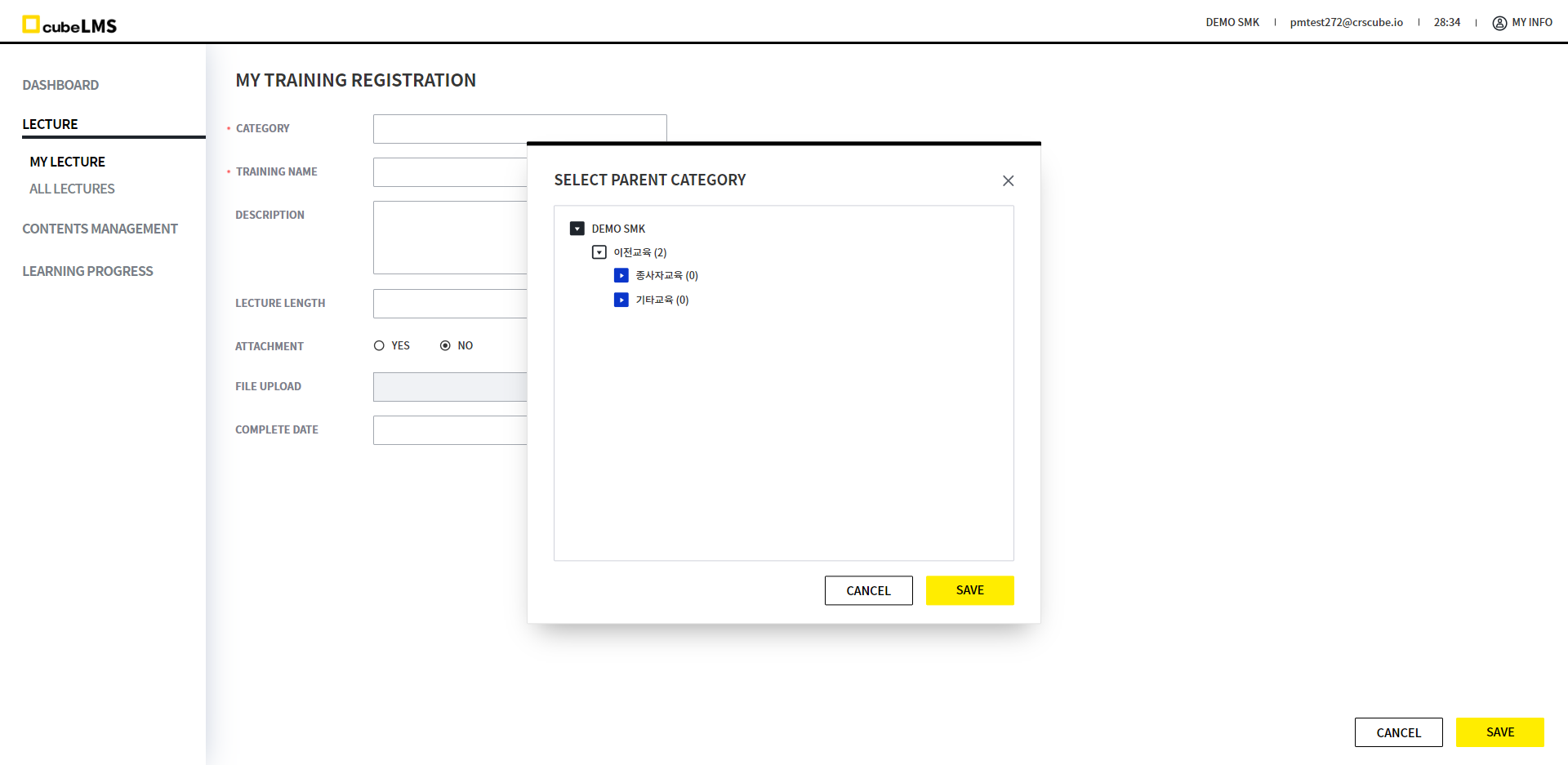
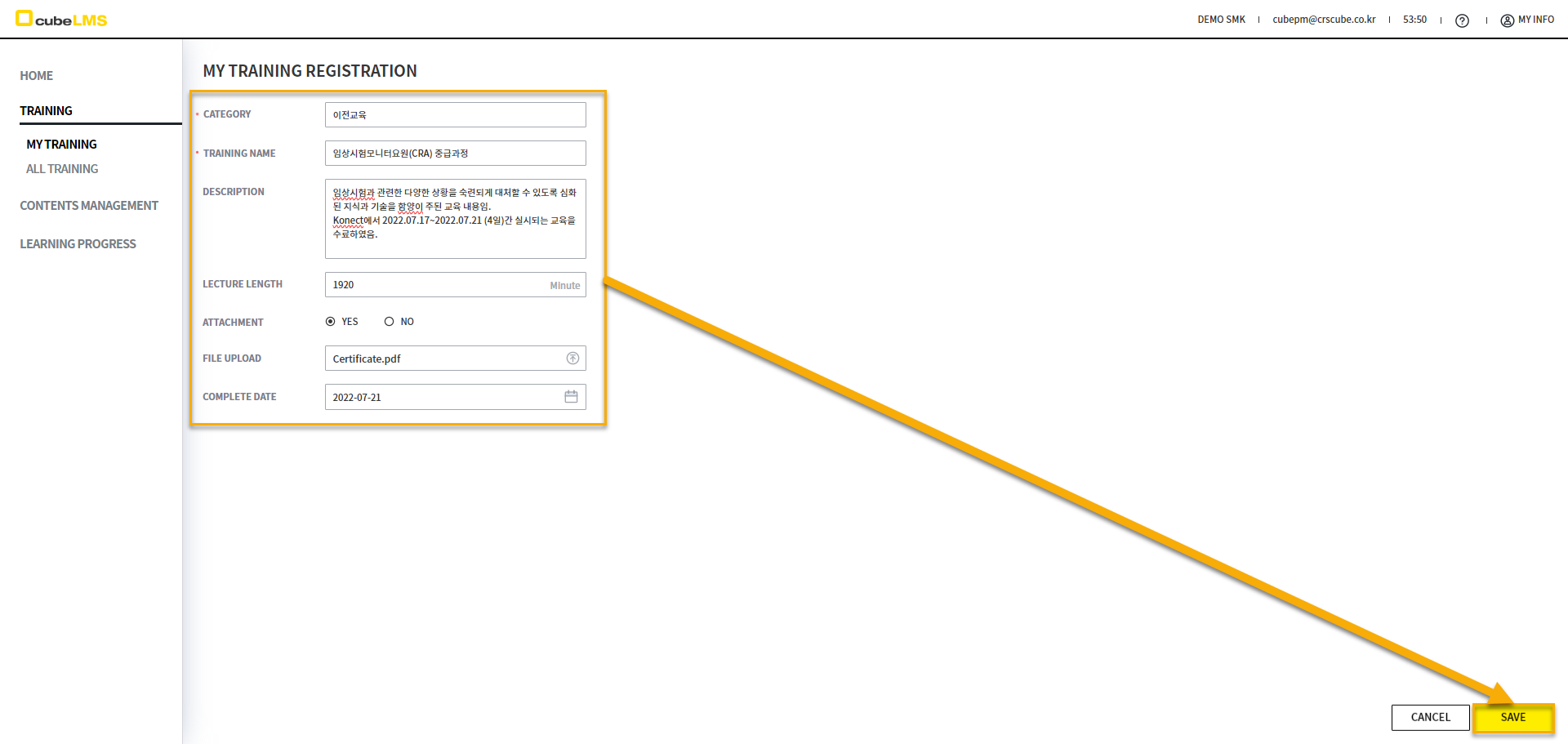
1. ADD Click the button to enter the previous training registration page.
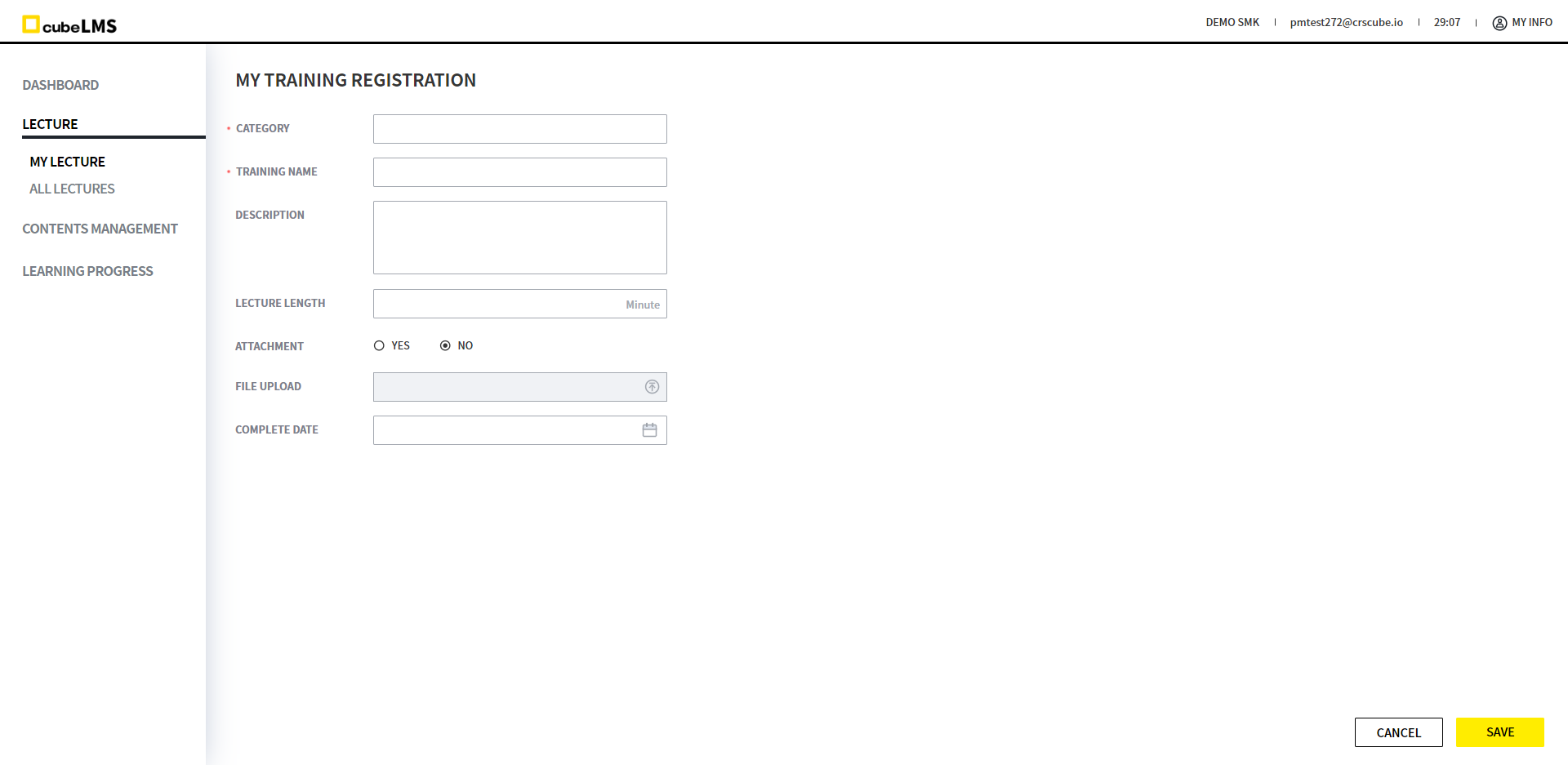
2. Category: Click the field to display the previous training Category in a Tree structure as a popup. Select the Category where the Training will be registered.
-
Enter all other required information and select the Save button.
ADD SELF-REPORTED-TRAINING (UPLOAD)
1. FORM button: Download the Excel Template for bulk uploading previous training.
Attachmentmust be changed on the details page after upload.
(EDIT SELF-REPORTED-TRAININGPlease refer to it.)
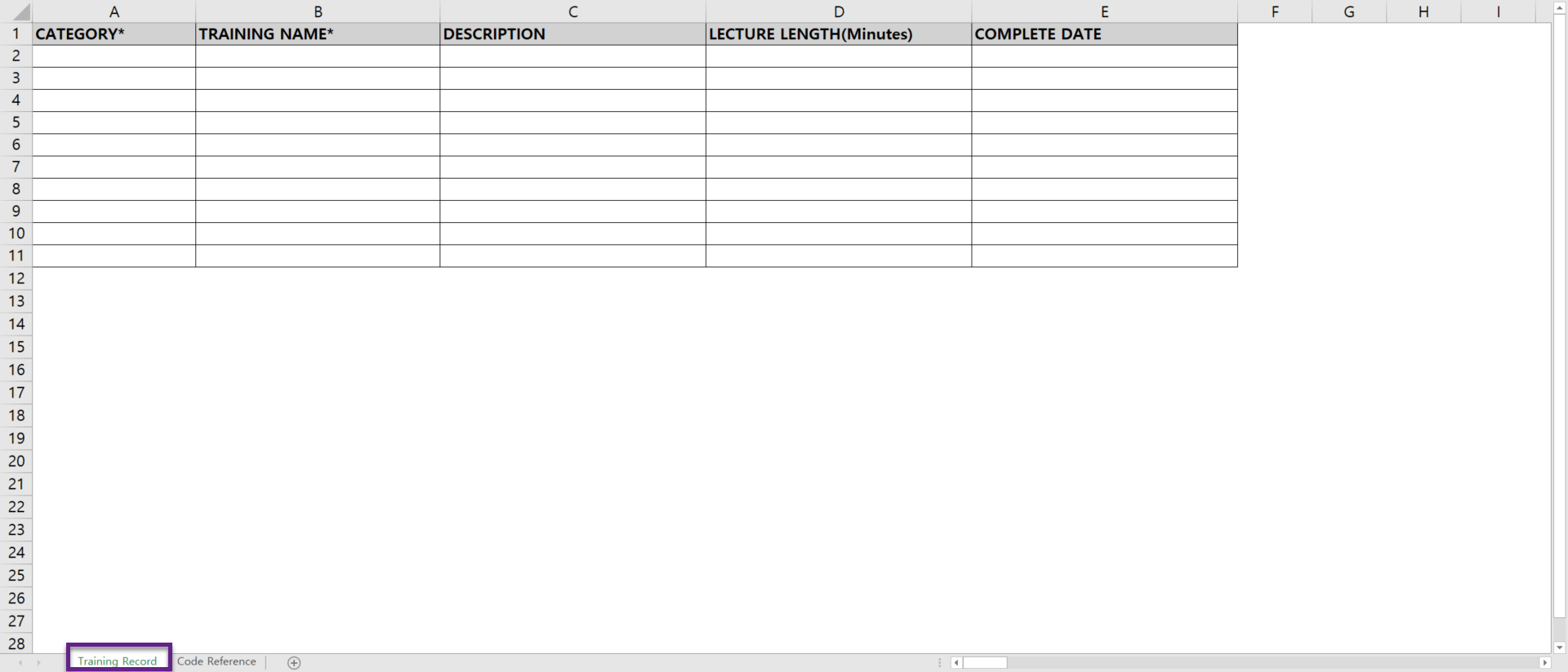
2. The downloaded Excel Form contains 2 sheets, and the description for each sheet is as follows.
-
Training Record sheet:This is the sheet for entering the self-reported training information to upload.
-
Code Reference sheet: Training Record sheetprovides column descriptions and the categories that can be entered.
Category: Only the content shown in the green area on the right side of the second sheet (Code Reference) should be entered.
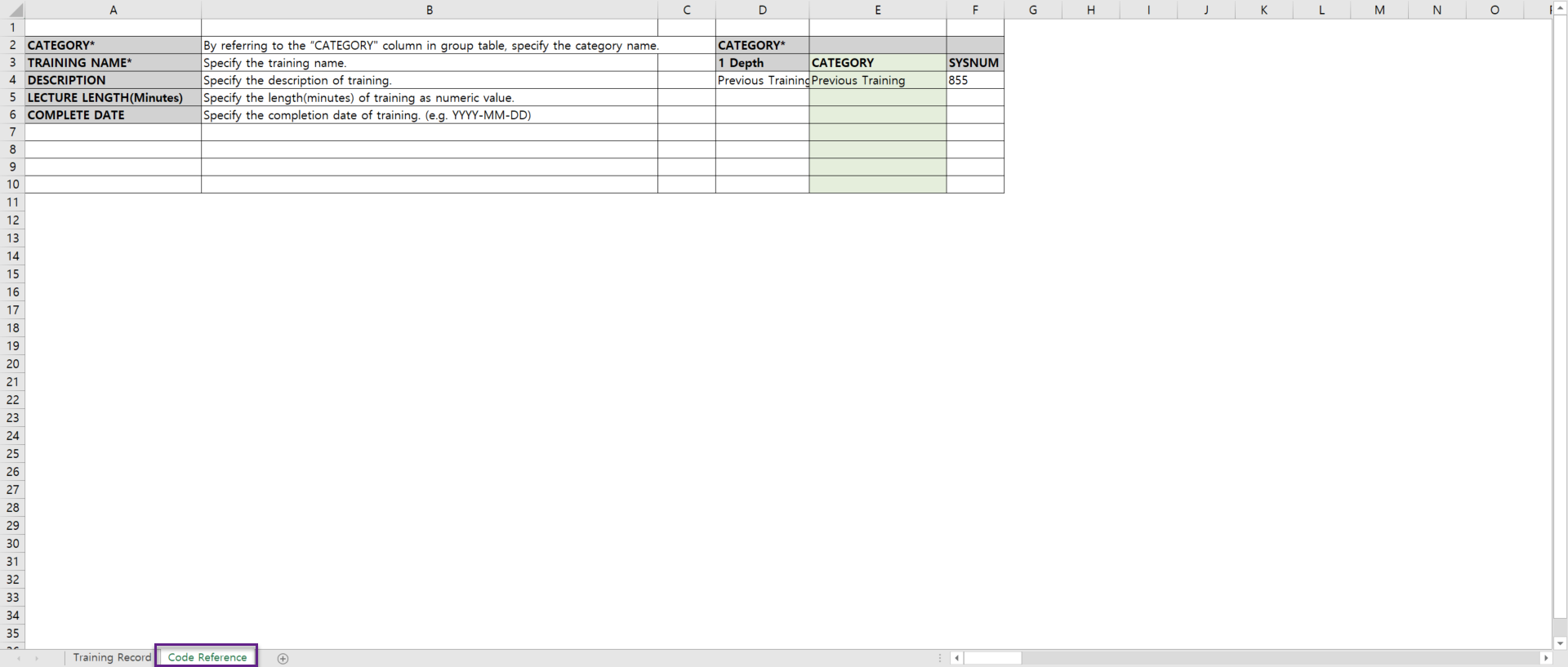
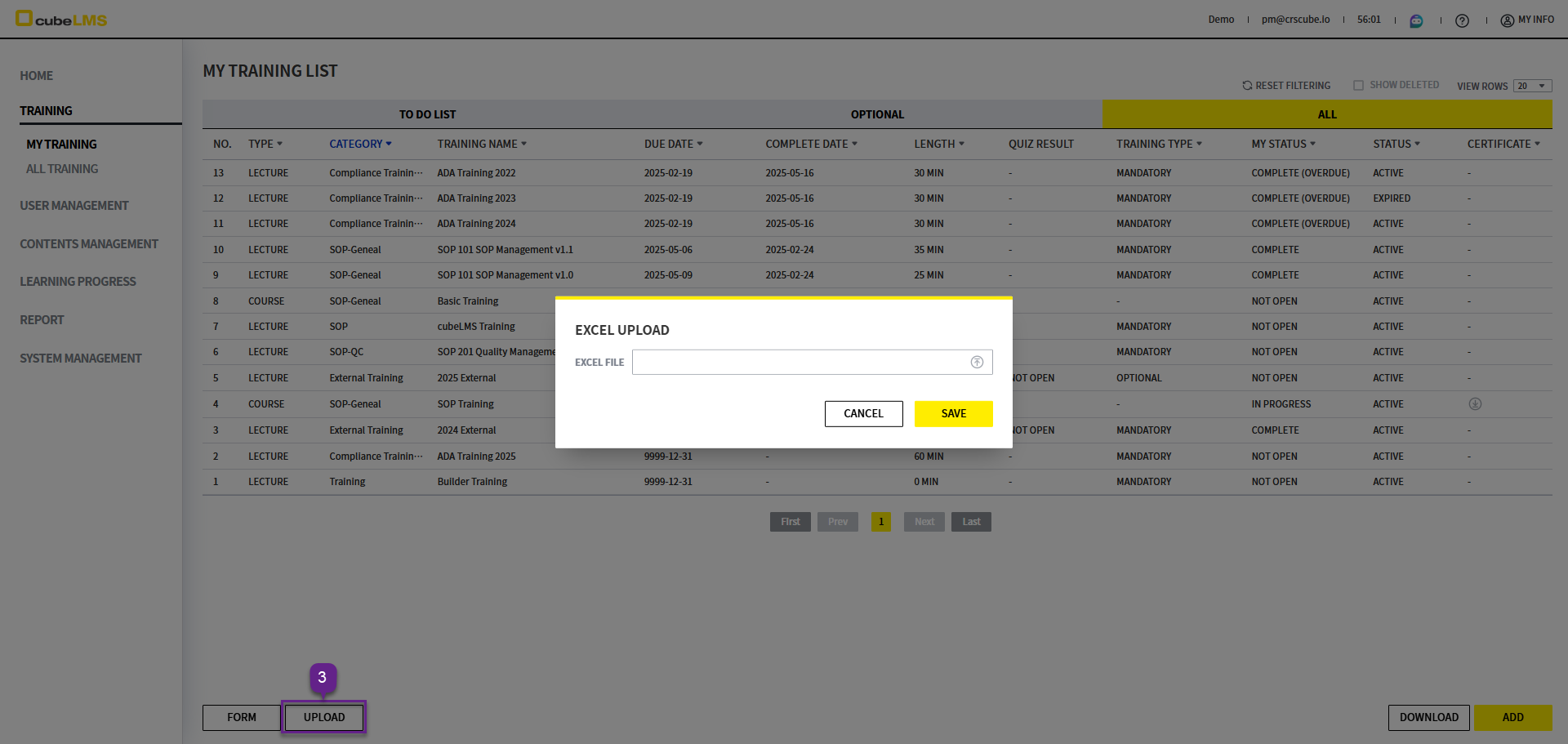
3. UPLOAD button: A popup appears where you can upload the Excel file containing previous training information. Excel Select the document to upload.
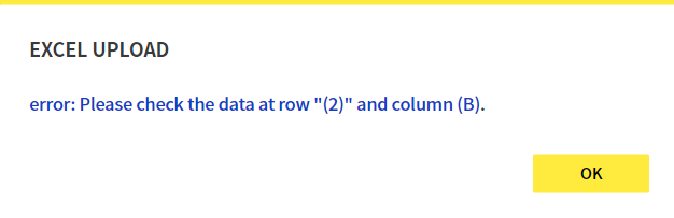
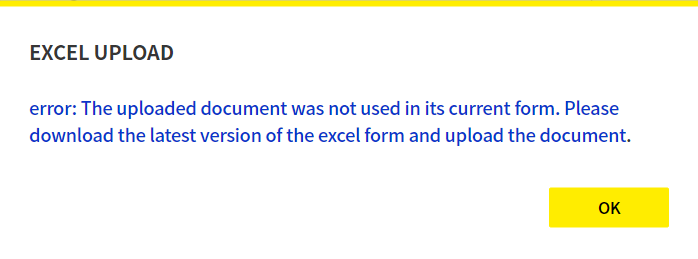
4. Training Record sheet If the contents entered there are not suitable for the upload format, an error message is displayed in a pop-up.
Please refer to the error message, correct the file, and upload it again.
Upload may fail in the following cases.
1) Code Referenceif it is entered differently from Code Reference or if data is missing even though it is required
2) If you enter a duplicate Training name in the same category as an already registered previous training
3) If the item is entered in a format that does not match the data type (e.g., text entered in Lecture Length)
4) Excel Form if the input format specified is not 'General' or 'Text'
5) Excel Form If the lectures or categories are changed after you download the Excel Form, the file is no longer up to date.
5. Once the upload is complete, the uploaded previous training will be displayed in the List.
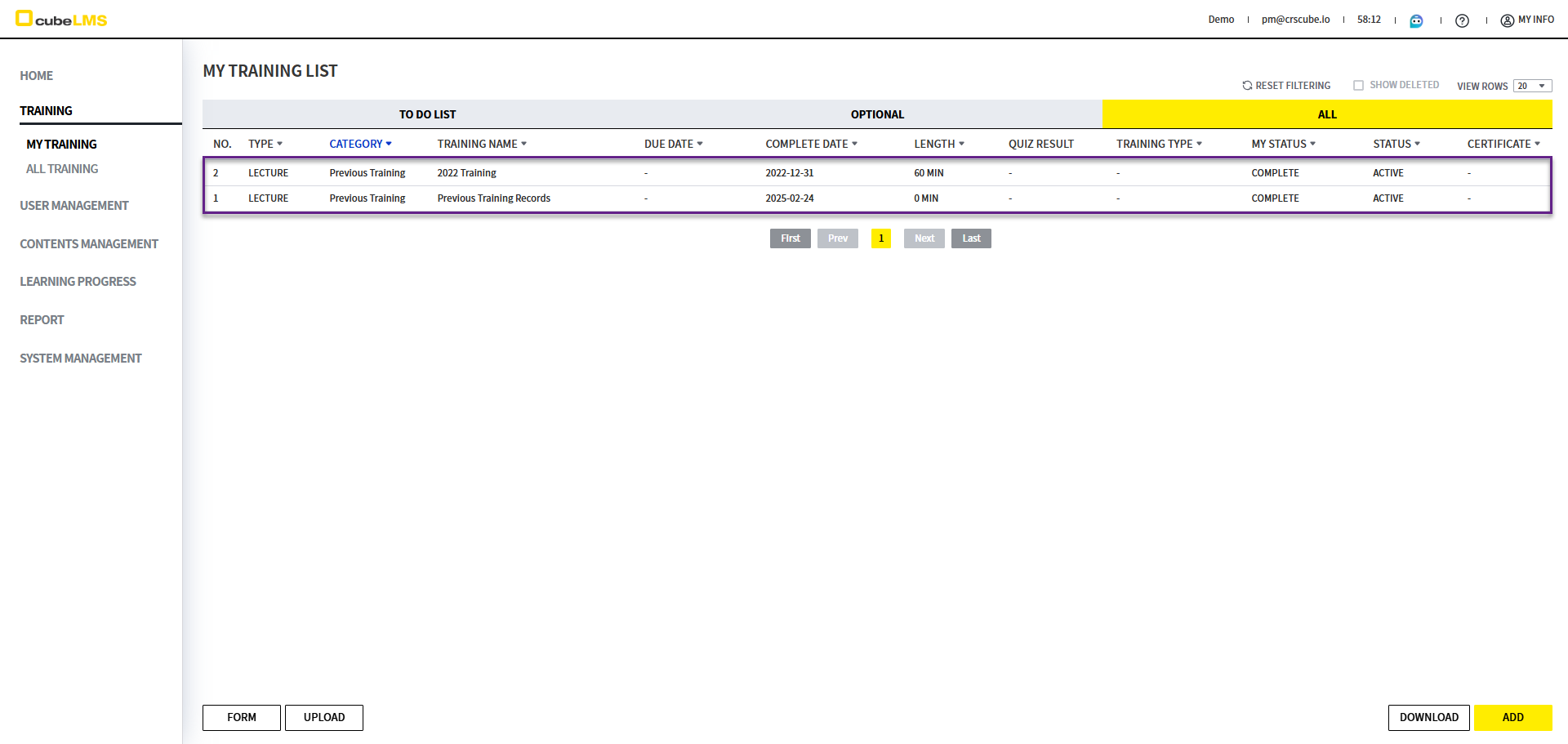
EDIT SELF-REPORTED-TRAINING
1. ALL tab is filtered by default with the previous training category excluded. You can filter it to also display previous training by following the steps below.
1) Category and check the previous training category as well
2) Click Reset Filtering
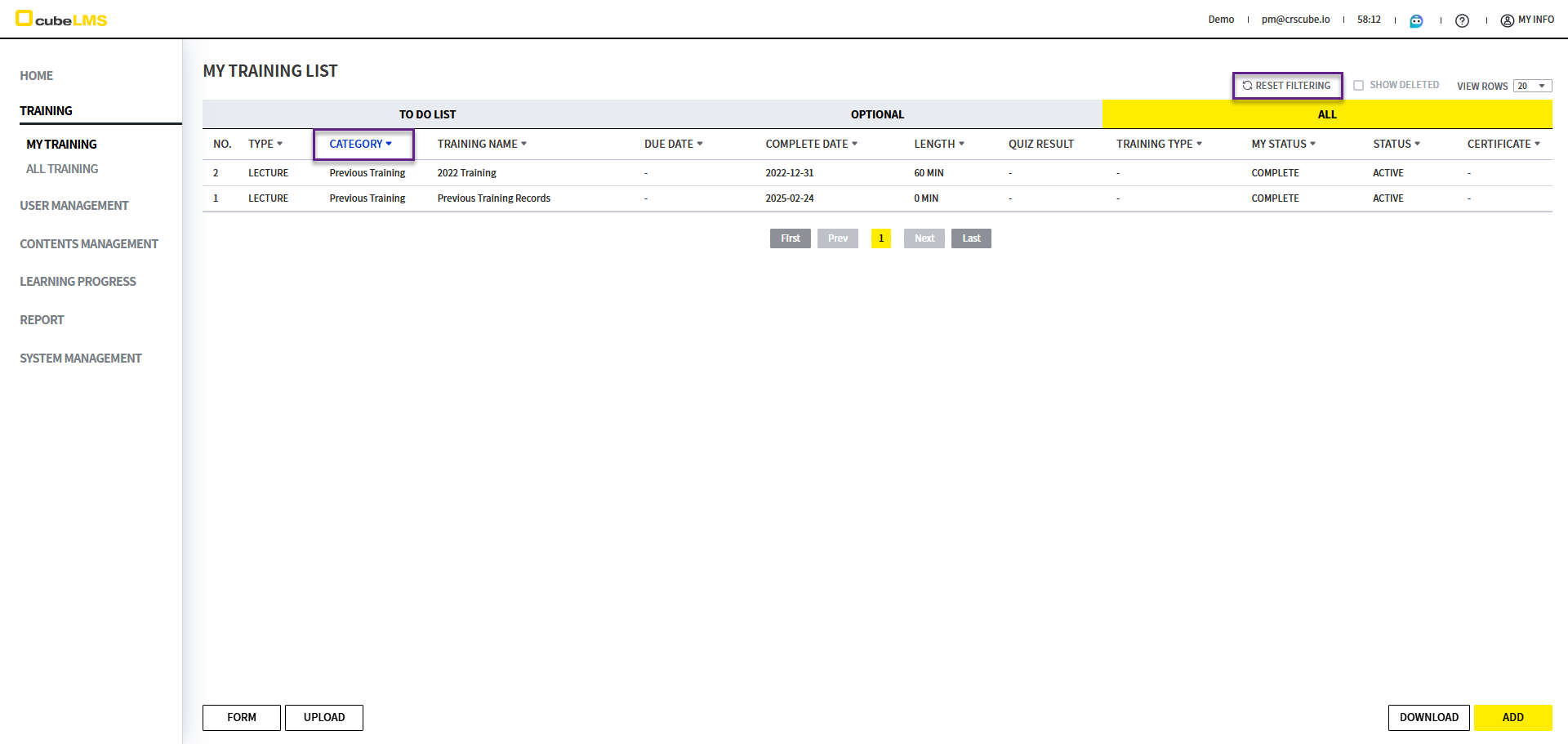
2. If there is a Previous Training whose details you want to edit, click the corresponding row to open the details page.
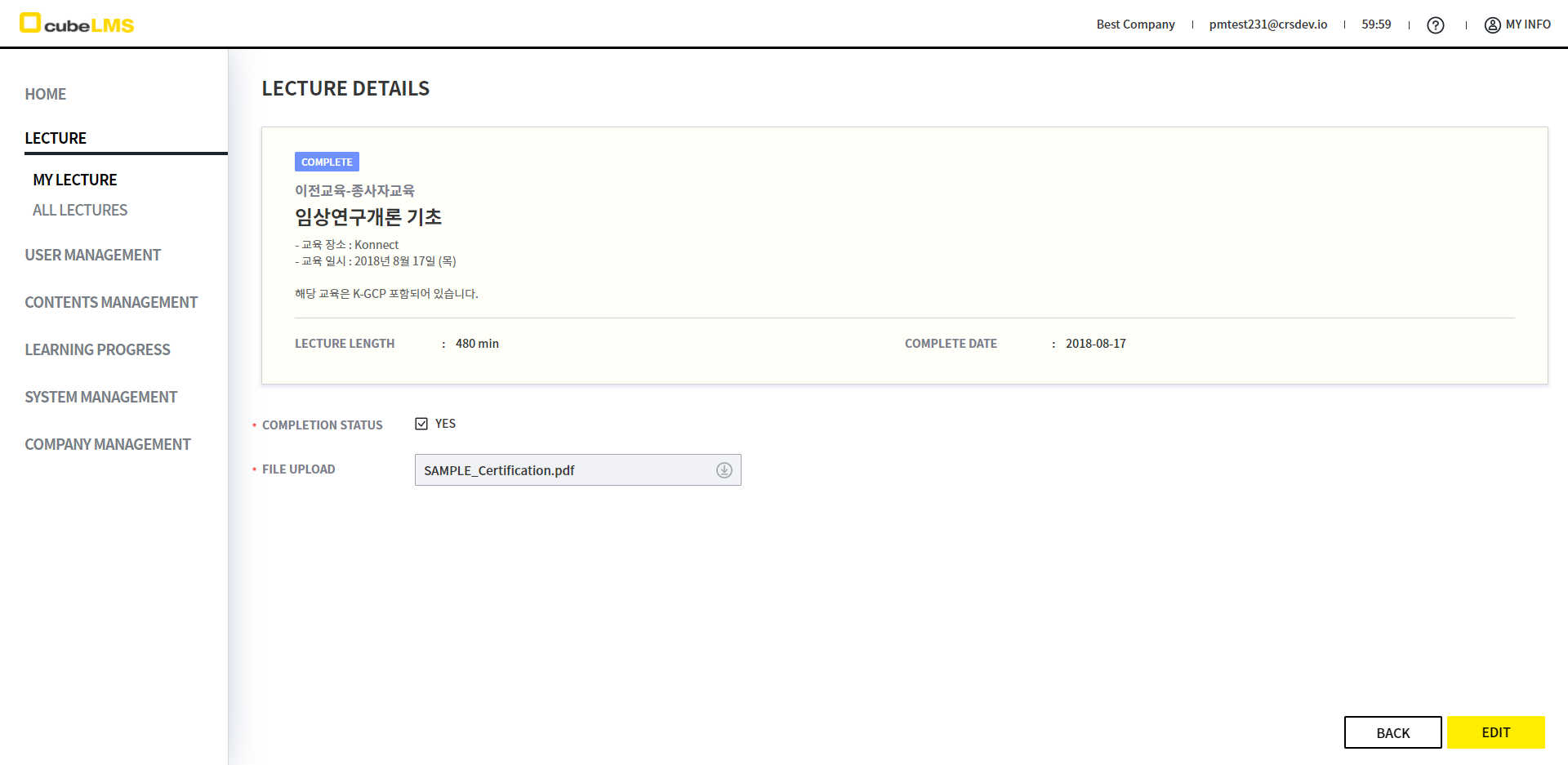
On the detailed page of the self-reported training you entered, you can view the lecture details.
4. EDIT button: Click this button to enter the edit page.
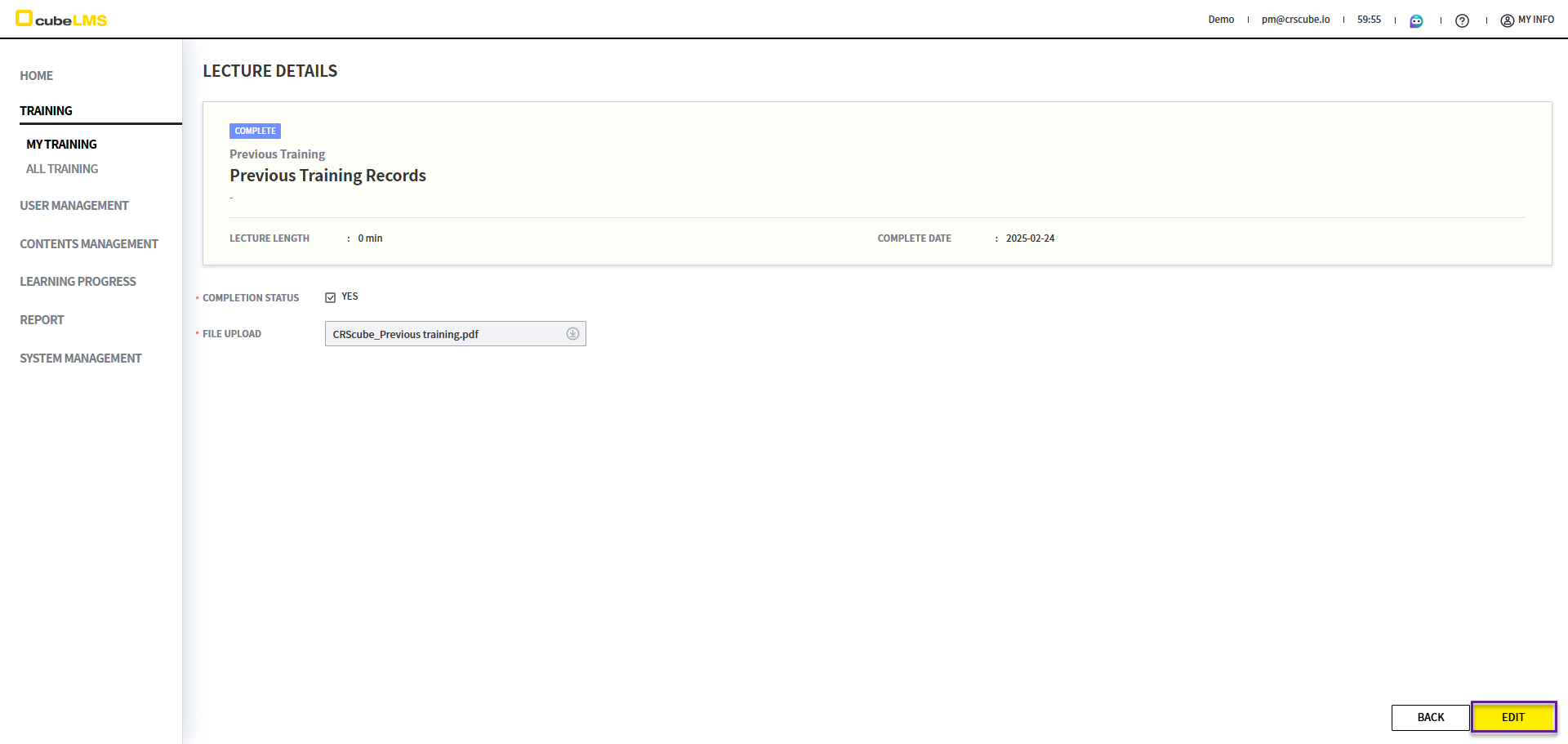
5. You can edit the entered information.
6. If you click Attachment: YES, the field for uploading files is enabled.
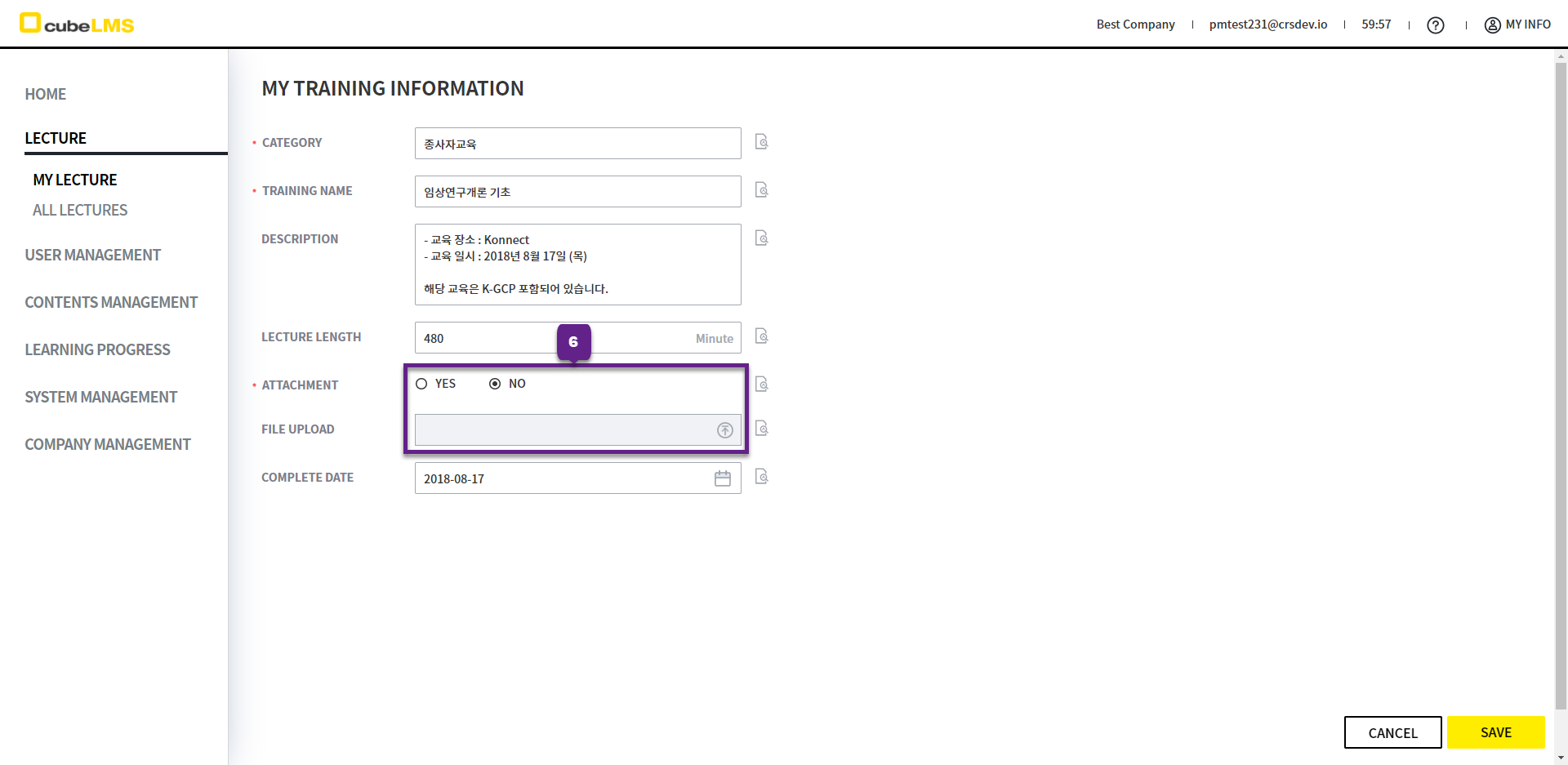
7. File Upload field to upload a file.
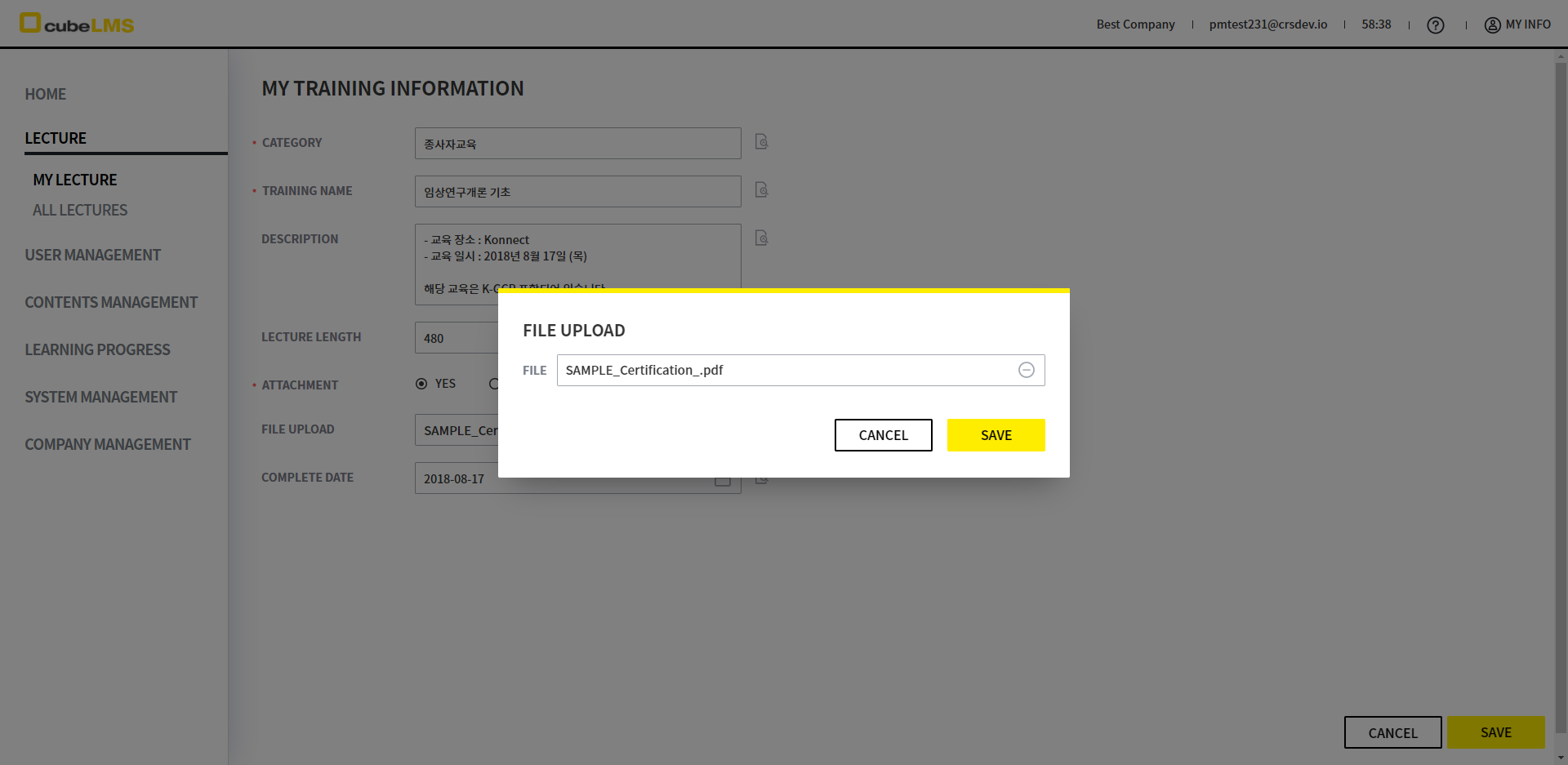
8. Click the SAVE button to save.
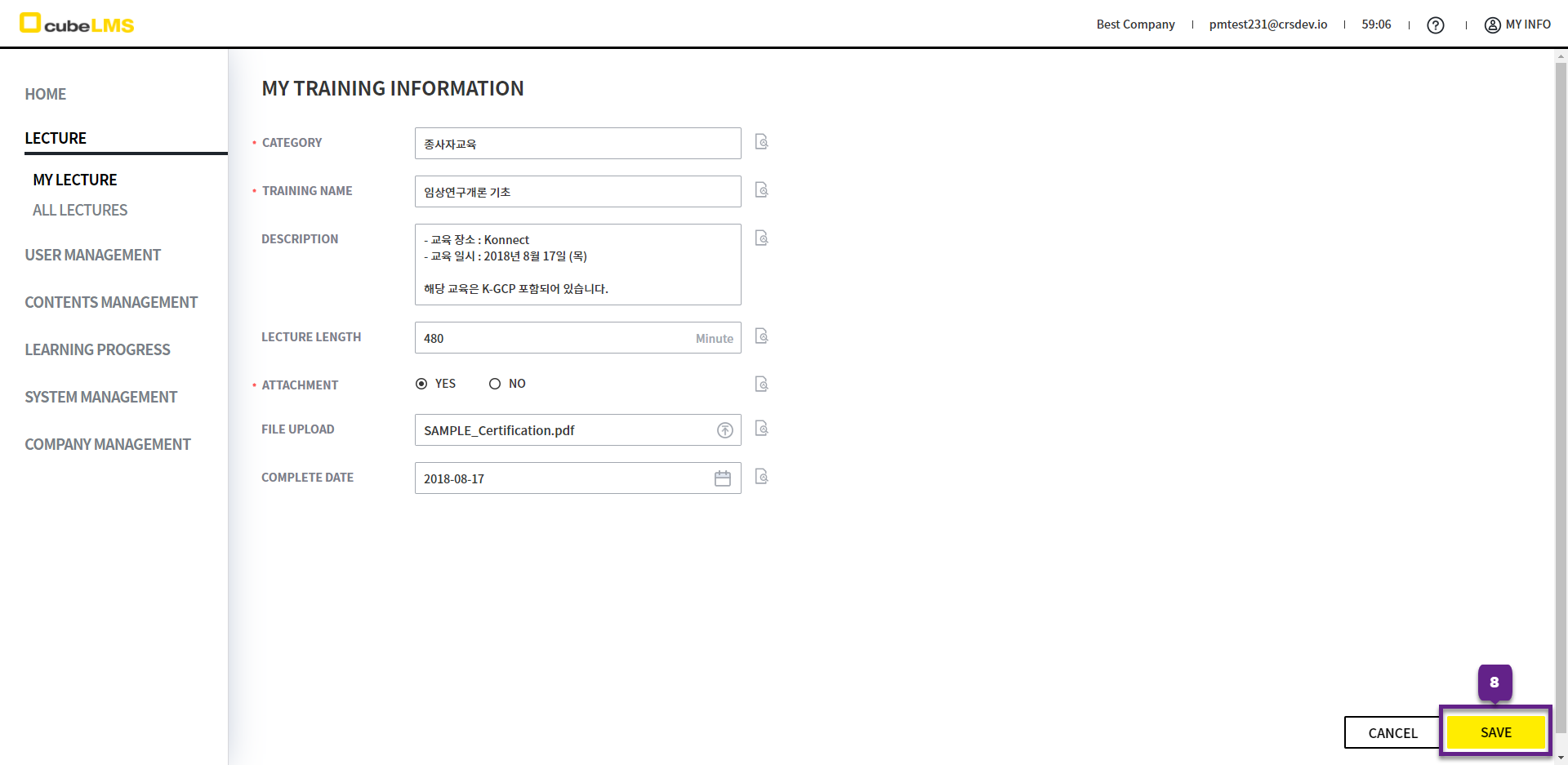
9. After saving, you are moved to the detail page. The detail page is displayed as follows.