Login
-
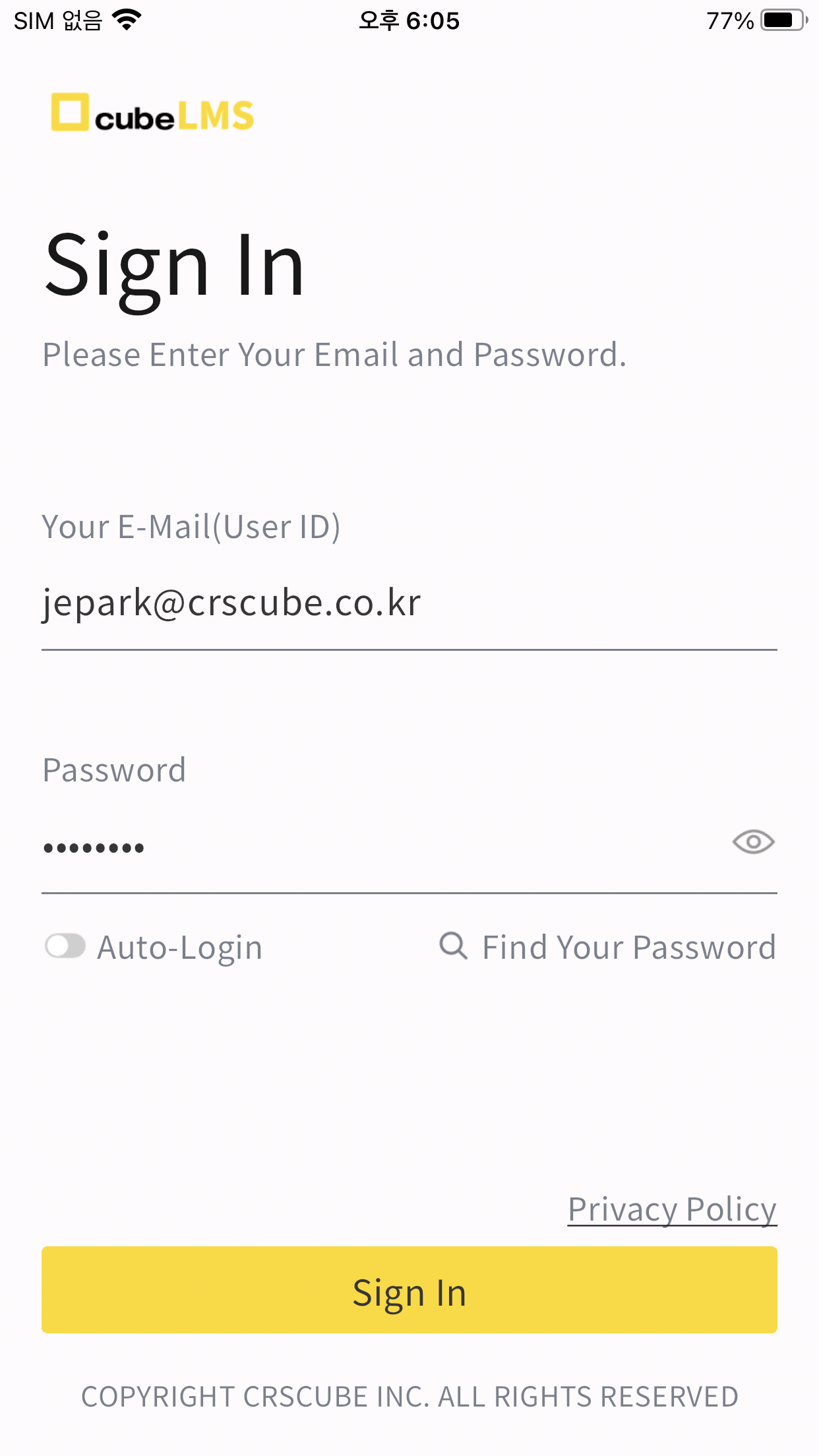
Launch the cubeLMS app installed on your smartphone.
-
Enter your user email or ID and password.
-
If you have separately set a User ID that is not in email format in cubeCDMS, you can also log in by replacing Email with that ID.
-
The cubeLMS account is a cubeSolution integrated account and shares the password with all Solution components (cubeCDMS, cubeBUILDER, cubeCTMS, cubeTMF) with User Integration applied.
-
You can log in with the same password for the same account, regardless of the cubeLMS server(SVC, EDU, STG, DEV).
-
-
Tap Log in.
To protect your privacy, on shared smartphone devices, we do not recommend saving your user email/ID and password on the device or using the app's auto-login function.
Screen after login
-
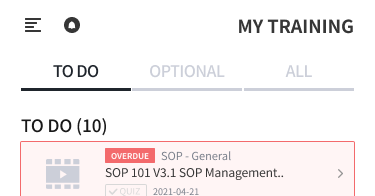
If there is only one registered company, — that company's MY TRAINING · TO DO screen.
-
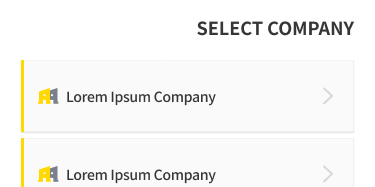
If more than one company is registered — SELECT COMPANY screen, you must first select a company to enter the MY TRAINING screen.
Auto Login
-
If you log in to the cubeLMS app with Auto Login checked on the login screen, you will be automatically logged in each time you launch the app. Auto Login is available only when the selected server is 'Service', and once set, it remains in effect until one of the following events occurs.
-
If you log out of the cubeLMS app
-
If 30 days have passed since you enabled Auto Login
-
If you delete the cubeLMS app from the smartphone device where Auto Login is enabled
-
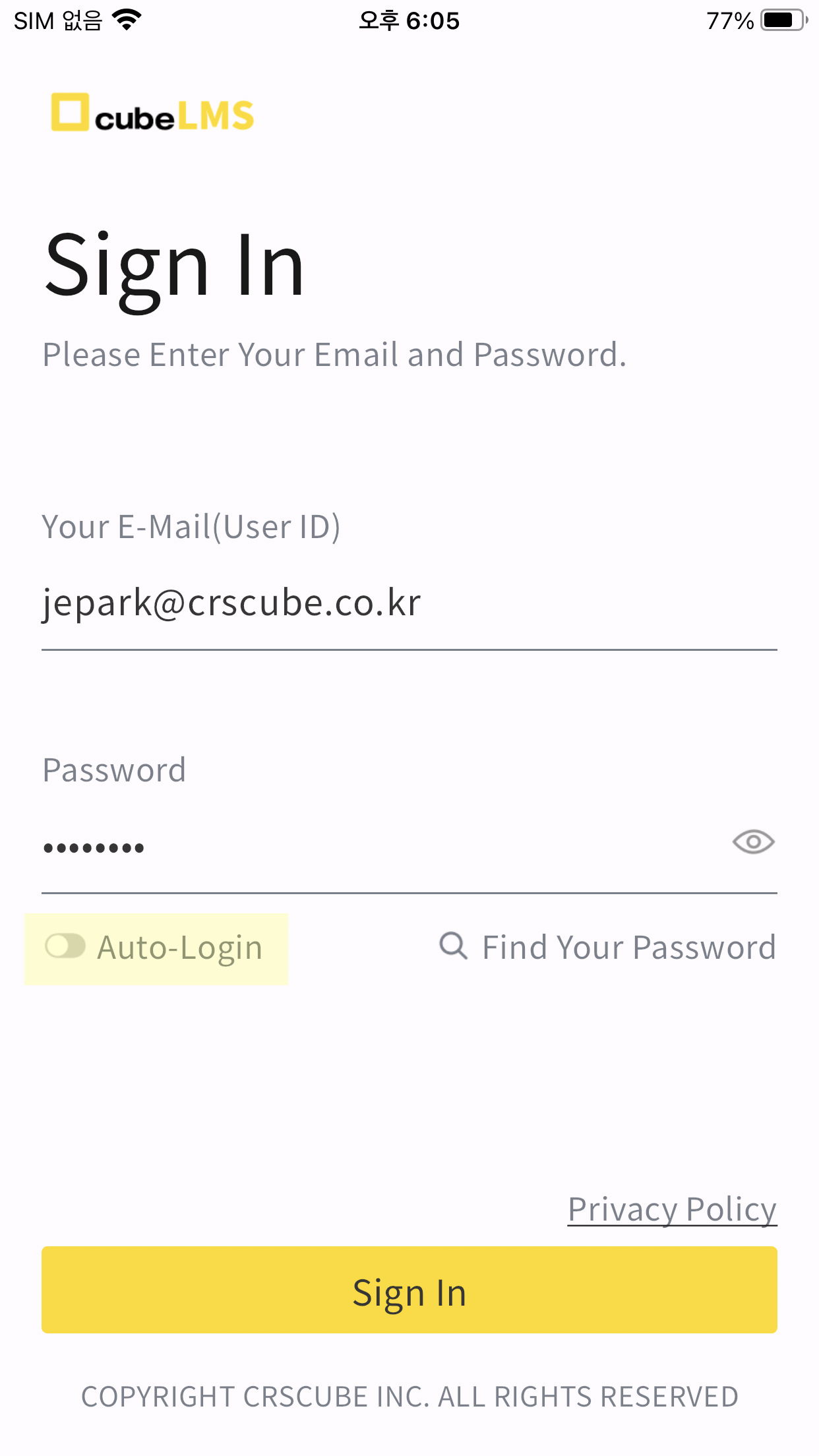
Access Server
-
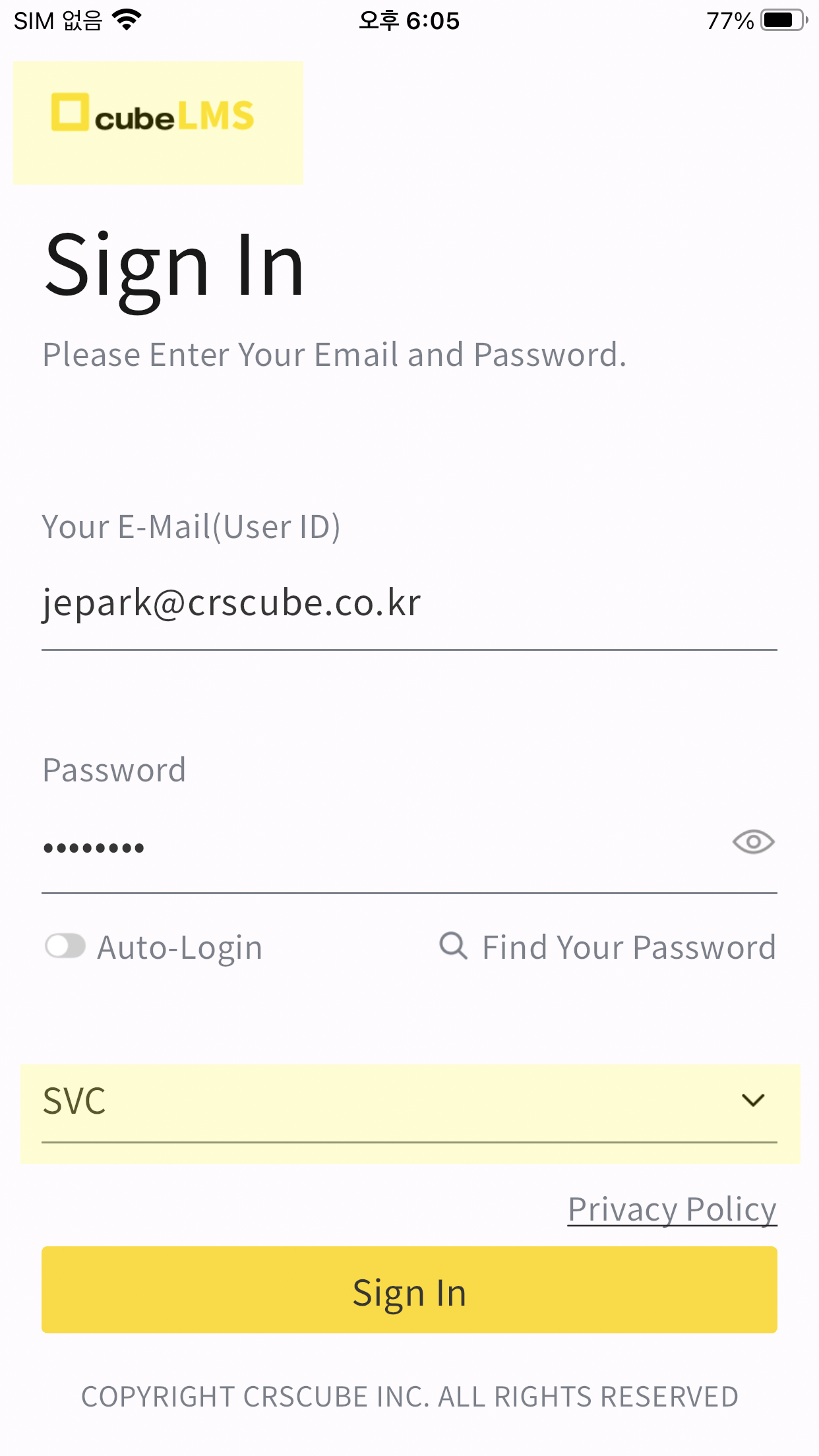
By default, you log in to the Service server, but you can change the server to connect to as follows.
-
The logo image displayed in the upper-left corner of the login screenis tapped quickly five times in a row to display the server selection drop-down menu.
-
Tap the server selection drop-down, select the server you want, and log in.
-
-
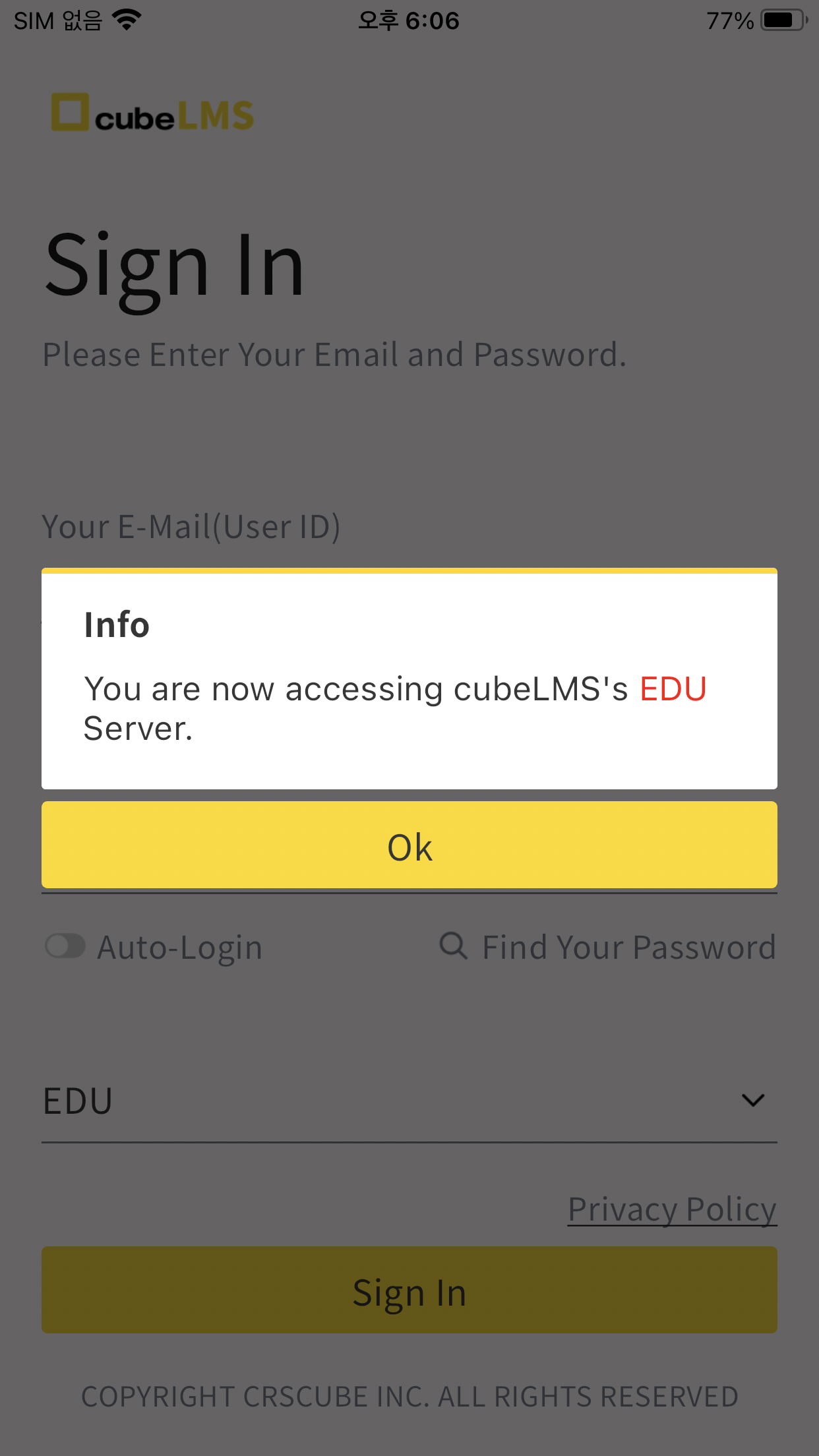
If you log in to another server (EDU, STG, DEV), a pop-up appears to notify you.
-
-
If you did not intend to access another server, log out and then change the server on the login screen before connecting again.
-
The Service server does not display this popup.
-
Privacy Policy Consent
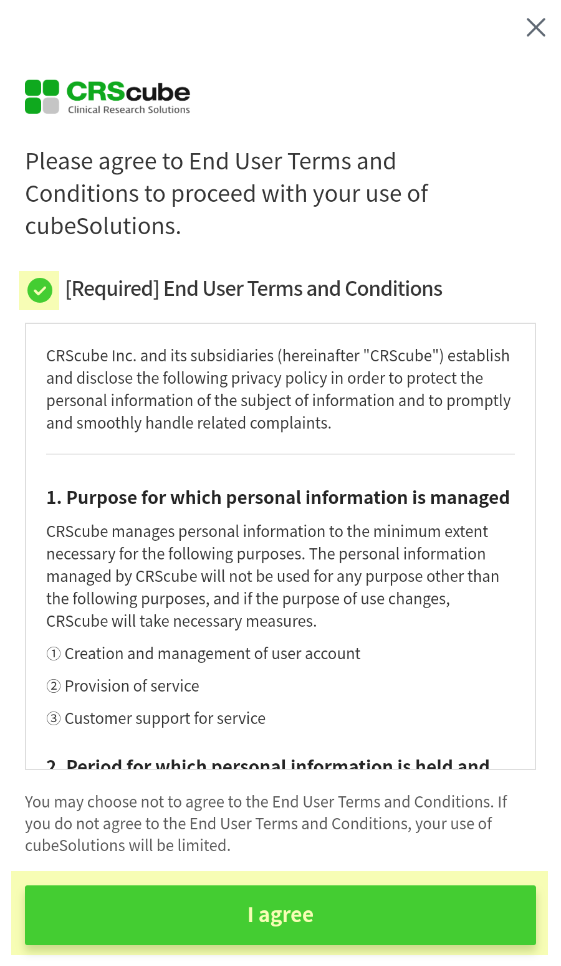
Users who access cubeSolution for the first time are taken to the 'cubeSolution Privacy Policy' consent screen at the time of their first login. After that, follow the steps below to agree to the Privacy Policy.
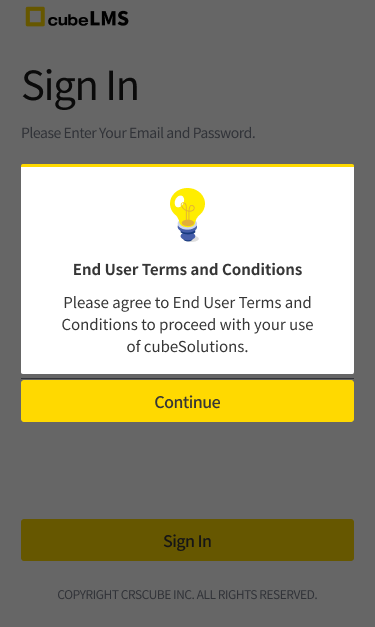
Consent Procedure
1. Review the Privacy Policy.
If you agree to the terms, check '[Required] End User Terms and Conditions' and tap 'I agree'.
-
This 'Privacy Policy' applies to the entire cubeSolution.
-
This 'Privacy Policy' consent procedure is performed only once per account across the entire cubeSolution.
-
If you do not provide consent, you cannot use other cubeSolution services, including cubeLMS.
-
After providing consent, you can reconfirm the content of the 'Privacy Policy' at any time by clicking the
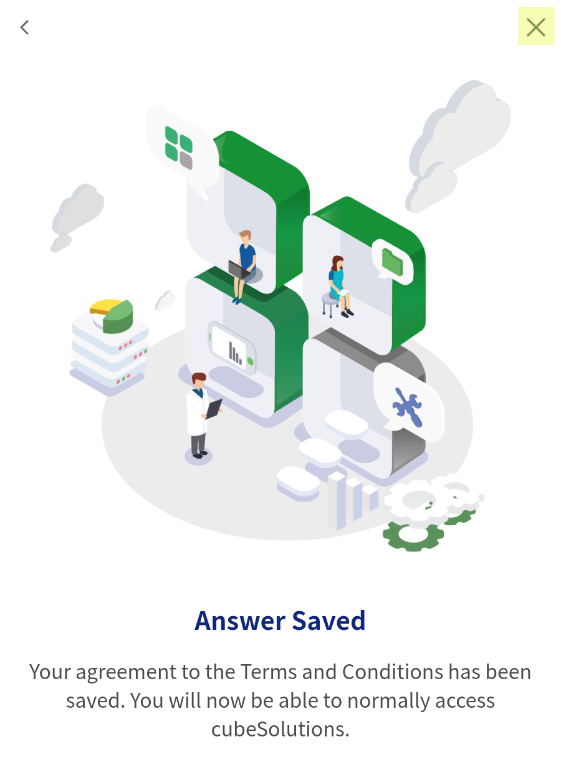
3. After confirming that the screen has moved to 'Answer Saved', click X.
4. Log in again on the login screen.
90-day password change period expiration
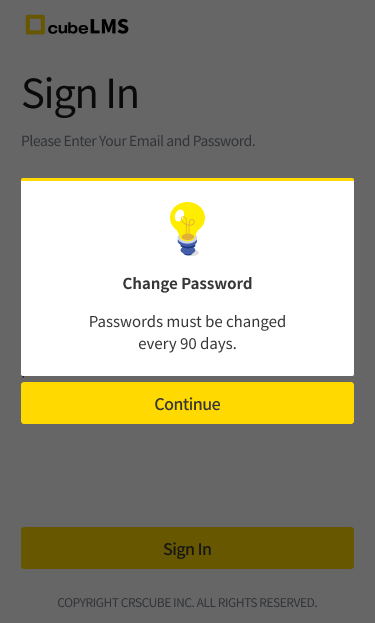
Accounts whose 90-day password change cycle has expired are taken to the Password Change screen before accessing the system at login. Then, proceed with the password change as described below.
Change procedure
1. Enter your current password.
2. Enter the new password.
3. Re-enter the new password.
4. Tap Confirm.
5. Log in again on the login screen.
-
When you reset your password, the new password cannot be the same as the current password.
-
The password must be 8 to 30 characters long and include letters and numbers, and some special characters 「!"#$%&'()*+,-./:;<=>?@[\\]^_`{|}~」 can also be used.
.png?cb=aea5a116d4c87e9c3e5184ac51e61e10)
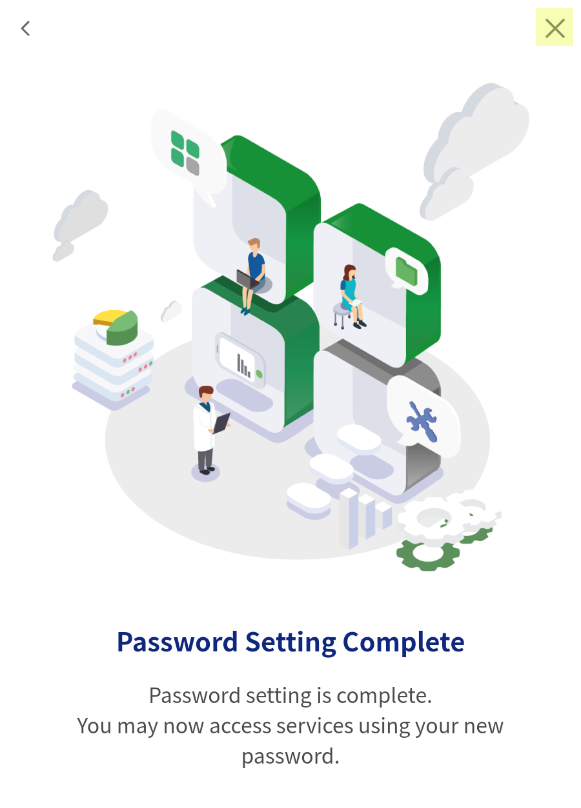
6. After confirming that you have moved to the 'Password Settings Complete' screen, click X.
7. Log in again on the login screen.
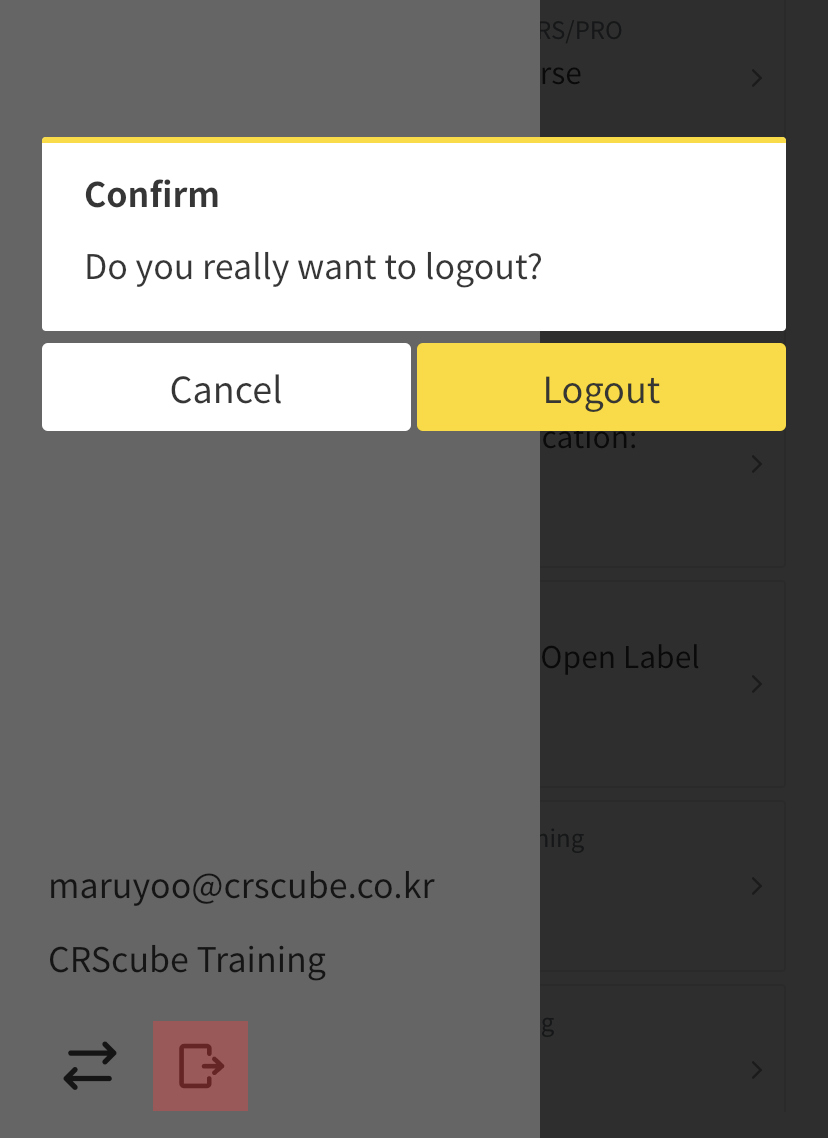
Logout
-
Tap the menu button in the upper-right corner of the app screen.
-
Tap the Exit button in the side menu.
-
Tap Logout in the Confirm popup.