You can set up Backup Email to synchronize Training completed in your previous account.
* Data Synchronization Conditions
To synchronize data, you must meet the following conditions.
-
The Training backed up in the Backup Email account must be the same as the Lecture or Course assigned to the current Trainee account.
* Data synchronization Precautions
Before synchronizing the data, please make sure to review the following precautions first.
-
When you register a Backup Email for data synchronization, you can synchronize only once.
-
After synchronization, the Complete Date of the Lecture or Course that satisfies the conditions will reflect the synchronization date.
-
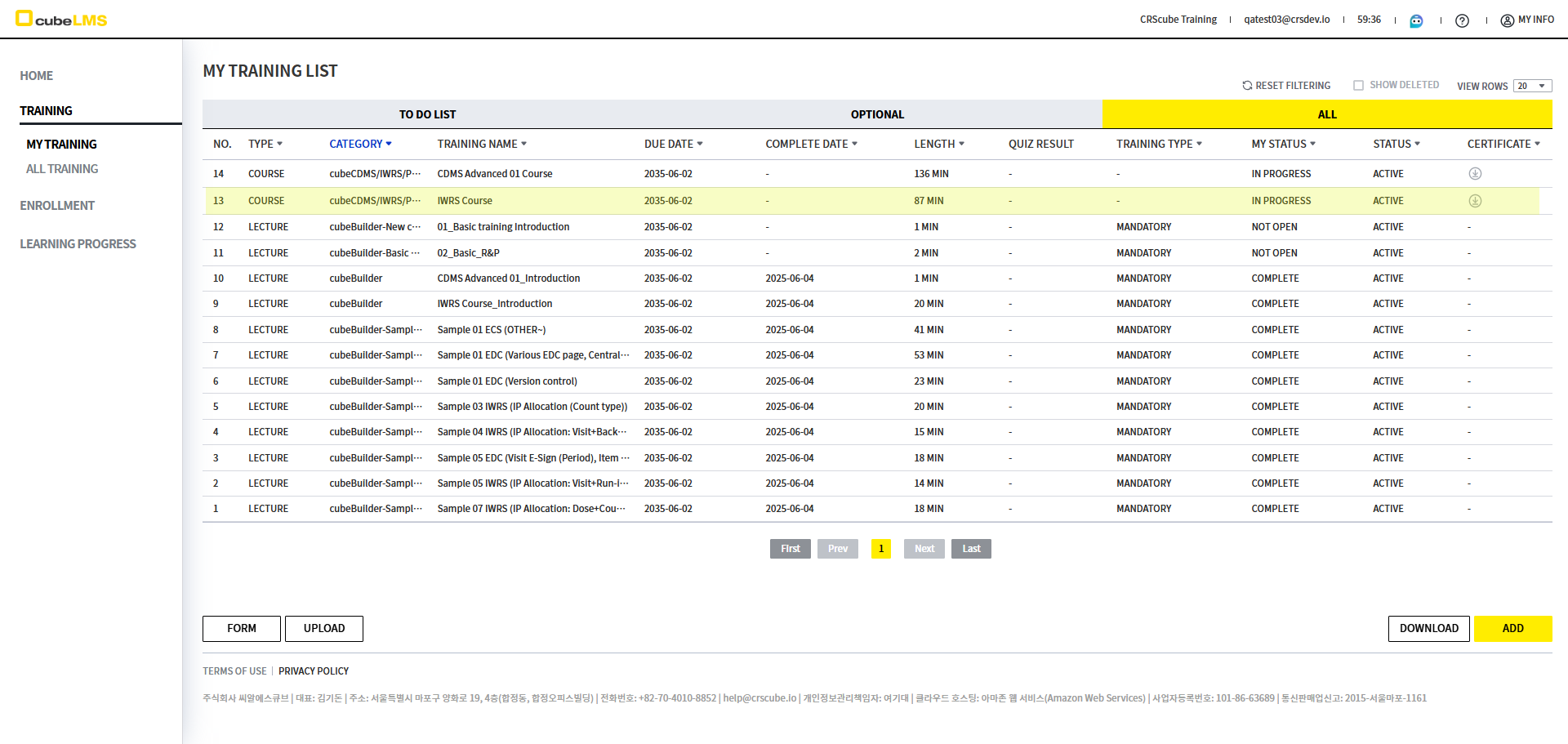
However, if it is a Course that can be completed after the Contents Manager checks it, the Lectures included in the Course will be marked Complete, but the Course will not be completed and will change to In Progress.
-
-
If you synchronize a Course that includes a Certificate, a new Certificate is issued to match the group, date, and other details corresponding to when the Course becomes Complete.
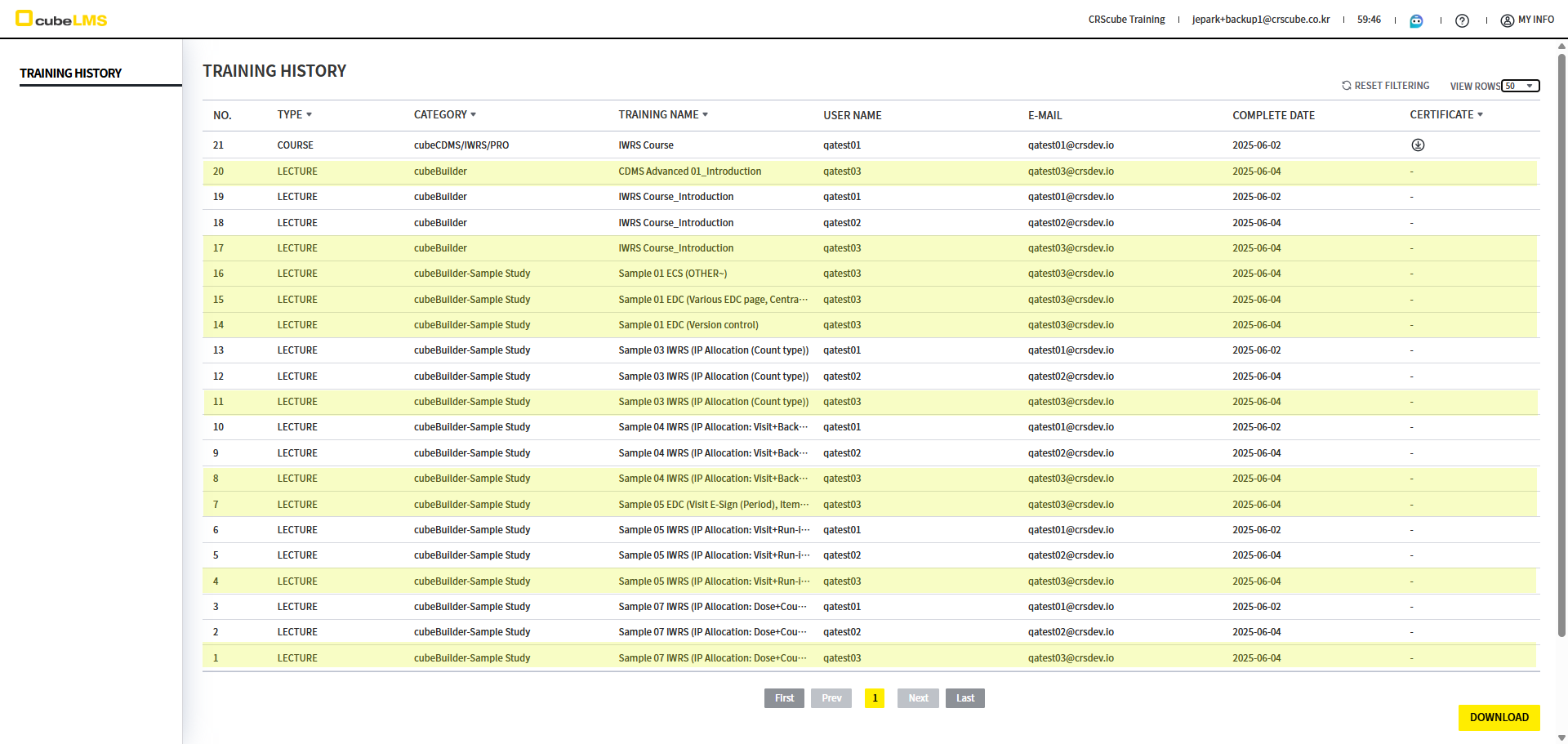
Step 1. Check Training on each screen to meet the synchronization conditions.
01. Check the Training backed up in Backup Email
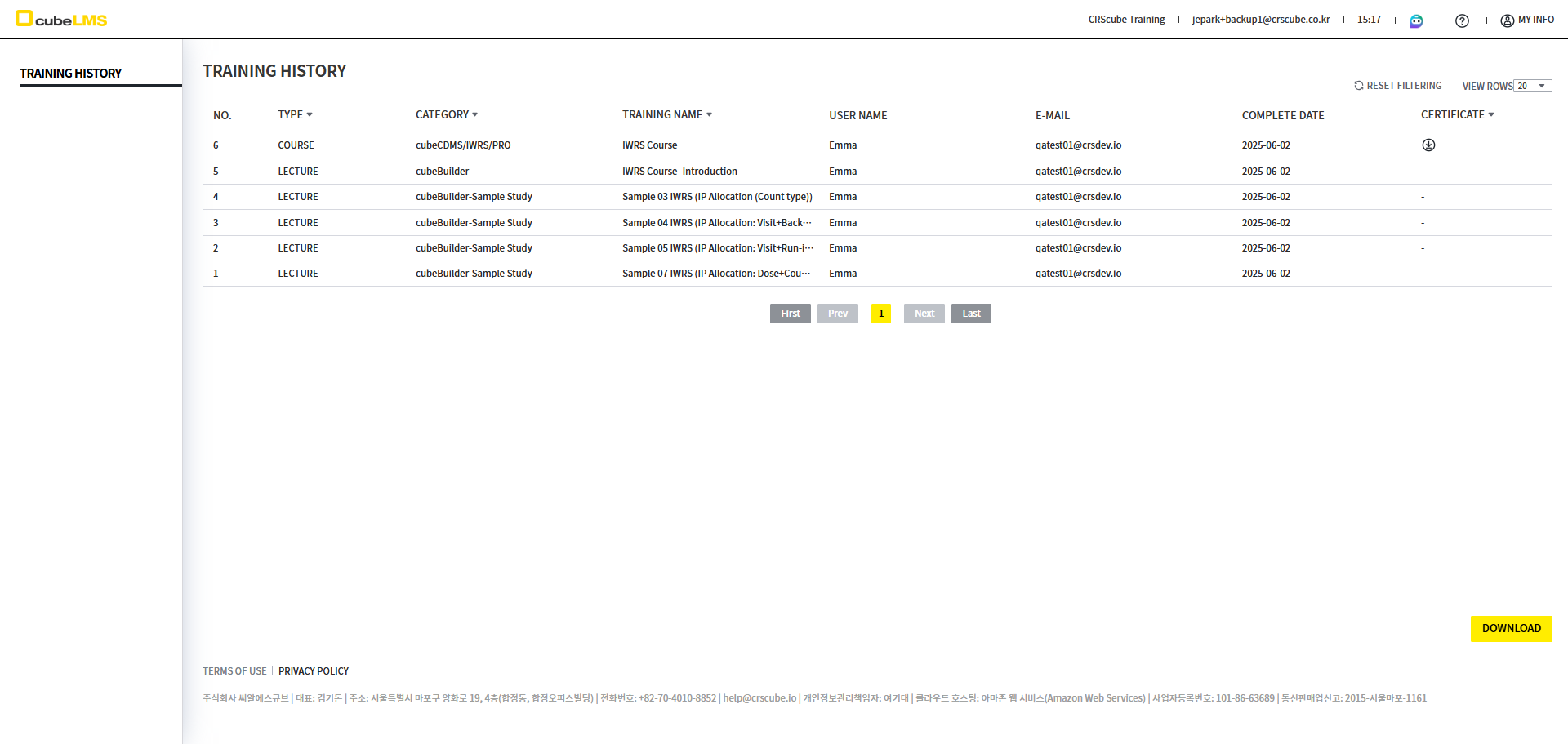
02. Check whether the Trainee account has the same Training as the Backup Email account.
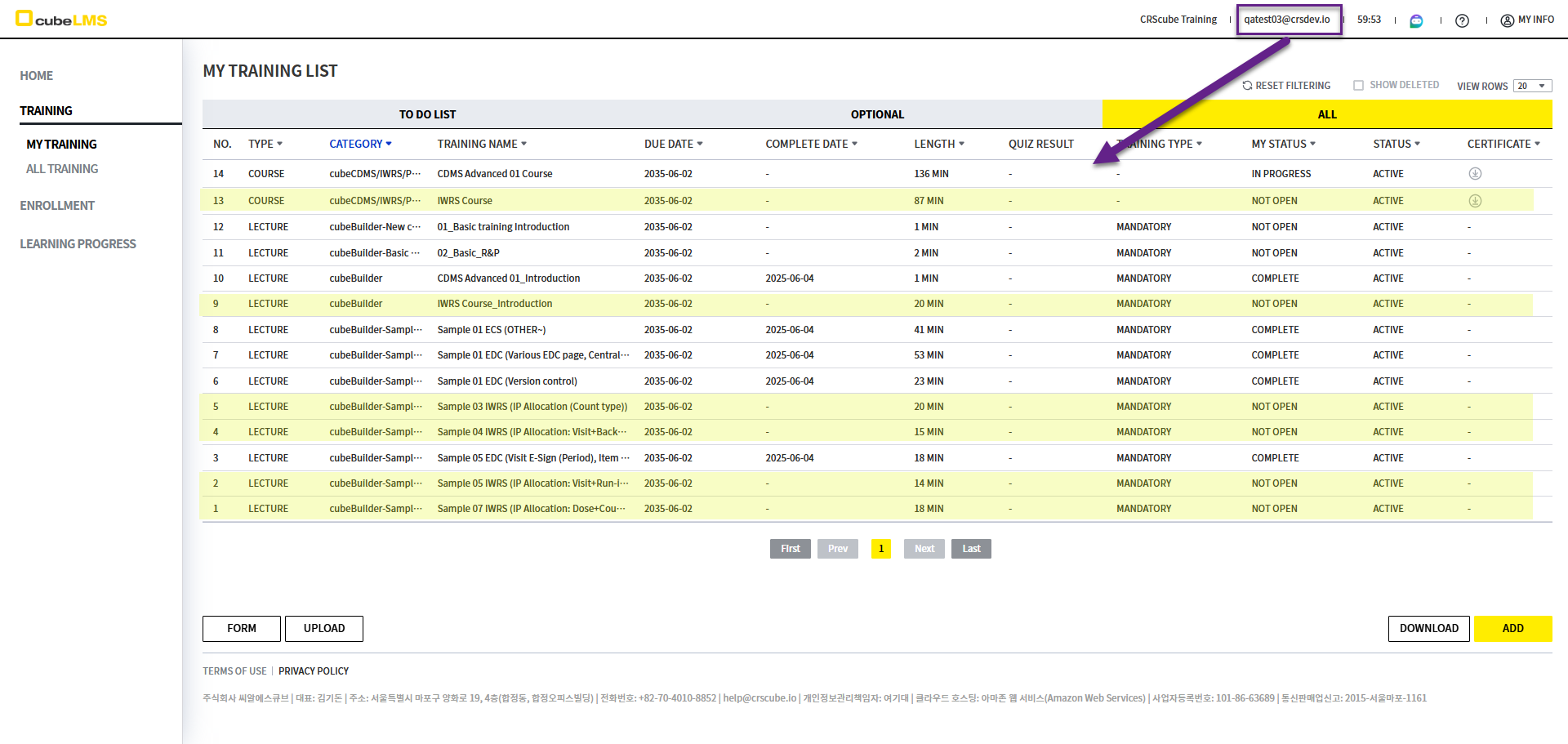
Step 2. Register Backup Email in My Information
01. Go to My Information and register the Backup Email account that has the Training you backed up.
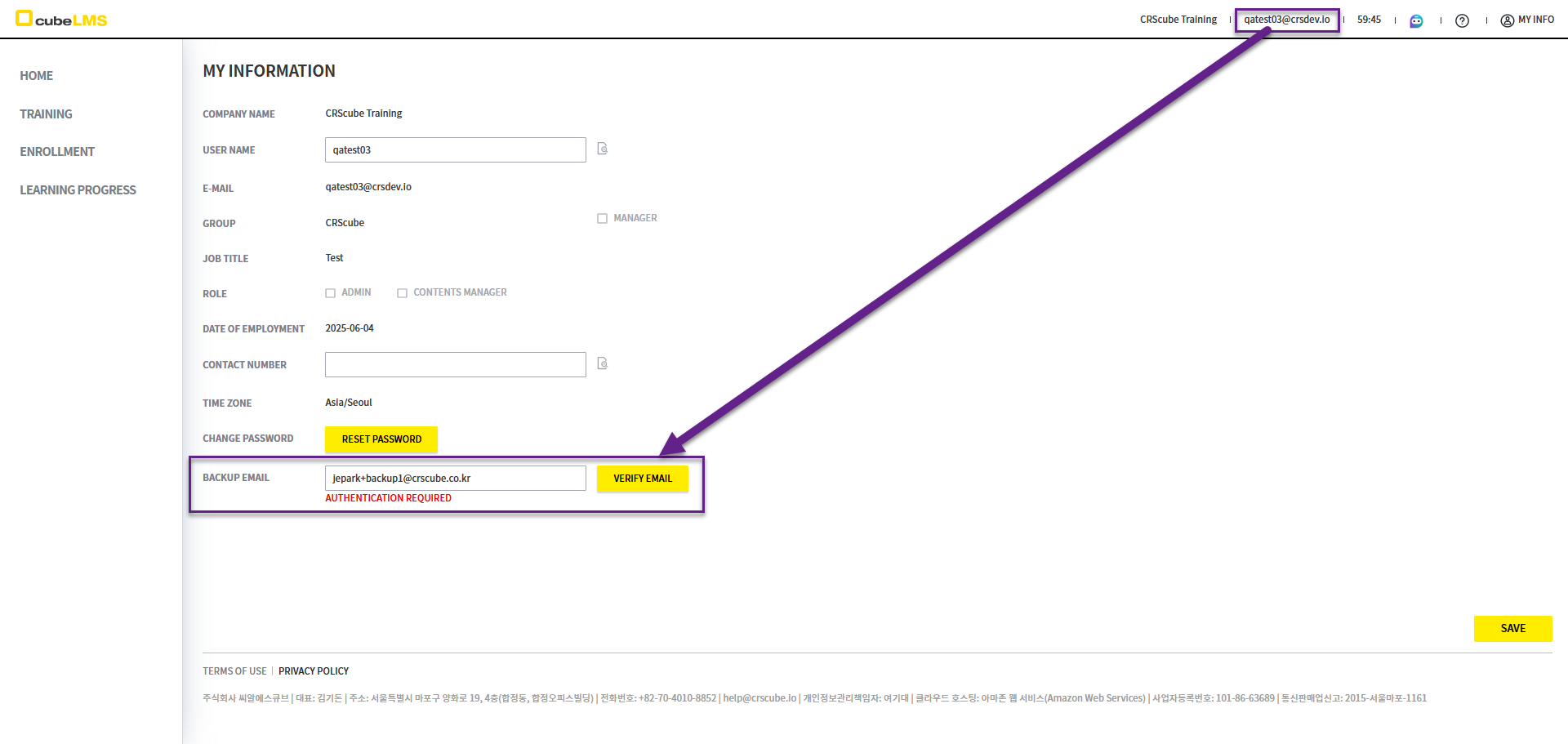
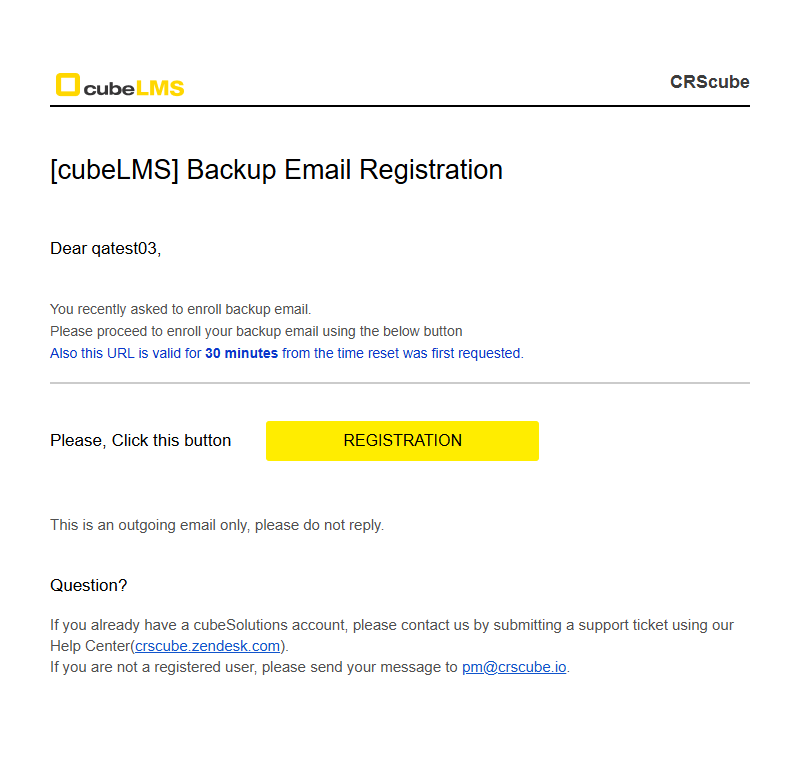
02. When you click the 'Verify Email' button, you can check the 'Backup Email Registration' email in the Backup Email account inbox and click the 'cubeLMS' button.
Email Precautions
The verification button in the email is valid for 30 minutes.
If 30 minutes have passed since you received the email and you click the 'Registration' button, you will be redirected to the Invalid Certificate page, indicating that verification failed.
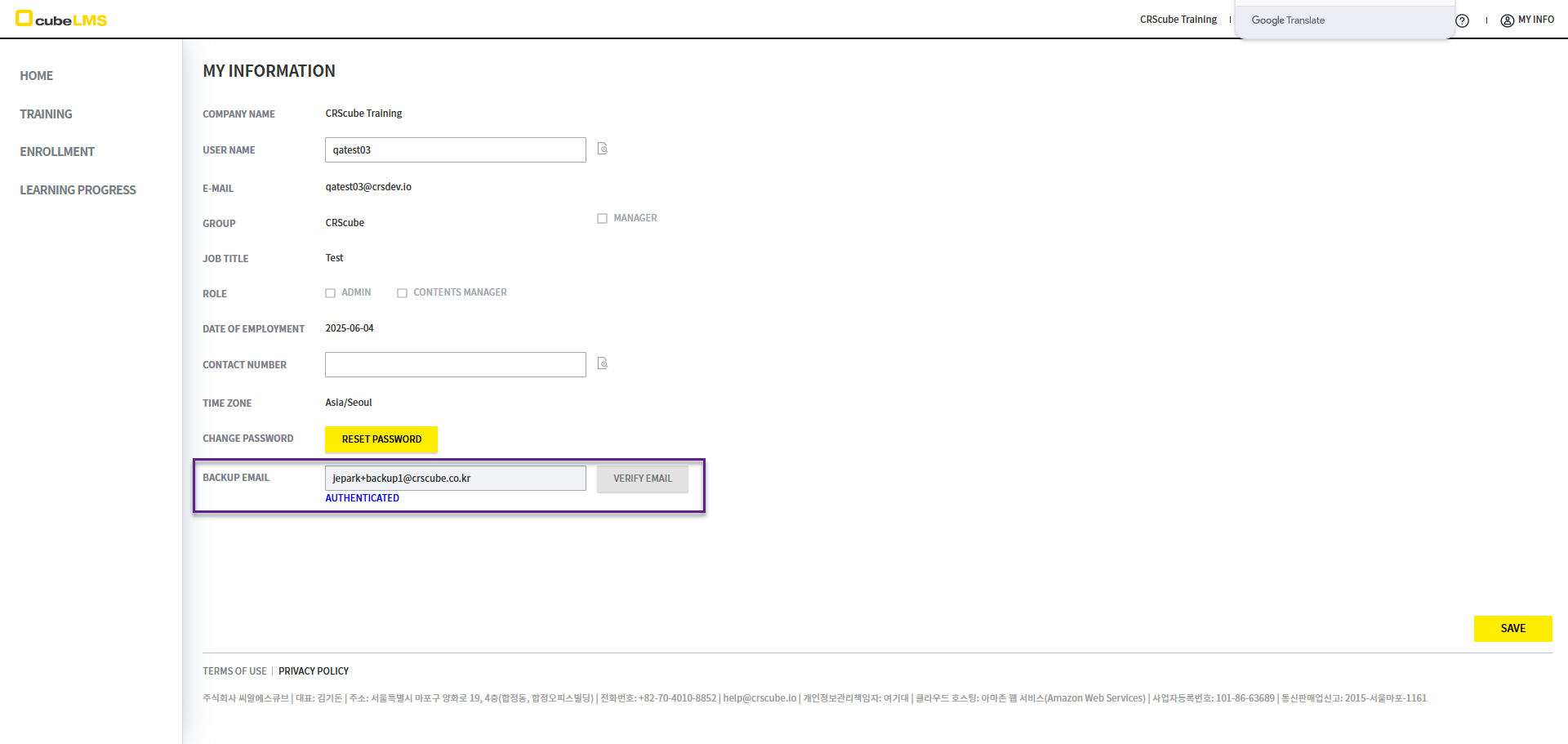
03. Once email verification is complete, you can confirm that Backup Email has been registered.
Registration notes
When Backup Email registration is successful, 'Authenticated' appears below the input field, and the input field and 'Verify Email' button are disabled.
Step 3. Check Training in the My Training menu
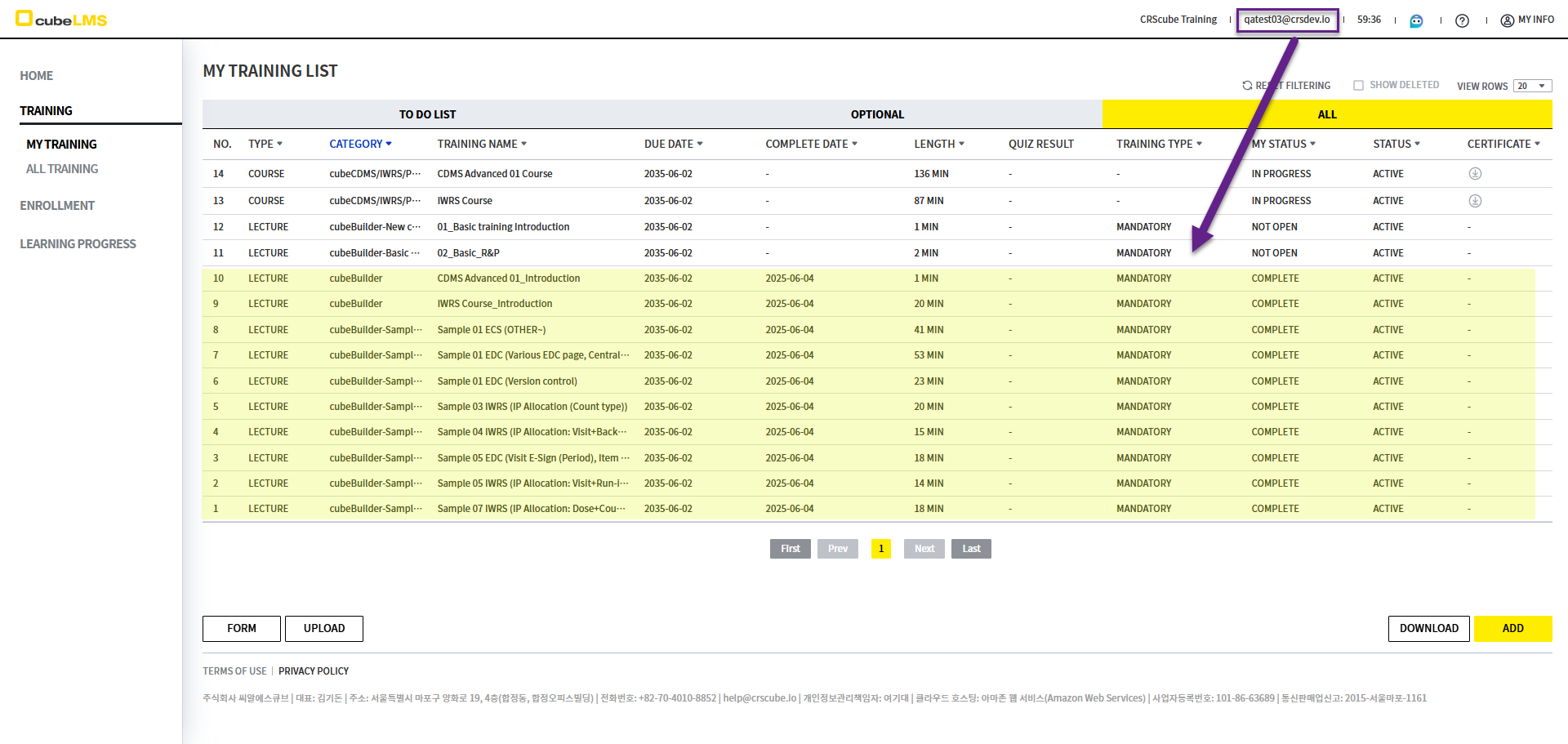
01. After the Backup Email is registered, go to the All tab in the My Training menu.
02. You can confirm that the same Training checked in Step 1 has been automatically set to Complete.
03. For item 2 in the notes, Courses that require Contents Manager to Check for completion will not be Complete and will be changed to 'In Progress' status.
Backup Email notes after synchronization
After synchronization, any Training completed in the relevant Trainee account is automatically backed up to the Backup Email.