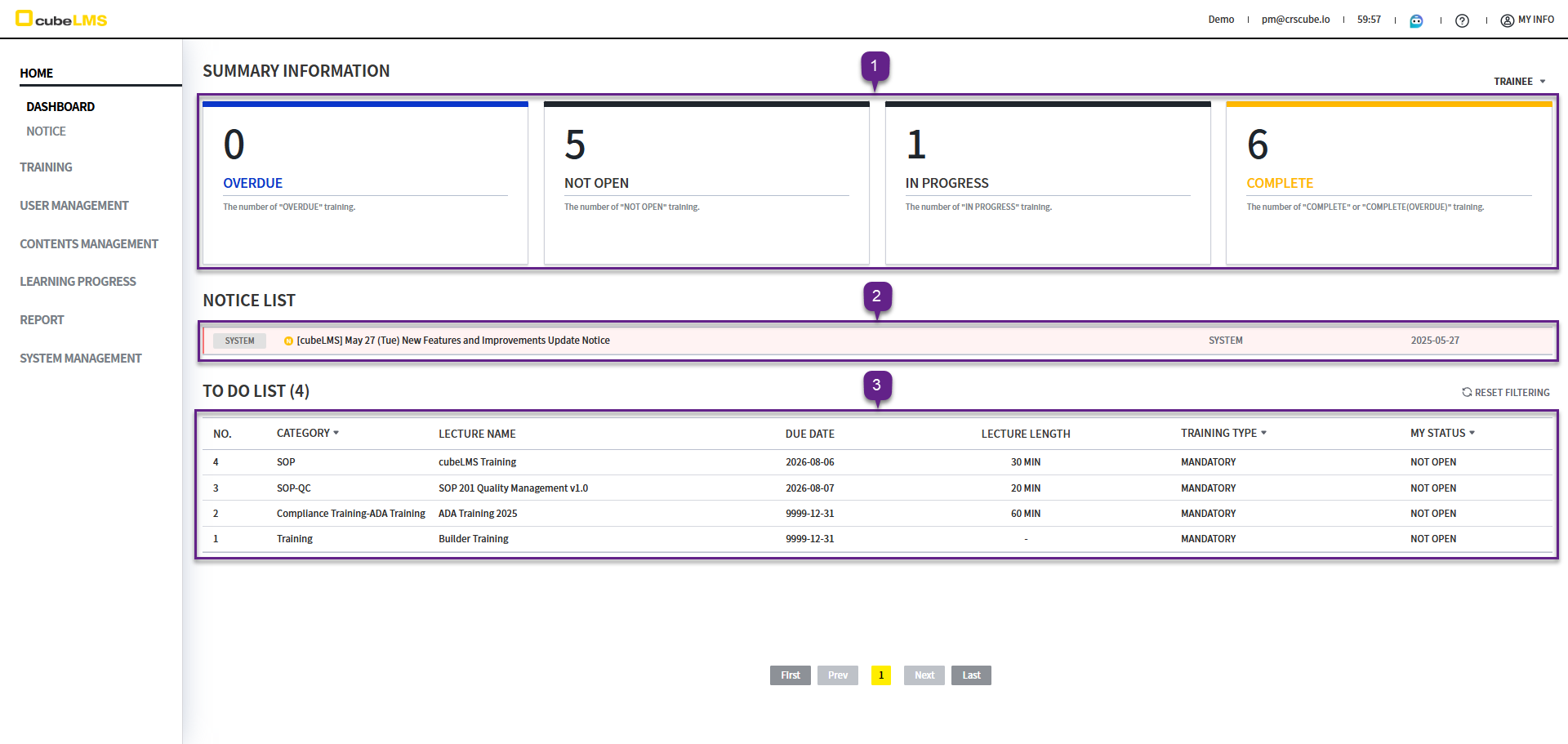
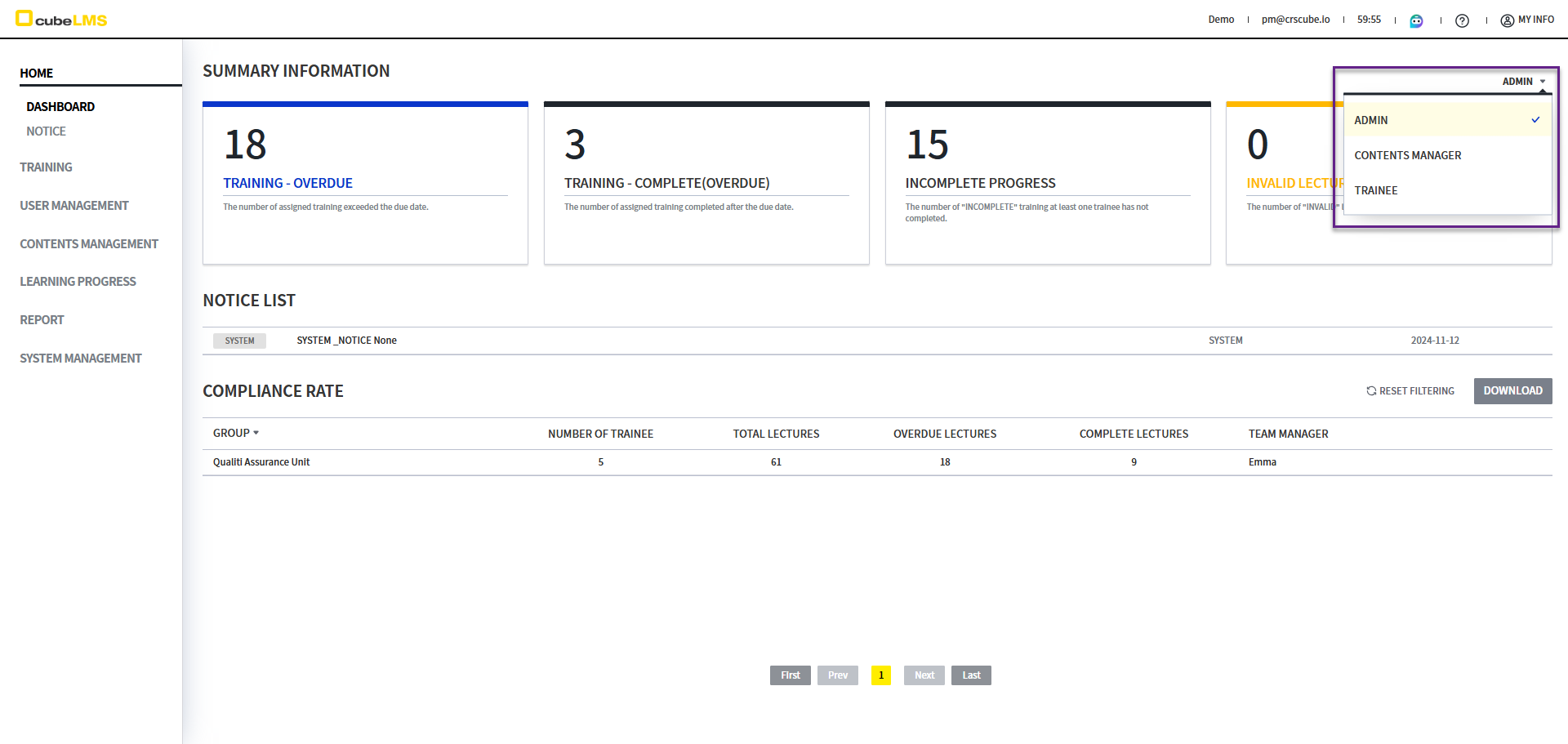
The information displayed varies depending on the assigned Role, and if you have multiple Roles, you can select a Role in the upper right corner.
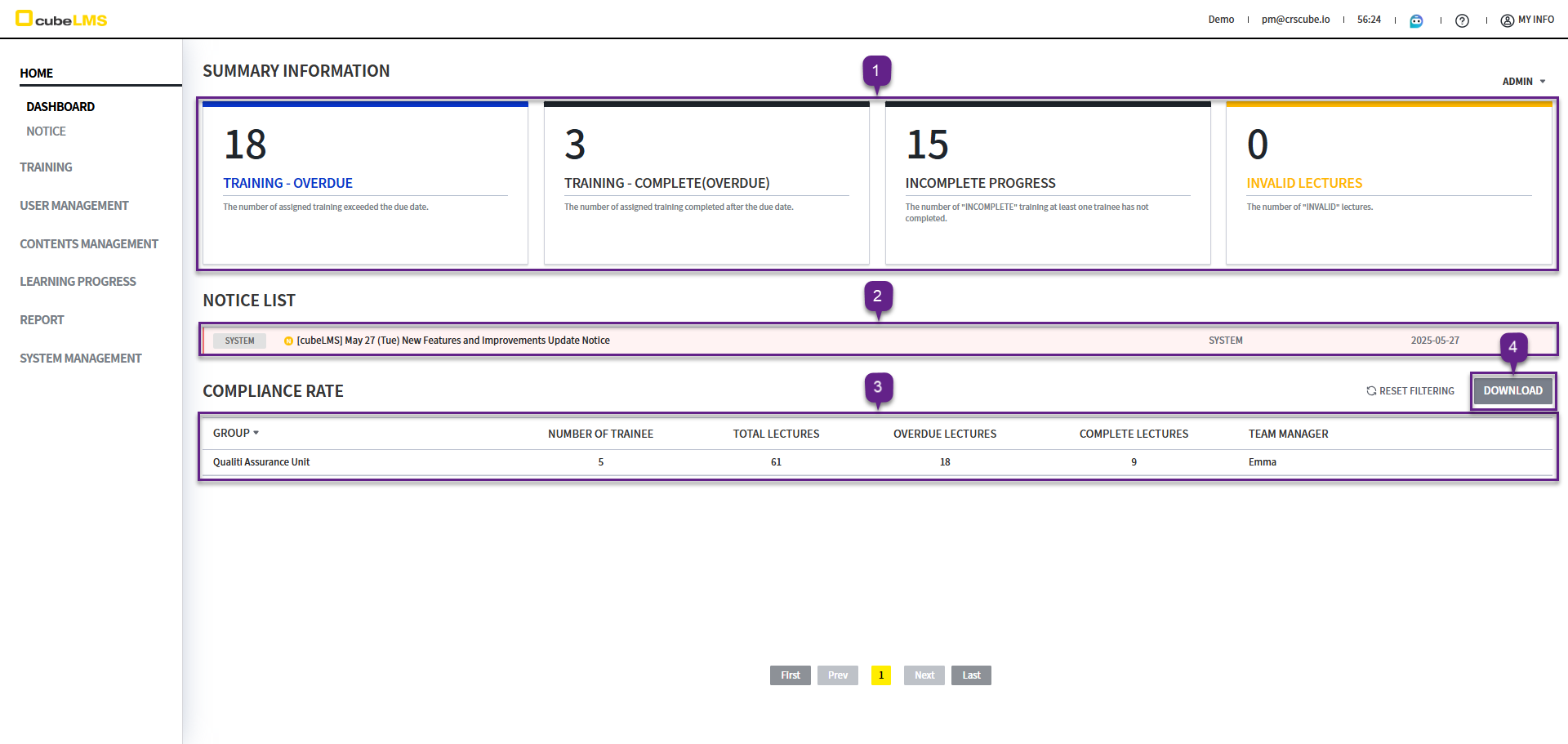
Admin Role
1. The following information is displayed in the top section. Click it to go to the page where you can view the details.
-
Trainee - Overdue:Number of Training items whose Due date has passed -
Trainee - Complete(Overdue):Number of Training items completed after the Due date had passed -
Incomplete Progress:Number of Training items that no Trainee has completed yet -
Invalid Lectures:Number of Training items that have not been fully set up
2. You can view the Notices registered to the company in the center. Click a specific Notice to move to the detail screen. The sorting order is as follows.
-
1.
'Pin To Top' CheckedNotice -
2. Order of registration
3. In the Compliance Rate List at the bottom, you can check the total number of Trainee for each Group, the total number of Lecture, the number of Overdue Lecture, the number of Complete Lecture, and the Team Manager of the Group.
4. Click the Download button on the right to download the Compliance Rate List to Excel.
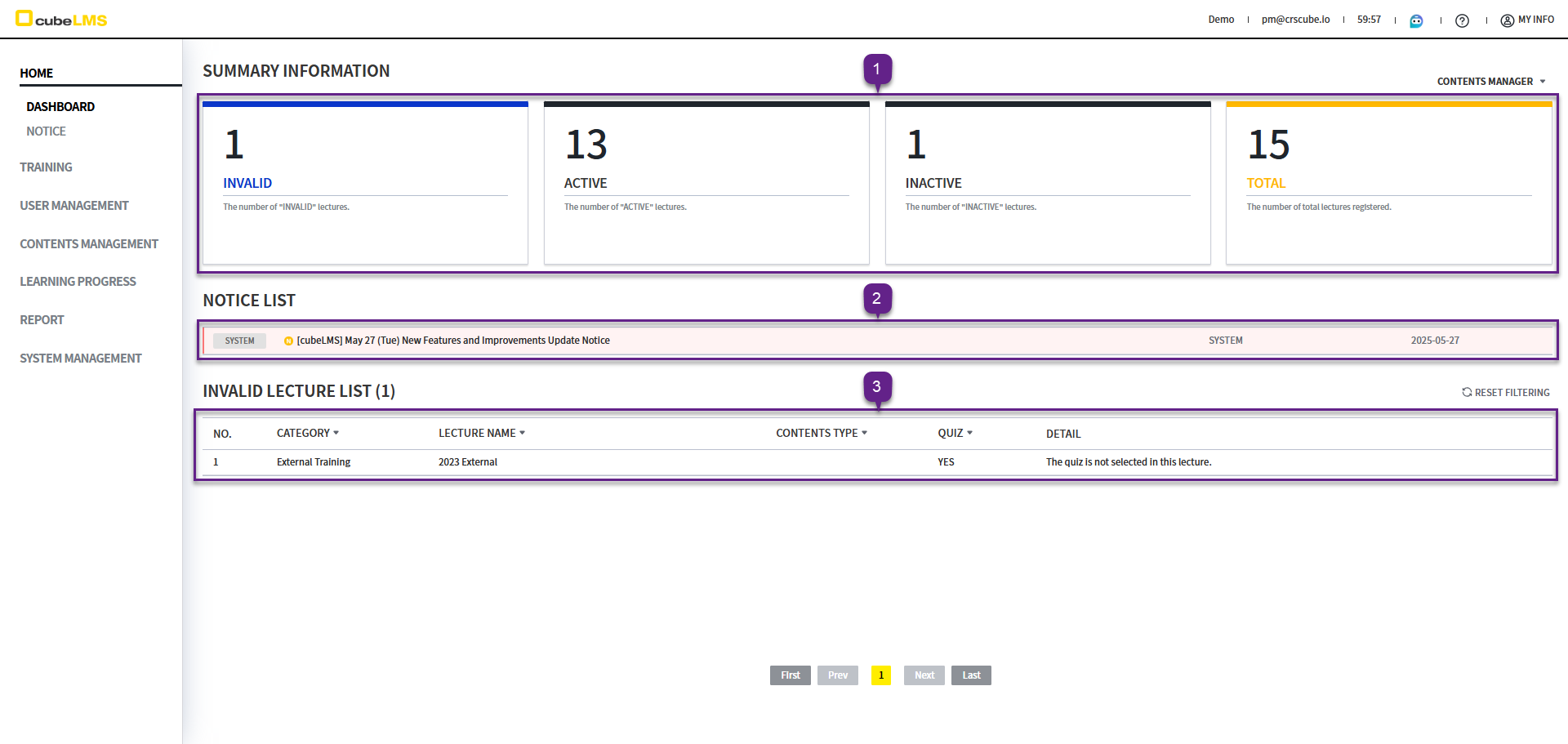
Contents Manager Role
1. The following information is displayed at the top of the Dashboard. Click it to go to the Lecture Menu in Contents Management and view the filtered List.
-
Invalid:Number of Lectures not yet configured -
Active:Number of currently active Lectures -
Inactive:Number of Lectures that have been configured but whose activation period has not started yet -
Total:Total number of configured Lectures (Lecture's Status is Active , Inactive or Expired)
-
The center shows the notices registered in the company. Click a specific Notice to go to the detail screen. The sort order is as follows.
-
1.
'Pin To Top' CheckedNotice -
2. Order of registration
3. Invalid Lecture List: You can view information about Lectures whose setup is not complete. Click it to go to the Lecture Information screen in Contents Management where you can configure that Lecture.
Trainee Role
1. The following information is displayed at the top of the Dashboard. Click it to go to My Training and view the filtered List.
-
Overdue:Number of overdue Training -
Not Open:Number of Training not yet started -
In Progress:Number of Training in progress -
Complete:Number of completed Training
-
In the center, you can view the Notices registered in the company. Click a specific Notice to move to the detail screen. The sorting order is as follows.
-
1.
'Pin To Top' CheckedNotice -
2. In order of registration
3. In the To Do List, you can view Lectures that have not been completed. Lectures past their due date are listed at the top, and clicking them takes you to the details page where you can take the Lecture.