Calendar
Click the input field for entering a date to display the Calendar, then select the date in the Calendar.

Radio Button
Items that require single selection are configured in the following Radio Button format.
The Radio Button input allows you to select only one item.

Checkbox
For items that require multiple selection, they are configured in Checkbox format as shown below. Checkbox input fields allow multiple selections, unlike Radio Button input fields.
To clear a selected item, click it again to deselect it.

Textbox
You can enter data directly in input fields implemented as Textbox.

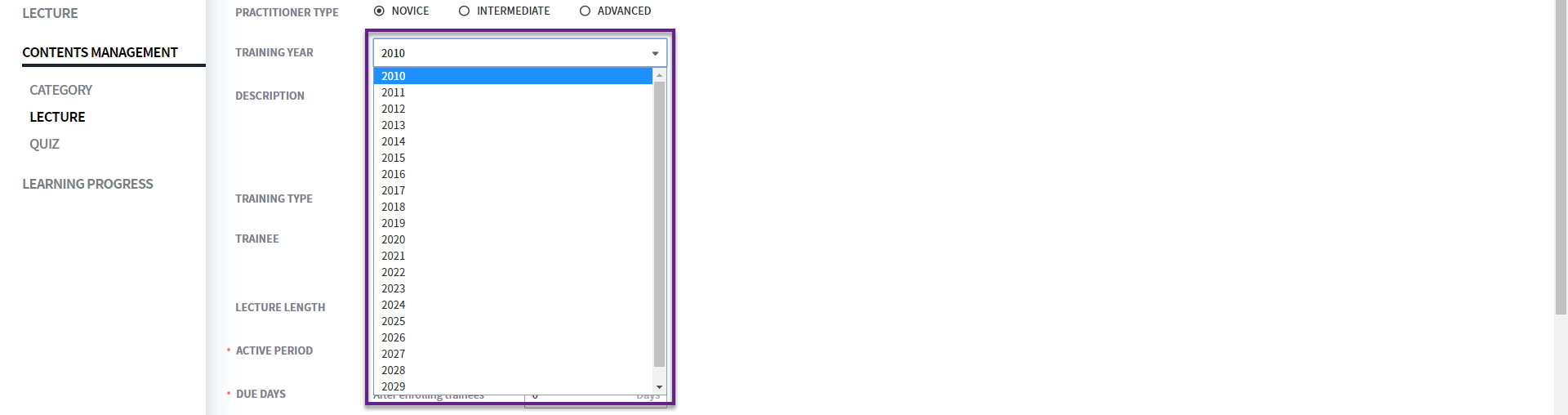
Drop down
Use this when an item requires a single selection from predefined data, and select the item through the Drop down as shown below. Some popups also provide direct input.
Filter
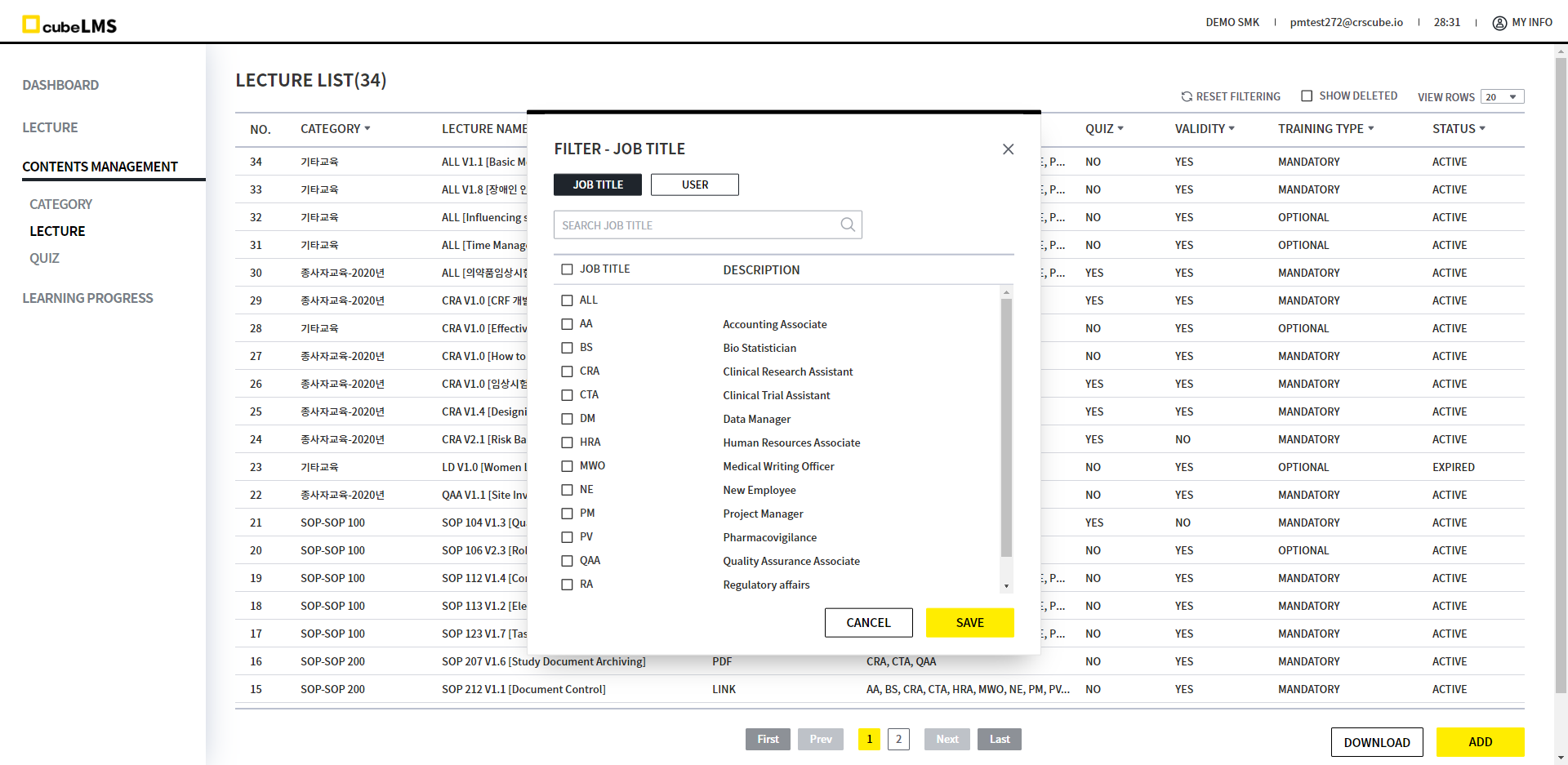
You can set Filter to easily search for the data you want.
1. On pages where data is list up, use the Filter(▼) function for each column to view the information you want.
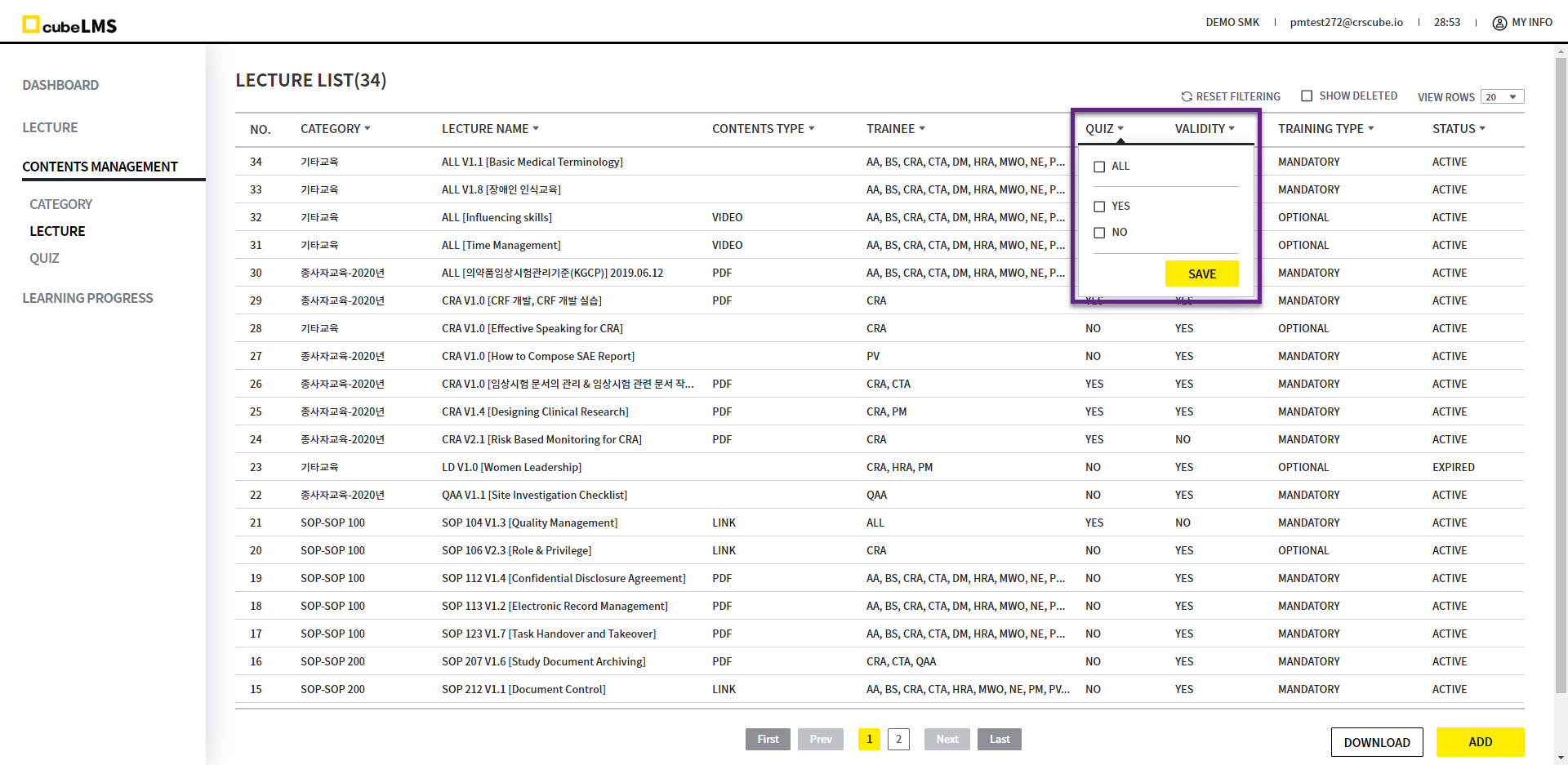
Click the Filter(▼) button to display a popup where you can select the items to filter, as shown in the image on the right.
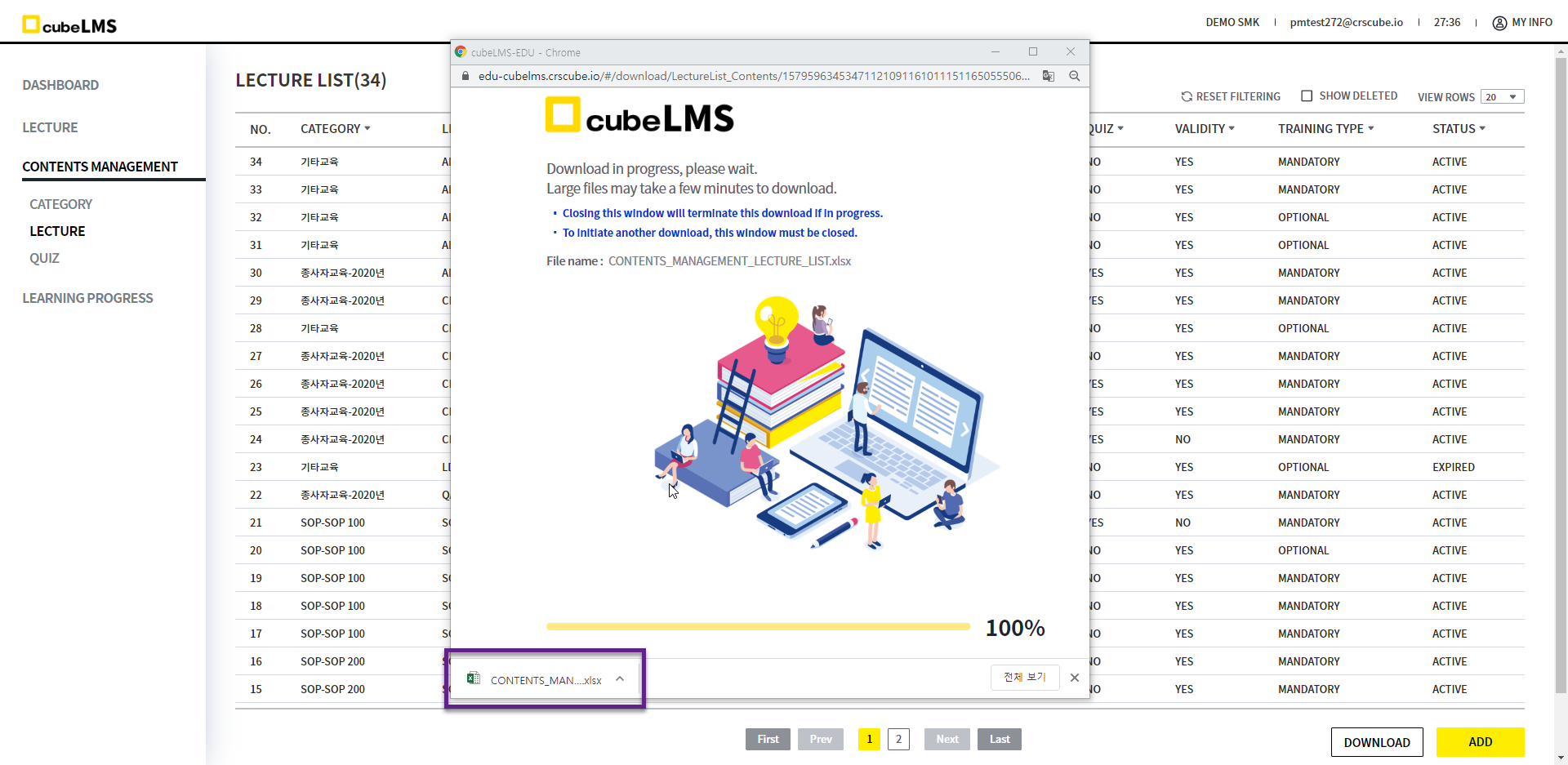
Excel Download
1. You can download the page where data is list up in Excel format. Click the Download button at the bottom right to download the corresponding list in Excel format.
If Filtering is applied, only the filtered data will be downloaded.
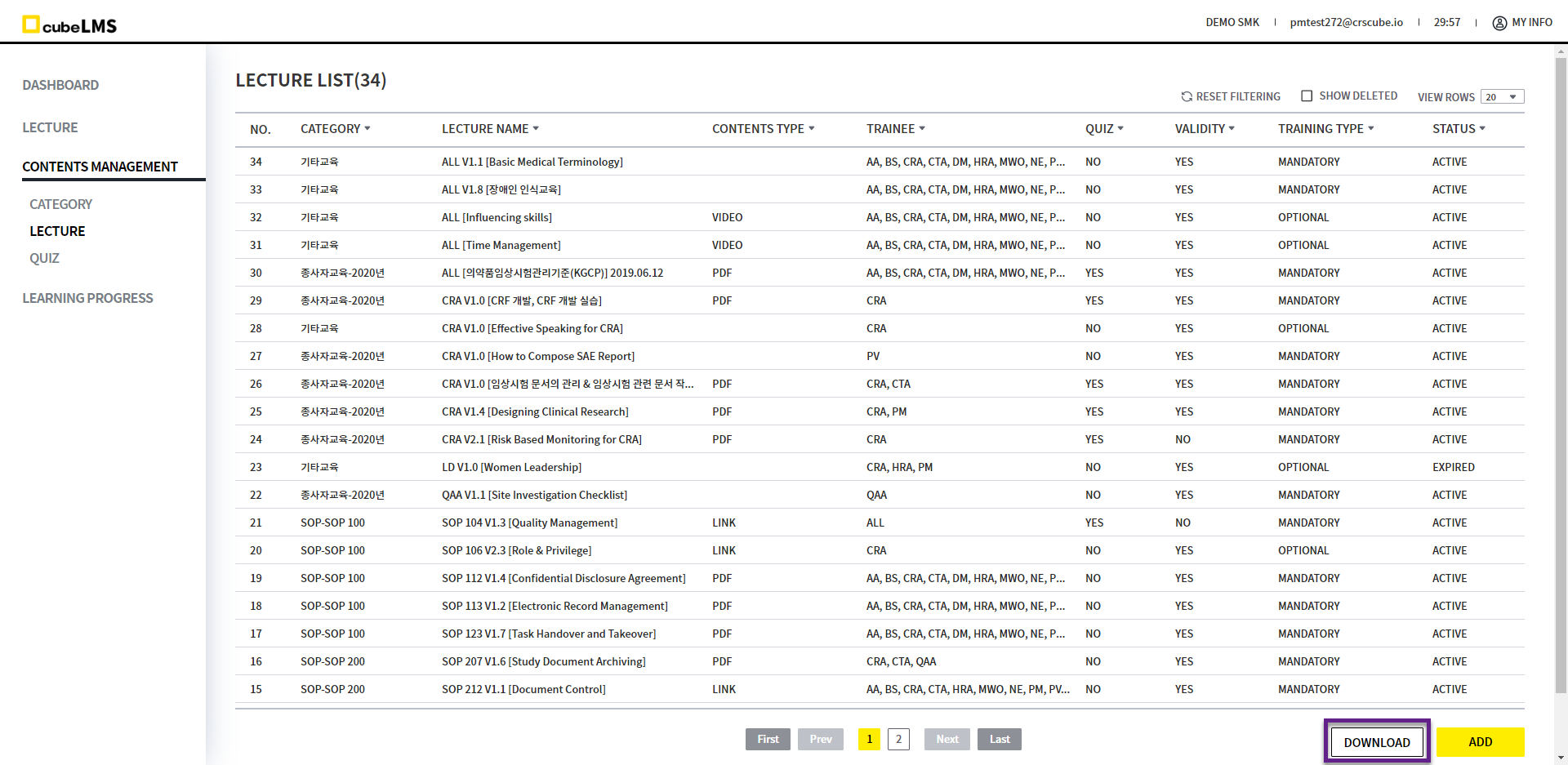
2. Download button when clicked, a new window pops up, and the download is completed when progress reaches 100%.
If you close the window before 100% progress is complete, the file will not be downloaded. If you want to download another document, close the existing pop-up window first so that a new window can pop up normally and the download can proceed.