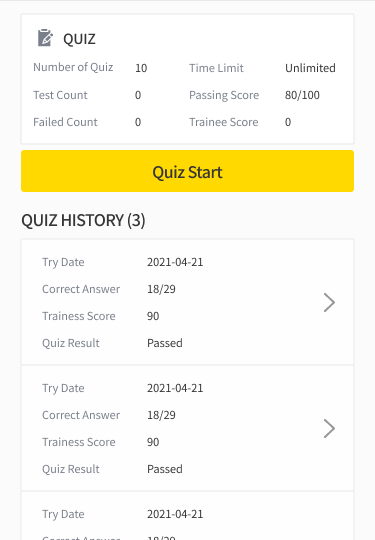
LECTURE DETAILS
Click the LECTURE row to display the details screen. LECTURE details and the course status and completion date for the LECTURE are displayed.
-
Click the information icon in the upper right to view the Information for that LECTURE.
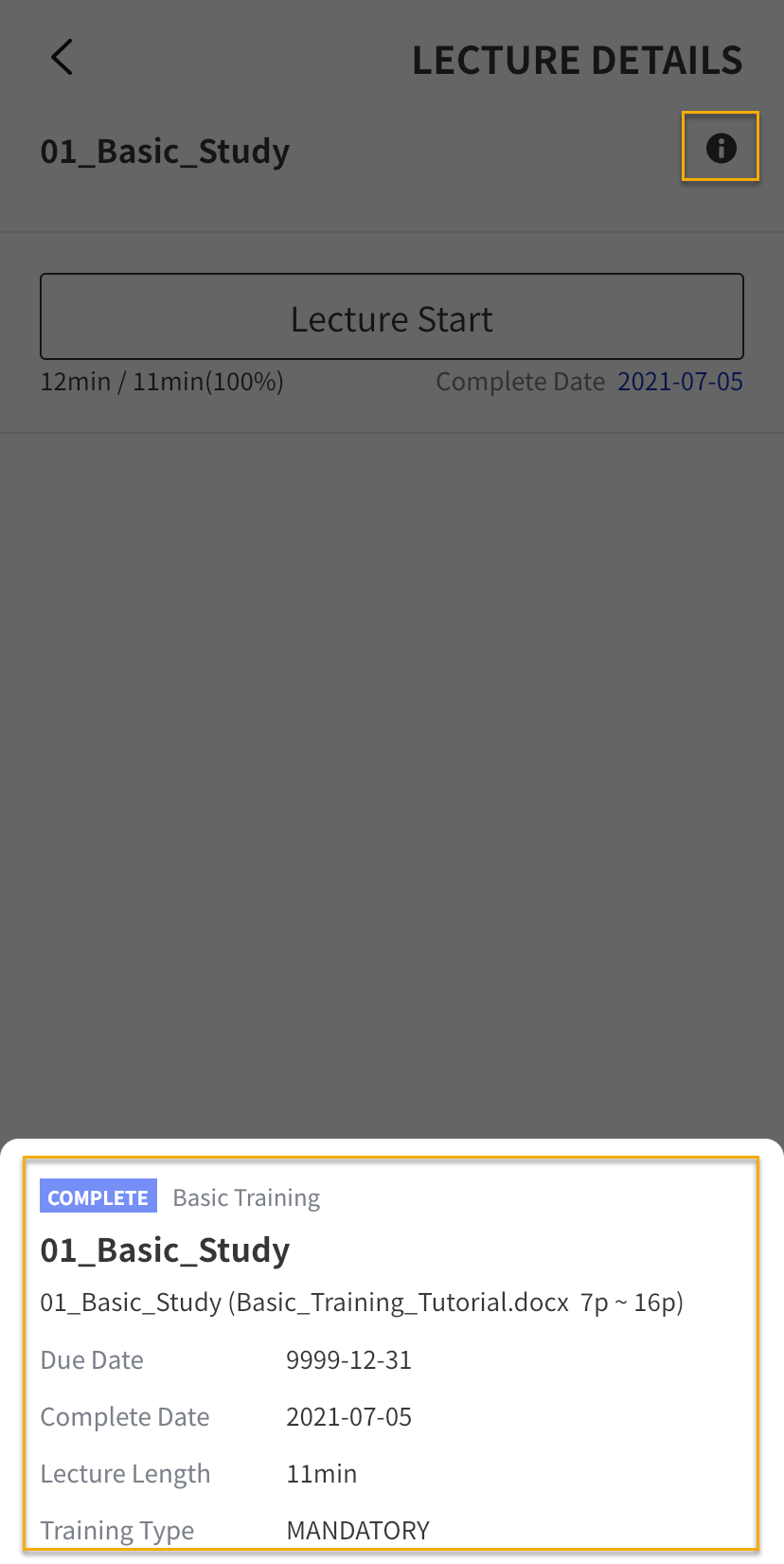
-
Click the FILE DOWNLOAD button to download additional attachment files. If there are no attachments, this button is not displayed.
Download is supported only on Android and is not supported on iOS.
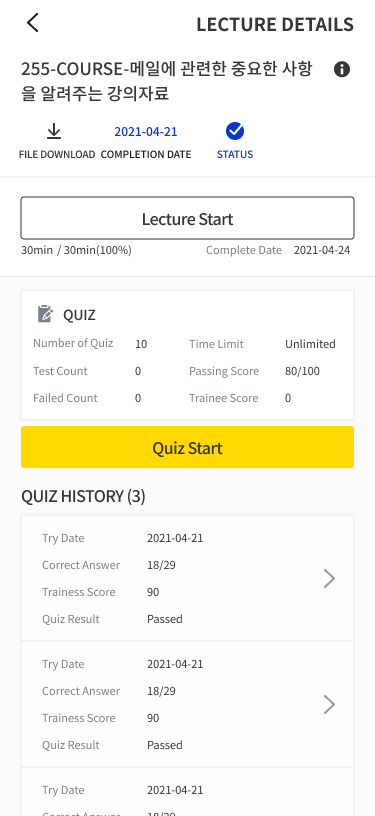
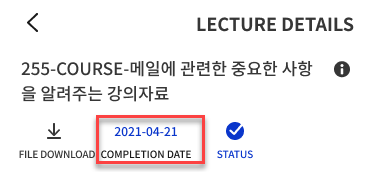
COMPLETION DATE
-
When the conditions included in the TRAINING are completed, it is not completed immediately in the SYSTEM. Instead, the TRAINEE can directly select and set the TRAINING completion date.
-
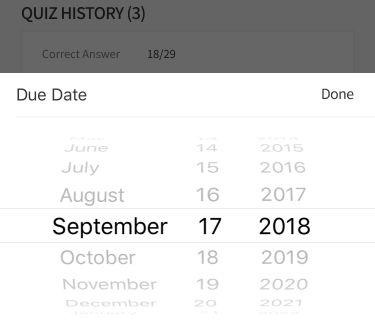
When you click COMPLETION DATE, a pop-up appears where you can set the Date. Select the desired date, then click the Done button to confirm the selected date.
COMPLETION STATUS
-
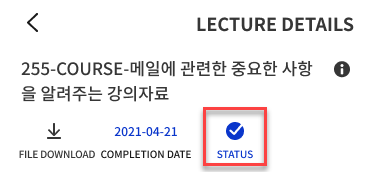
You can COMPLETE the LECTURE through STATUS.
-
The STATUS item is enabled for TRAINING that has an ATTACHMENT or COMPLETE DATE item, or that has neither CONTENTS nor QUIZ.
-
If the STATUS item is available, click the icon to display the Confirm pop-up, and click SAVE to finally COMPLETE the lecture.
CONTENTS
-
LECTURE to attend the LECTURE START button, when clicked, takes you to the CONTENT screen.
-
Lecture Contents Type :
-
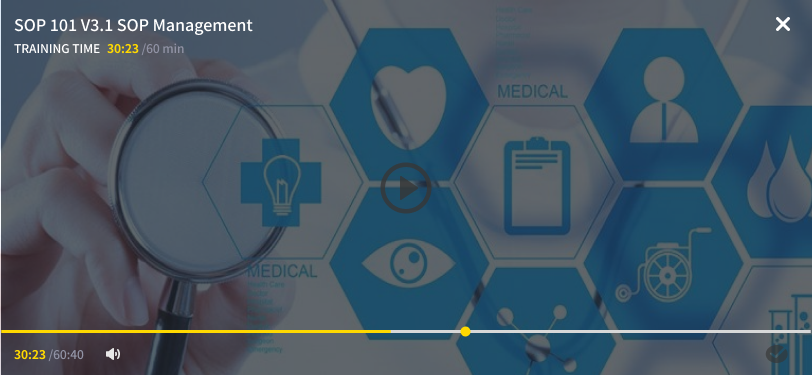
Video : The video plays.
-
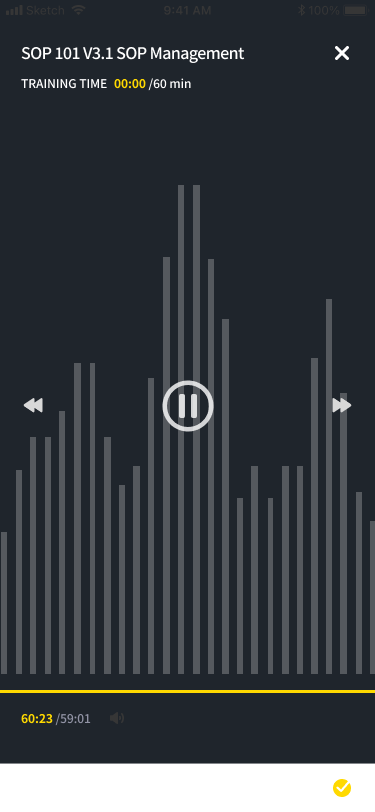
Audio : The audio plays.
-
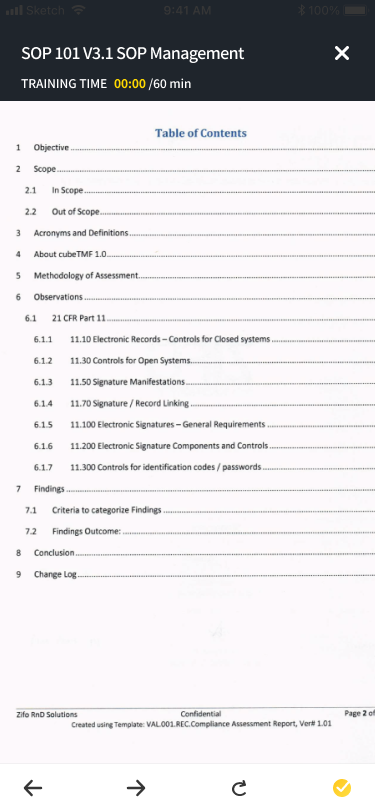
PDF : A PDF document viewer is provided.
-
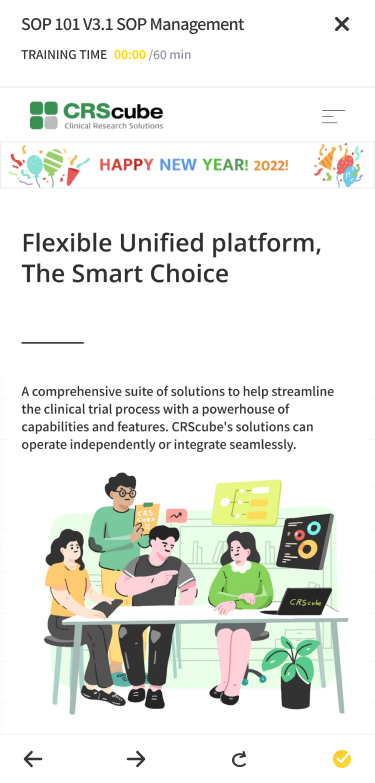
Link : A link is provided, and the webpage you are taken to by clicking that link is the LECTURE content.
-
LECTURE Depending on the settings, there may also be TRAINING without CONTENT.
VIDEO and AUDIO type CONTENT can play LECTURE's CONTENT across up to 6 tabs, and the CONTENT on the 7th tab cannot be played.
-
Lecture button description:
-
Use the X button in the upper right to exit Contents and go to the Lecture Details screen.
-
Use Training Time in the upper left to check the time spent on Contents.
-
When the time spent on Contents meets Training Time, the disabled check mark in the lower right becomes enabled, and you can click the button to complete Contents.
-
When you replay completed Video Contents, a playback speed button appears in the lower right, and you can set the Video speed.
-
-
Video
-
Audio
-
PDF
-
URL
QUIZ
-
Click the QUIZ START button to move to the screen where you can take the QUIZ.
-
Select the option that matches the question, then click the PREV and NEXT buttons at the bottom to move to the previous or next QUESTION.
-
If QUIZ TYPE is set to TYPE 1 in the TRAINING menu, you can move to the next QUESTION only after selecting the correct answer.
-
For QUIZs with a TIME LIMIT, the remaining time is shown in the upper right, and the QUIZ is submitted automatically when time runs out.
-
On the QUIZ RESULT DETAILS page you open by clicking SUBMIT on the last QUESTION, the submitted quiz results can be checked.
SYSTEM INFORMATION 페이지에서 QUIZ RESULT DETAILS를 SCORE + QUIZ RESULT DETAILS로 설정하였을 때는 퀴즈 결과와 정답을 확인할 수 있습니다. ONLY SCORE로 설정한 경우에는 퀴즈 결과만 보여집니다.
-
The HISTORY for the QUIZ is displayed in the table at the bottom.