eManual_cubeLMS

ENG_TRAINING HISTORY


This page provides an overall description of the Training History menu that you can view when you log in with Backup Email, and it consists of the following sections.


Introduction to the Training History menu


The main function of the Training History menu is to let User view the Training they have completed in cubeLMS and check and download the Certificate in the Course.


How to access the Training History menu


To access the Training History menu, Backup Emailregistered account, log in to cubeLMS.
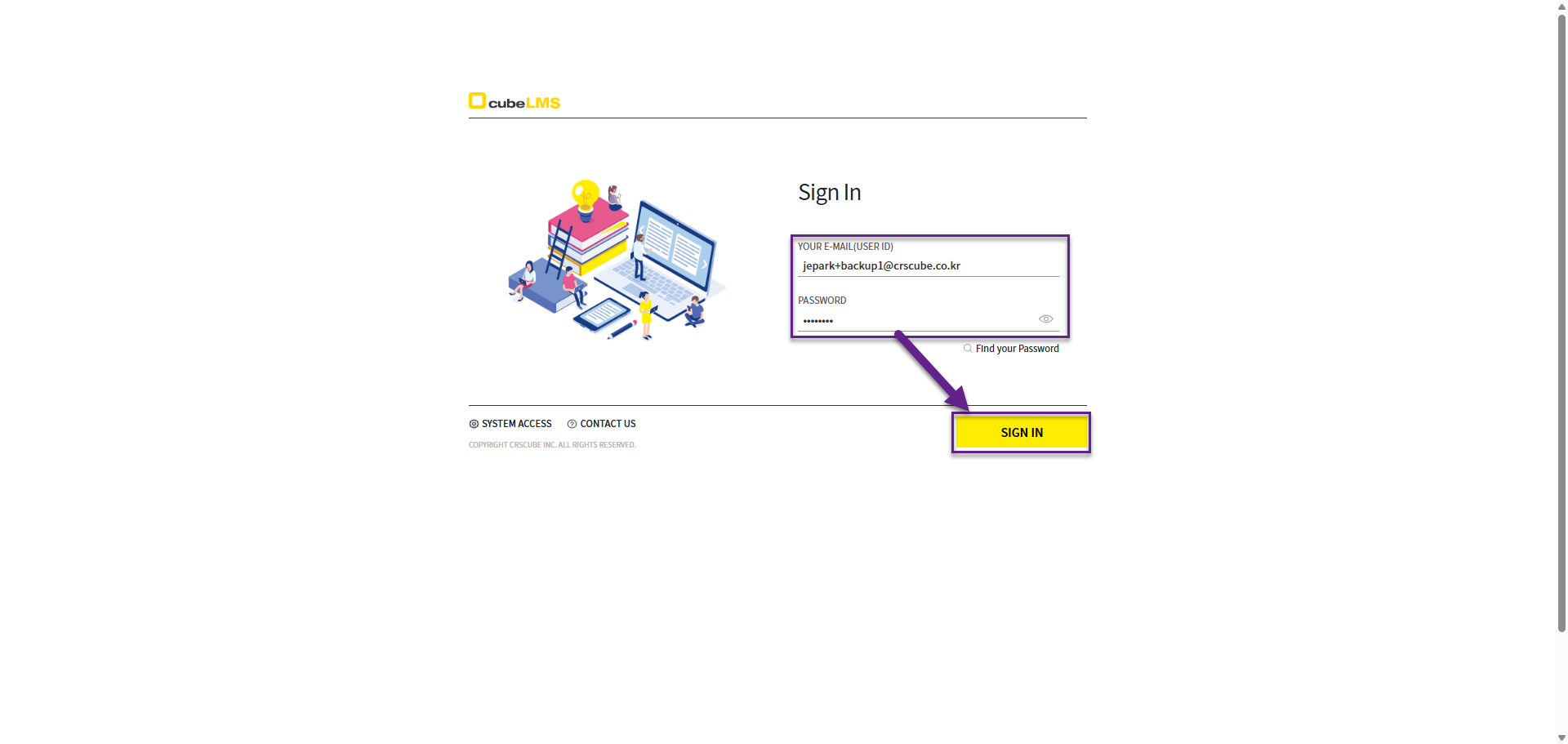
image-20250604-062018.png

Backup Email Setup Method

The Backup Email setup method is in eManual - ENG_02. Initial Setup of the Backup Email please refer to the relevant section.


Training History screen
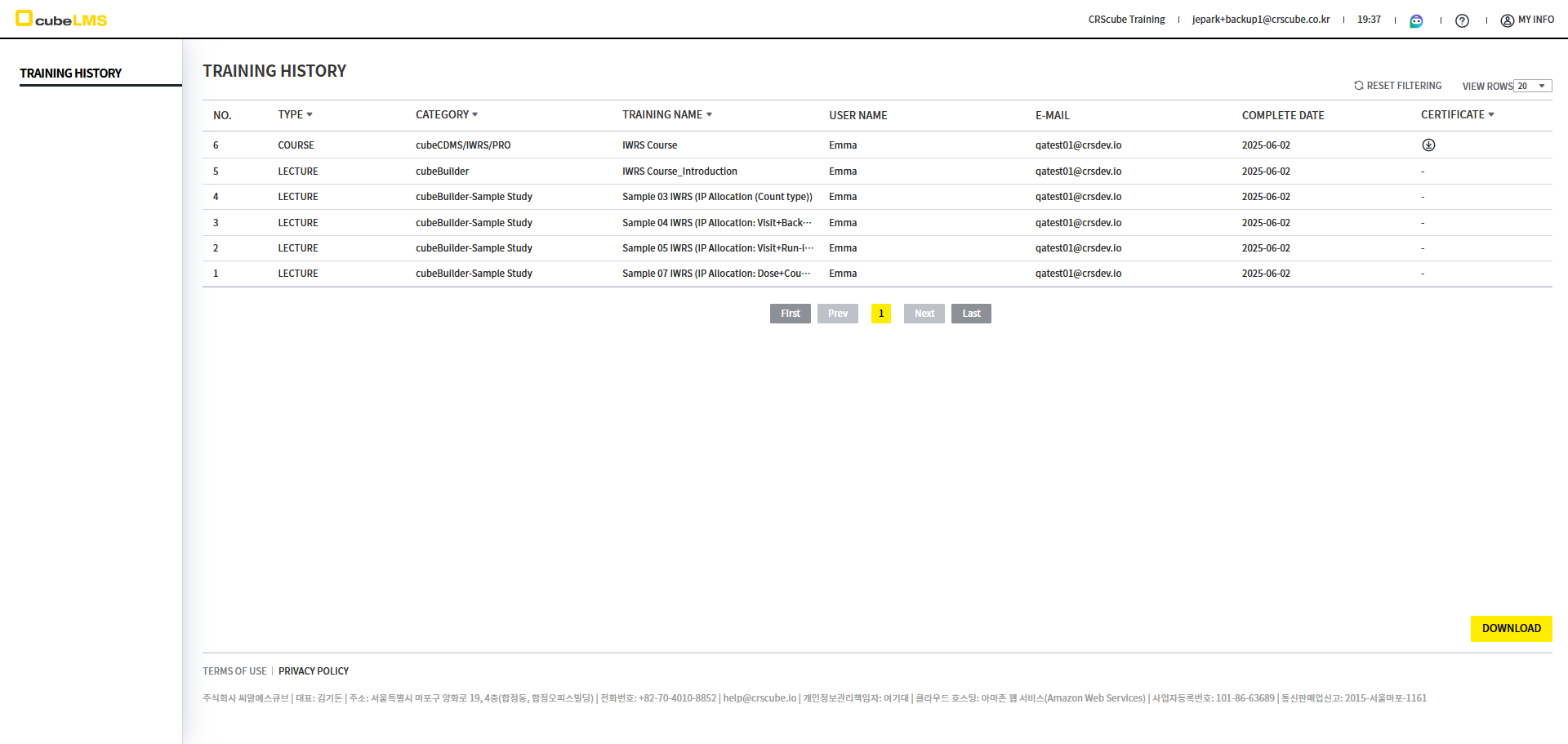

image-20250604-062130.png

1) Toolbar

Icon

Description

image-20250604-062552.png


  • This is the cubeLMS logo image.

  • Clicking it takes you to the Training History screen.

Company

  • The current company name is displayed.

E-mail

  • The current User's E-mail is displayed.

Time

  • The valid access time is displayed.

  • A maximum of 60 minutes is displayed, and the valid time is reset to 60 minutes when you move to another screen or refresh.

question mark Icon

  • When you click the icon, the following details are displayed.

    1. Version: The current version of cubeLMS is displayed.

    2. Last Release Date: The last Release date of cubeLMS is displayed.

    3. Online Manual: Selecting it takes you to Online Manual.

    4. Help Center: Selecting it takes you to Help Center.

    5. Privacy Policy: When selected, it takes you to CRScube Privacy Policy page .

My Info

  • When you click the icon, the following details are displayed.

    1. My Information: Selecting it takes you to My Information page.

    2. Select Company: When selected, you are taken to the list page of the companies you are registered with.

    3. Log Out: You are logged out.


2) Training History Table

Item

Description

Reset Filtering

  • You can reset all applied filters.

View Rows

  • You can change the number of rows displayed on the screen.

    • Minimum 10 rows

    • Maximum 100 rows

No.

  • The row number is displayed.

Type

  • You can check the Type of the Training, and use filters to view only Lecture or Course.

Category

  • You can check the Category of the Training, and use filters to filter by Category.

Training Name

  • You can check the name of the Training, and use filters to search by Training Name.

User Name

  • The name of the User whose Training is Complete is displayed.

E-mail

  • The E-mail of the User whose Training is Complete is displayed.

Complete Date

  • The date the Training was marked Complete is displayed.

Certificate

  • If the Course has a Certificate, you can download the Certificate.


Training History Download

1) Download the Training History List

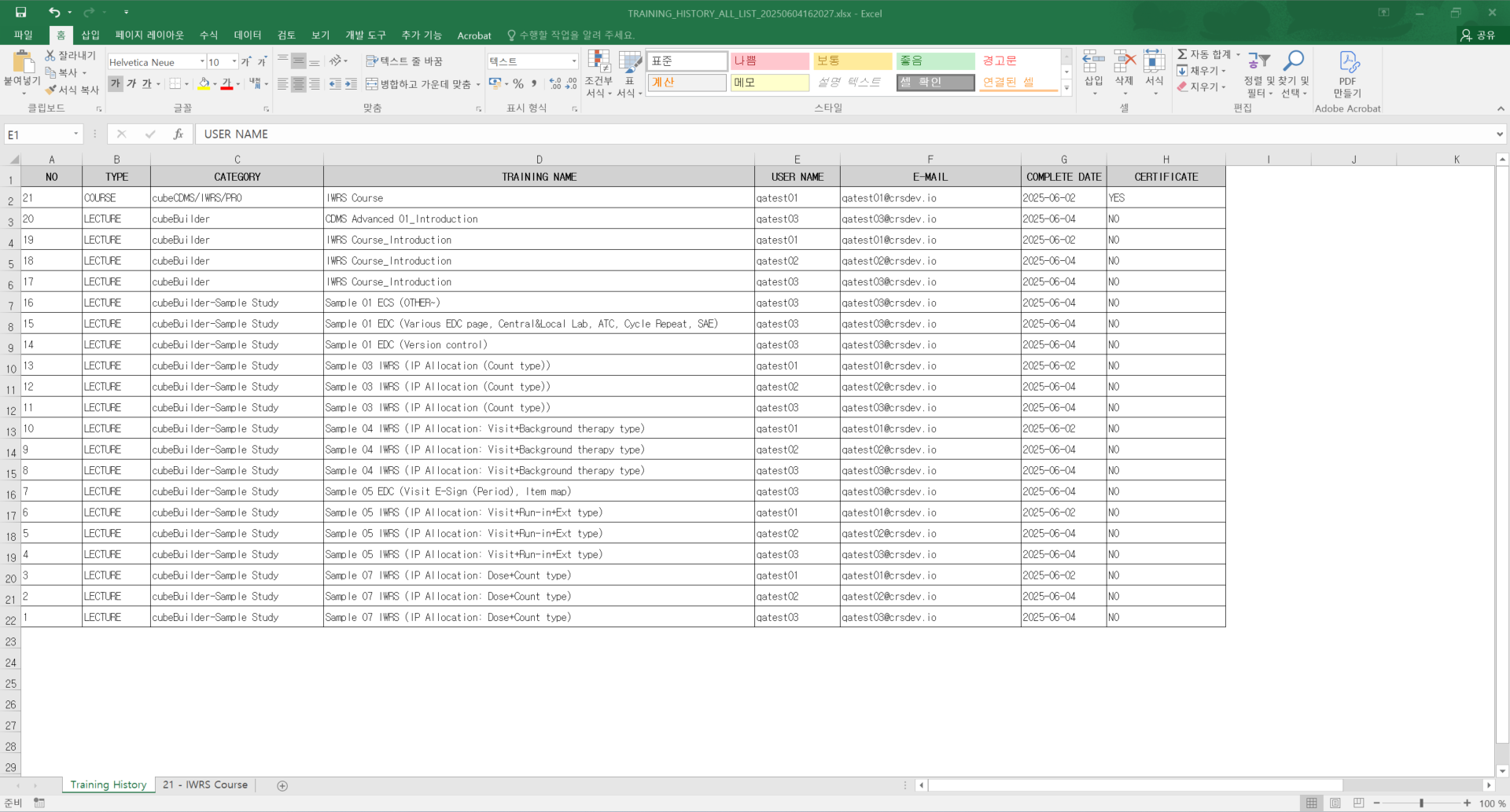
  • When you download the Training History screen, you can download the list as an Excel file.

  • You can view the Lectures included in the Course through the Course Sheet. 

    • The Sheet name is displayed as [the corresponding Course number displayed in the Training List - Course name] is displayed.

image-20250604-072132.png

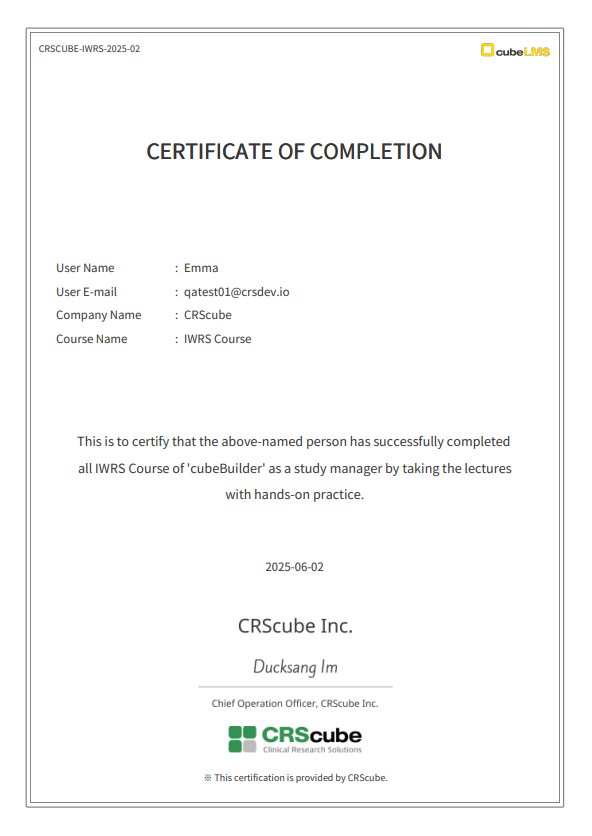
2) Certificate Download

You can download the Certificate using the download icon on the right.
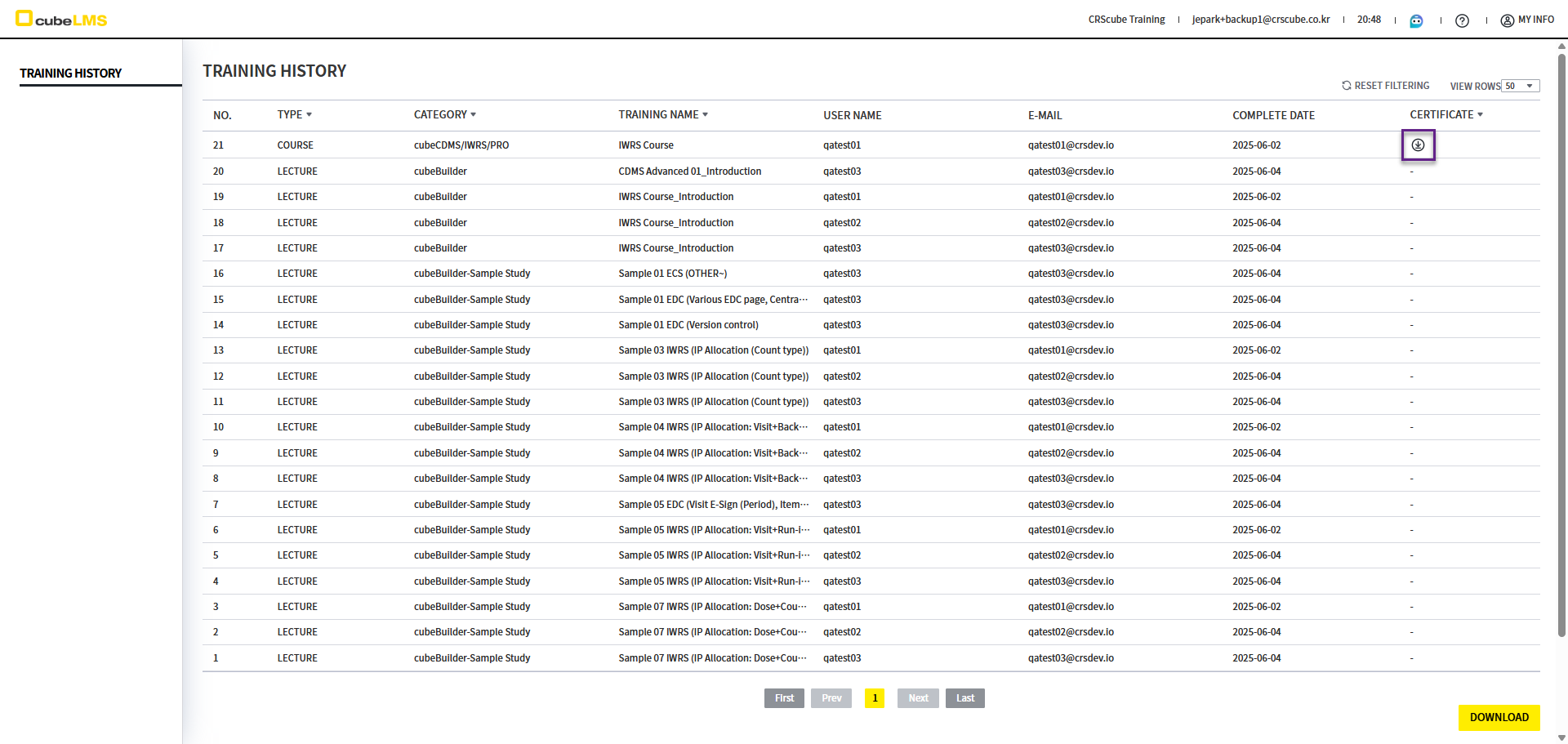
image-20250604-072320.png
image-20250604-072357.png