PROGRAMlets you purchase and take training provided by the company for a fee.
PROGRAM LIST
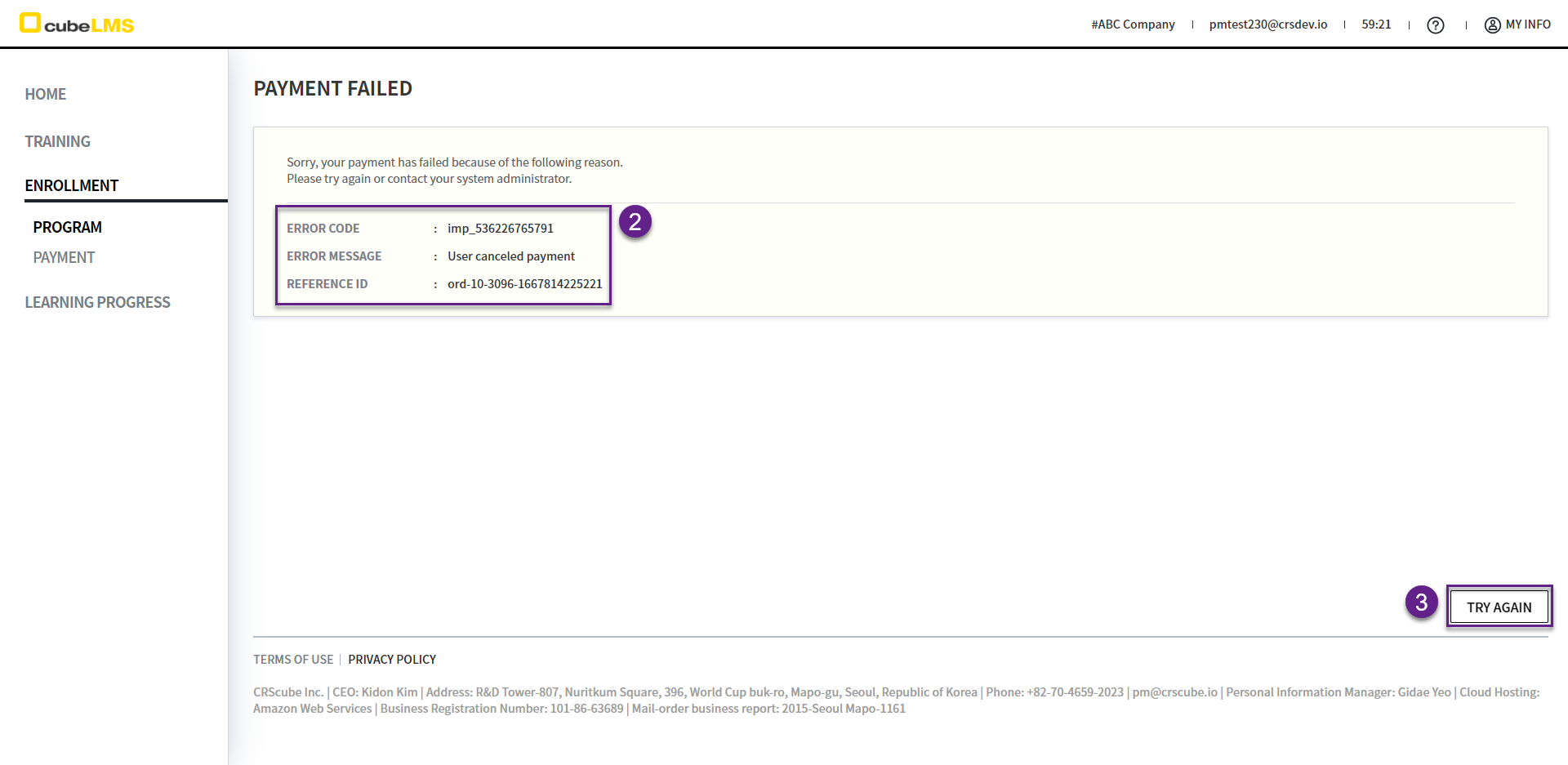
1. This is the screen where you can view the company's paid training programs in a list.
2. Click each row to go to the Program details screen, where you can view the Program details and enroll.
3. The Program category is displayed.
4. The Program name is displayed.
5. Program fee is displayed.
6. Program enrollment is displayed.
7. One of the following statuses is displayed according to the Enrollment Period.
-
Not Started:Enrollment has not started yet.-
Before the start date of the Enrollment Period, payment and enrollment are unavailable.
-
-
Open:Payment and enrollment are available. -
Closed:The enrollment period has ended. Payment and enrollment are unavailable.
PROGRAM DETAILS
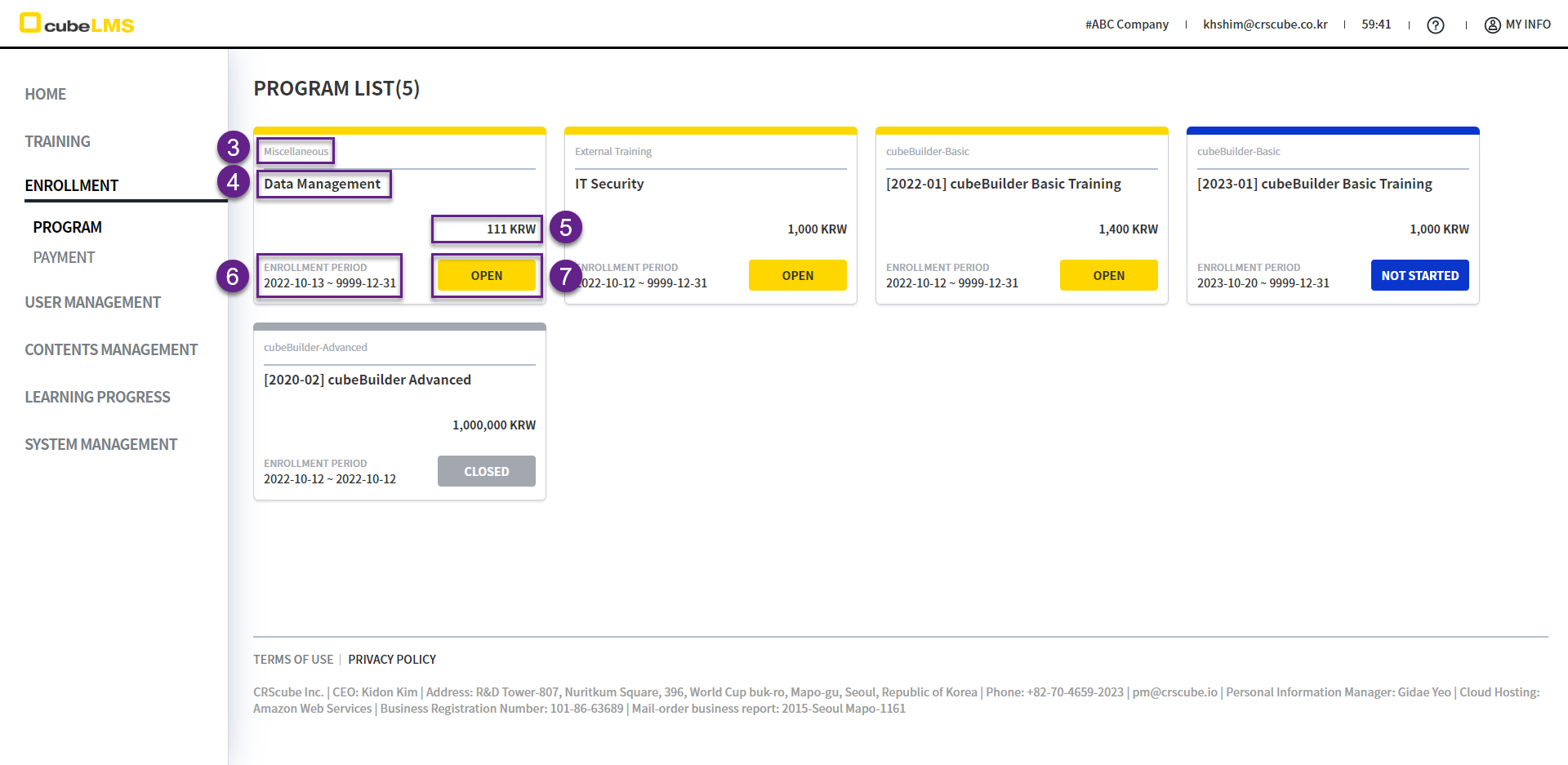
1. Program Details: You can view the details of the training program.
2. Refund Policy: You can view the refund policy of the Program.
3. If an attachment is available, click it to download it.
4. Program's tuition, enrollment period, and current enrollment status can be checked.
-
Not Started:Enrollment has not started yet.-
Enrollment Perioduntil the start date specified in the Enrollment Period, payment and enrollment are unavailable.
-
-
Open:Payment and enrollment are available. -
Closed:The enrollment period has ended. Payment and enrollment are unavailable.
5. ENROLL button: Takes you to the Order Details screen where you can pay the Program fee.
6. BACK button: You can return to Program List.
ORDER DETAILS
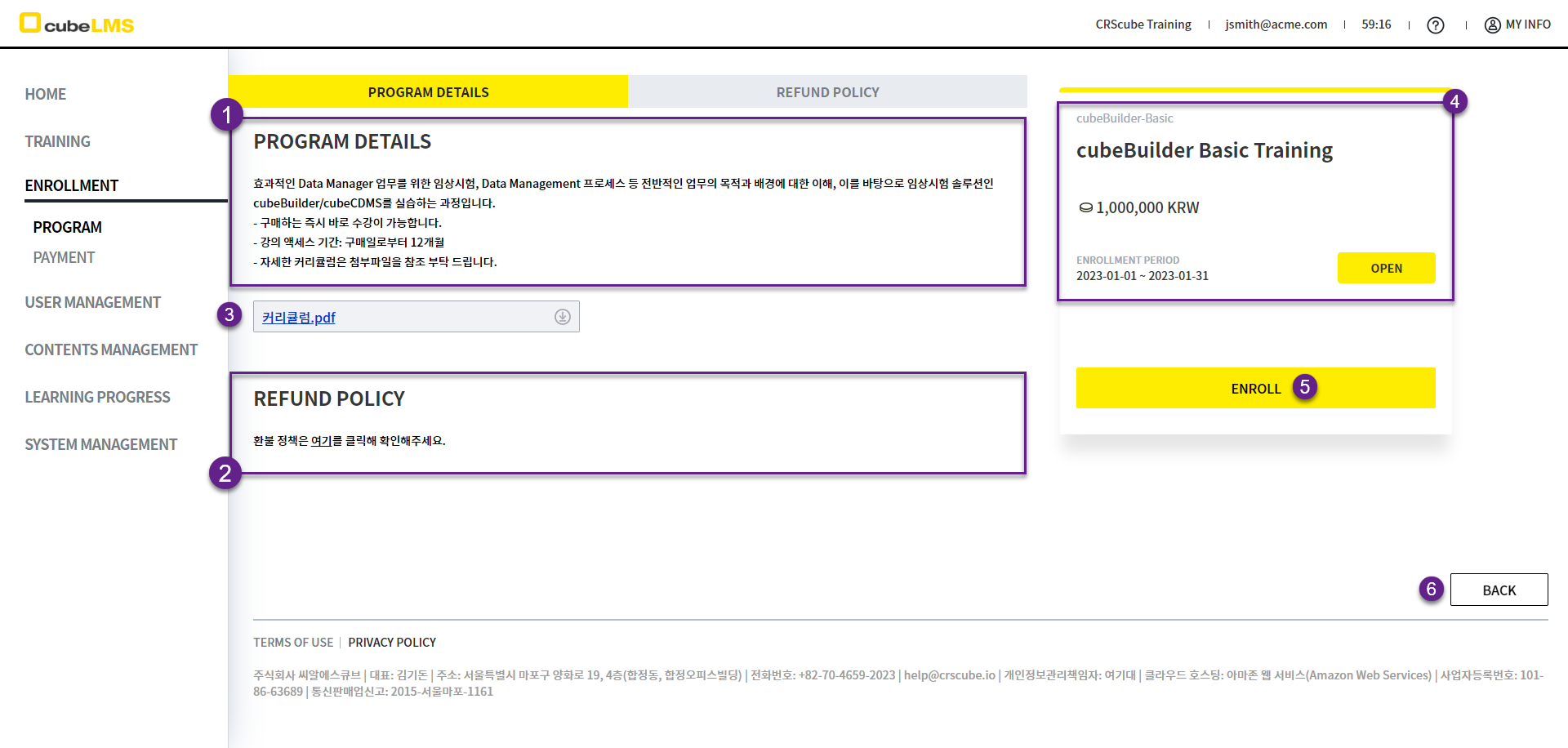
1. The name and tuition fee of the Program are displayed.
2. You can select a payment method.
-
Credit Card:Credit card payment -
Bank transfer:Real-time bank transfer
3. This is the terms and conditions agreement section. You must agree to all items before proceeding with payment.
4. Purchase button: You can proceed with payment.
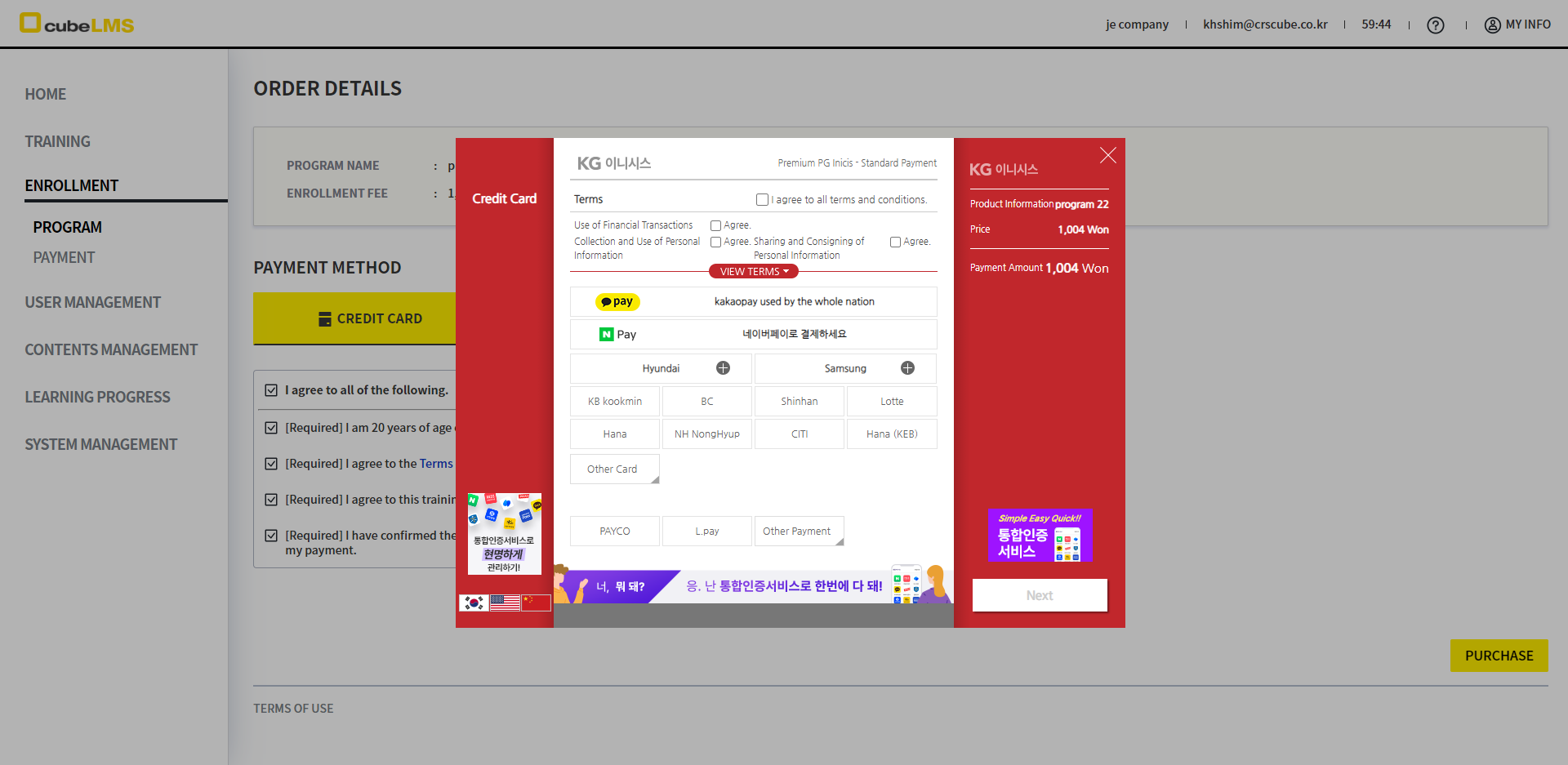
5. This is the payment window for processing payment.
-
If you need a cash receipt when paying by Bank transfer, enter the relevant information in this payment window.
6. Payment Success: The screen you are taken to when payment succeeds. Enrollment is complete.
7. Payment Failed: The screen you are taken to when payment fails. Enrollment has failed.
ORDER DETAILS-PAYMENT SUCCESS
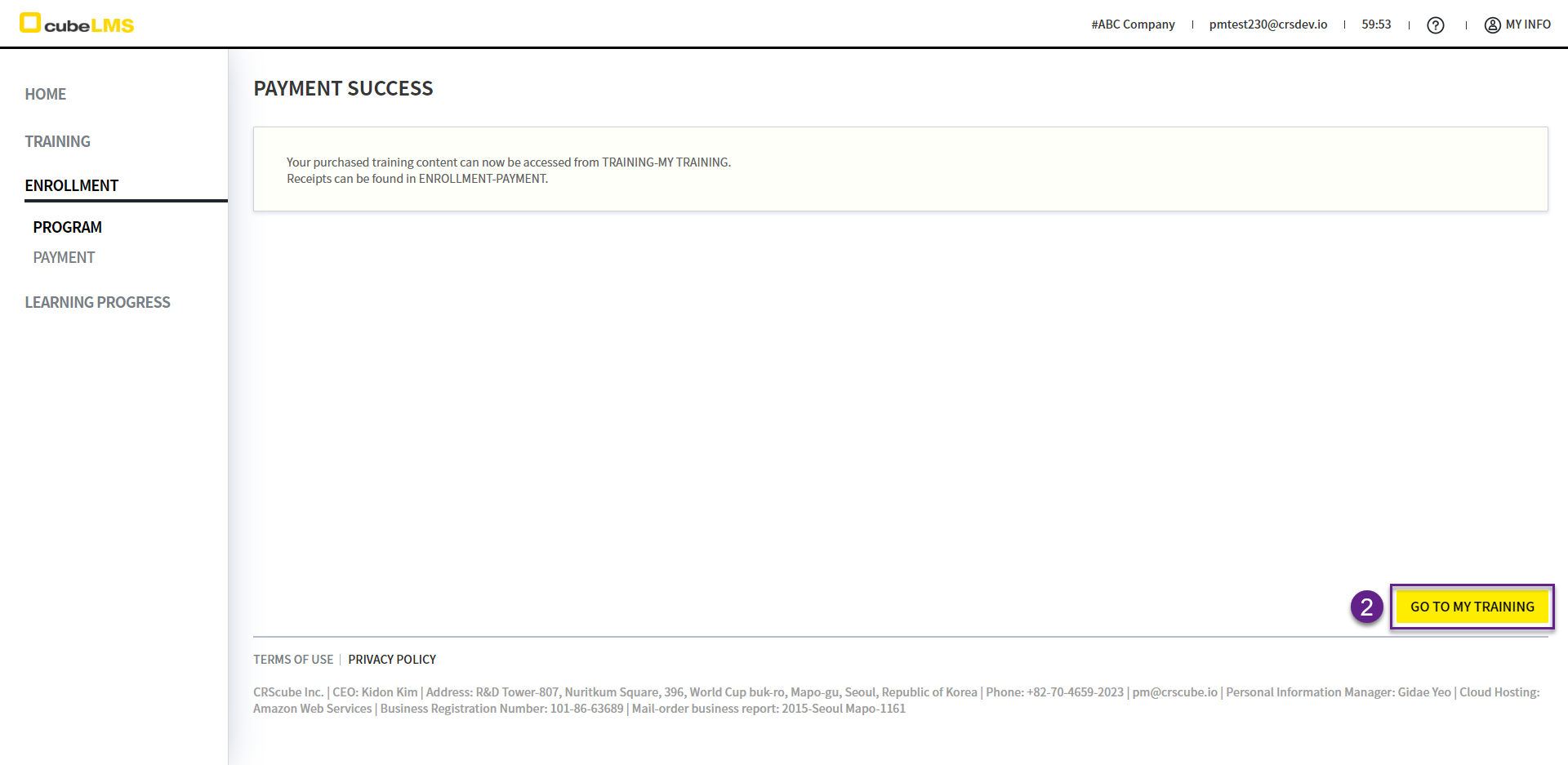
1. This is the screen you are taken to when payment is successfully completed and enrollment is complete.
2. Go To Training button: Go to the screen where you can immediately take the newly assigned Training.
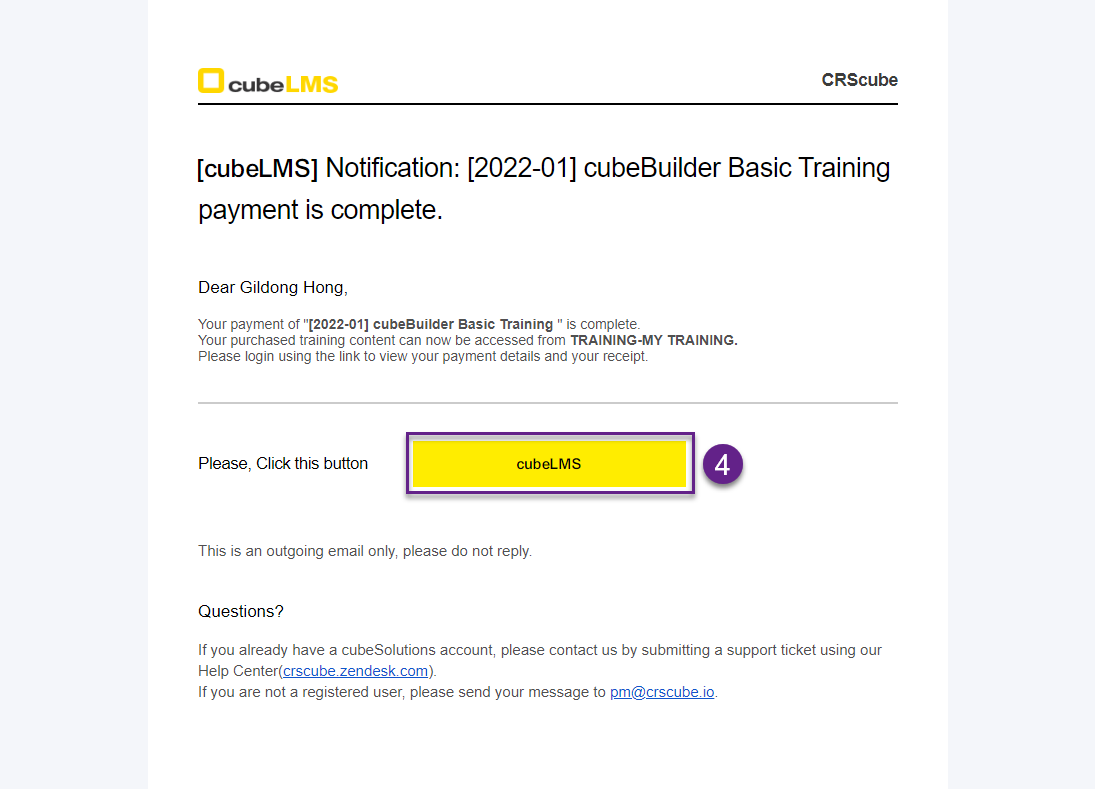
3. Once payment is completed, you will receive the payment completion email on the right.
4.cubeLMS button: Go to the screen where you can immediately take the newly assigned Training.
ORDER DETAILS-PAYMENT FAILED
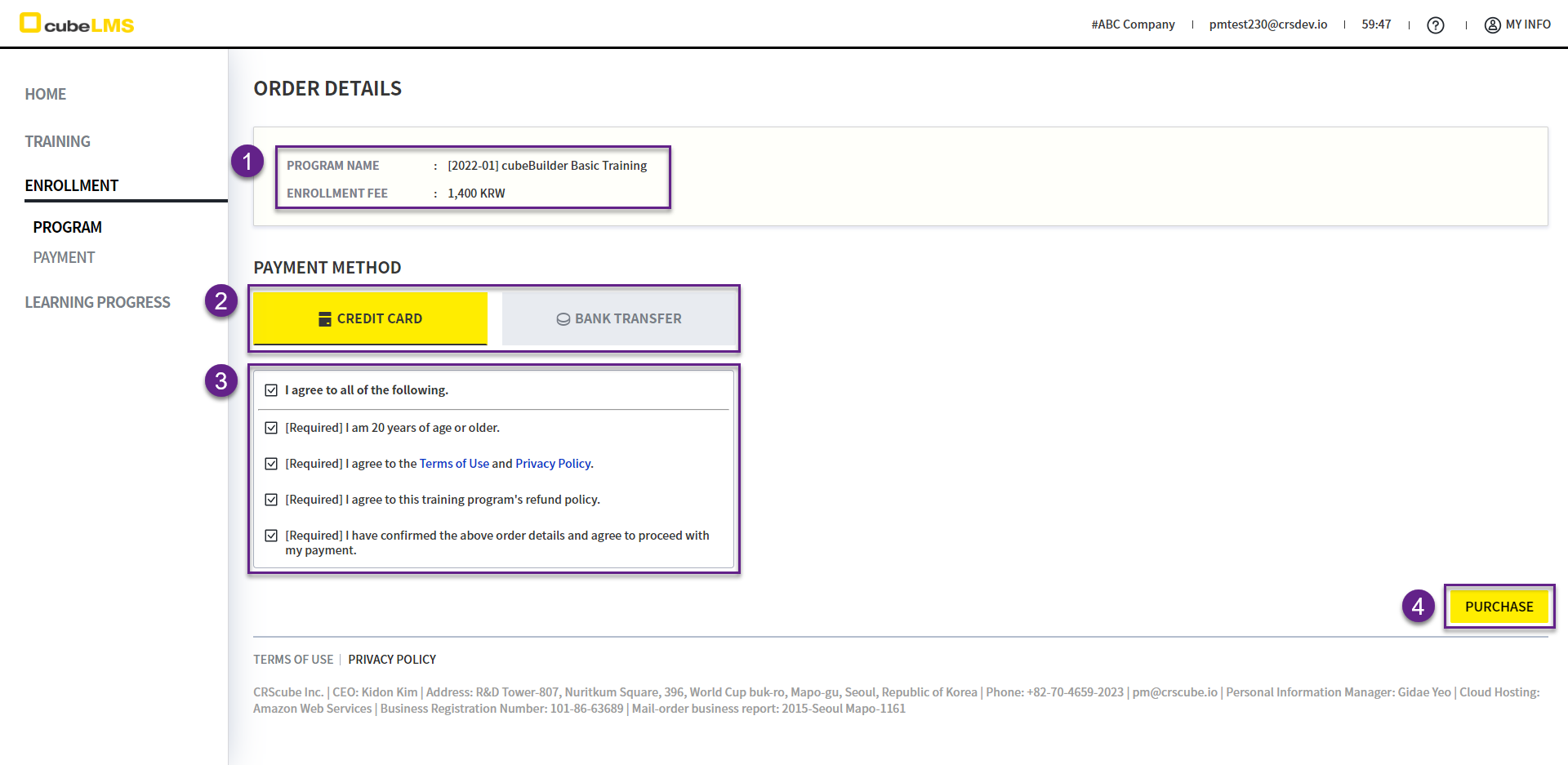
1. This is the screen you are taken to when the payment fails.
The reason for the payment failure is displayed.
3. Try Again button: Order Details You can return to the Order Details screen and try the payment again.
If payment continues to fail, capture this screen and please contact us through CRScube Help Center.