Find Your Password
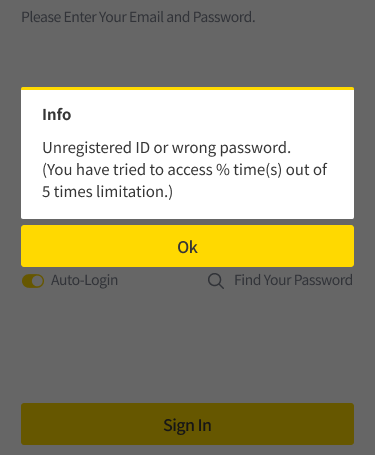
If any of the following apply, you need to reset your password through the Find Your Password procedure.
-
If you have forgotten your password
-
If you have never set an initial password
-
If your account has been locked because you entered an incorrect password more than 5 consecutive times within 5 minutes
Find Your Password Procedure
-
Launch the cubeLMS app installed on your smartphone.
-
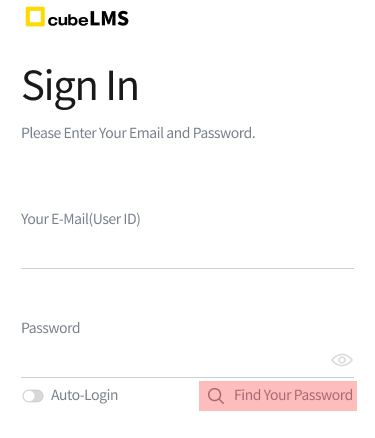
On the login screen, tap Find your password.
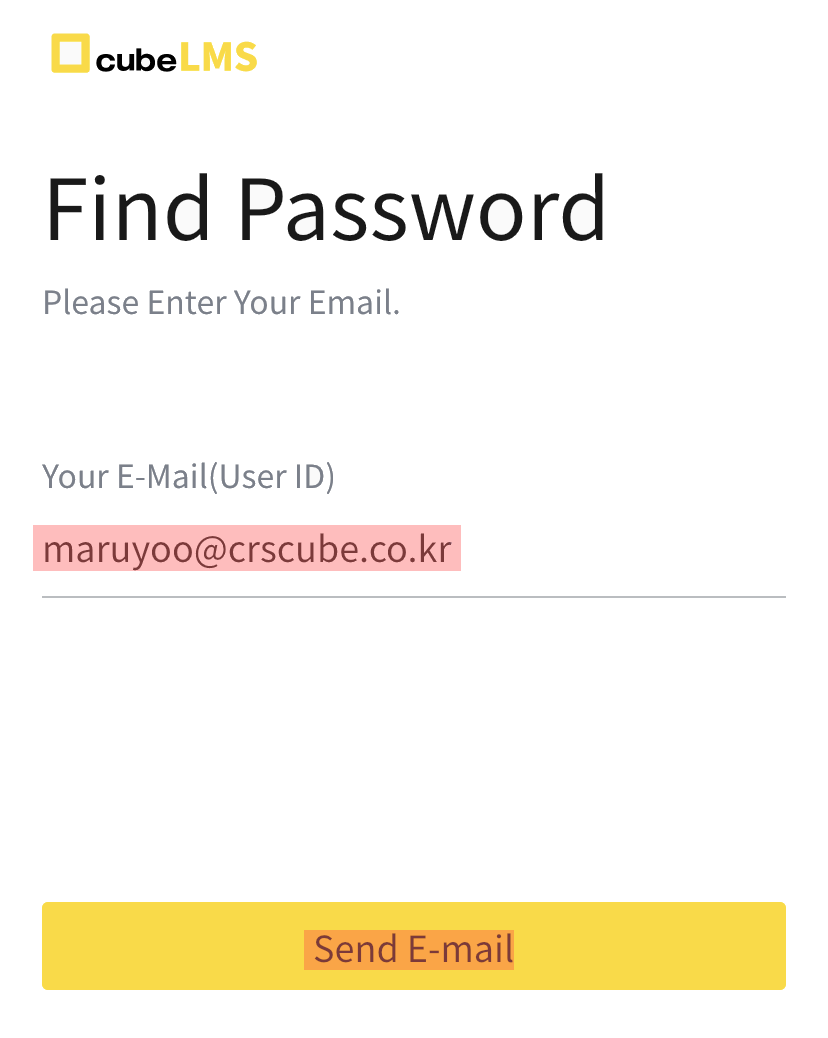
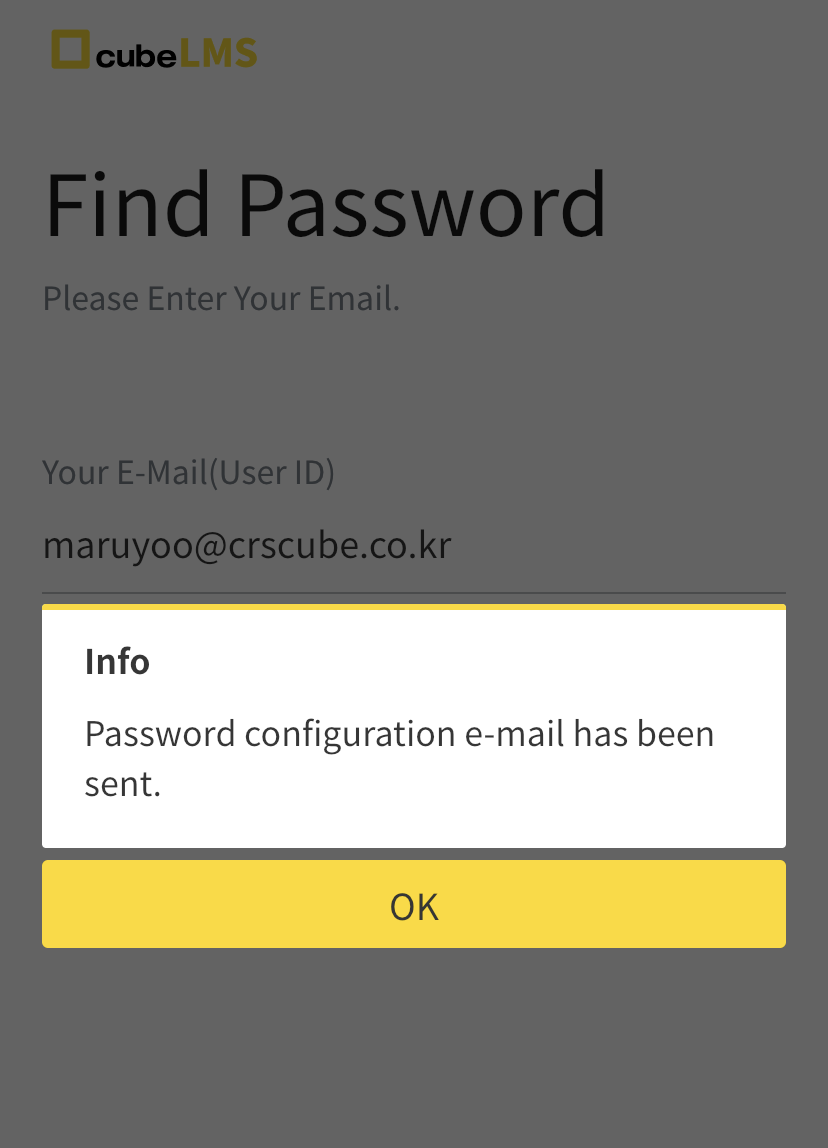
On the Find password screen, enter your account email, and then tap the Send E-mail button.
4. Check the inbox of the account email, find the email with the subject '[CRScube] Password Reset Request', open it, and click Link in the body.
-
System mail may be received in the spam folder rather than the inbox. If you do not see the email in the inbox, check the spam folder.
-
'[CRScube] Password reset request' email link is valid for only 60 minutes. If 60 minutes have passed and the link has expired, you must restart the password retrieval process from the beginning.
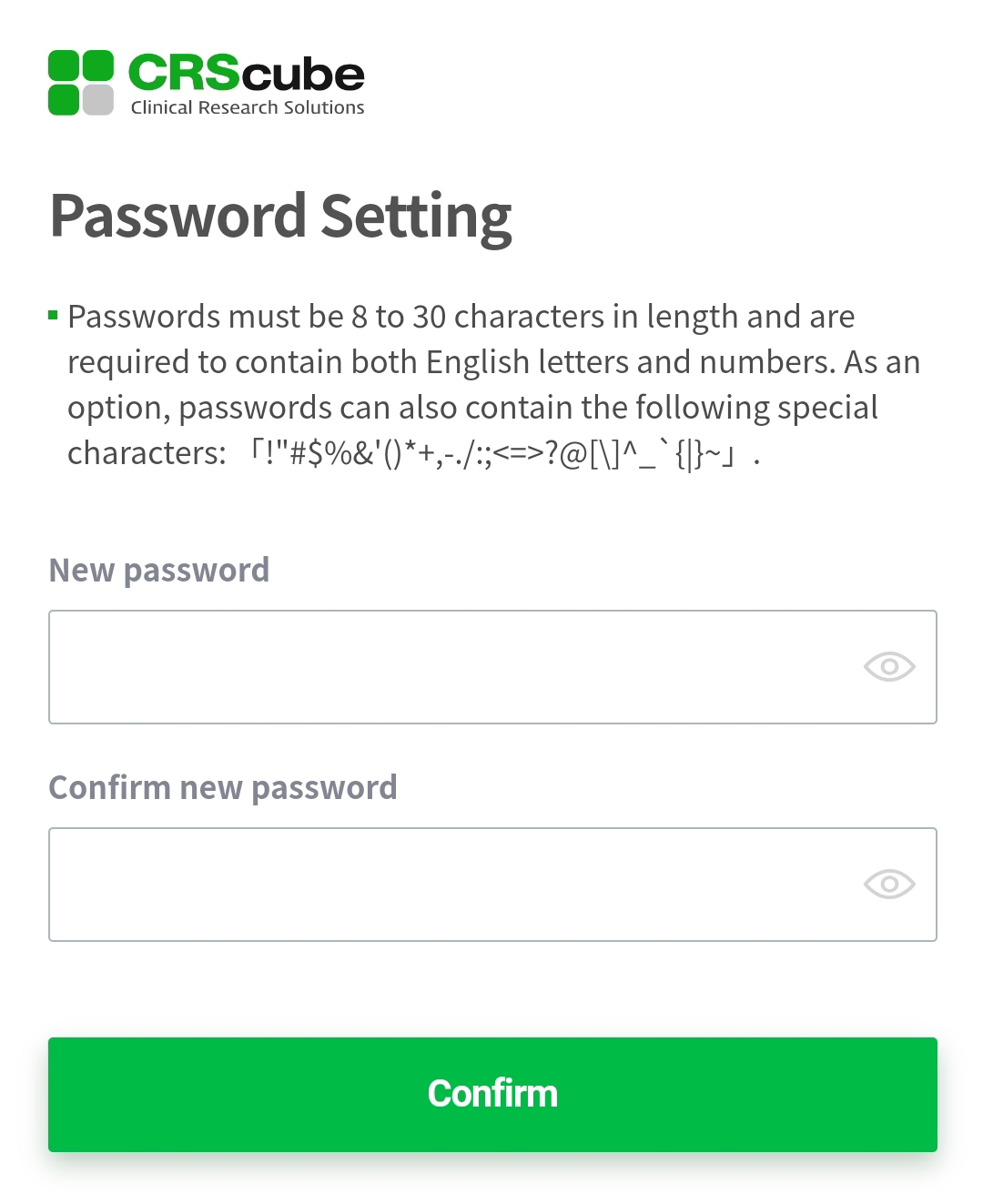
5. Go to the password setup screen and set a new password.
-
If you reset your password, the new password cannot be the same as the current password.
-
The password must be 8 to 30 characters long and include letters and numbers, and some special characters 「!"#$%&'()*+,-./:;<=>?@[\]^_`{|}~」 can also be used.