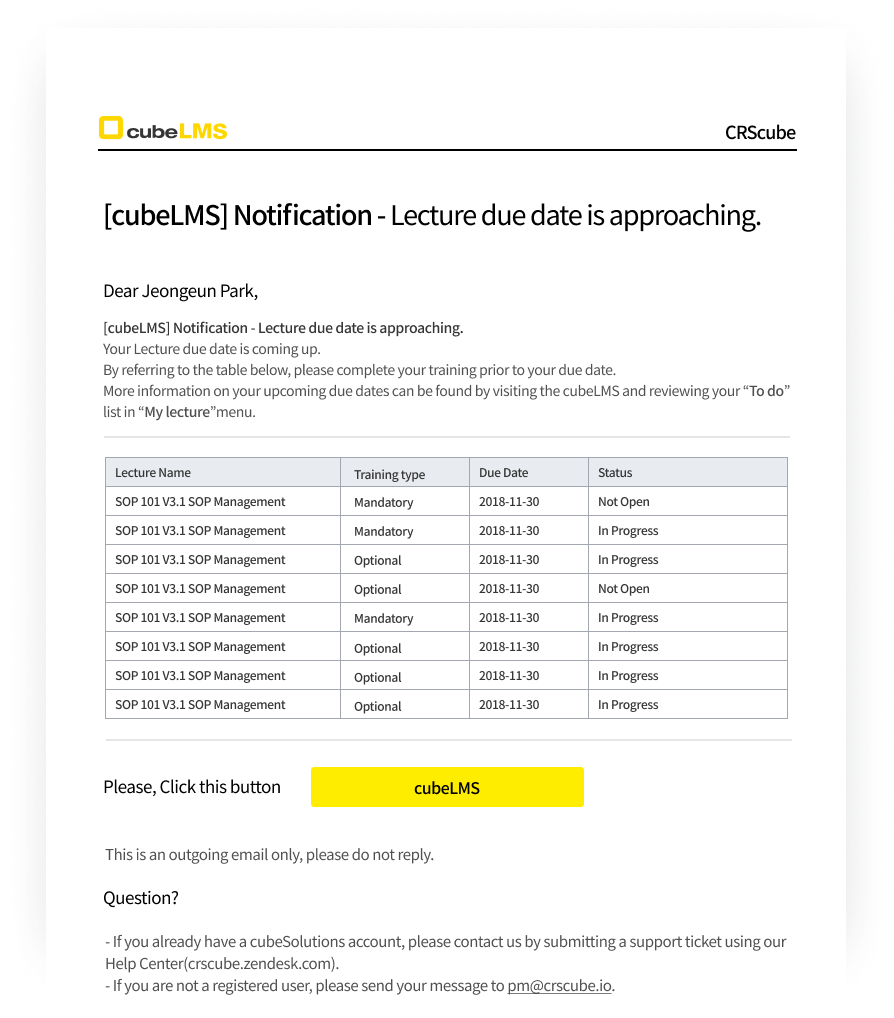
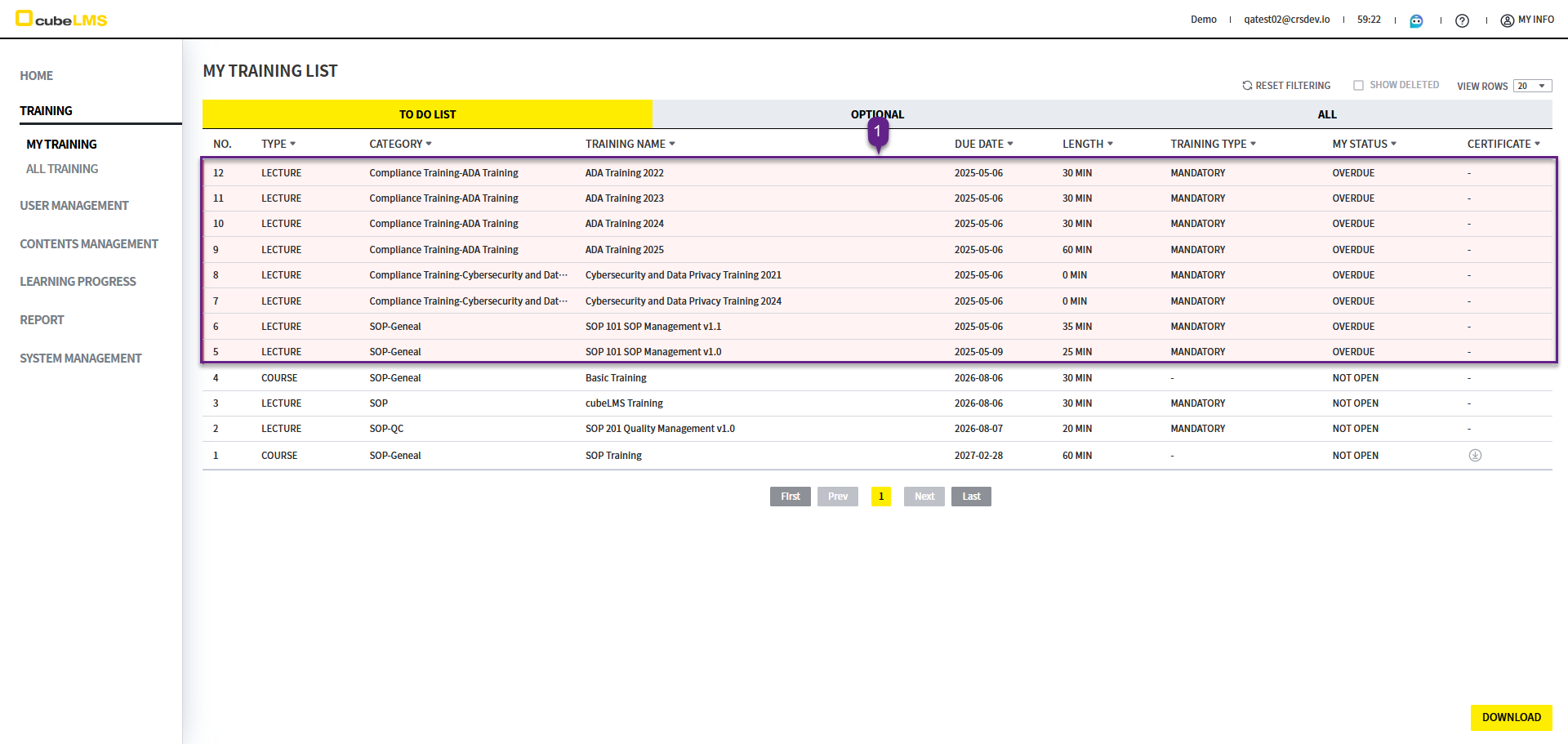
You can view Training that has not been completed (pending, in progress, or overdue) in the To Do List.
TO DO LIST
1. Overdue Training are highlighted in red and listed at the top, sorted by the order in which the Due Date is reached.
2. Download button: You can download the list as an Excel document. If you set a filter, only the filtered results are downloaded.
3. Click each row to go to the detail page where you can take the Training.
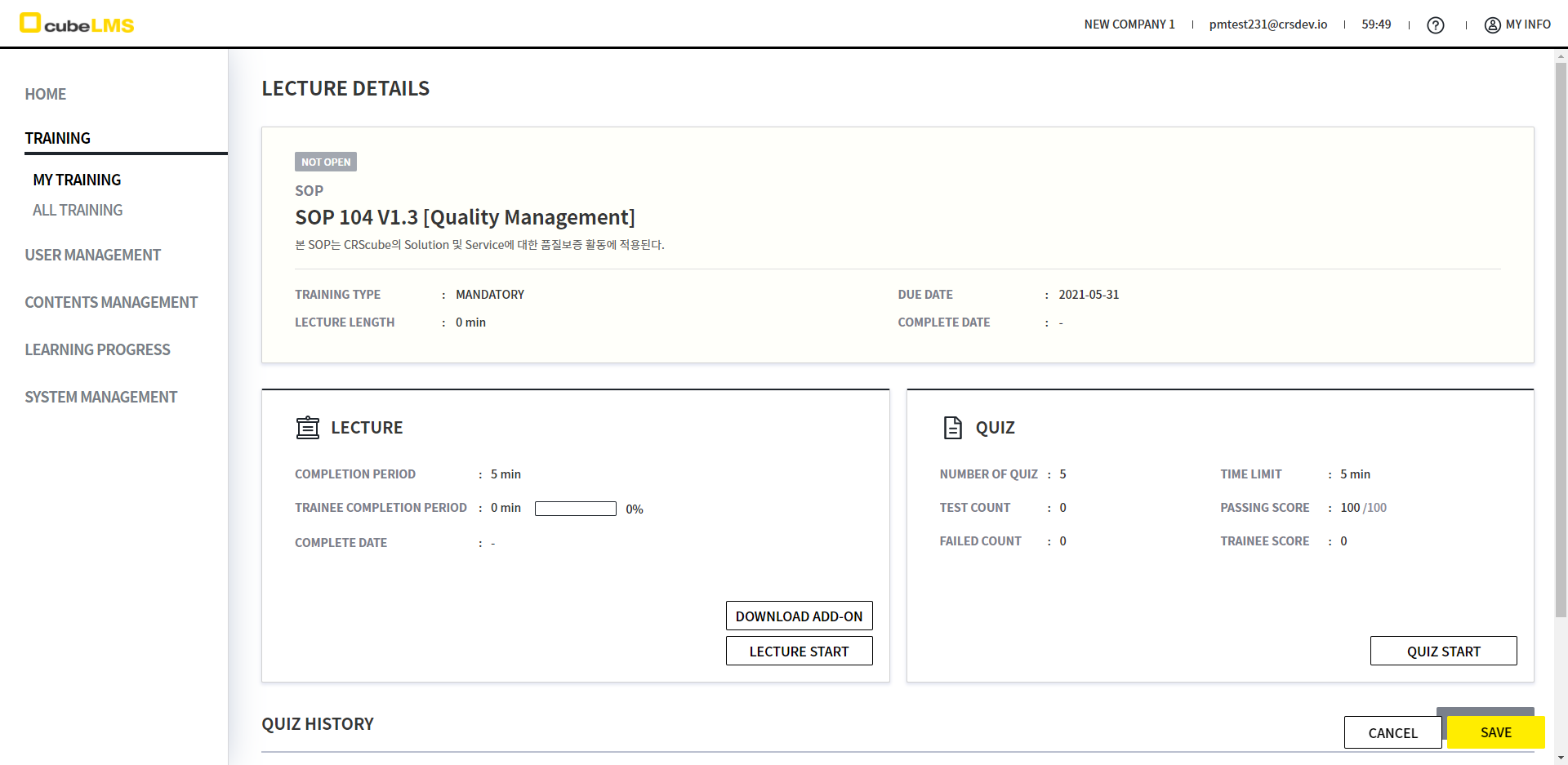
LECTURE DETAILS
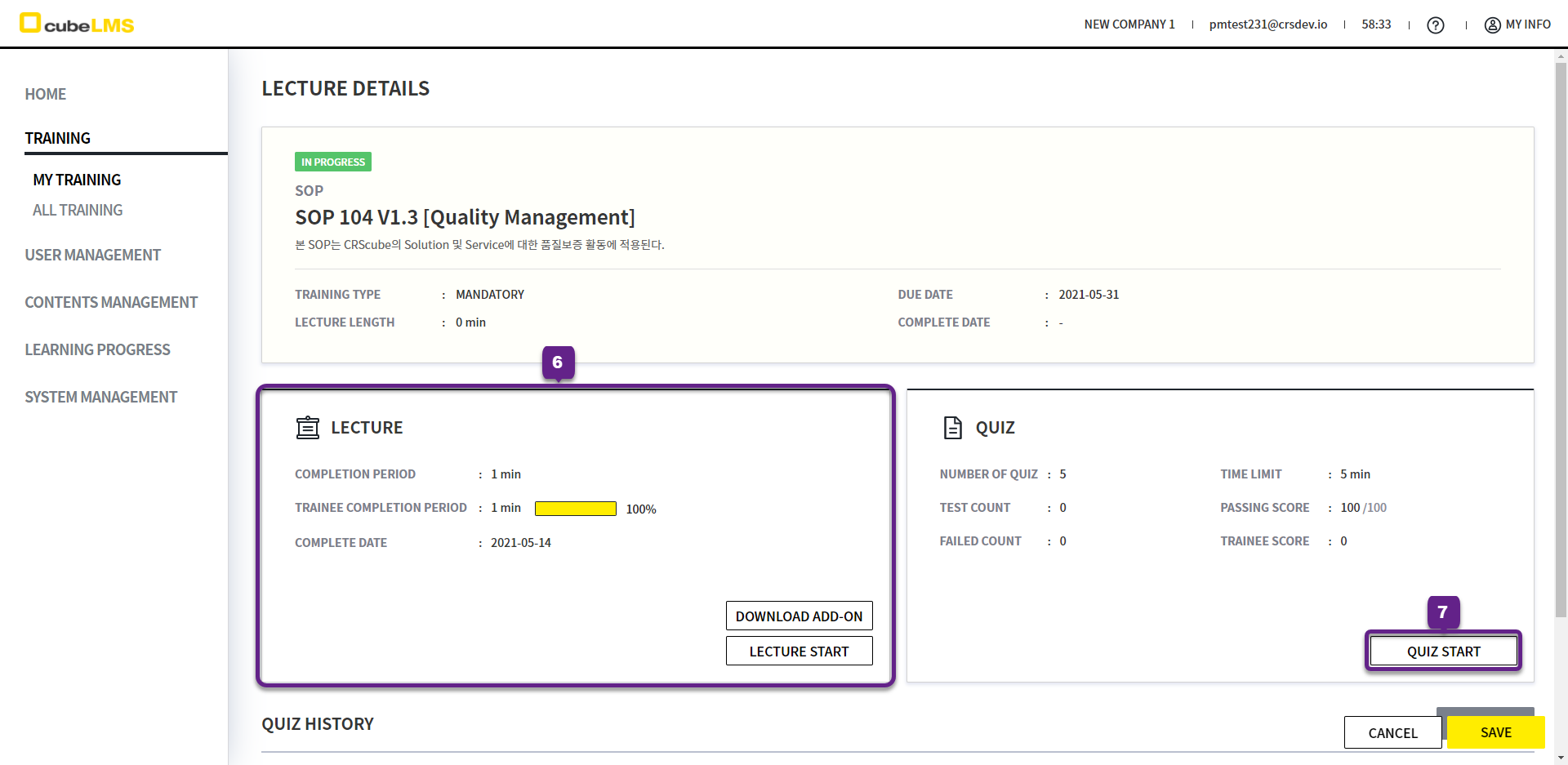
Lecture details, training status, and completion date are displayed.
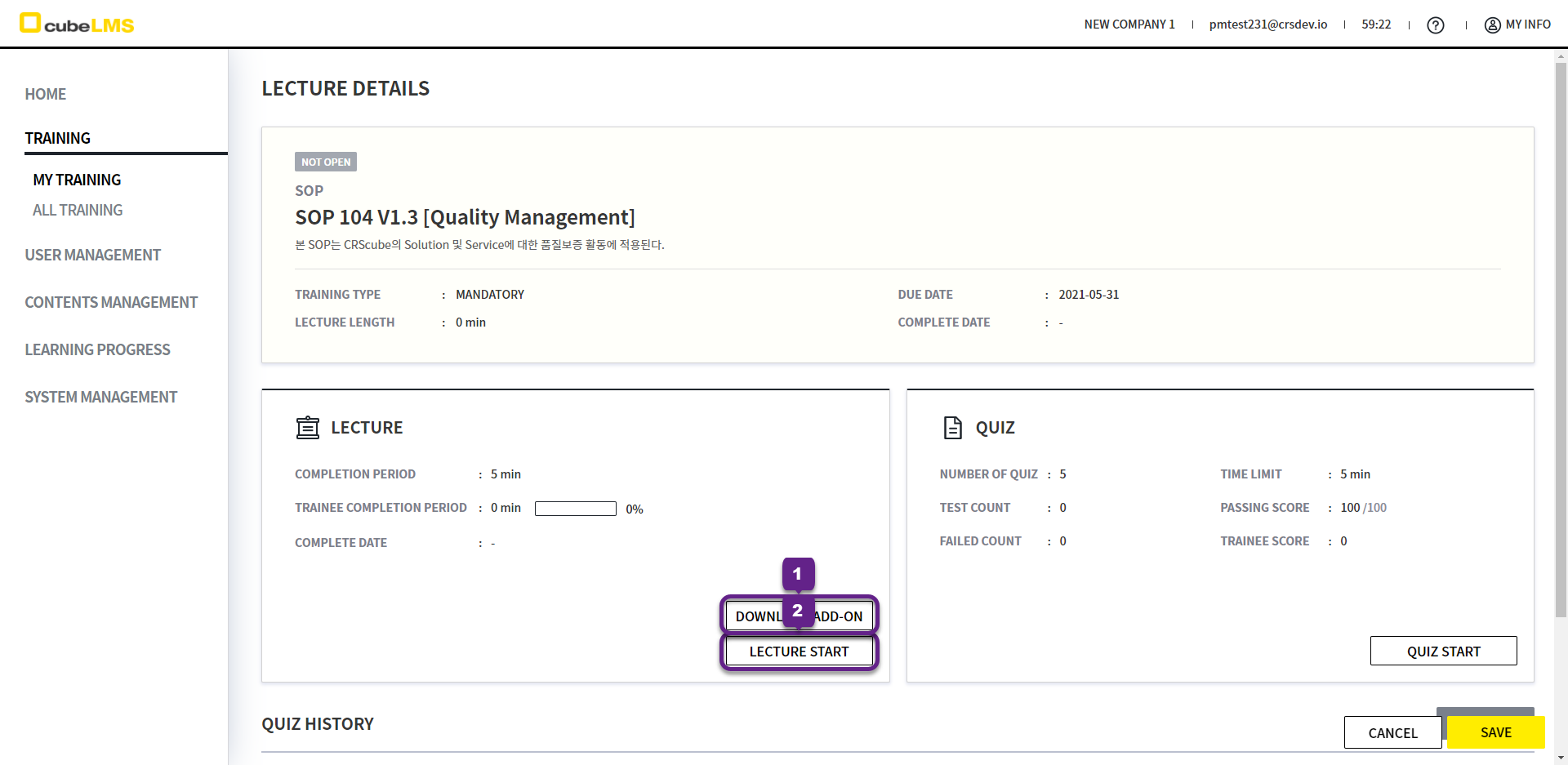
LECTURE DETAILS-CONTENTS
1. Download Add-on button: When clicked, you can download additional attachments. If there are no attachments, this button is not displayed.
2. Lecture Start button: When clicked, a window pops up depending on the Contents type.
-
PDF:A viewer for viewing PDF documents is provided. -
VIDEO:The video plays.-
If you are not using Chrome, the playback speed function may not be available.
-
-
AUDIO:The audio plays. -
LINK:A link is provided, and the webpage you are taken to by clicking the link is the Lecture content.
Depending on Lecture settings, there are also Trainings without Content.
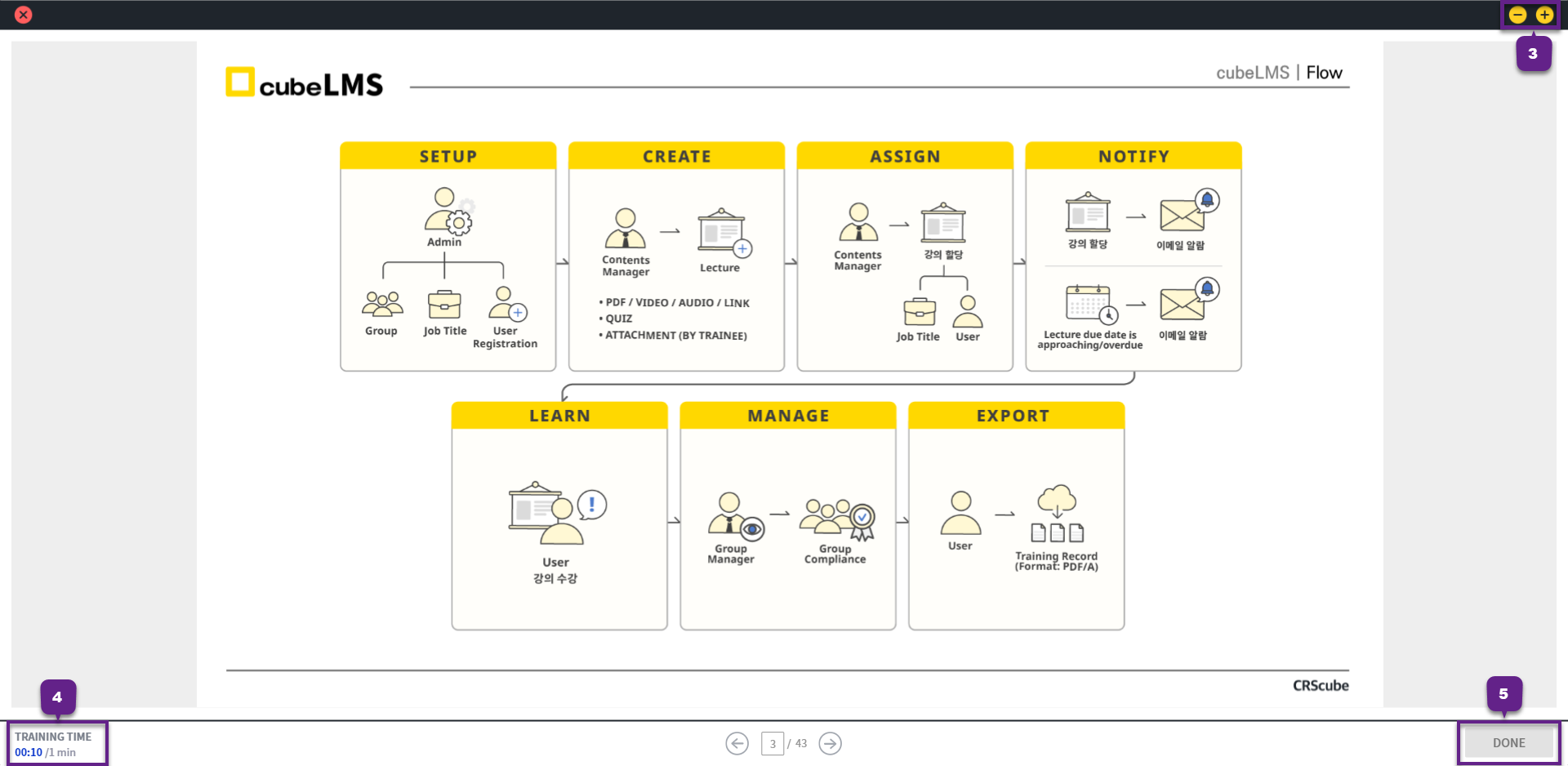
3. PDF type: You can zoom out or in by clicking the icon on the right. Each click changes the zoom by 10%, and you can click up to 15 times.
4. Training Time: The minimum time required to complete the Contents is recorded in 1-minute increments starting from when the Contents begins.
5. Done button: When the training time exceeds the Training Time, the button below becomes enabled, and clicking it completes the Contents.
6. When the training is completed, Contents training information is updated.
7. Quiz Start button: If the lecture has a quiz, you can click the button to take the quiz.
LECTURE DETAILS-QUIZ
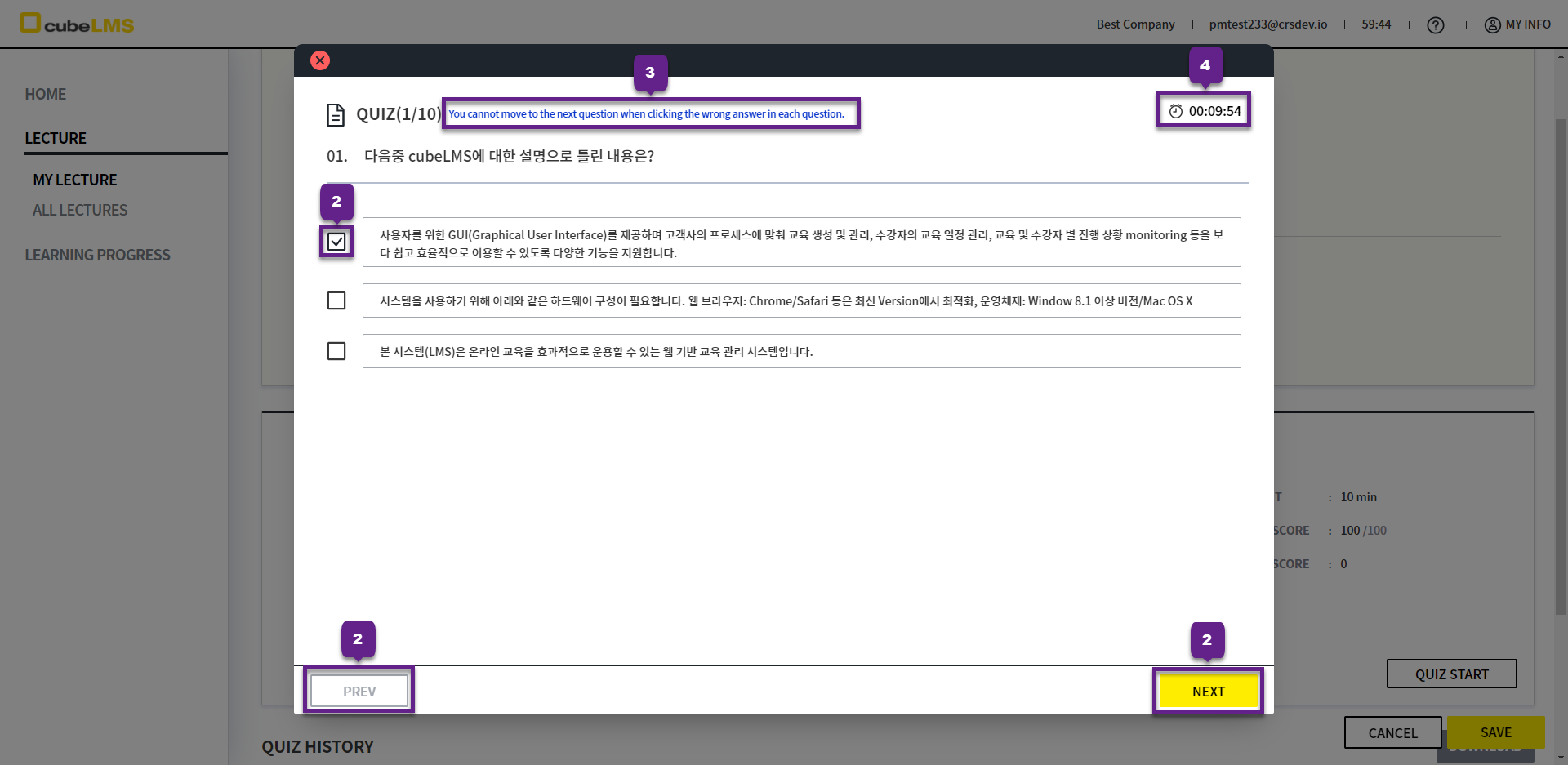
1. A window for taking the Quiz appears.
2. Check the option that matches the question, and use the buttons below to move to the previous or next Question.
-
Prev:Go to the previous question. -
Next:Go to the next question.
3. Contents manager determines the text displayed according to the settings configured by Contents manager. If this text is displayed, you can proceed to the next Question only after selecting the correct answer.
If the Quiz has a Time Limit, the remaining time is displayed in the upper right, and the Quiz is automatically submitted when time expires.
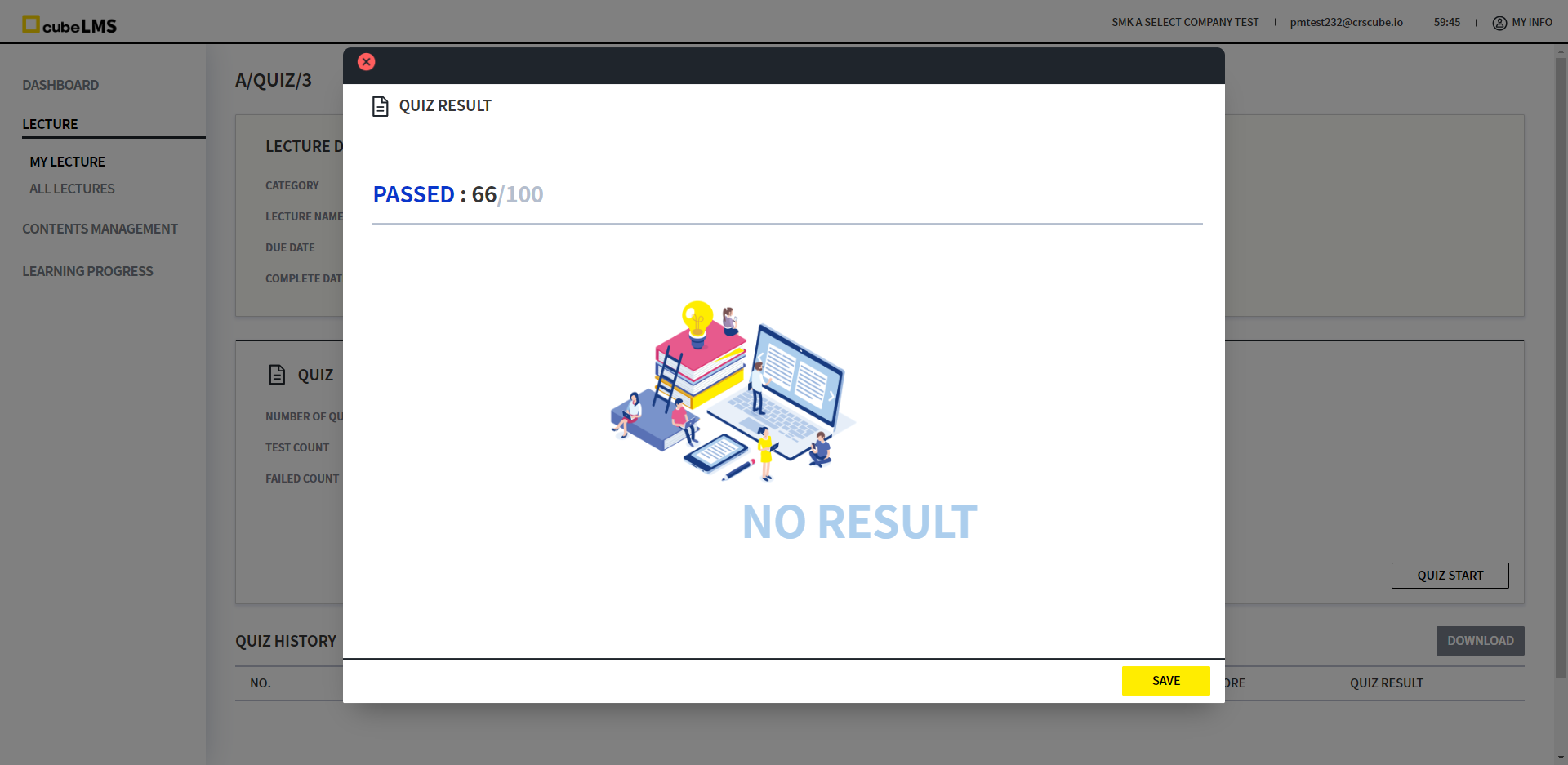
5. Submit button: When this is the last Question, it is displayed on the right, and when selected, it moves to the Quiz Result page. On this page, you can check the submitted quiz results.
Admin's settings determine how Quiz Result is displayed differently. For details, please refer to the System Management page.
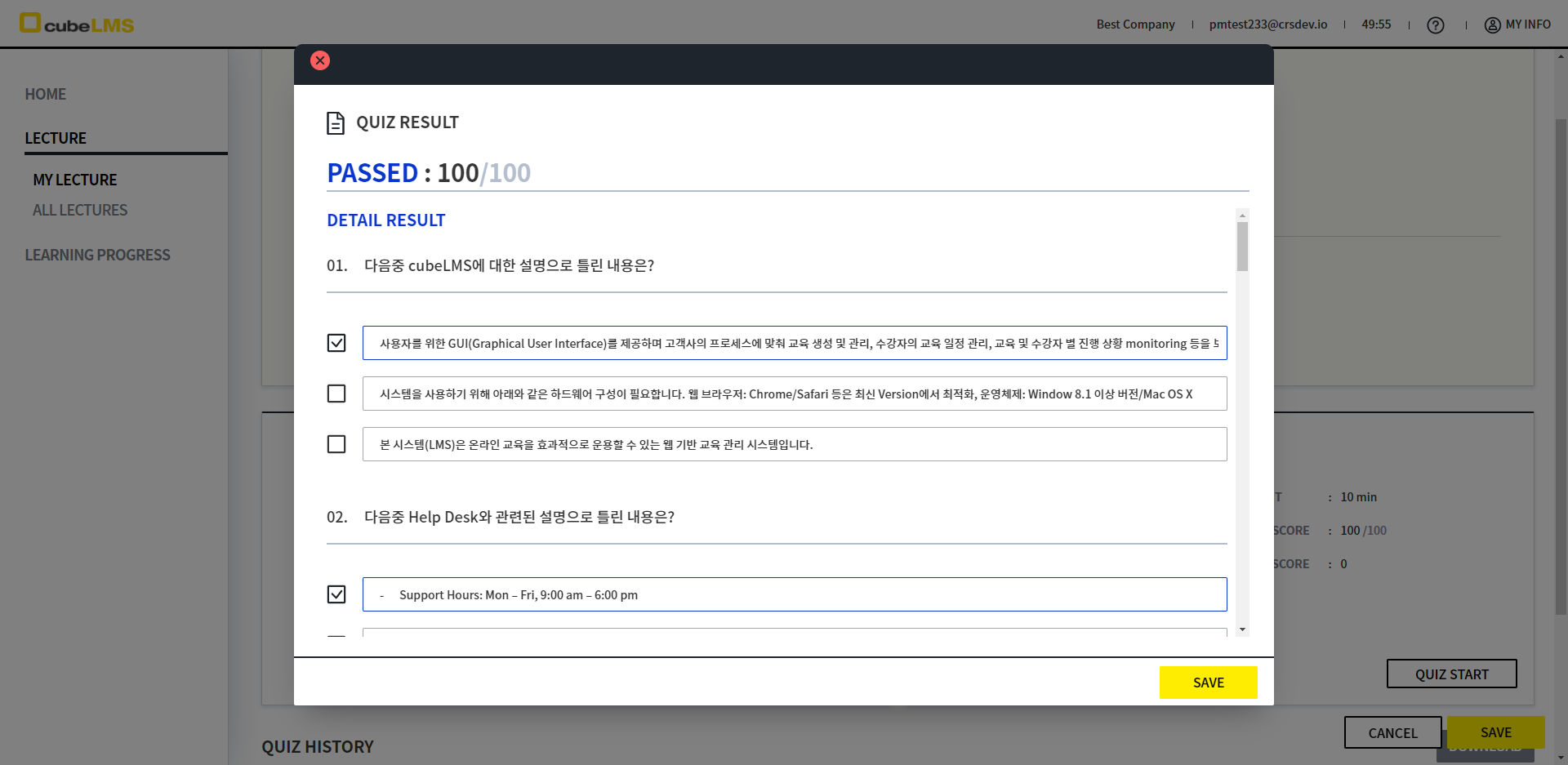
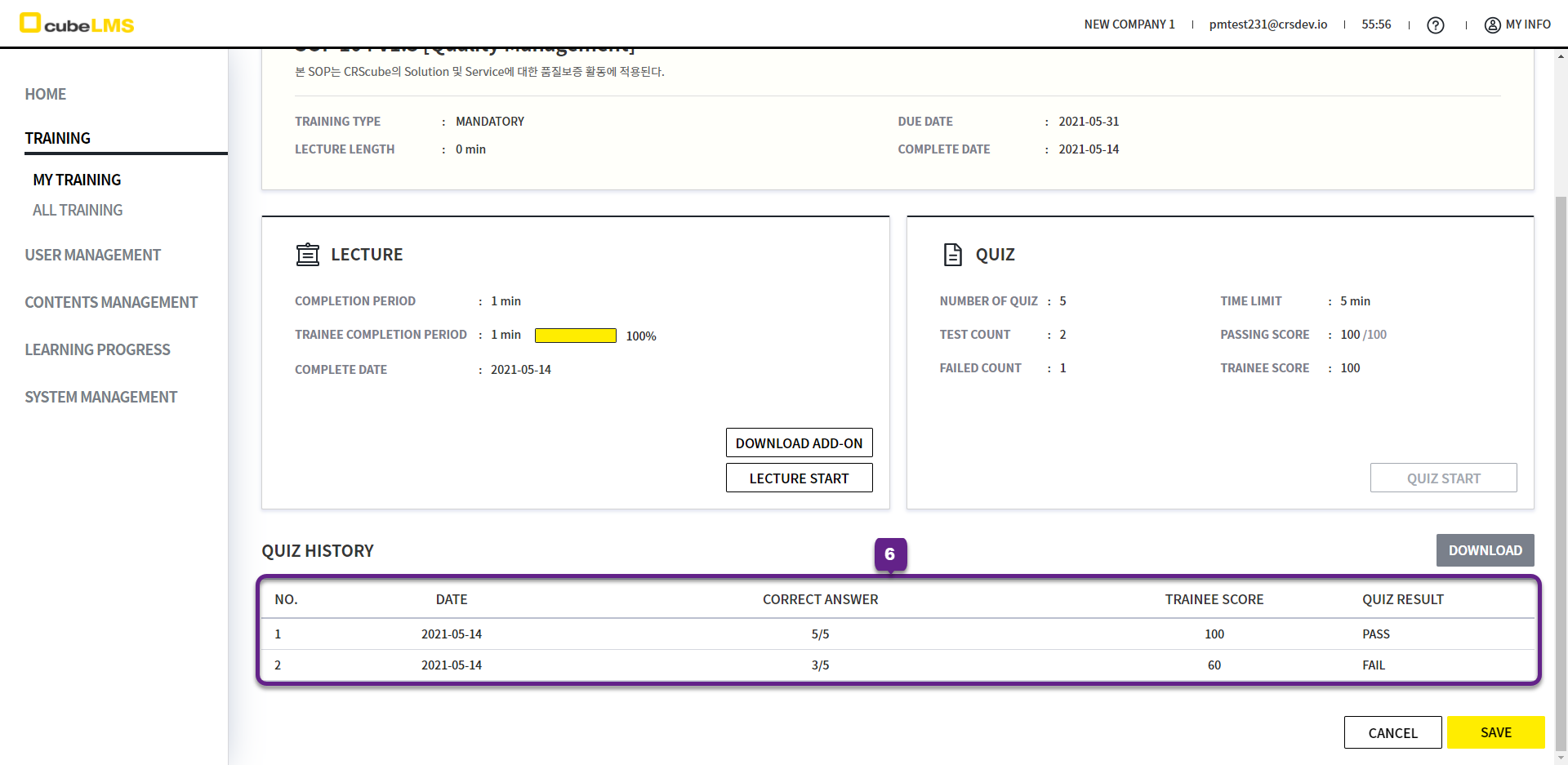
6. Quiz History is displayed at the bottom, and you can download it as an Excel file by clicking the Download button.
LECTURE DETAILS- File Upload
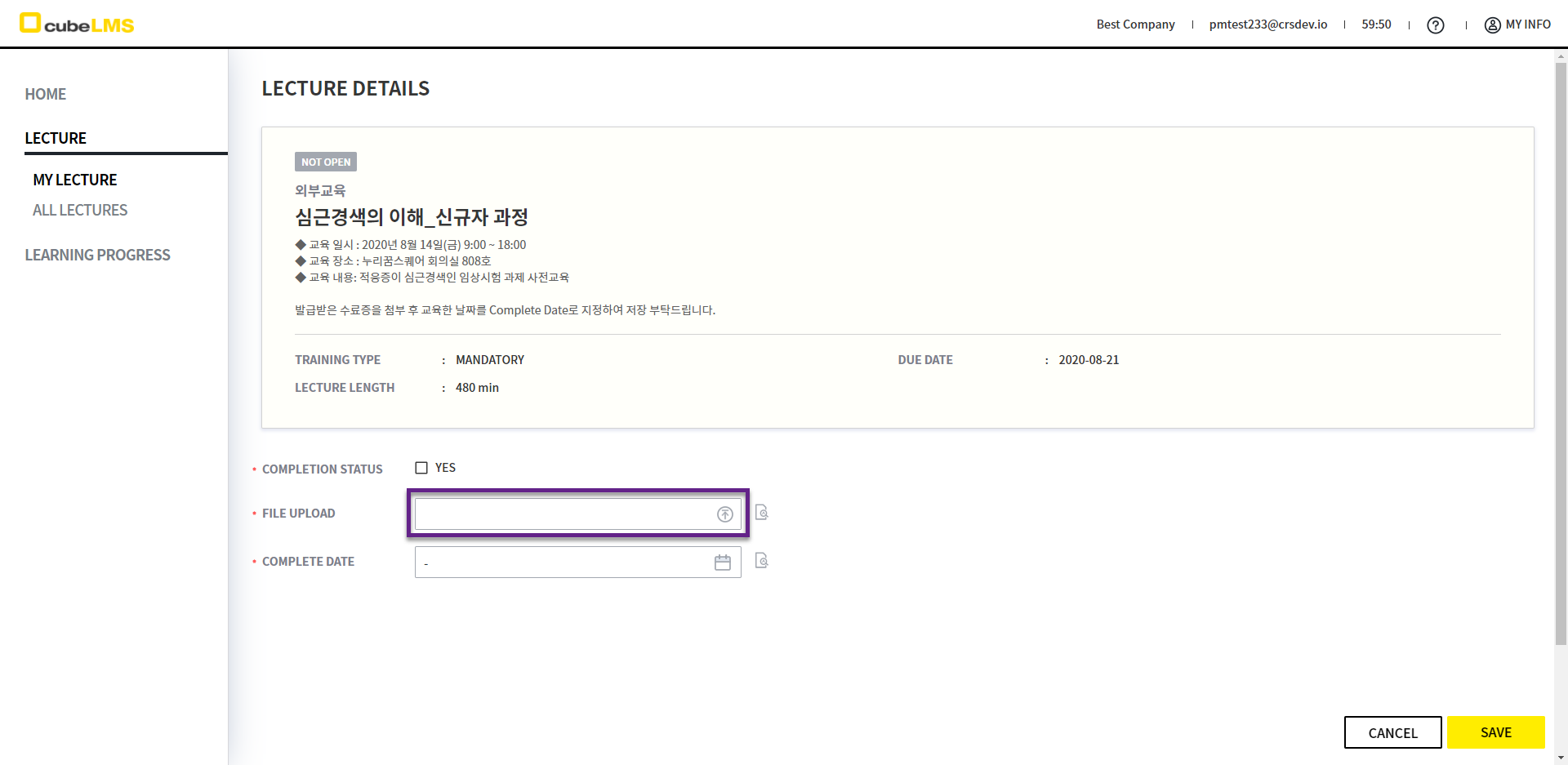
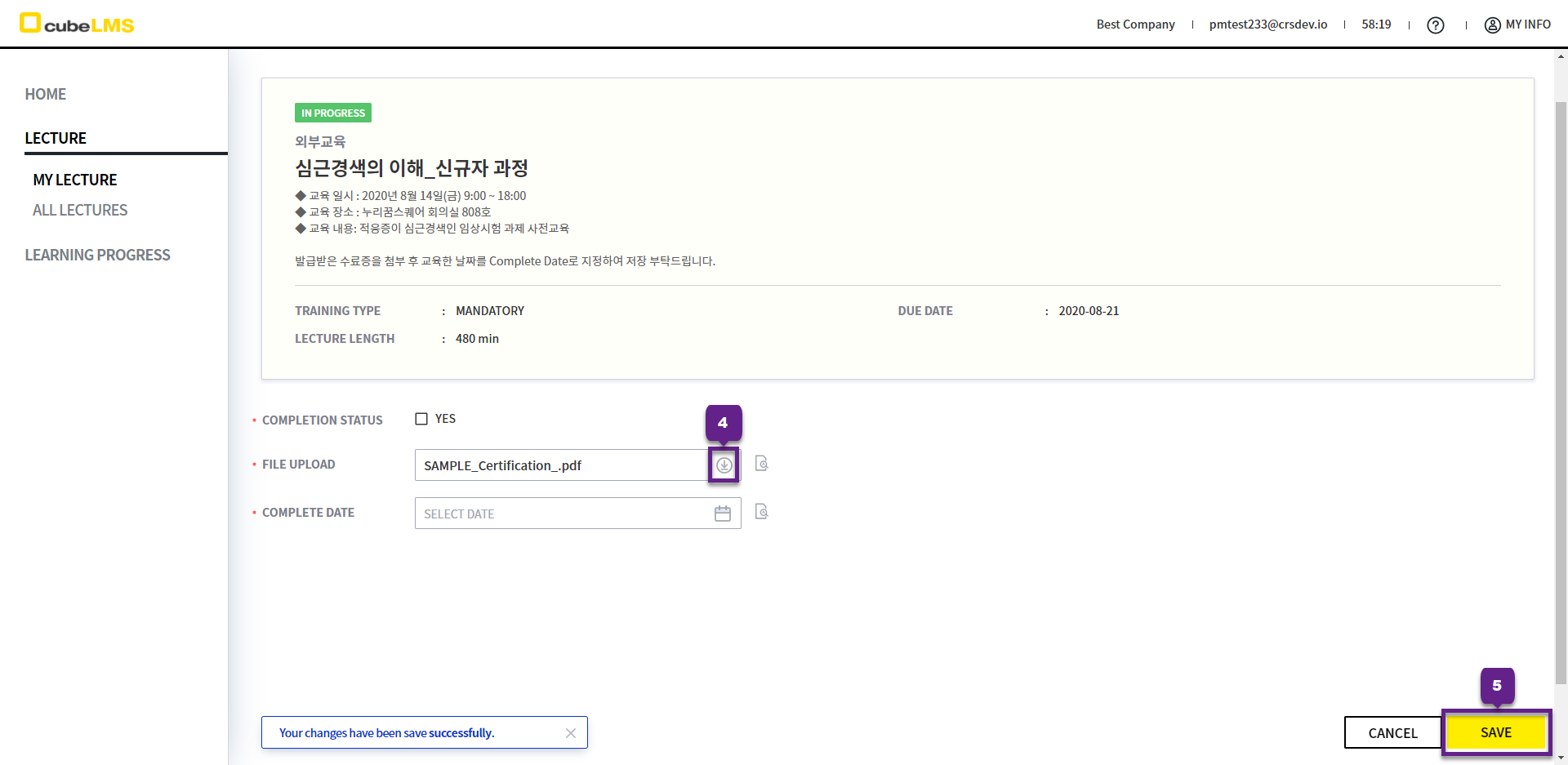
1. File Upload: You can upload documents required for the lecture.
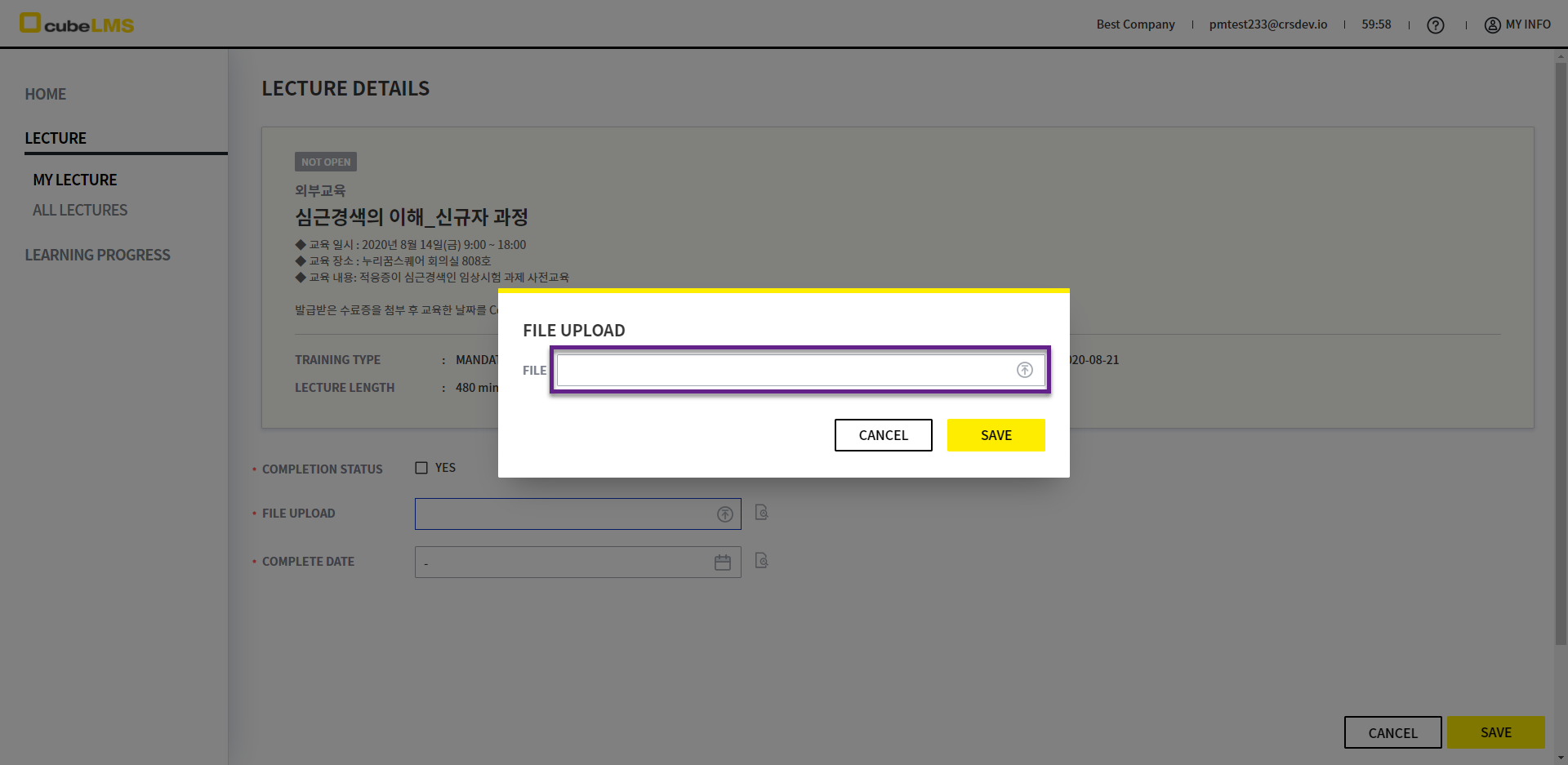
2. You can reset or replace the file even after uploading it.
-
Reset file: After uploading, click the File Upload field and, in the pop-up window, click the - icon to reset it
-
Replace file: After uploading, click the File Upload field and, in the pop-up window, click the File field to replace the file
3. If you have finished uploading the file, you can check the uploaded file name.
4. File Upload can also be downloaded by clicking the download icon on the right.
5. Save button: You can save the uploaded file.
LECTURE DETAILS- COMPLETE DATE
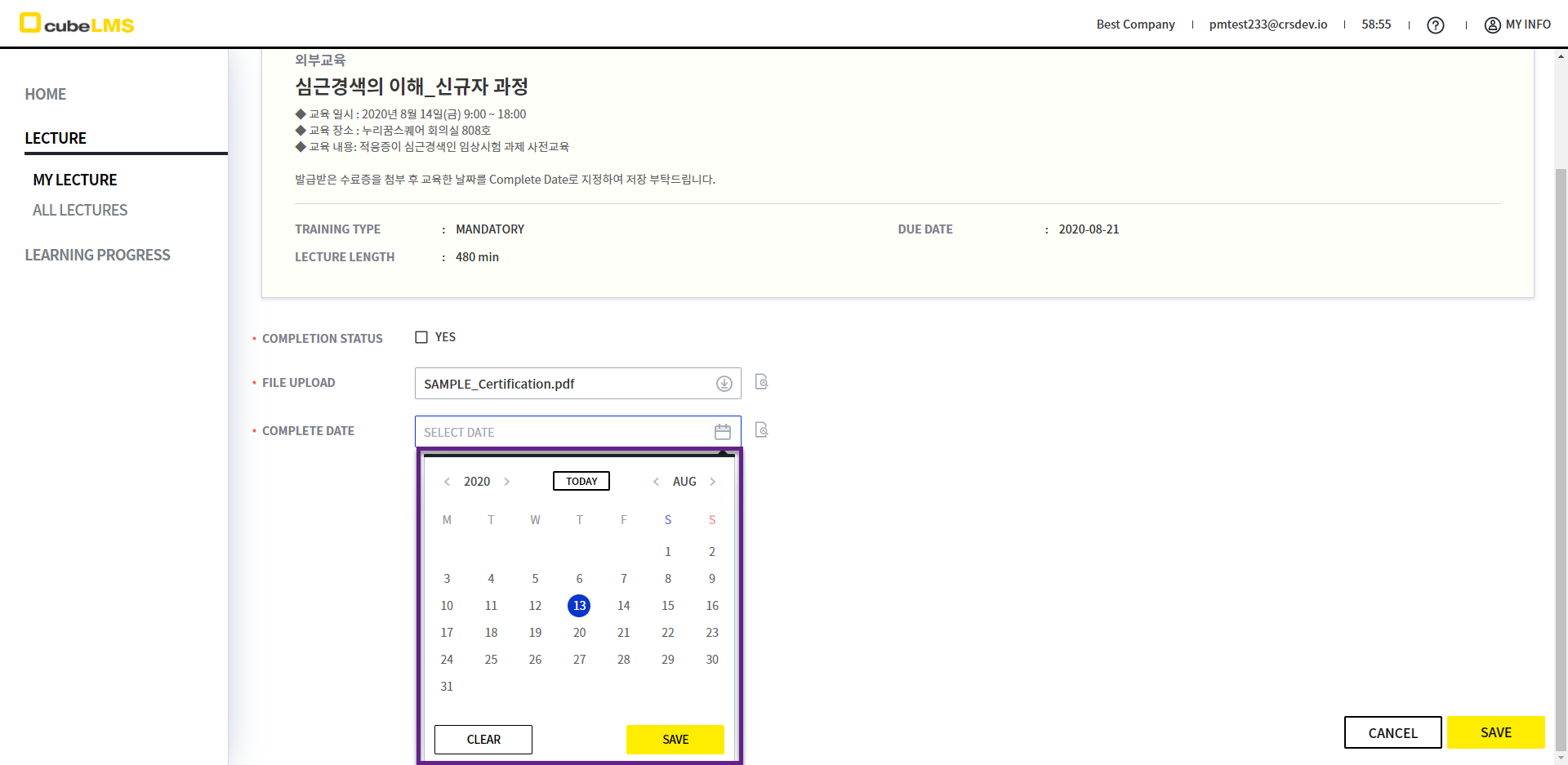
1. The Trainee can directly select the Complete Date to complete the Training.
2. Complete Date: Clicking it displays a calendar, then select the desired date and click the Save button.
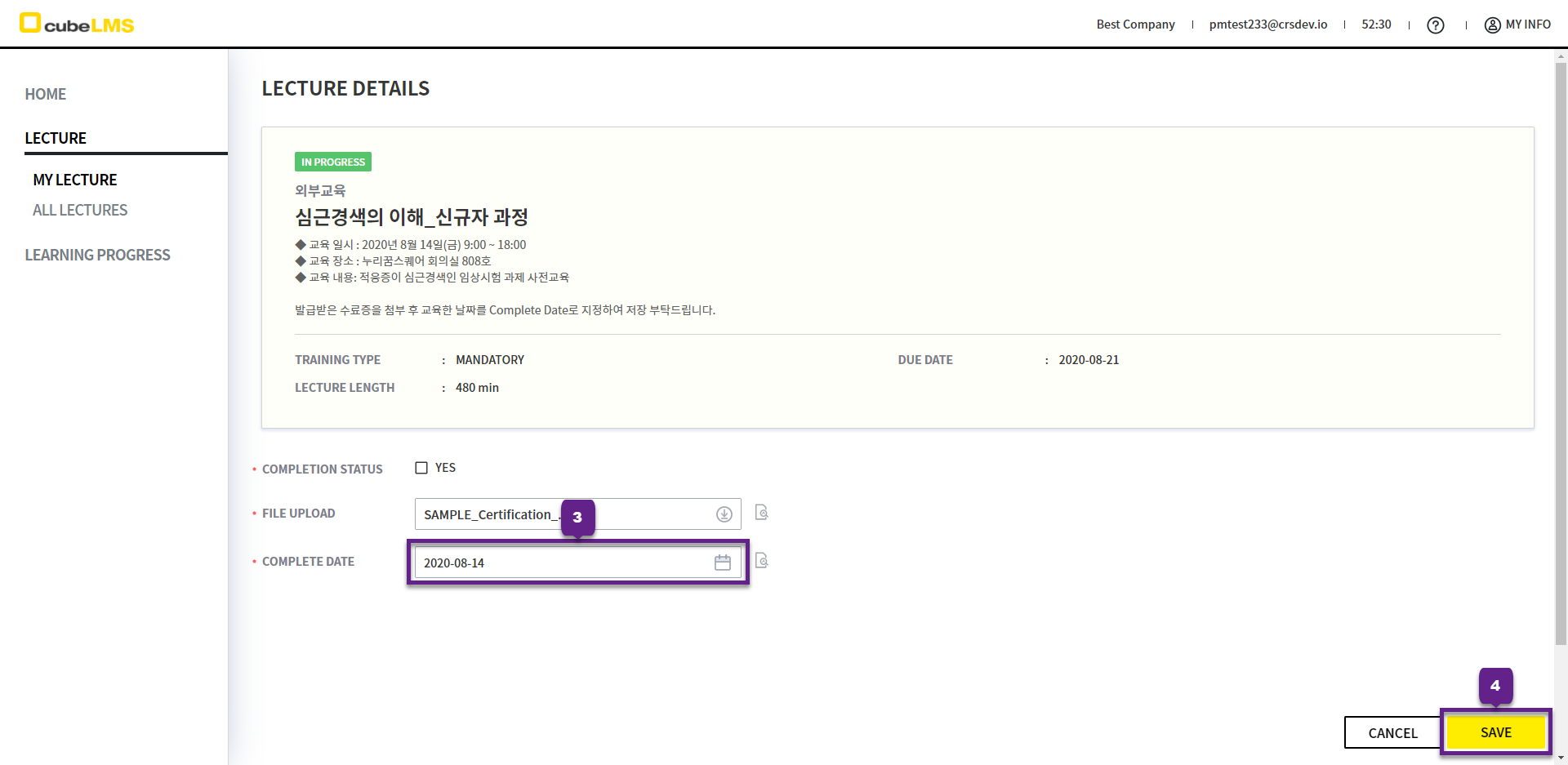
3. Once you have selected the Complete Date, you can check the selected date in the Complete Date field.
4. Save button: Save the entered Complete Date.
LECTURE DETAILS- COMPLETION STATUS
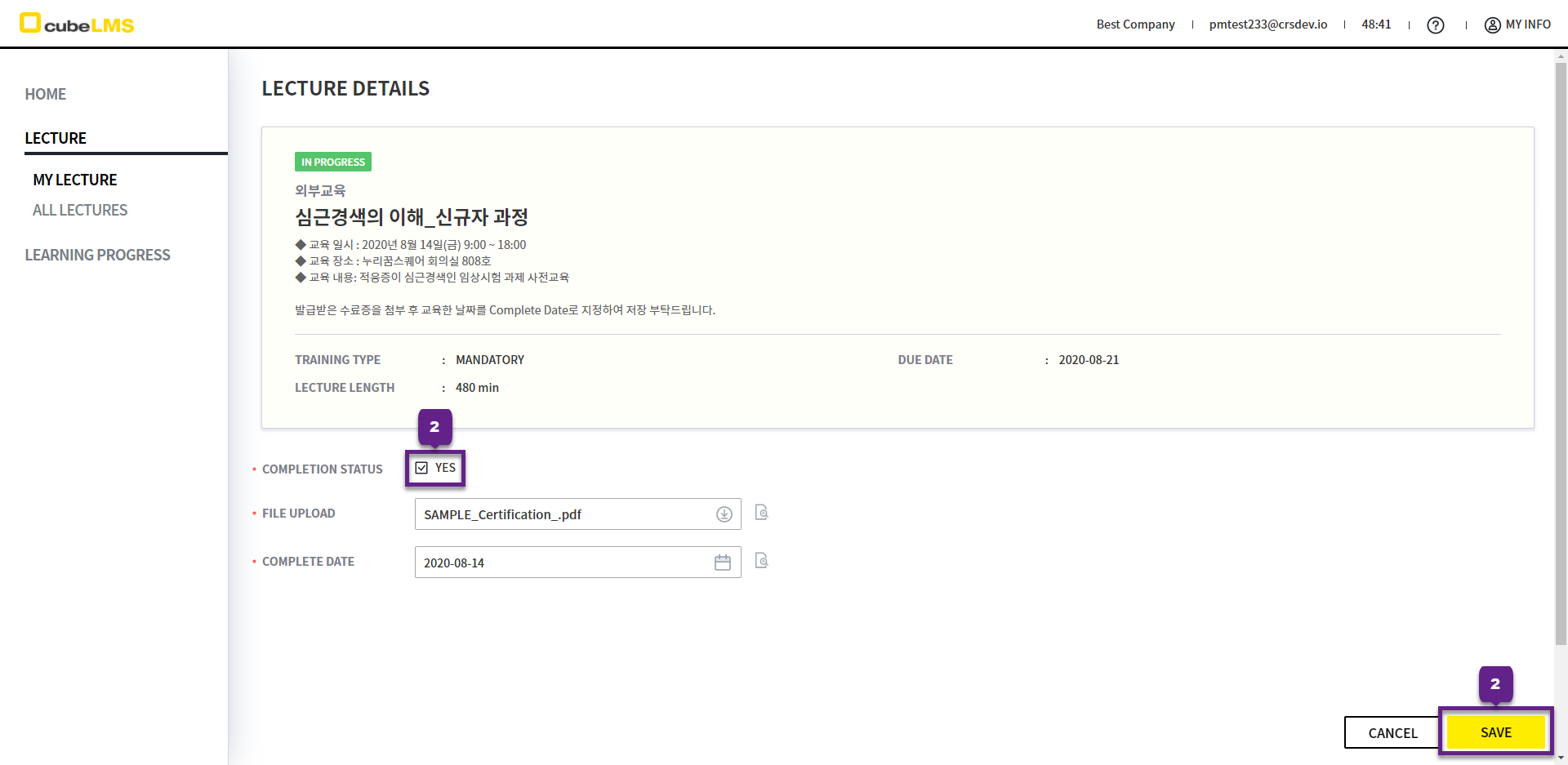
1. Completion Status: The item is displayed if the following conditions are met.
-
OR(File Upload, Complete Date)exists -
Contents, Quizdo not exist
2. Yes must be checked, and Save must be clicked to finally make the lecture Complete.
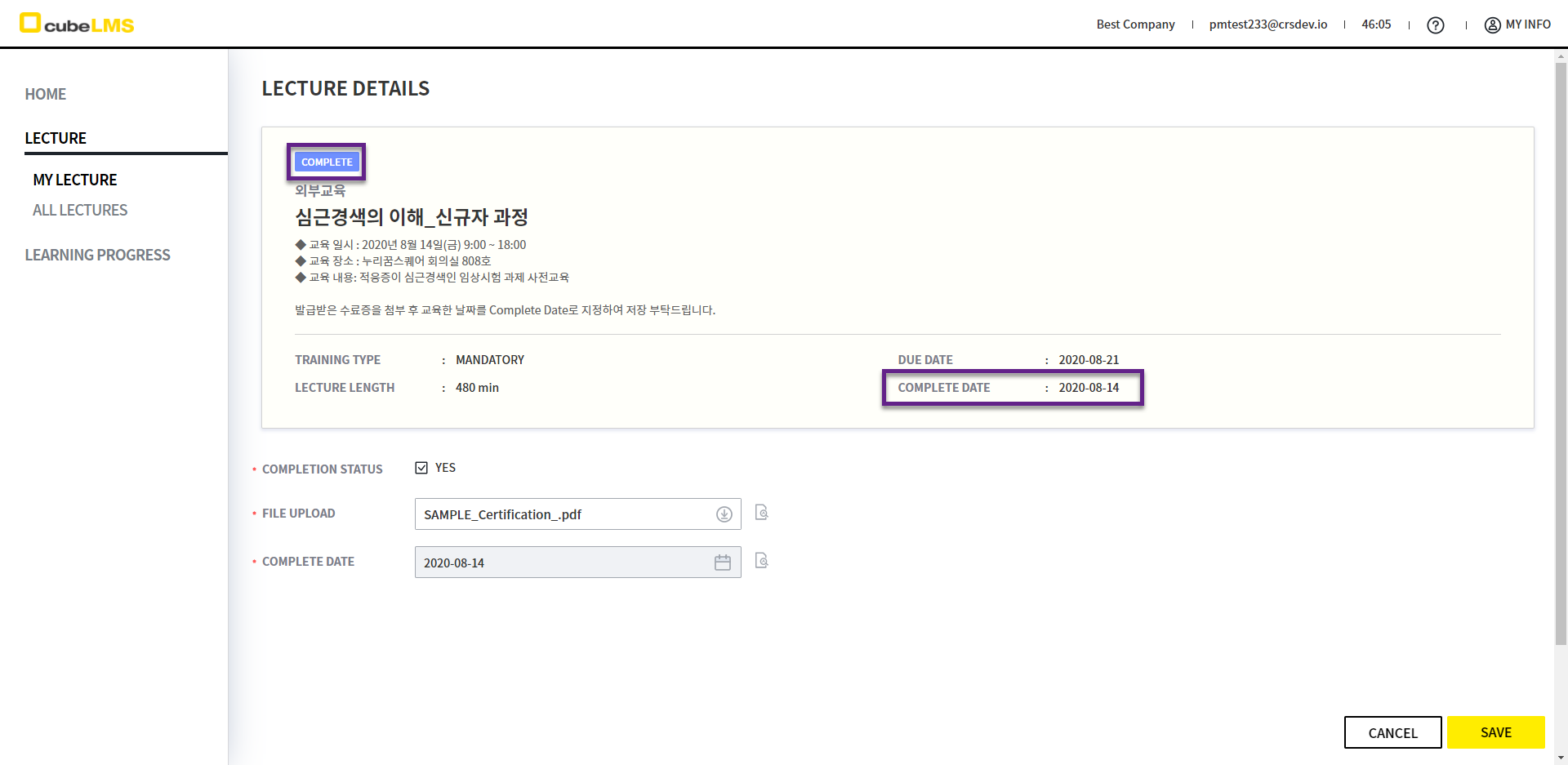
LECTURE DETAILS- TRAINING COMPLETION
If the lecture is completed successfully, Status changes to Complete, and Complete Date is updated with the completion date.
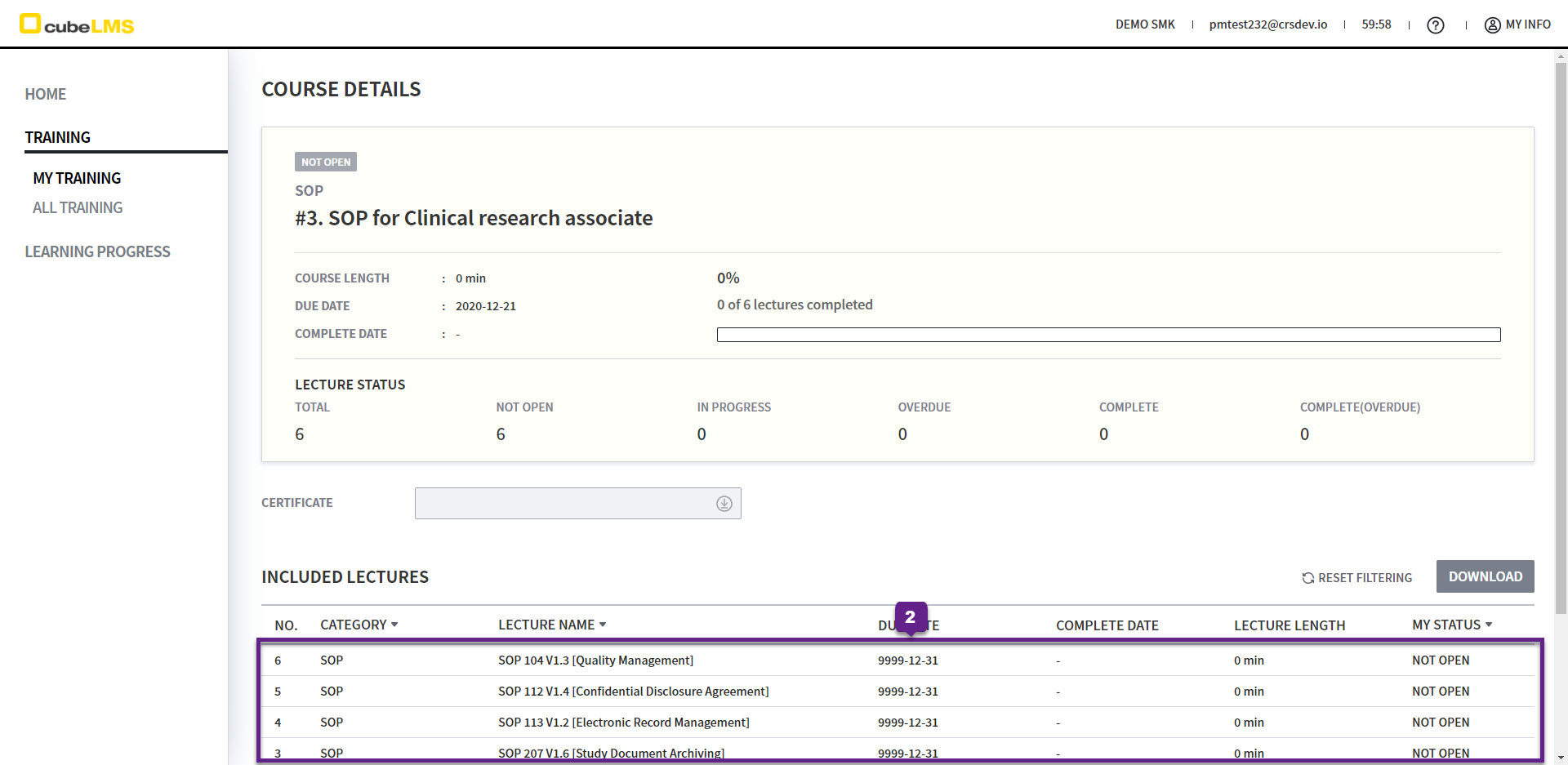
COURSE DETAILS
1. Course details, the course status and completion date are displayed.
2. Included Lectures: Click each row to go to the relevant Lecture Details page.
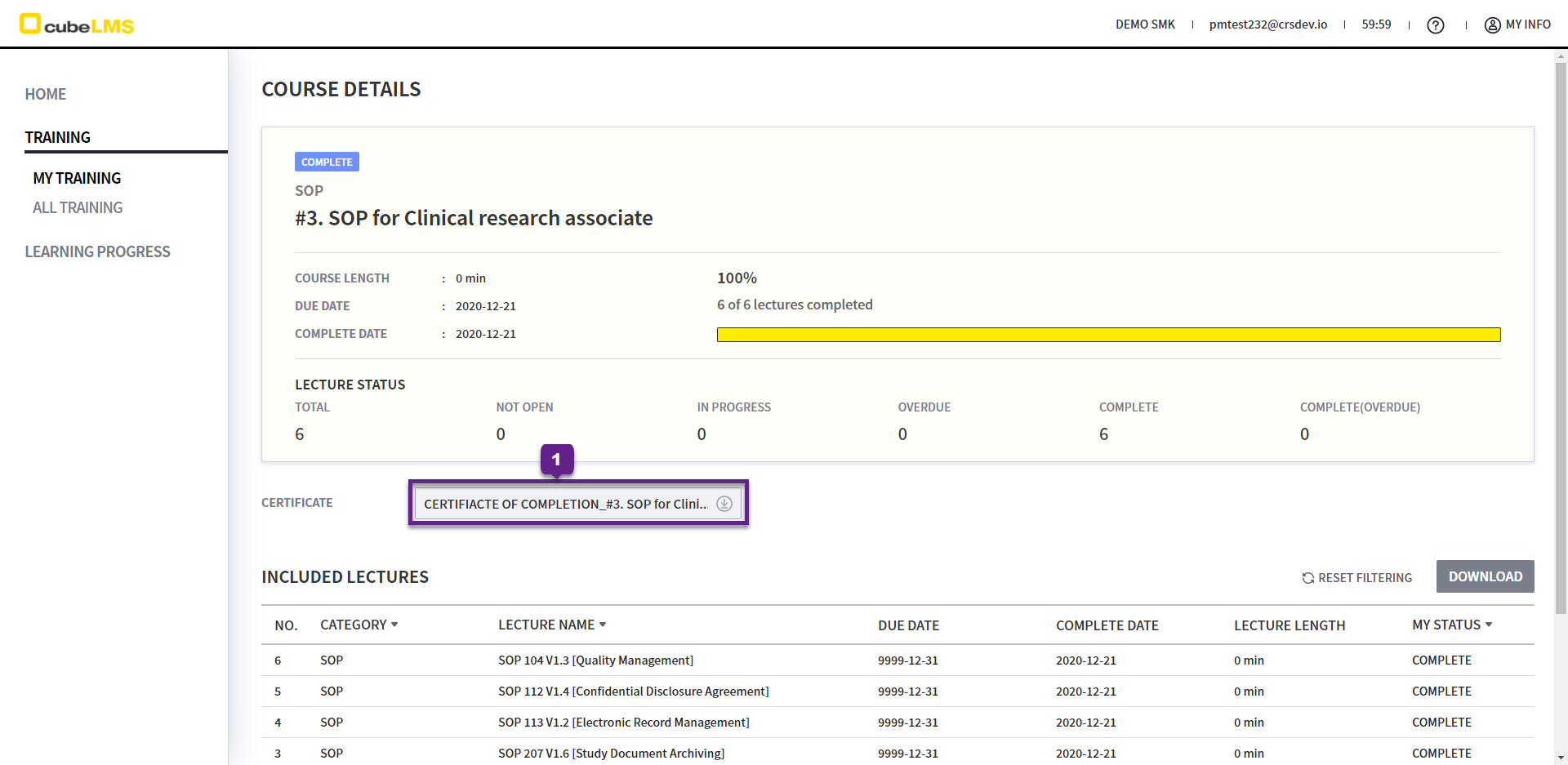
COURSE DETAILS- CERTIFICATE
1. Certificate: CourseThe certificate file name is displayed after completion, and you can download it by clicking the download icon on the right.
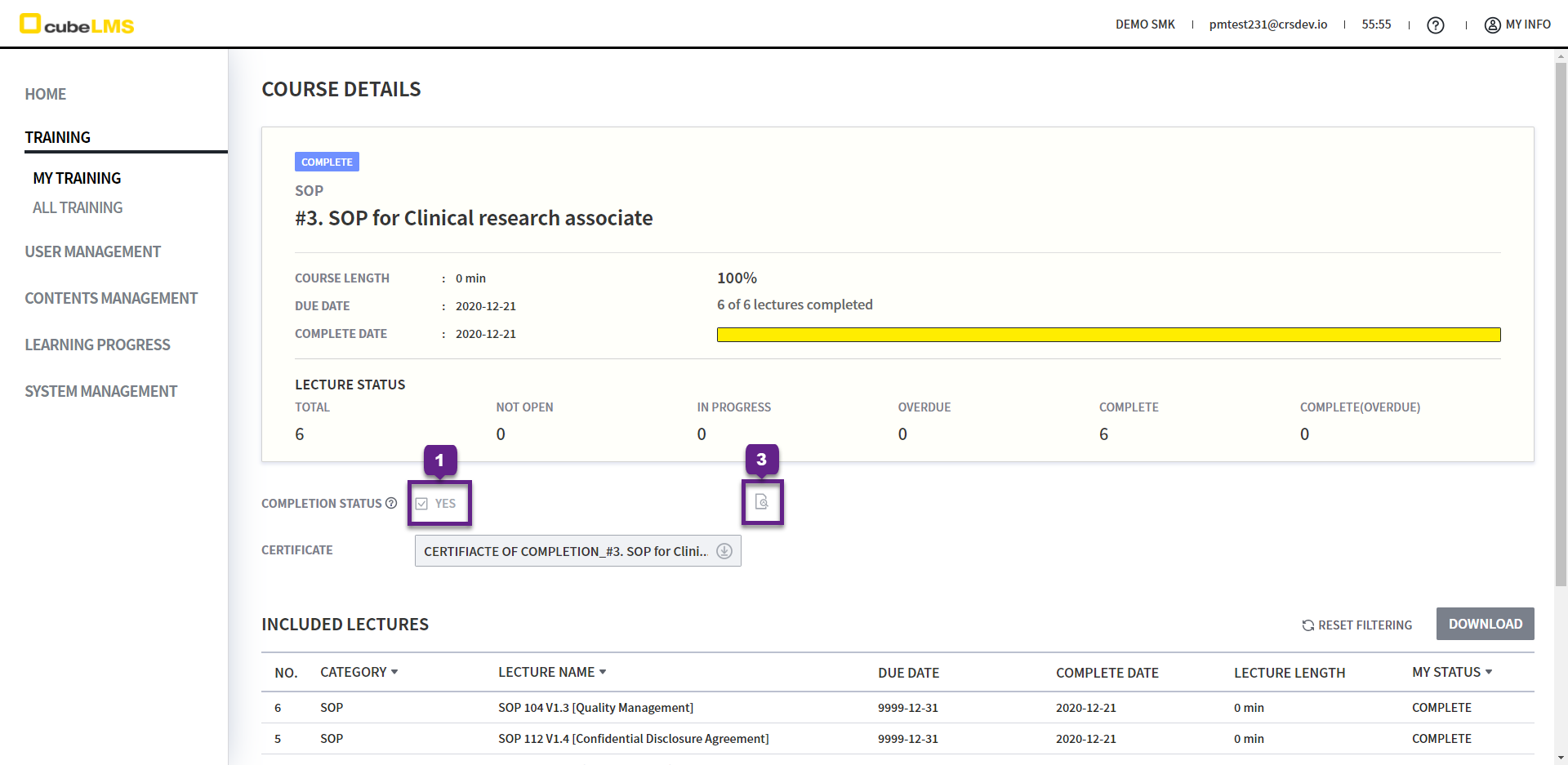
COURSE DETAILS- COMPLETION STATUS
1. Completion Status: This item is displayed if the Contents Manager has configured additional settings.
2. Even if the Trainee completes all Lectures in the Course, the Course is not completed, and the Contents Manager can check it to change the status to Complete.
3. Click the Audit Trail icon on the right to view information about the Contents Manager who completed the Course and the completion time.
ALARM MAIL
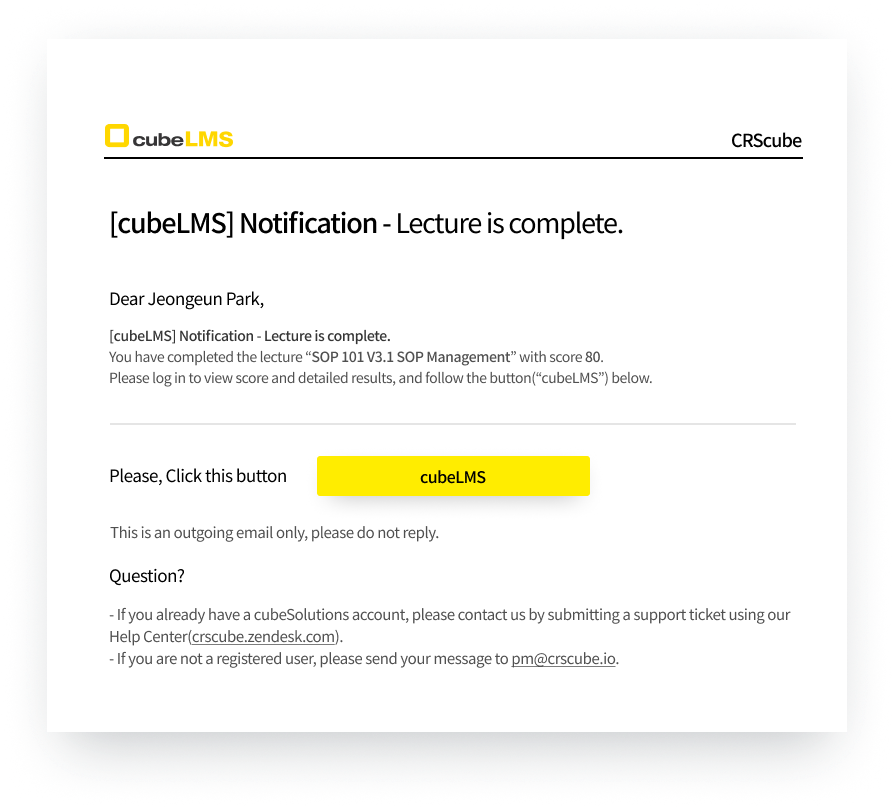
LECTURE / COURSE COMPLETION
A notification email will be sent when you complete the Training.
DUE DATE IS APPROACHING
Trainee AlarmAccording to the settings, a notification email is sent when Due date arrives.
Alarm mail is sent daily until training is complete.
Lecture Information > Alarm item can be unchecked so that the mail is no longer received.