

Release Note
Course-related features will be added in the regular migration on Monday, September 28.
<You can register a Course that includes multiple Lectures.>
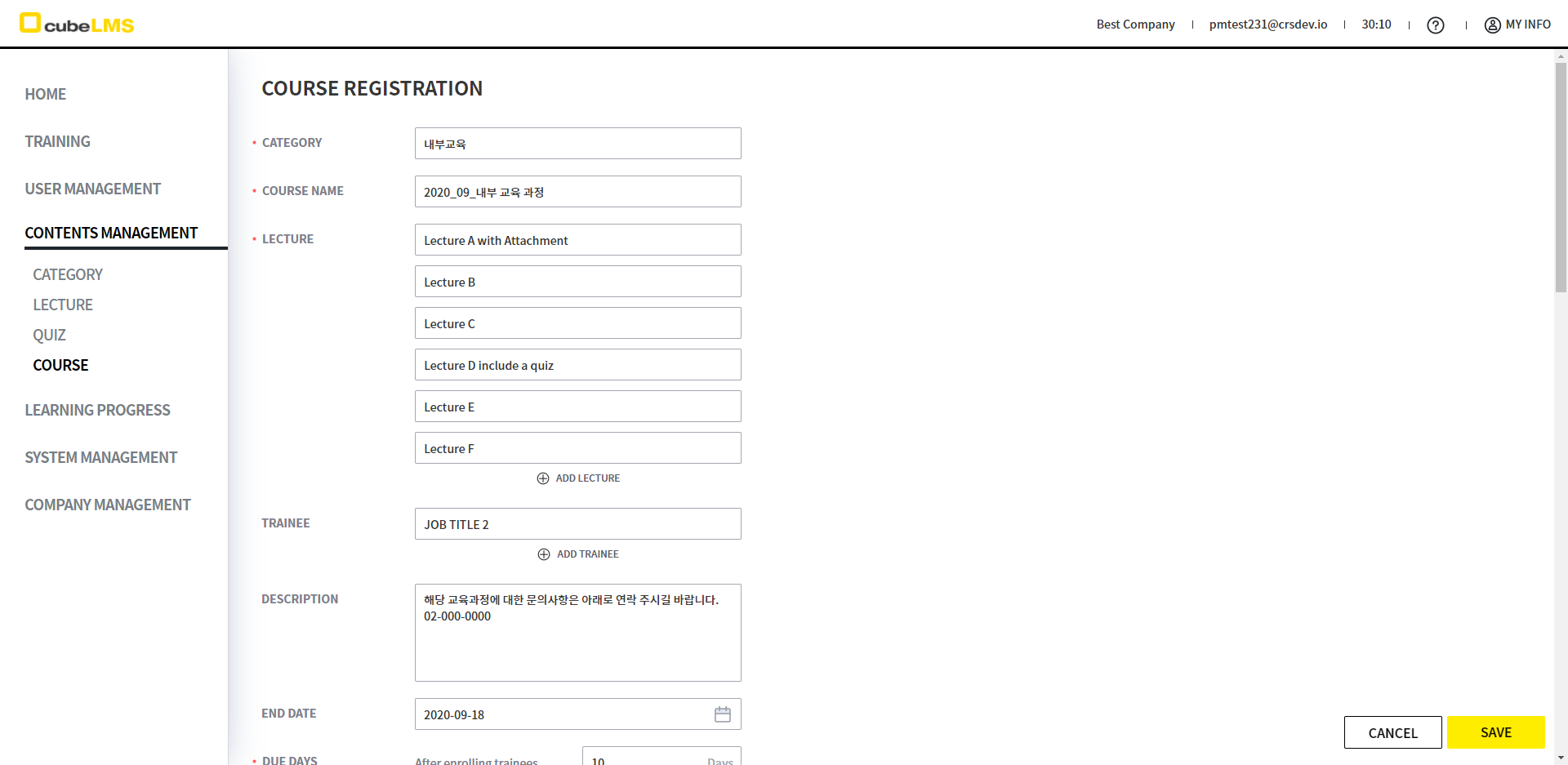
1. View the registered COURSE in the CONTENTS MANAGEMENT - COURSE menu and register a new COURSE.
2. For details, please refer to the COURSE manual.
<Course Details page has been added.>
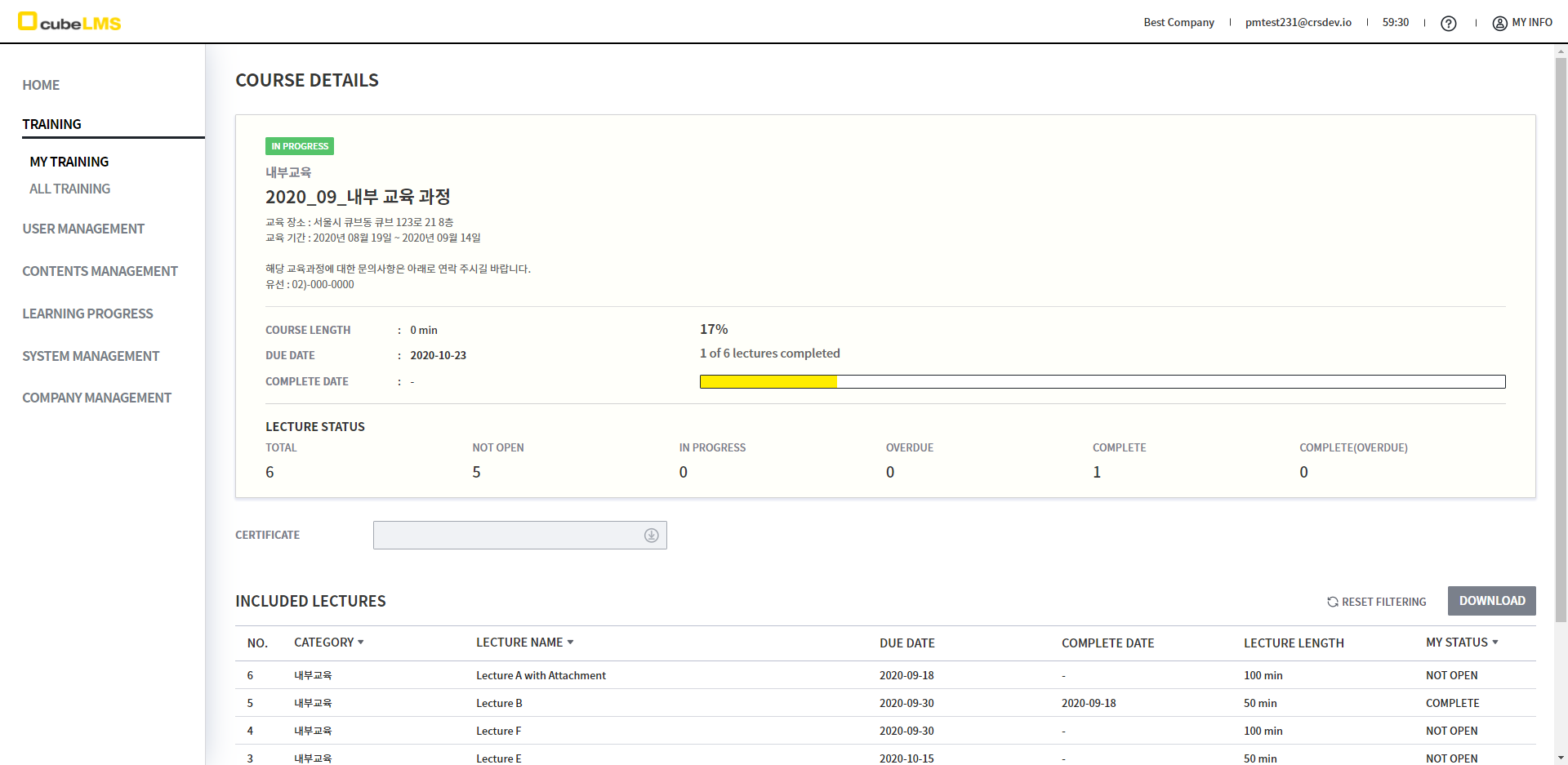
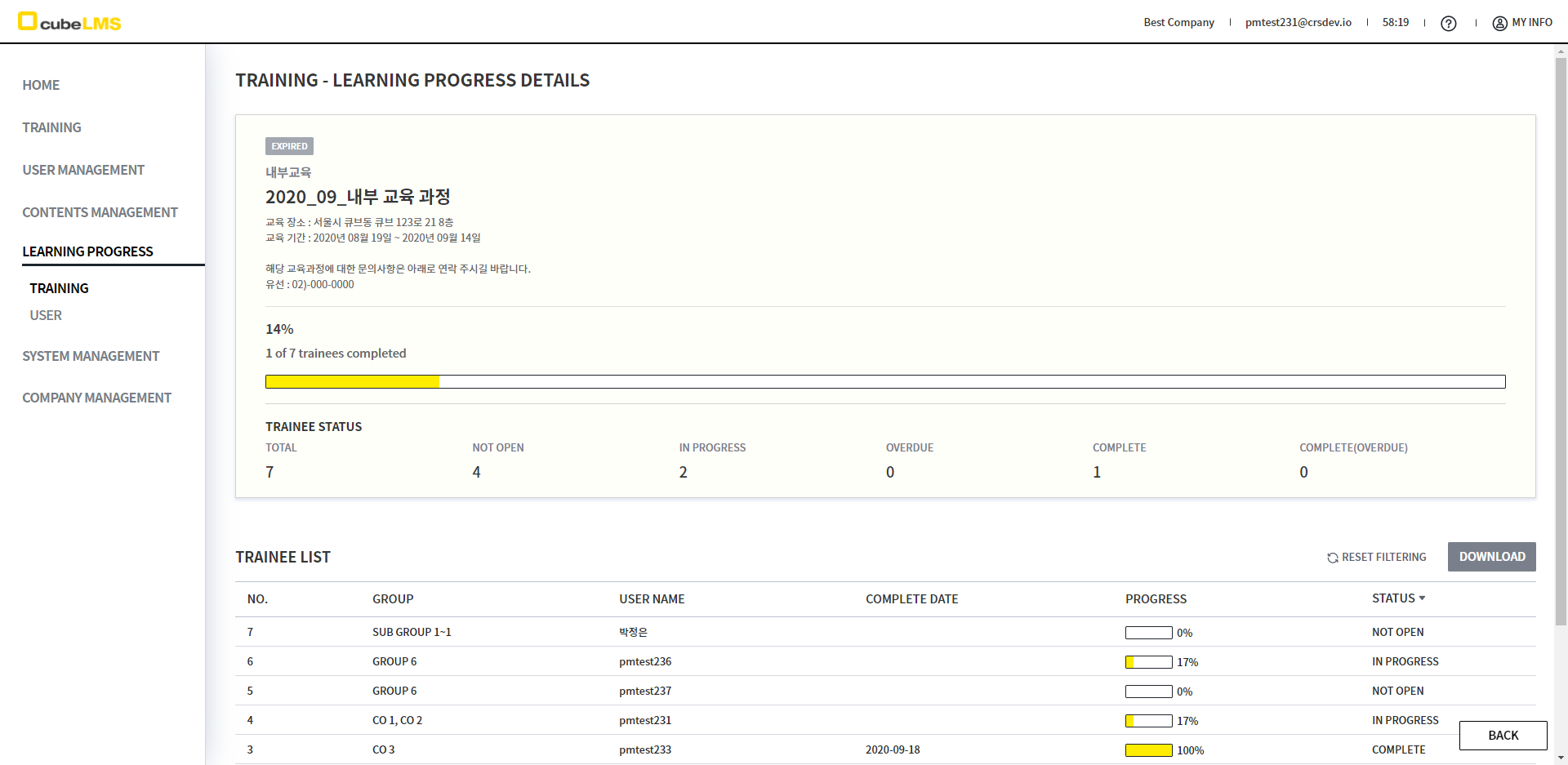
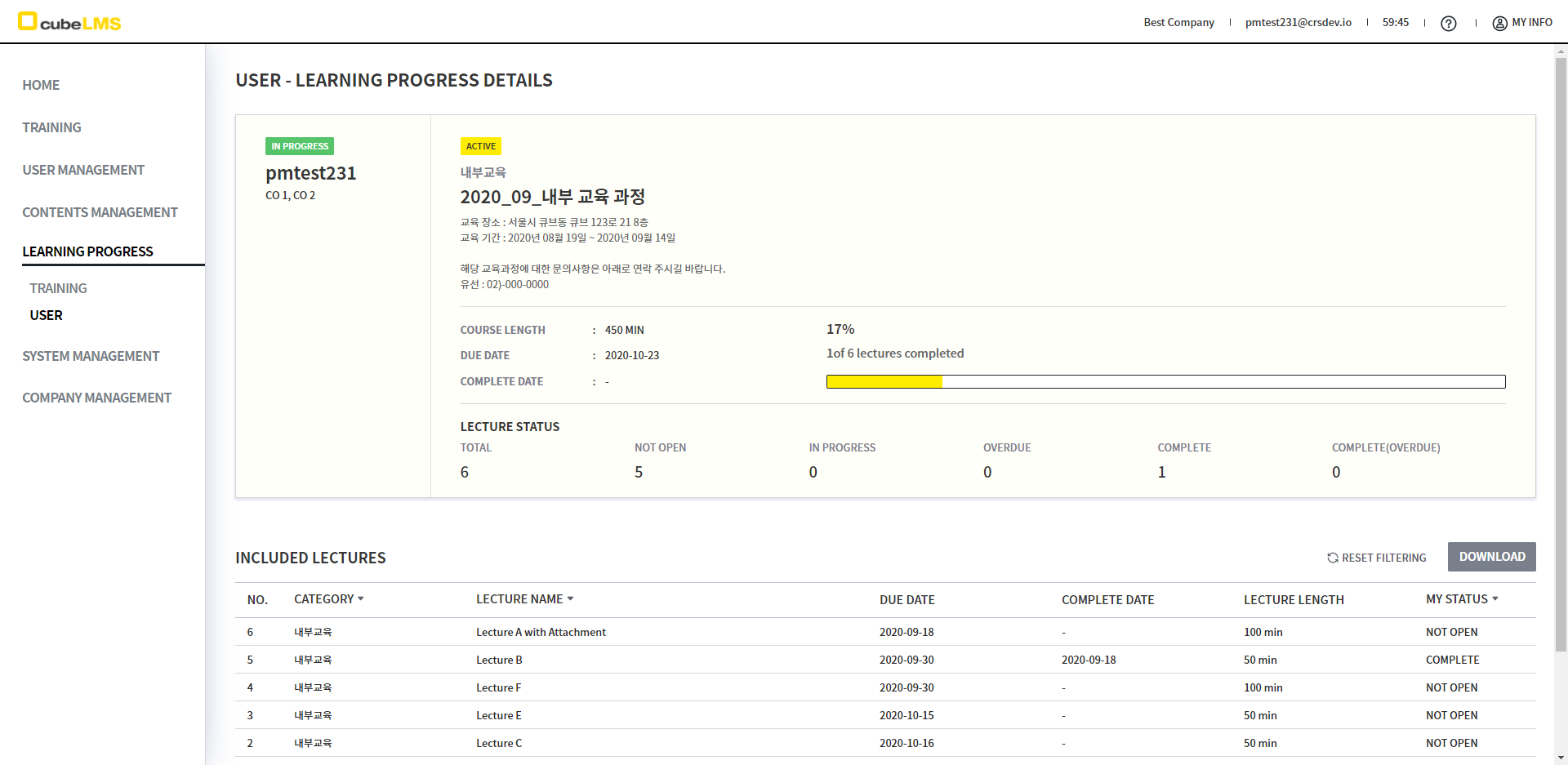
1. A COURSE DETAILS page similar to the Lecture Details previously available in the LEARNING PROGRESS menu and MY TRAINING is displayed.
2. You can view COURSE information that matches the characteristics of each menu.
MY TRAINING
LEARNING PROGRESS - TRAINING
LEARNING PROGRESS - USER
-
You can view the detailed information of the COURSE assigned to the TRAINEE and the included LECTURE.
-
You can view the TRAINEE assigned to the COURSE and the progress status.
-
ADMIN and GROUP MANAGER can view the detailed information of the COURSE assigned to the TRAINEE and the included LECTURE.
<You can register a Certificate included in the Course.>
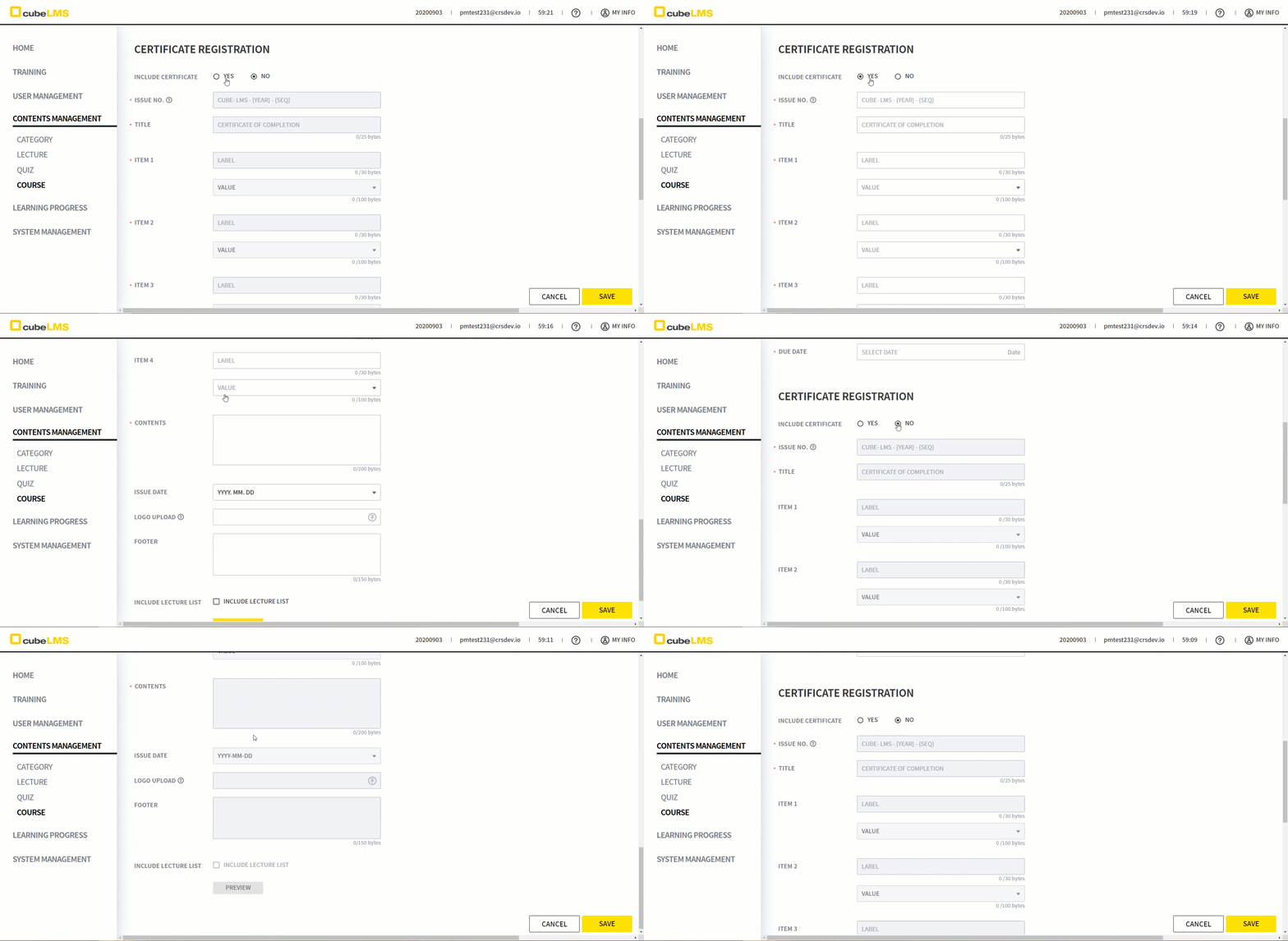
1. You can configure the CERTIFICATE to be registered in the CERTIFICATE section at the bottom of the COURSE.
2. When you click INCLUDED CERTIFICATE as YES, the CERTIFICATE section at the bottom is activated.
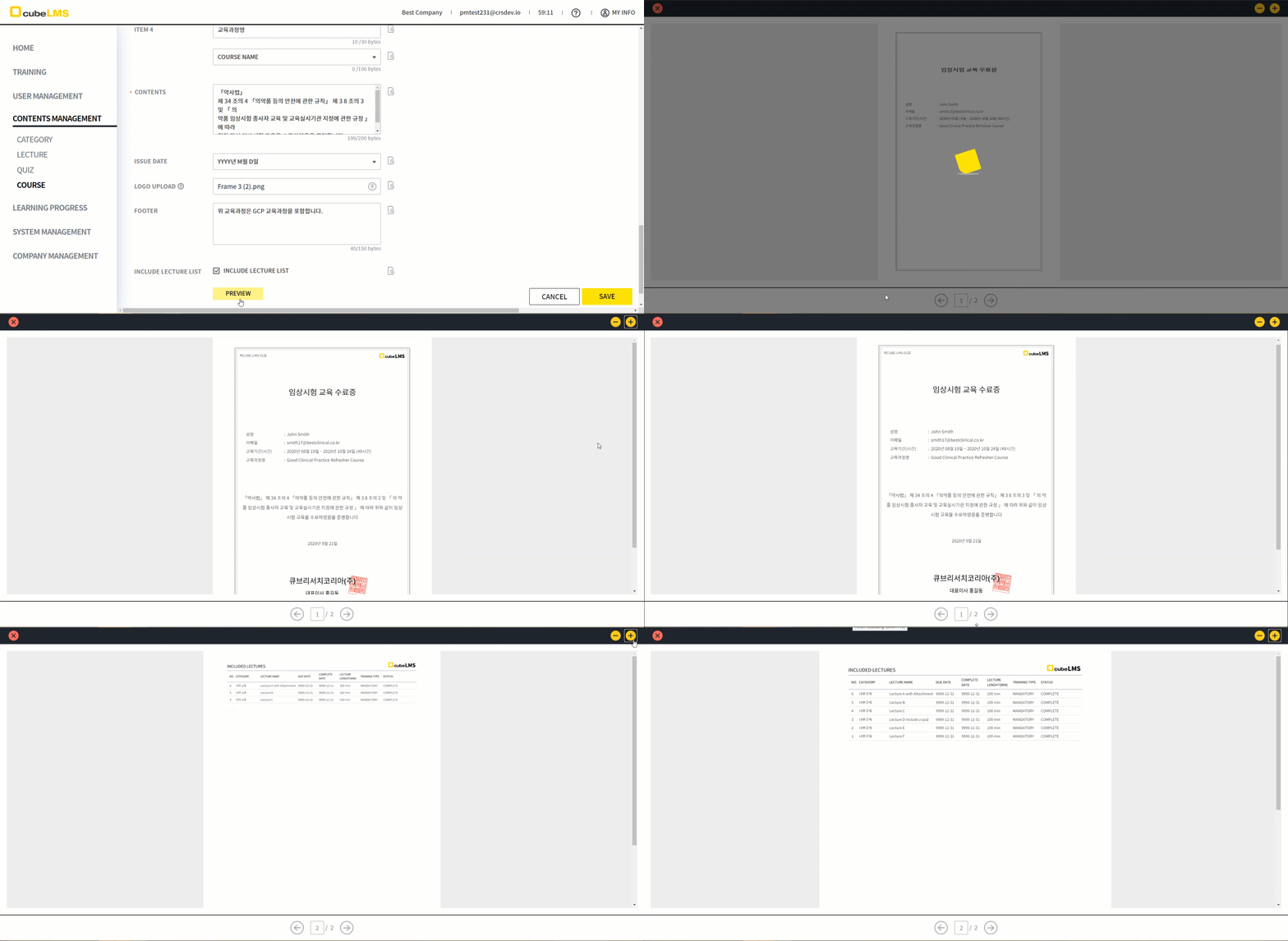
3. Click the PREVIEW button at the bottom to preview the configured CERTIFICATE.
4. For more details, please refer to the CERTIFICATE manual.
<An item that allows you to download the Certificate will be added.>
MY TRAINING - ALL
LEARNING PROGRESS - USER
COURSE DETAILS
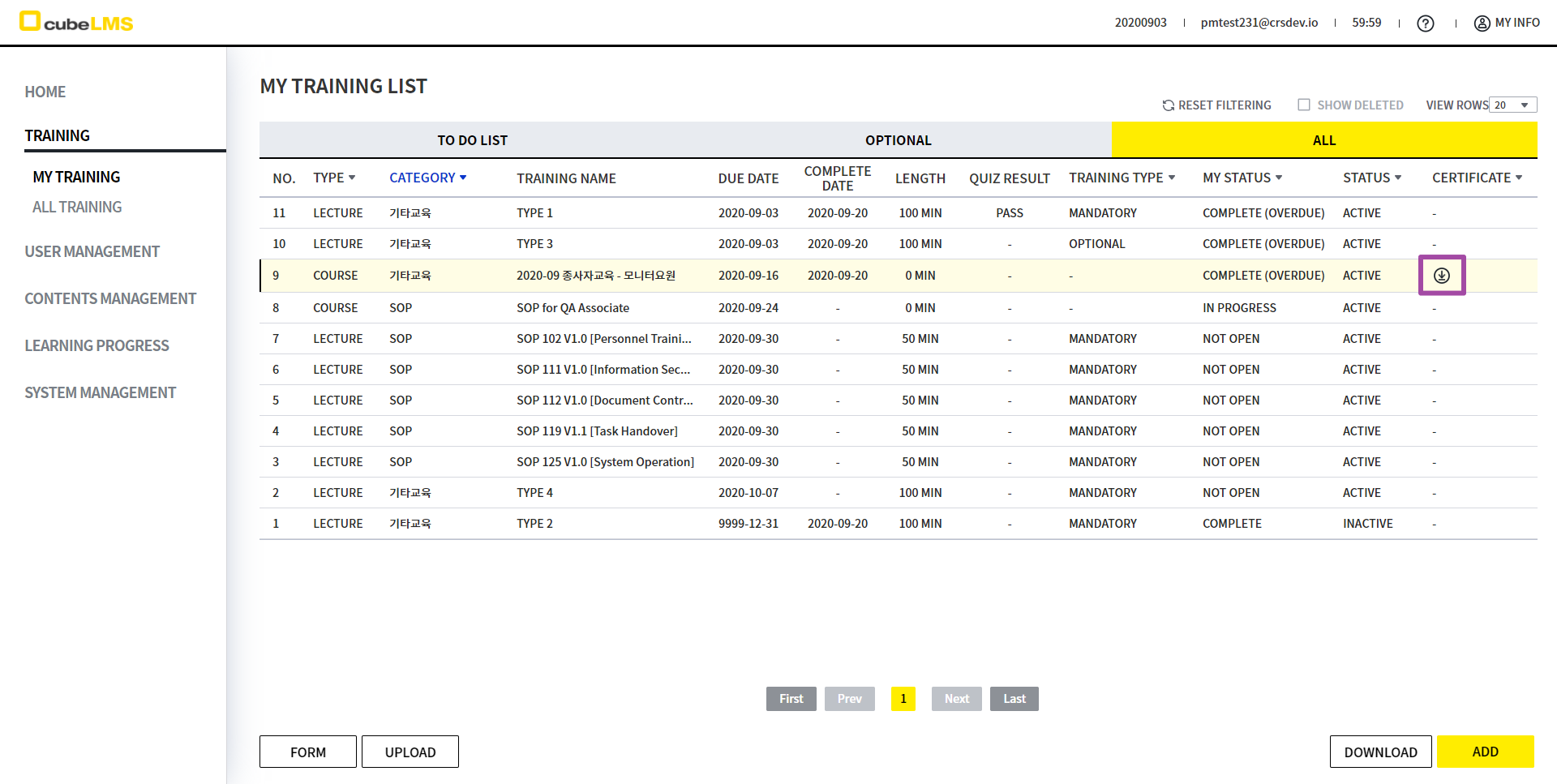
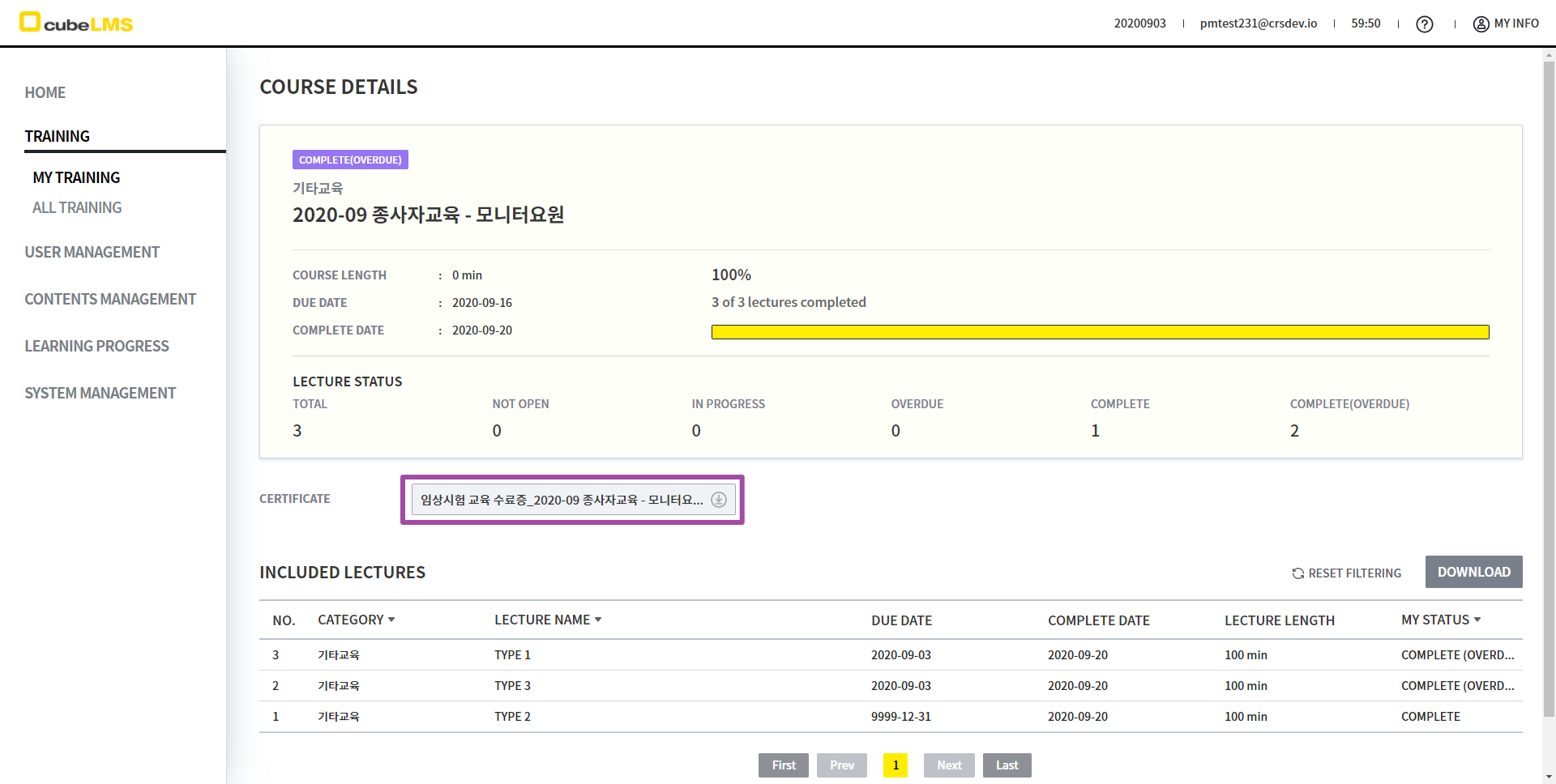
1. You can download it by clicking the download icon in the CERTIFICATE column on the MY TRAINING - ALL page.
2. If the COURSE is not completed, the download icon is disabled and you cannot download it.
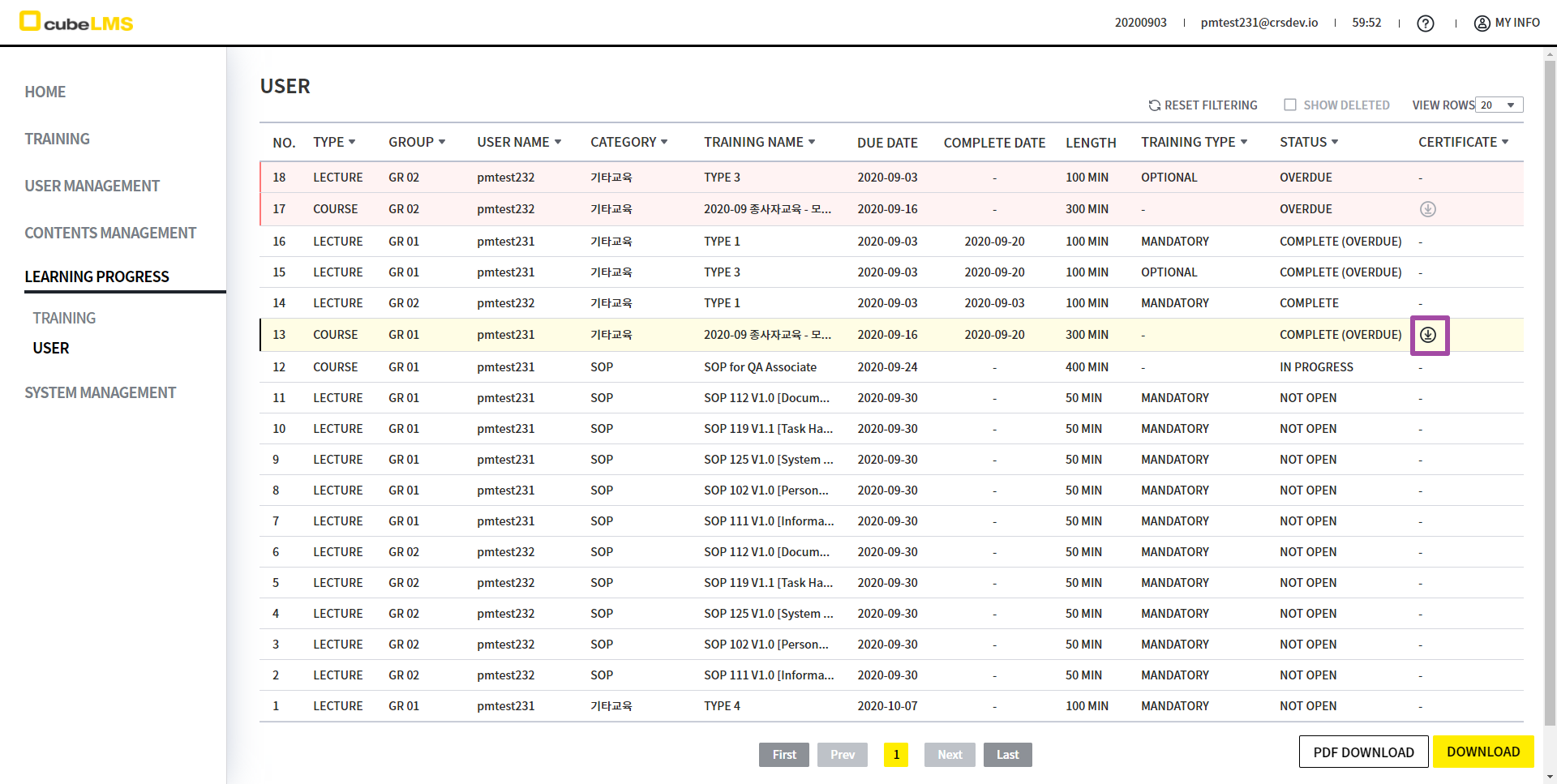
1. You can download it by clicking the download icon in the CERTIFICATE column on the LEARNING PROGRESS - USER page.
2. If the COURSE is not completed, the download icon is disabled and you cannot download it.
1. You can download it by clicking the download icon in the CERTIFICATE field of COURSE DETAILS.
2. If the COURSE is not completed, the file name in the field appears as Blank, and you cannot download it even if you click the download icon.
<COURSE is also listed in the existing list.>
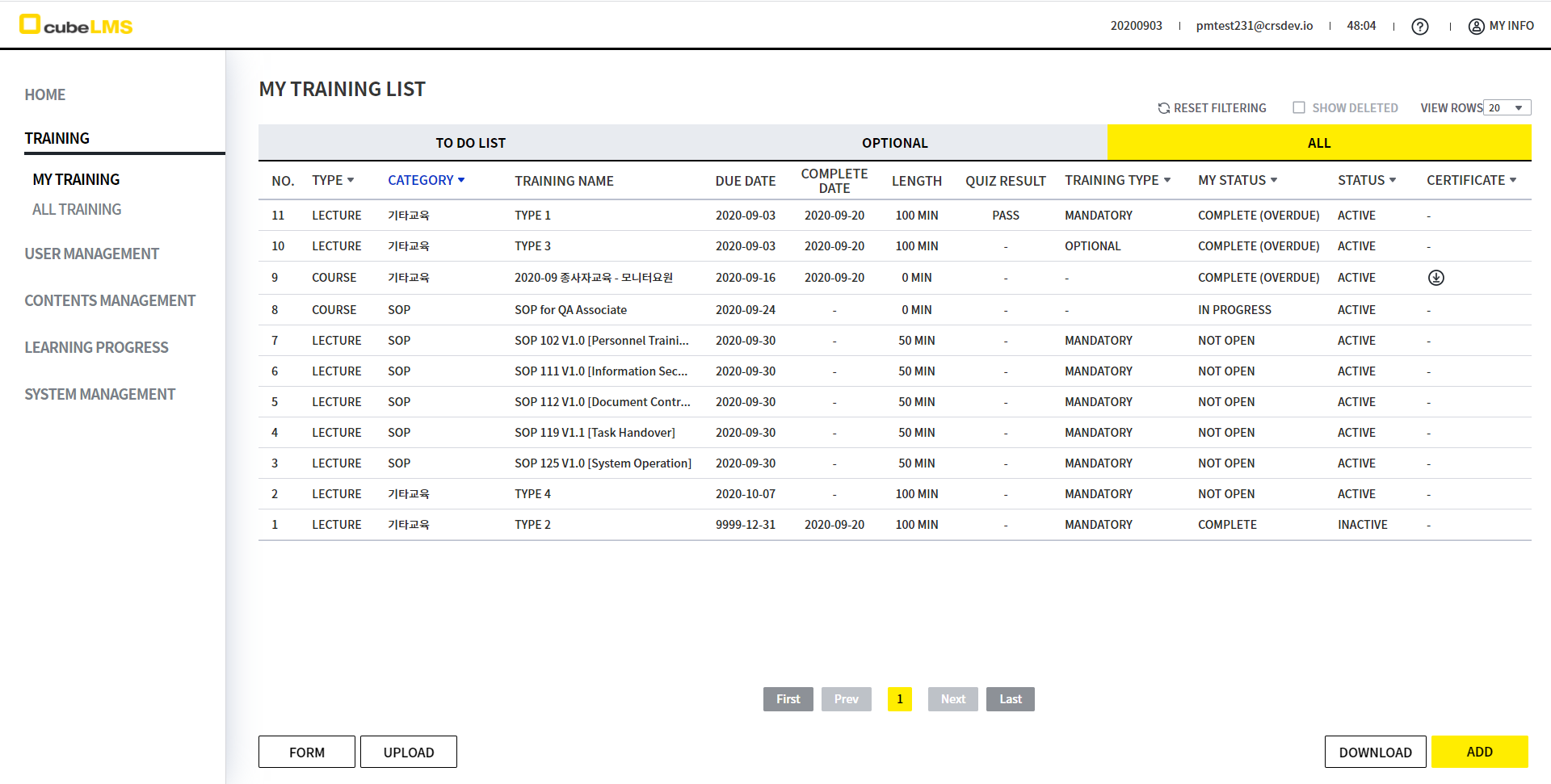
1. Previously, only LECTURE was listed, but COURSE will also be listed. The applicable lists are as follows.
-
TRAINING - MY TRAINING - TO DO LIST
-
TRAINING - MY TRAINING - ALL LIST
-
TRAINING - ALL TRAINING
-
LERANING PROGRESS - USER
-
LEARNING PROEGRESS - TRAINING
2. As more data has been added, TYPE and CERTIFICATE columns have been added for easier viewing.
<Some menu names have been changed.>
Before
After
Description
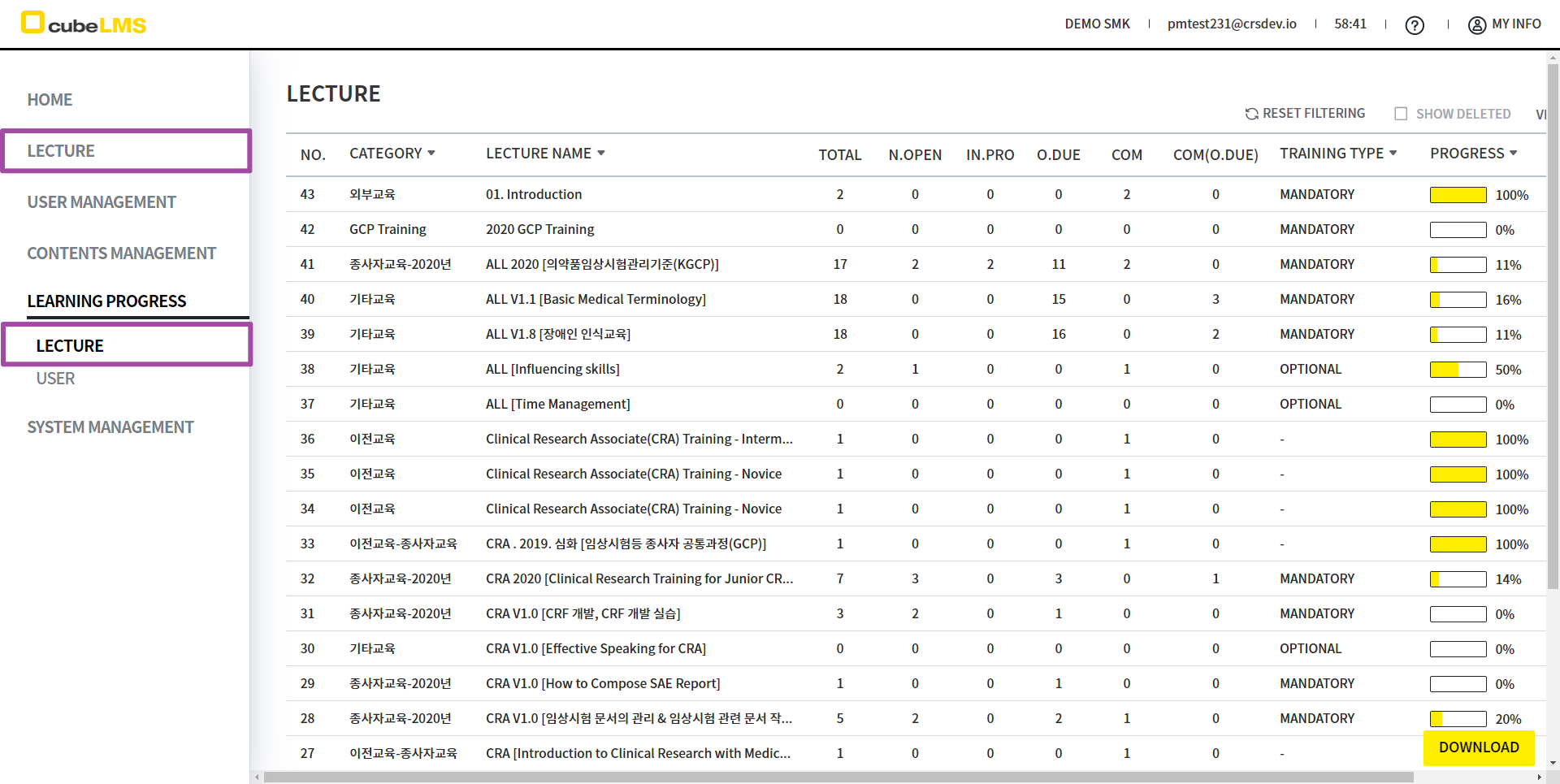
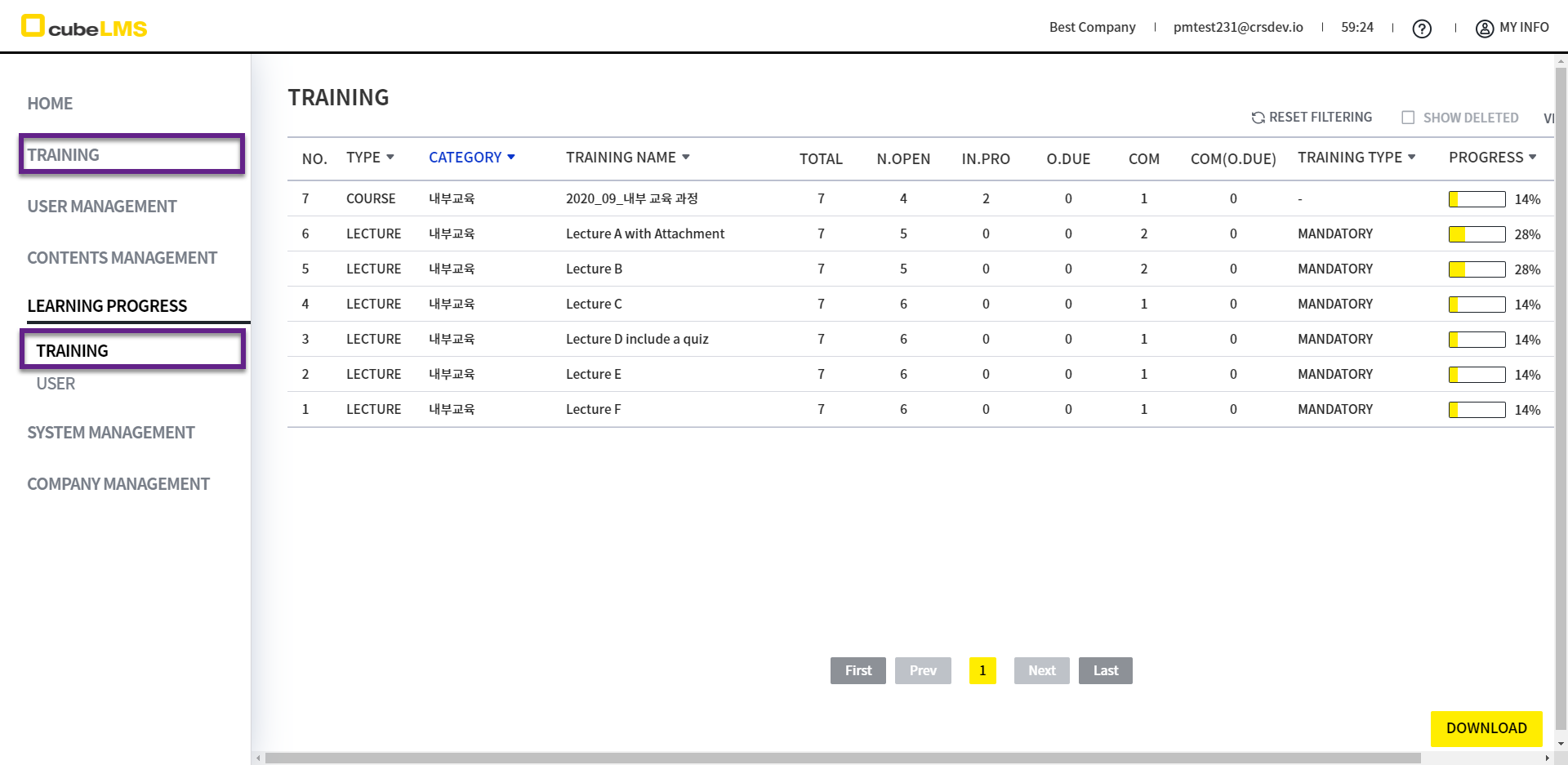
The menu name previously LECTURE has been changed to TRAINING.
-
TRAINING - MY TRAINING
-
TRAINING - ALL TRAINING
-
LEARNING PROGRESS - TRAINING