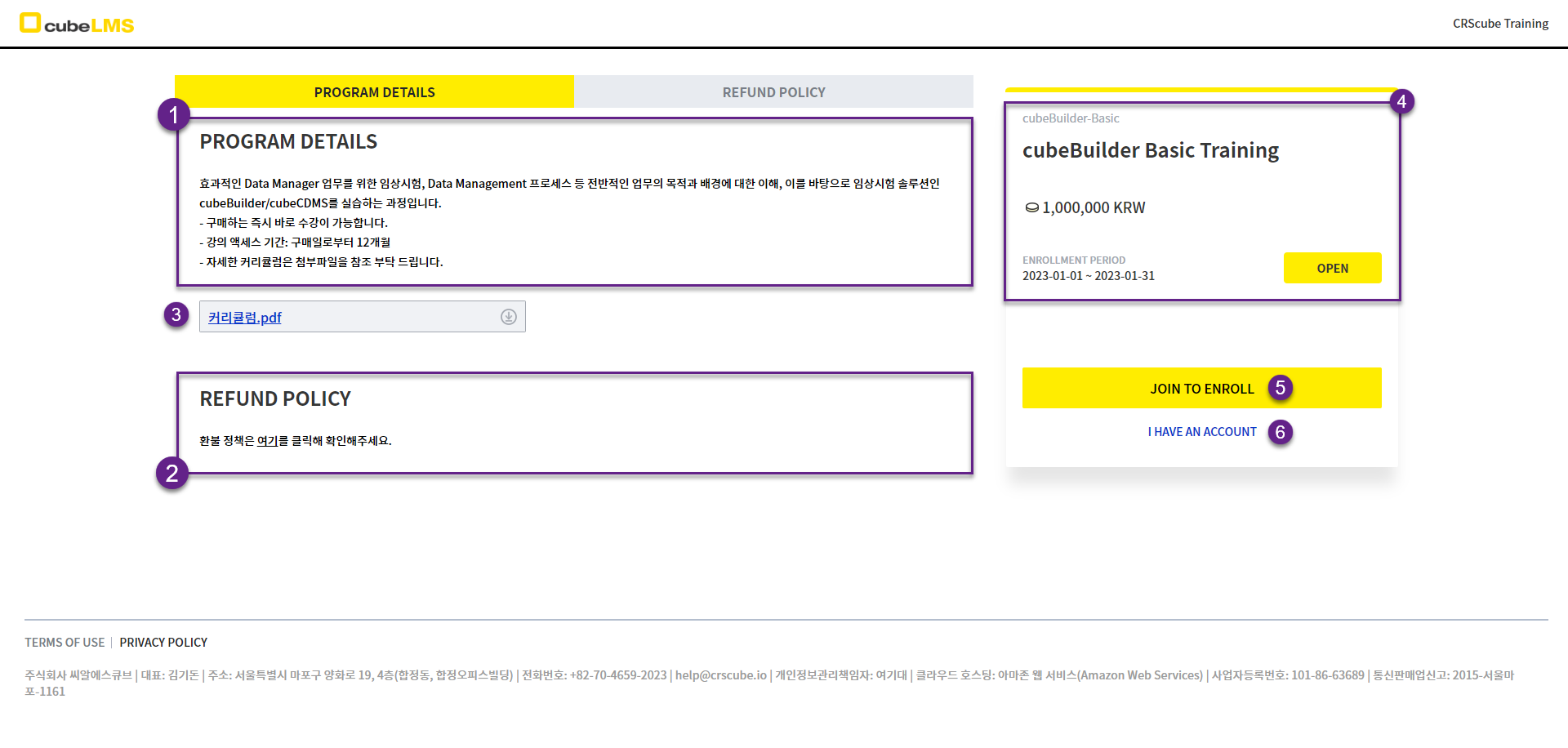
The following describes the screen where you can view information such as the fee, course duration, and curriculum of training programs provided by CRScube for a fee, and complete the required registration procedure before taking the course.
PROGRAM DETAILS
1. Program Details: You can view the details of the training program.
2. Refund Policy: You can view the training program's refund policy.
3. If an attachment is available, click to download it.
4. Prgram can be used to check the tuition fee, enrollment period, and current enrollment status.
-
Not Started:Enrollment has not started yet.-
Enrollment PeriodIt is only available after the start date specified in the Enrollment Period.
-
-
Open:Payment and enrollment are available. -
Closed:The enrollment period has ended. Payment and enrollment are unavailable.
5. If you wish to purchase and take the training program, you must sign up and log in first.
If you need to register an account with the company that provides this program in cubeLMS, click the Join to Enroll button, then complete registration as instructed in the next section, CREATE ACCOUNT, of this document.
6. If you are already registered with the company that provides this training program in cubeLMS, click the I have an account button to log in.
-
After logging in, you are taken to the screen where you can purchase the program. On that screen, click the Enroll button on the right to proceed with payment and enrollment. (See PROGRAM DETAILS)
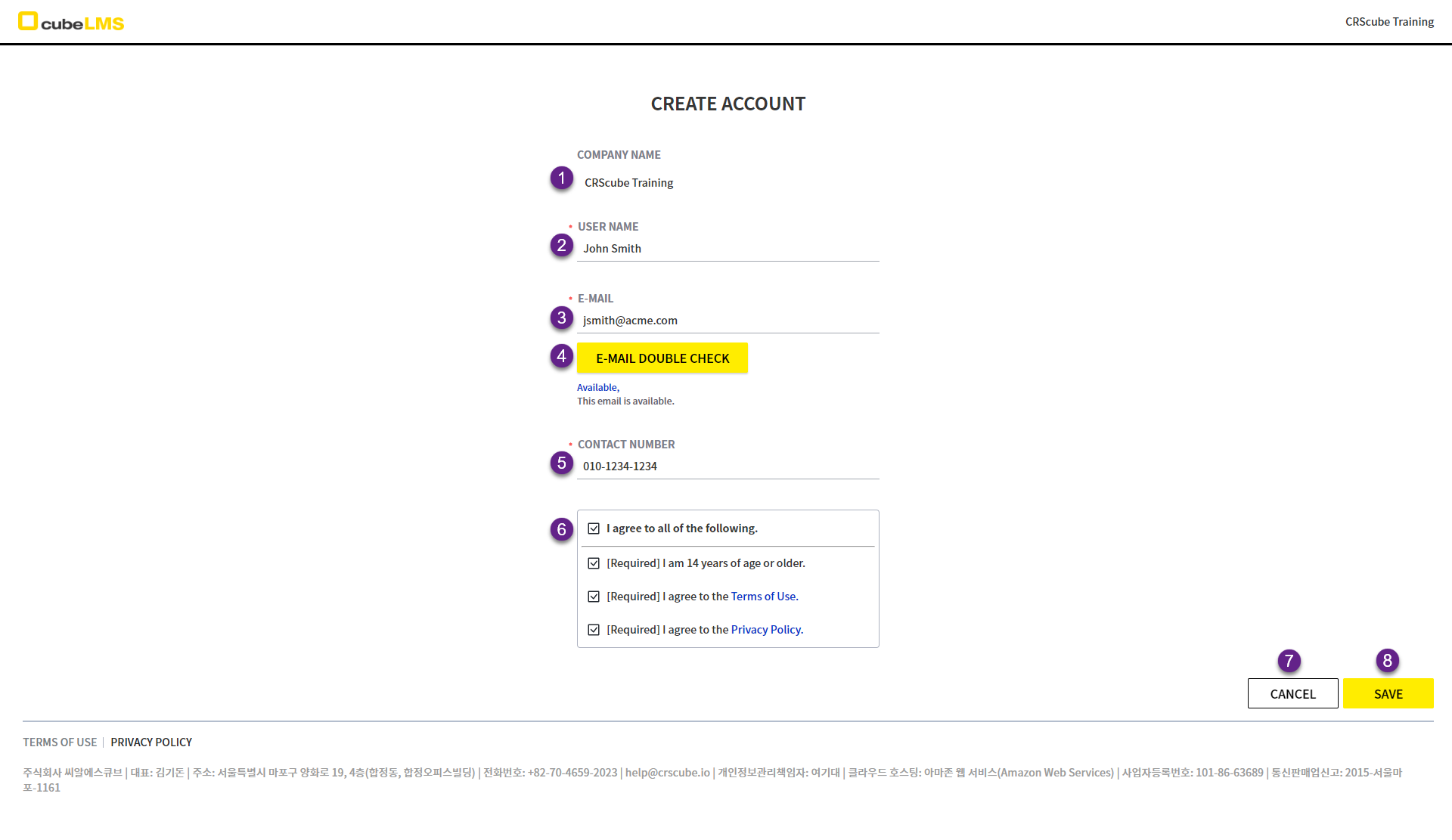
CREATE ACCOUNT
'*' indicates a required field.
1. This is the company name the account will be registered under.
2. Enter your name.
3. Enter your email.
-
The email address is collected for use as the account ID and as the recipient of system notifications.
4. Click to check whether the same email is already registered for the company you are registering with.
-
This email is available.:It means you can sign up with this email address. -
This email is already registered.:This email is already registered. Please follow the steps below.-
Program DetailsGo back to the previous screen. -
I have an accountClick the button. -
Log in.
-
5. Enter your contact number.
6. Review the terms and conditions related to registration, and check the box if you agree.
7. Cancel button: Go back to Program Details (previous screen).
8. Save button: The entered information is saved. You are then taken to the login screen.
-
After logging in, you will move to the screen where you can purchase the training program. On that screen, click the Enroll button on the right to proceed with payment and enrollment. (See: PROGRAM DETAILS)
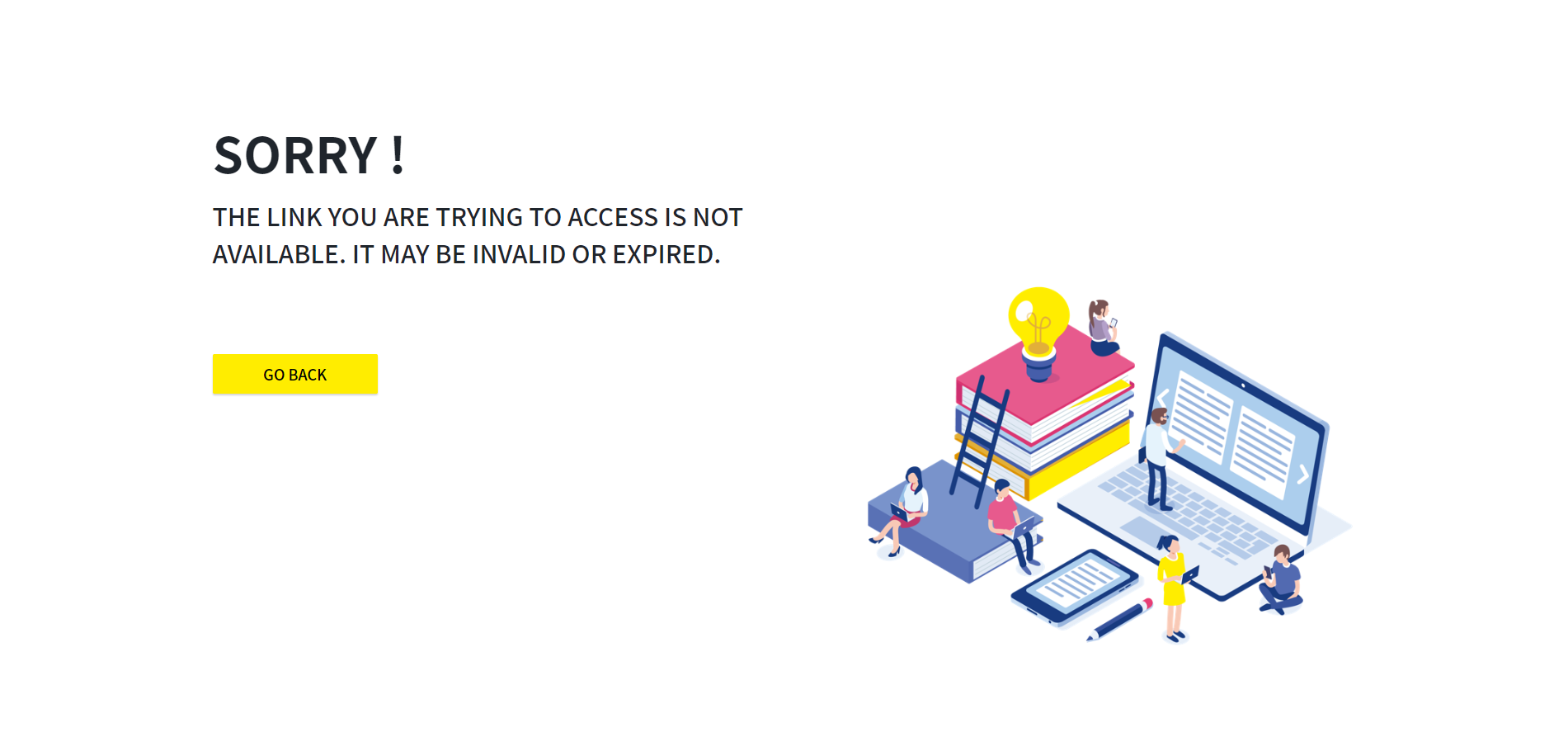
SORRY ! THE LINK YOU ARE TRYING TO ACCESS IS NOT AVAILABLE. IT MAY BE INVALID OR EXPIRED.
This is the screen you are taken to when Invite Url is marked as expired by an administrator.