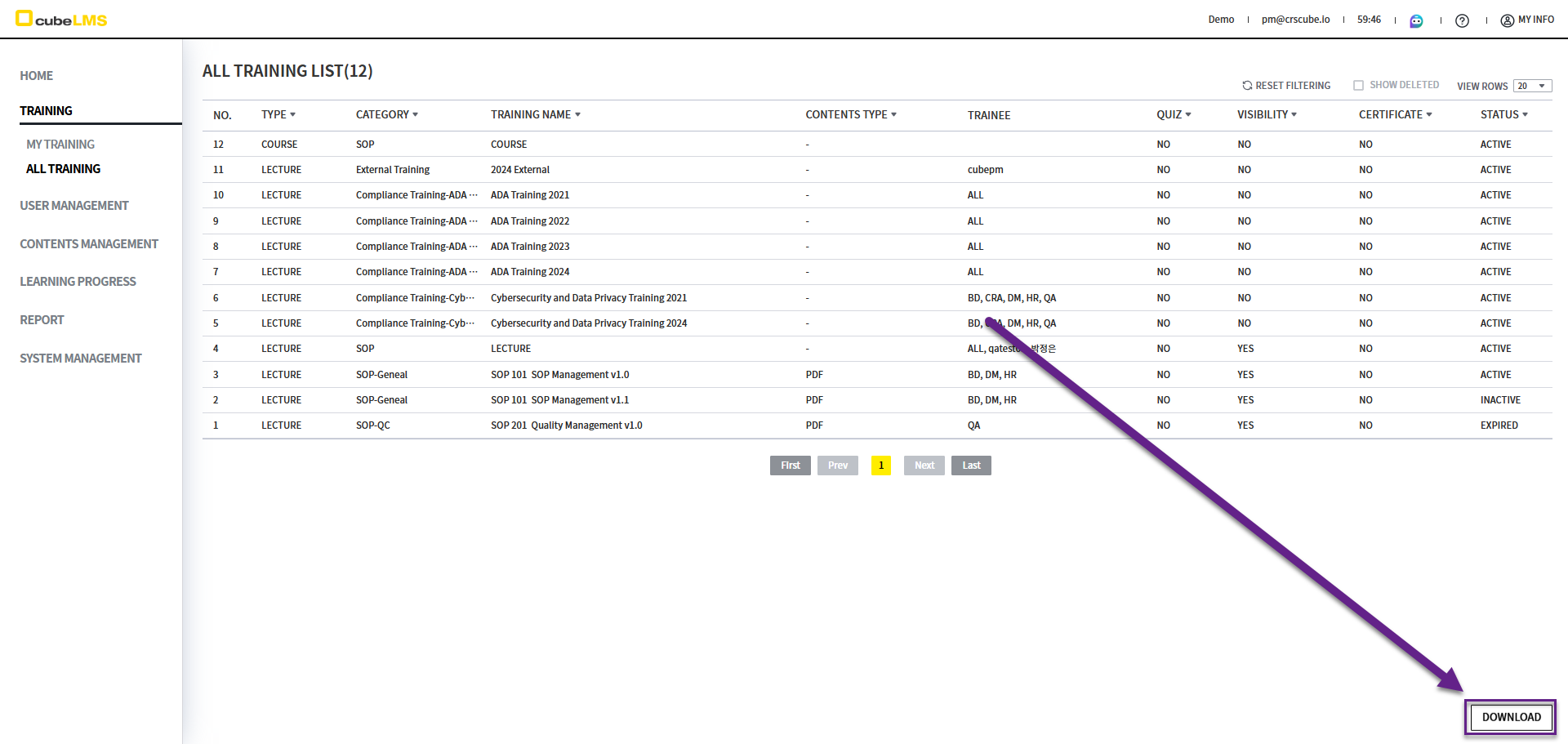
In ALL TRAINING, you can view all Training registered with your company.
Previous Training is excluded from the list.
-
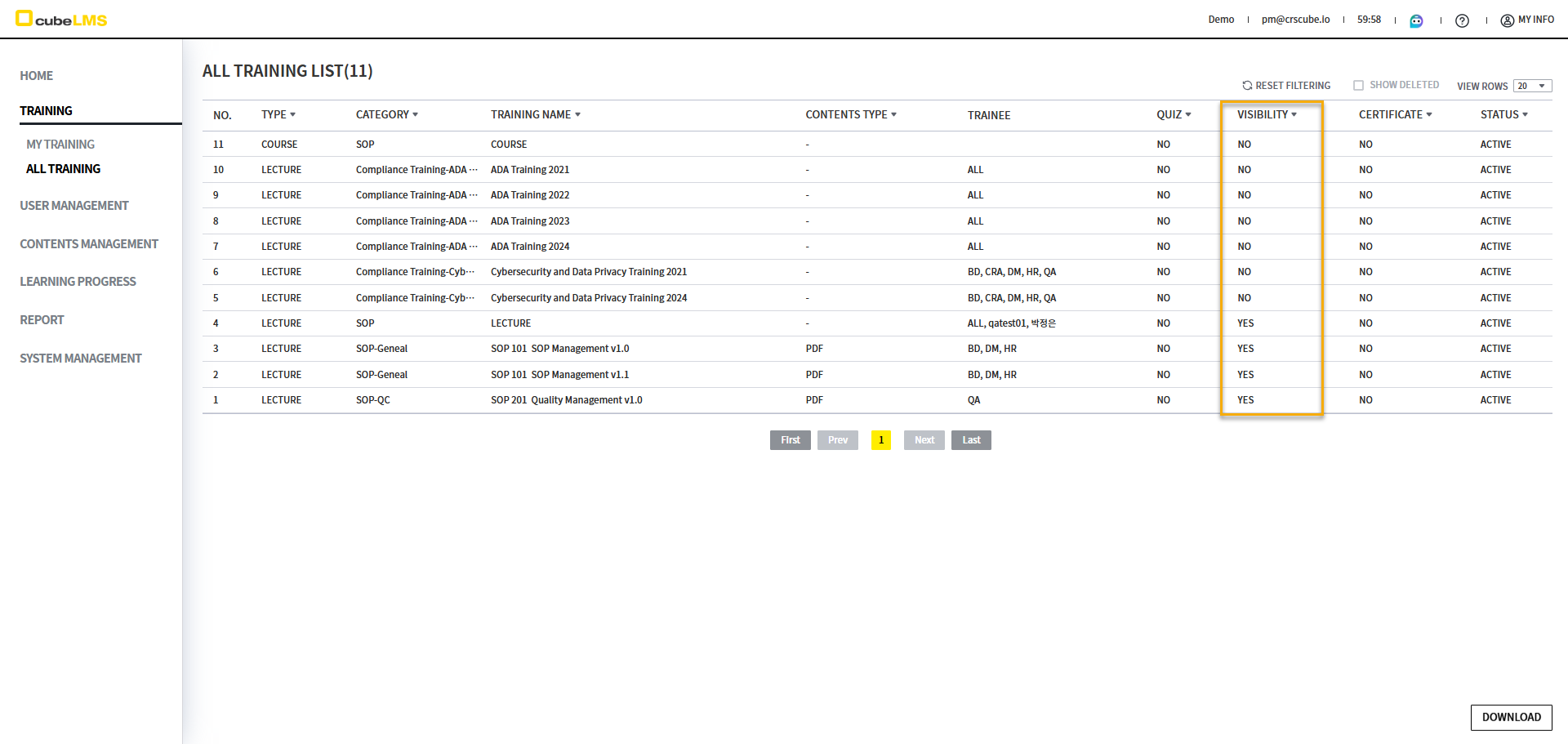
Visibilityfield lets you check whether Lecture can be viewed.-
Yes: Make Lectures PublicLecture belonging to a Category where it is checked -
No: Make Lectures PublicLecture belonging to a Category where it is not checked
-
-
VisibilityIf you select a Lecture with Visibility set to Yes, you will be taken to the detail screen. On that screen, you can view the Lecture Contents. -
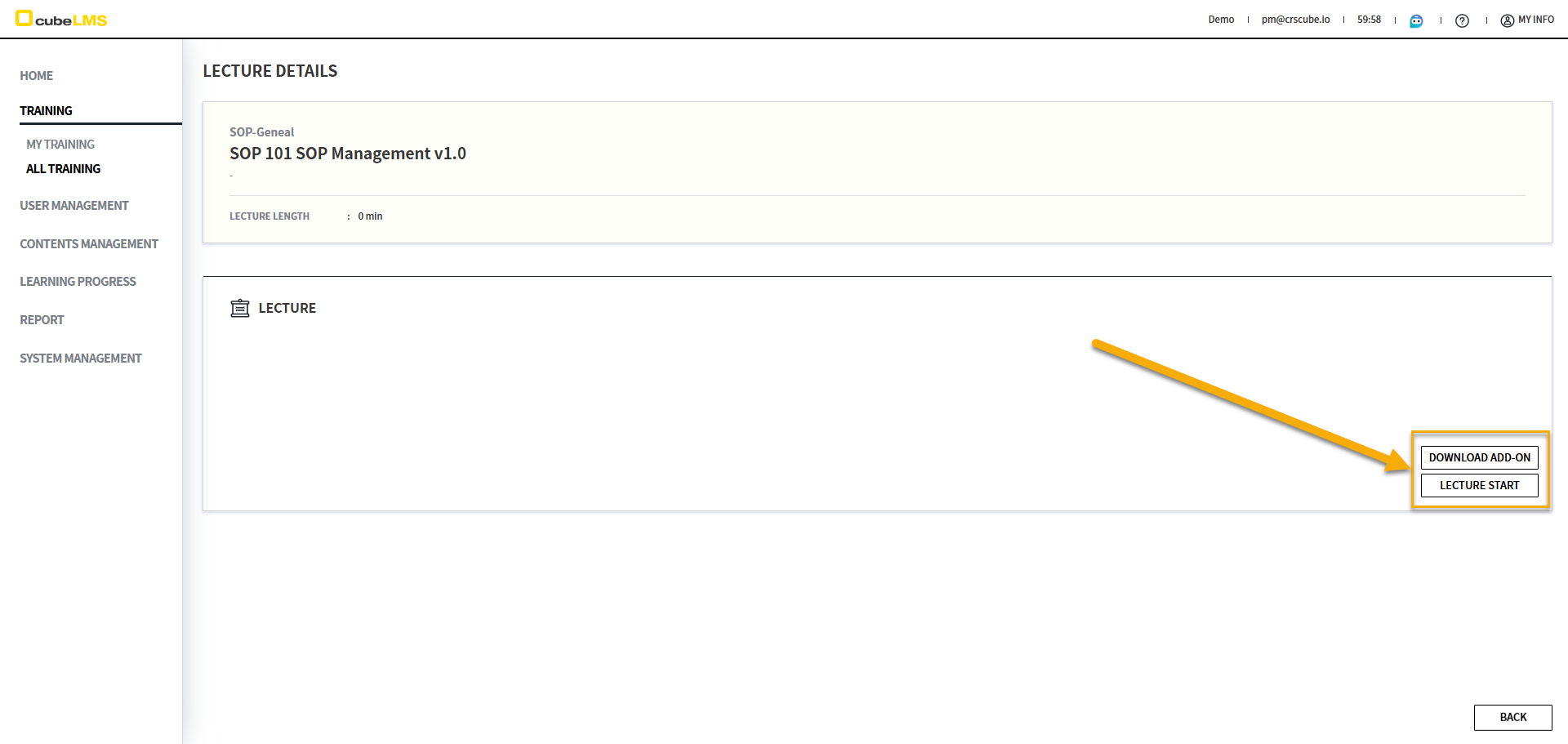
Add-on FileIf it is set to display, that item will also be displayed.
-
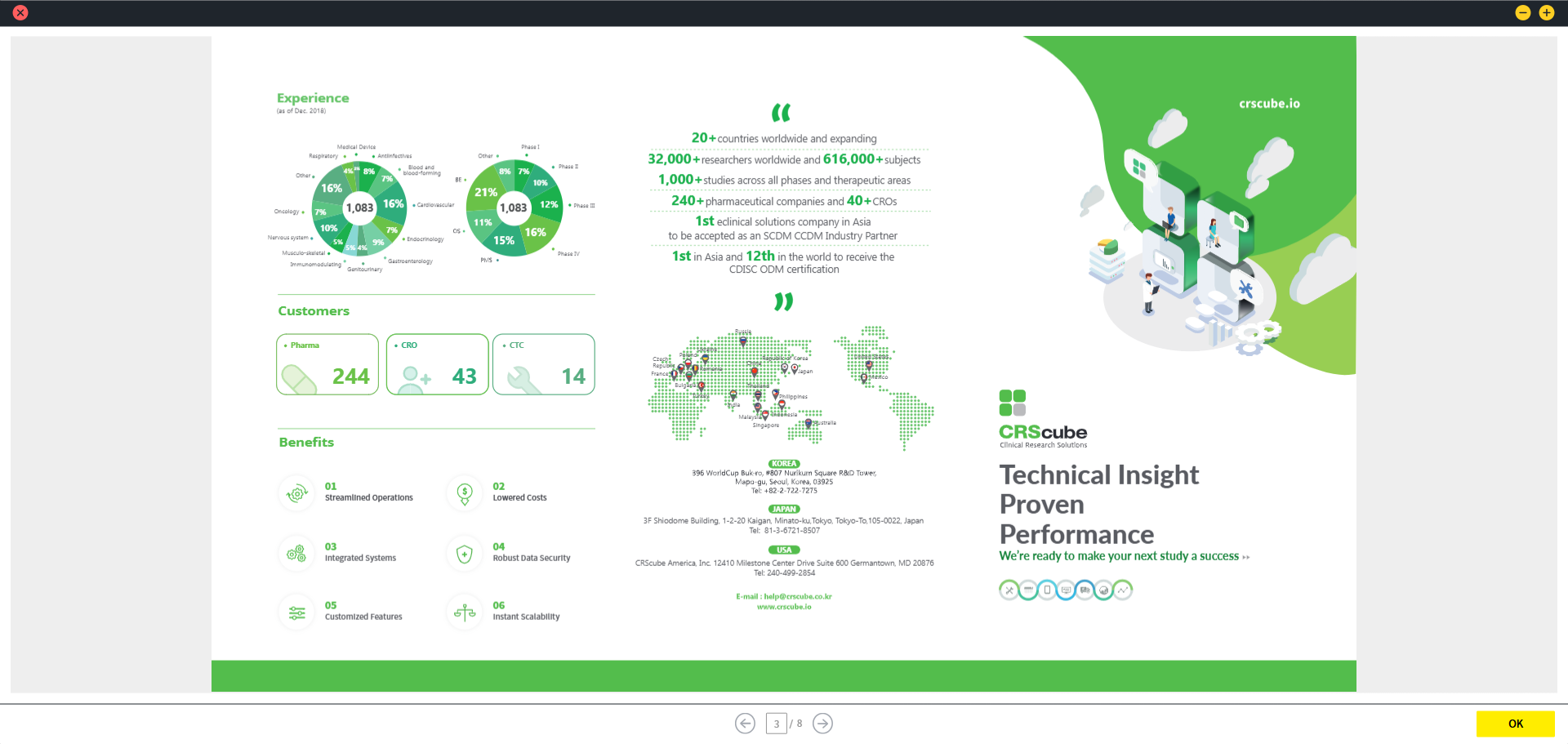
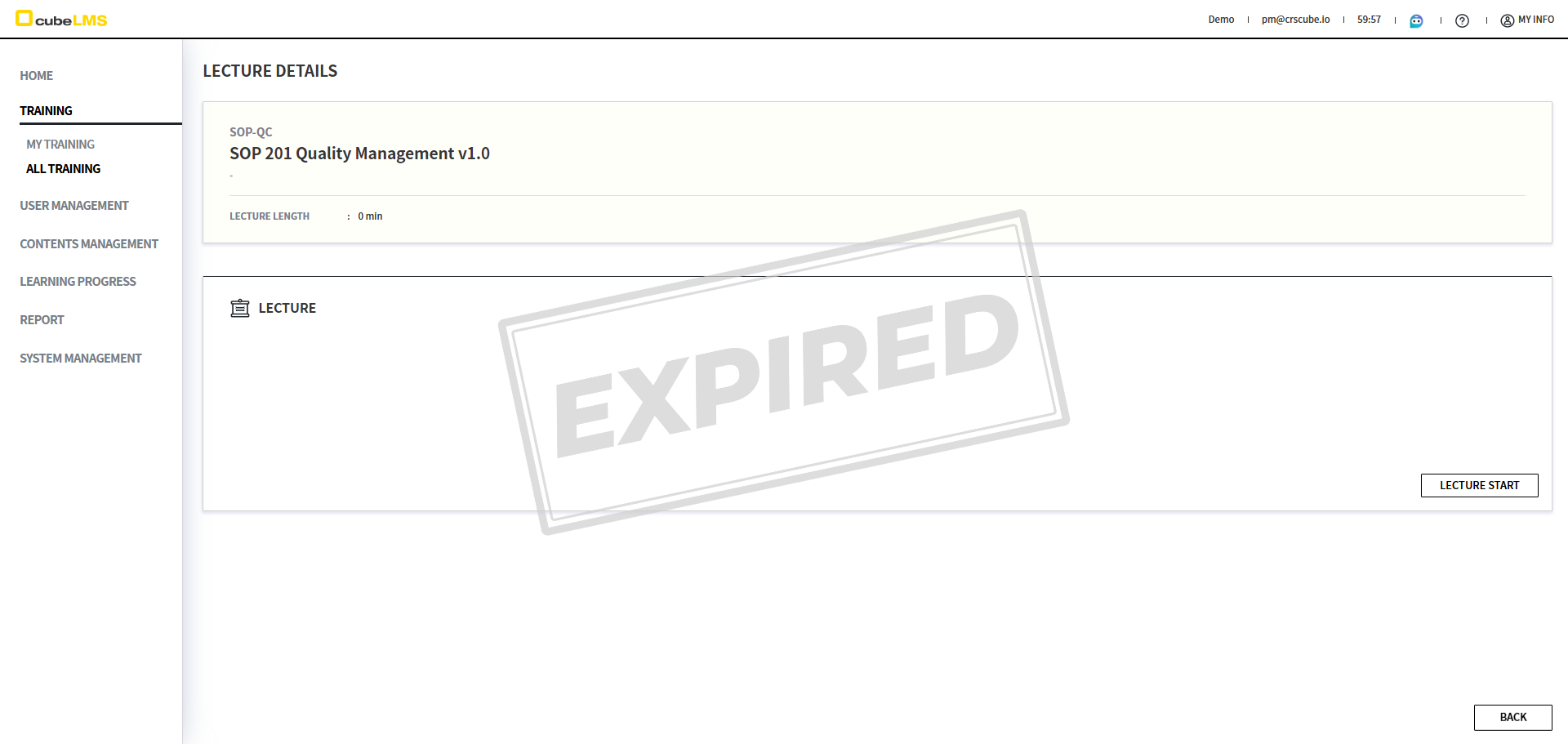
Lecture Startbutton lets you view the Contents of the Lecture. (This is a screen for viewing Contents only, and Lecture can be taken only in My Training. )
-
Expired Lecture:A watermark is displayed when you enter the detail screen.
-
However,
Visibility: Yeslecture, if Status is Inactive, access is restricted and the 'Viewing is limited to lectures that are in an active or expired status.' warning popup appears.
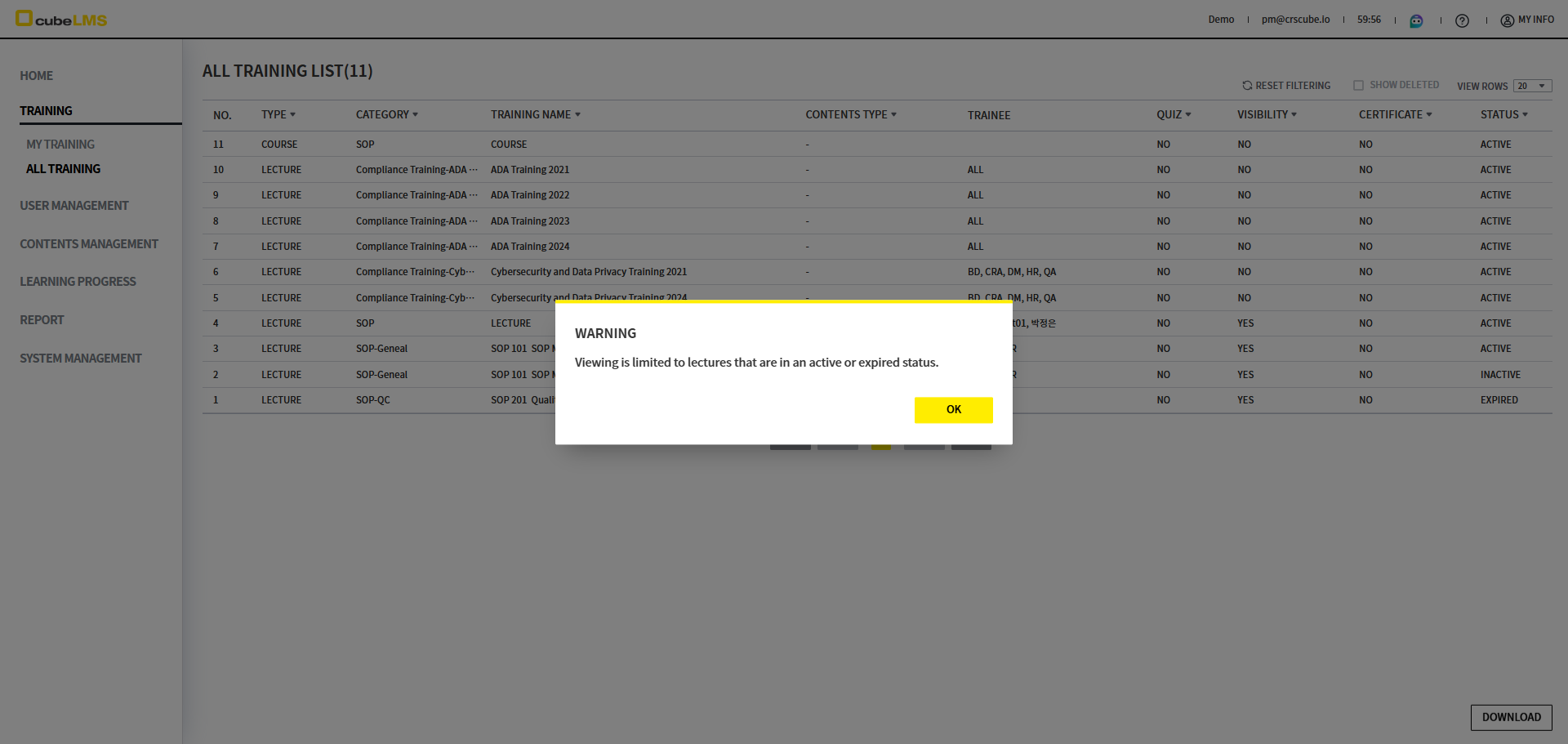
The same restriction also applies to every Course.
-
Downloadbutton: You can download the list as an Excel document. If you set a filter, only the filtered results are downloaded.