

Question
Quiz upload fails.
Answer
If quiz upload fails, a pop-up message explaining the cause of the failure will be displayed. Please review the relevant message and proceed accordingly.
This popup message covers various failure causes. The cell causing the error is described in the popup message as "row "(#)" and column (#)".
error: Please check the data at row "(2)" and column (A).
-
Missing input
-
The required items for quiz upload are missing from the "QUIZ" sheet (LECTURE NAME, QUIZ NAME, QUESION, CHOICE).
-
-
LECTURE settings
-
There is no registered LECTURE corresponding to "LECTURE NAME" in the "QUIZ" sheet. (Or INCLUDE QUIZ = NO is set for that LECTURE.)
-
There are fewer QUESTIONs to upload than the "NUMBER OF QUIZ" specified in the LECTURE menu.
-
-
Character limit exceeded
-
The "QUIZ NAME" in the "QUIZ" sheet exceeds 100 BYTEs.
-
The "DESCRIPTION" in the "QUIZ" sheet exceeds 3000 BYTEs.
-
-
Duplicate entry
-
A duplicate QUIZ NAME was entered in the same upload document.
-
A QUIZ NAME that duplicates the "QUIZ NAME" in the "QUIZ" sheet is already registered.
-
-
Data type and format
-
Values were entered in a format that does not match the data type of each item. (EX. Entering data other than 'V' in the ANSWER column)
-
The input format specified in the upload document was entered in a format other than 'General' or 'Text'.
-
The uploaded document was not used in its current form. Please download the latest version of the excel form and upload the document.
-
This issue occurs if the category or LECTURE was changed after you downloaded the quiz Excel document. Please download the quiz Excel upload file again and try again.
Error: Bad magic number for file header.
If the document contains formatting or formulas, this message will appear. Please remove the formatting and formulas as follows before trying to upload again.
1) Download a new quiz upload document and copy the information to be entered in the previously failed "QUIZ" sheet.
2) When pasting, Ctrl + Alt + V on the keyboard.
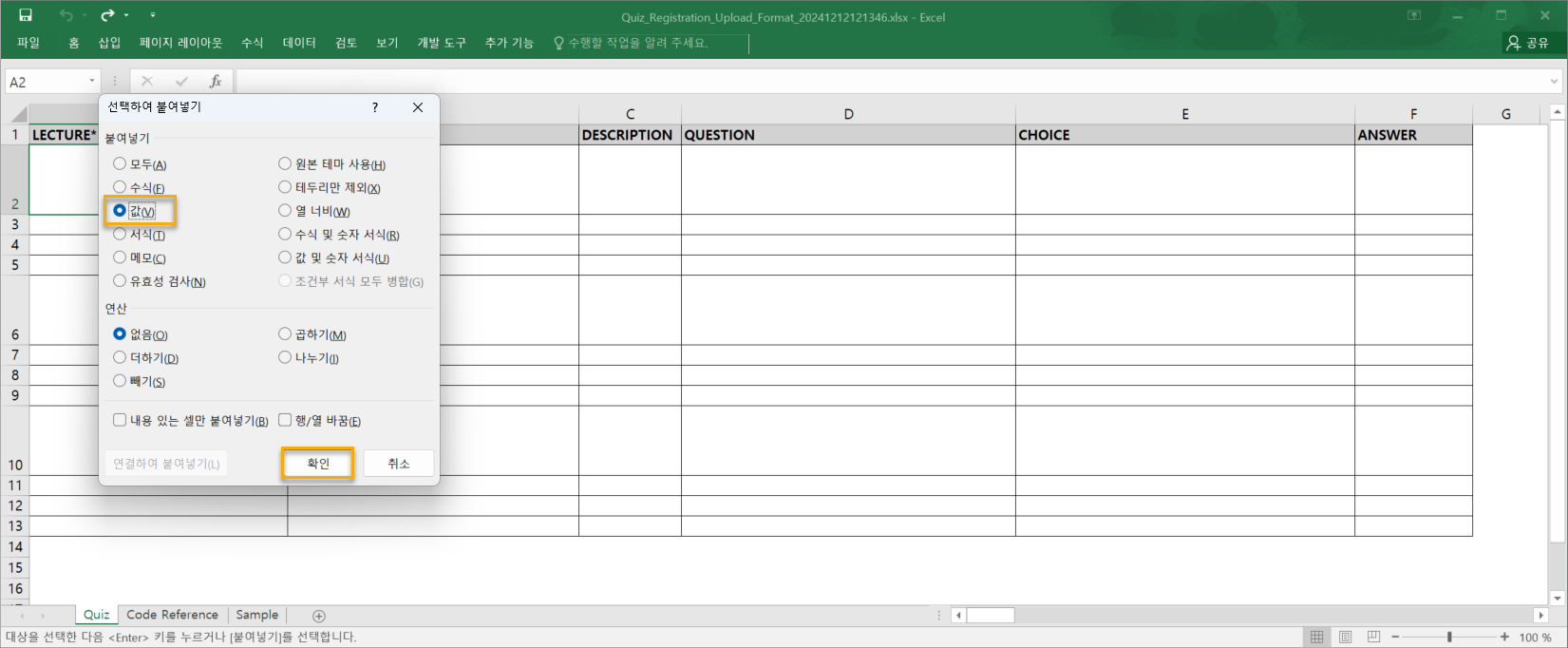
3) When the Paste Special pop-up appears, select "Values" and click the OK button.
4) After pasting is complete, save the document and try uploading it. You can then confirm that it uploads successfully.