

NEW FEATURES
Release Date: 2024-12-22
[Lecture] Added a feature that lets you view Lecture Contents even if not assigned to a Trainee
Trainees who are not assigned to a Lecture can also view Lectures in a specific Category. Details are as follows.
Lecture Public Settings
-
If you check the MAKE LECTURE’S PUBLIC option, all Lectures in the Category and its subcategories are made available to Trainee.
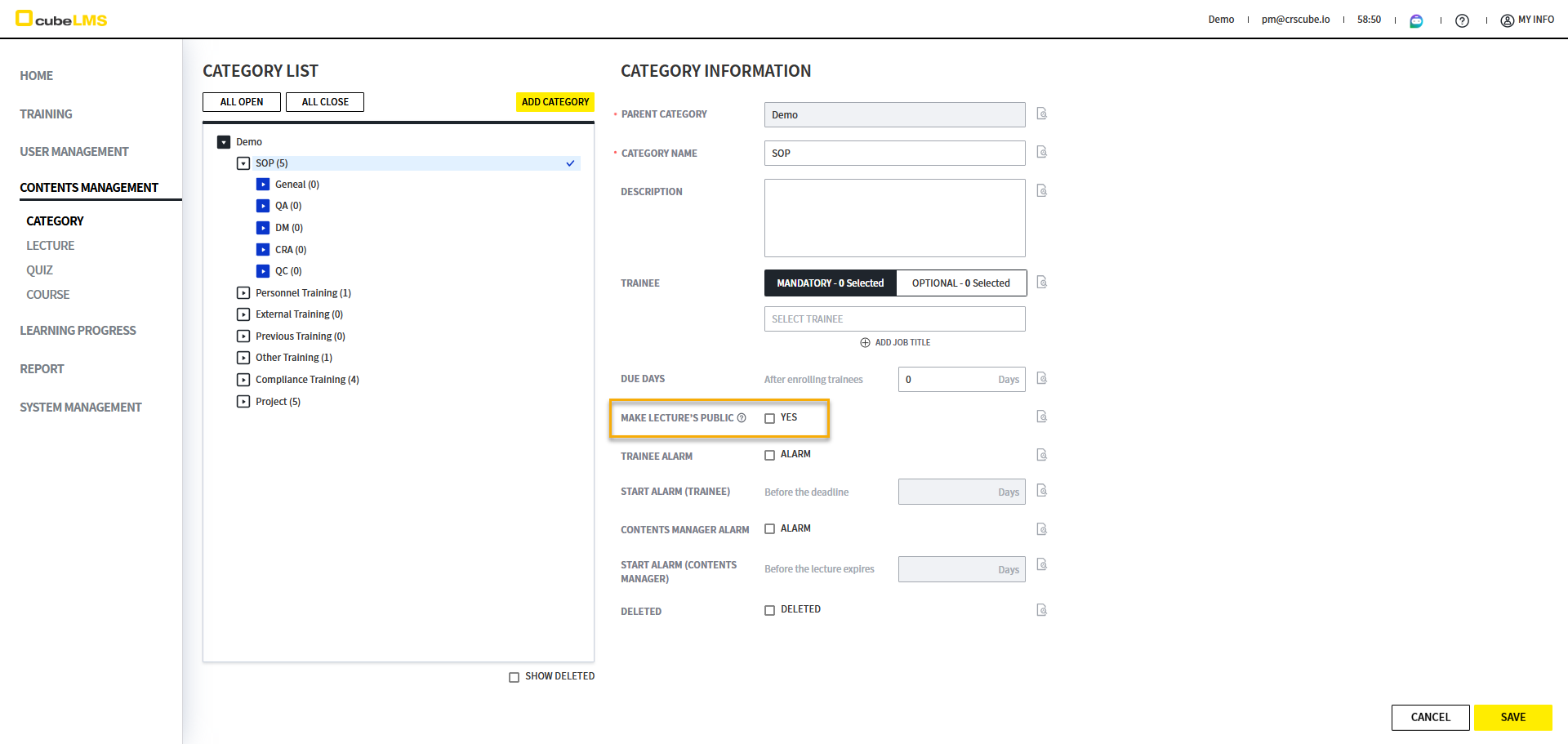
-
This option is also applied to all subcategories, and when you check or uncheck it, the 'All subcategories will be updated upon applying this option.' pop-up appears.
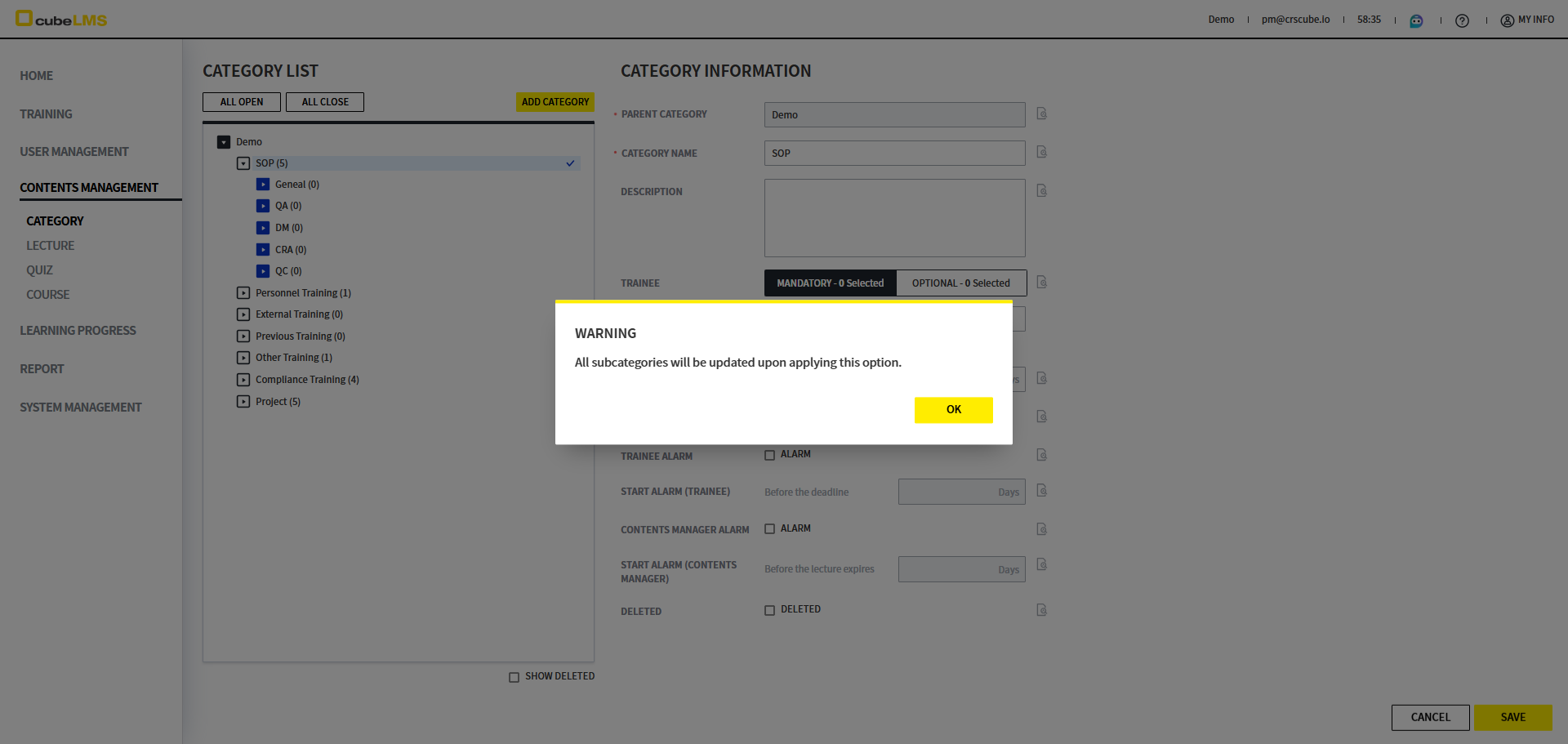
-
The phrase 'Inherited from the parent category' appears in the Audit trail of subcategories.
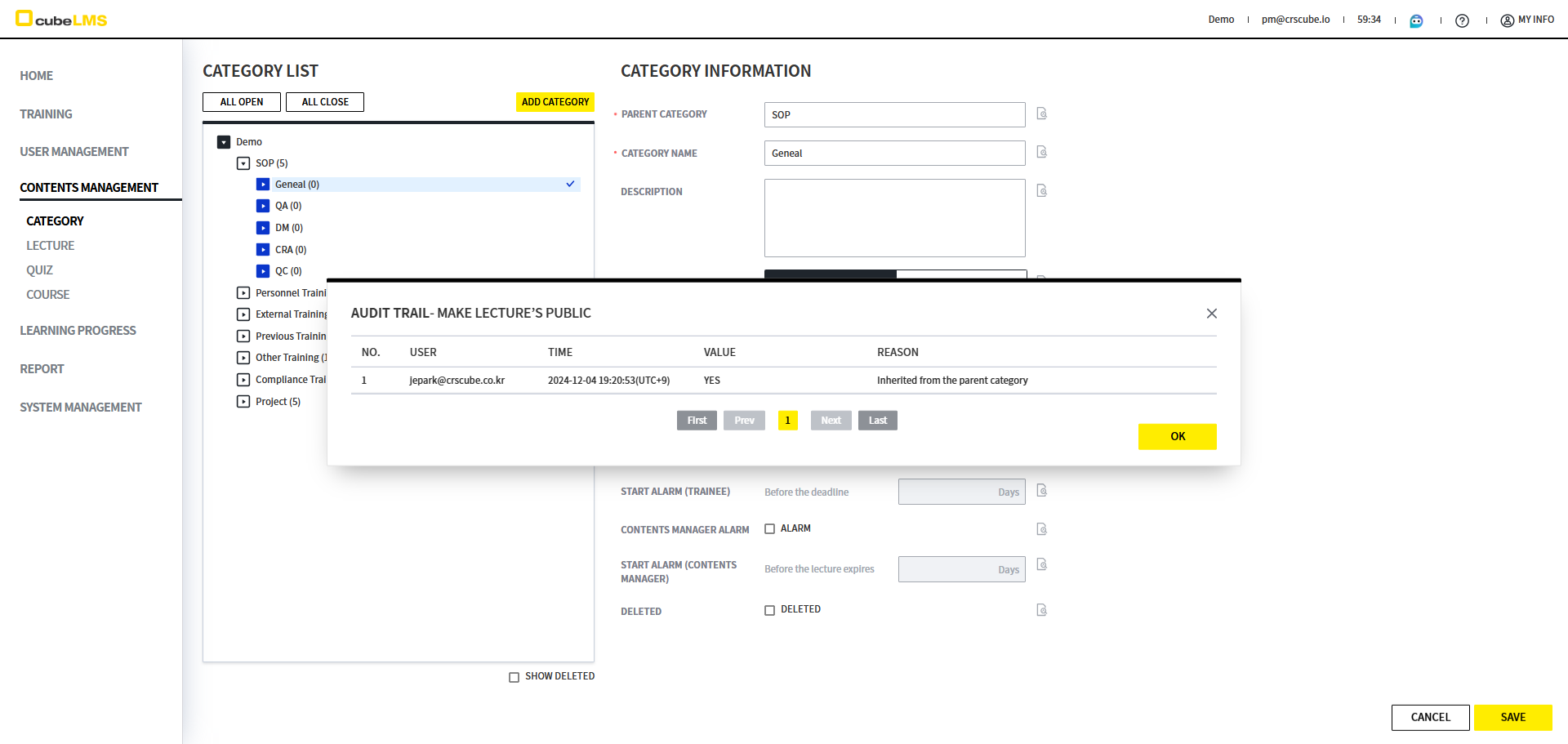
Lecture Viewing Confirmation
-
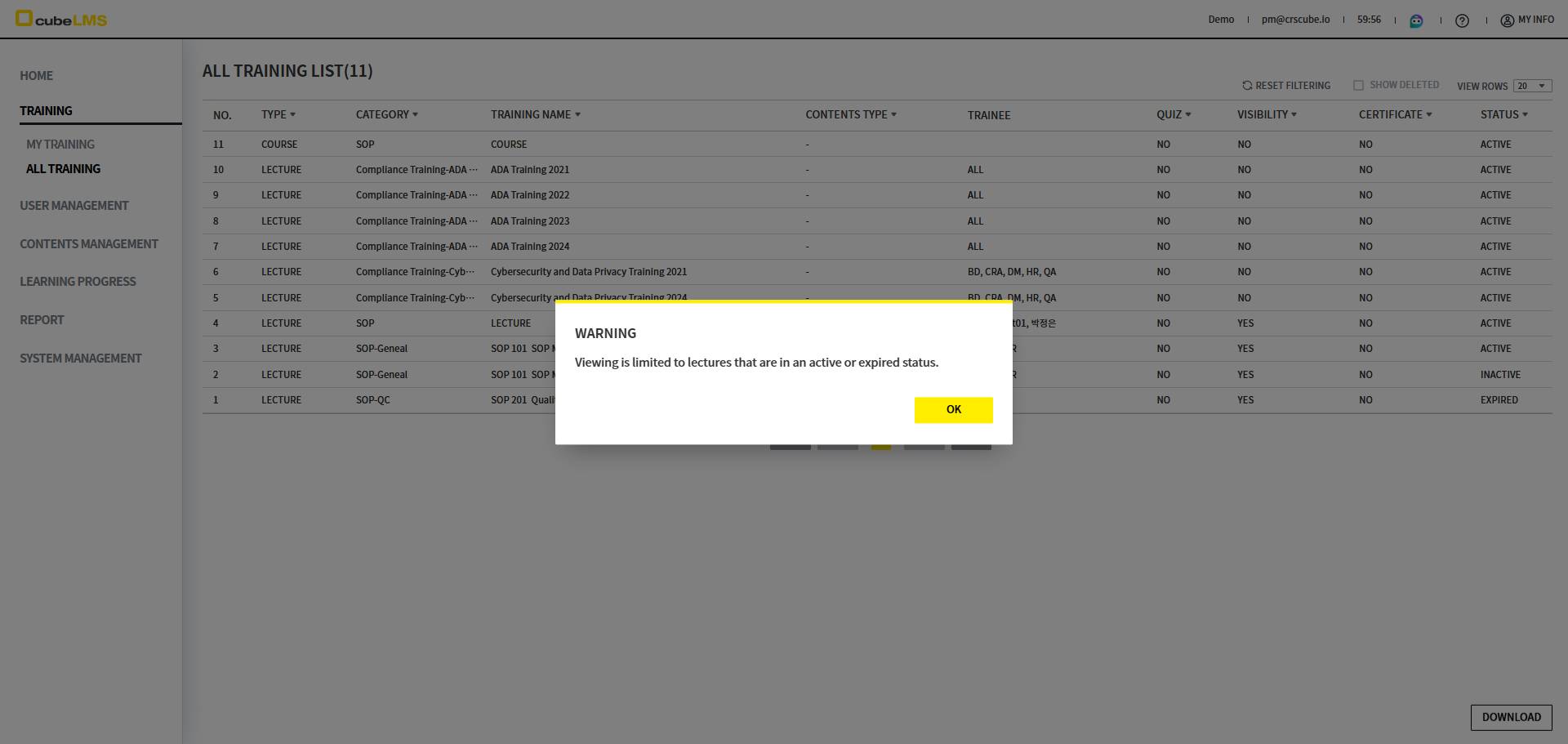
Go to the TRAINING > ALL TRAINING menu. You can check whether a Lecture is viewable in the VISIBILITY column.
-
YES: MAKE LECTURE’S LECTURE is checked Lecture belonging to the Category
-
NO: MAKE LECTURE’S LECTURE is not checked Lecture belonging to the Category
-
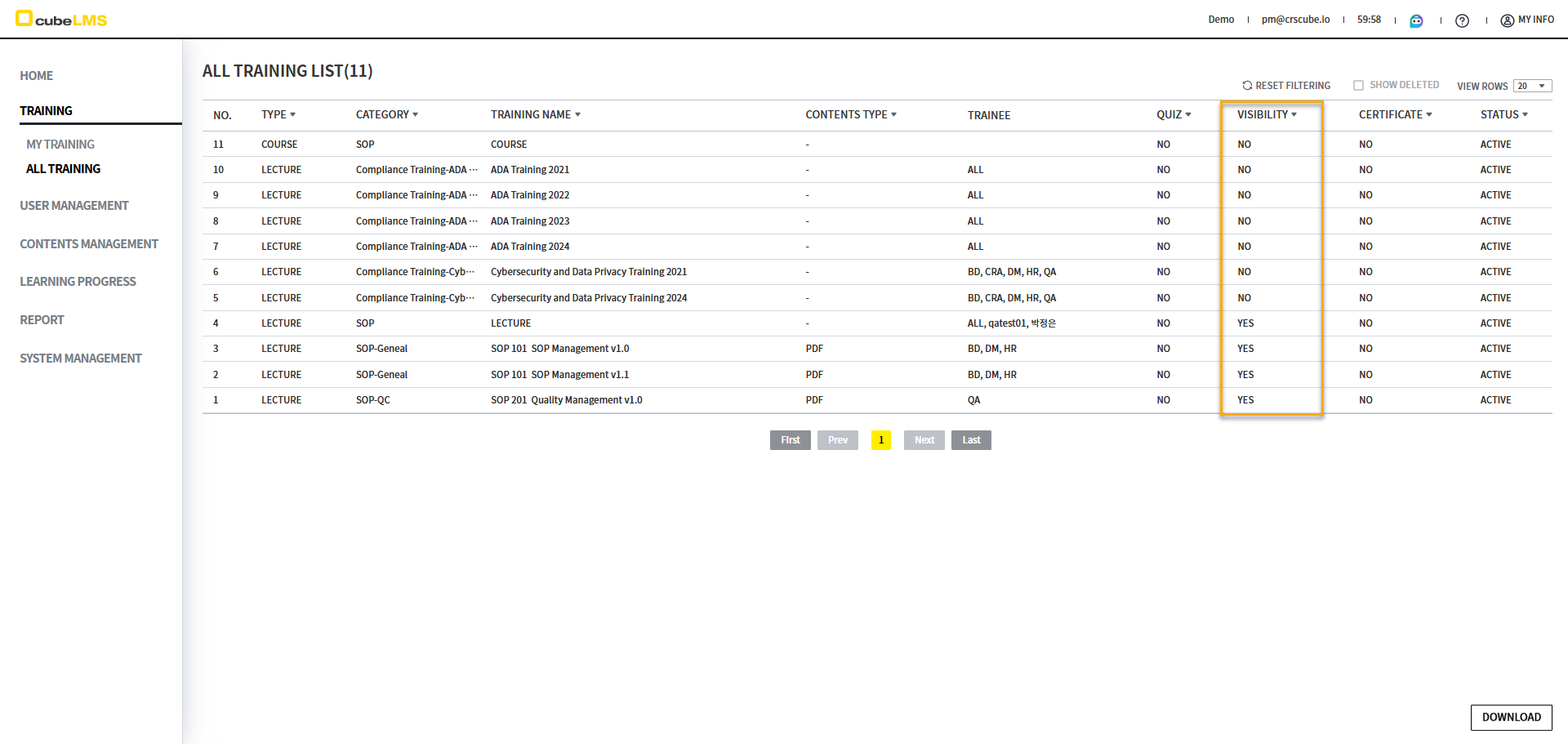
-
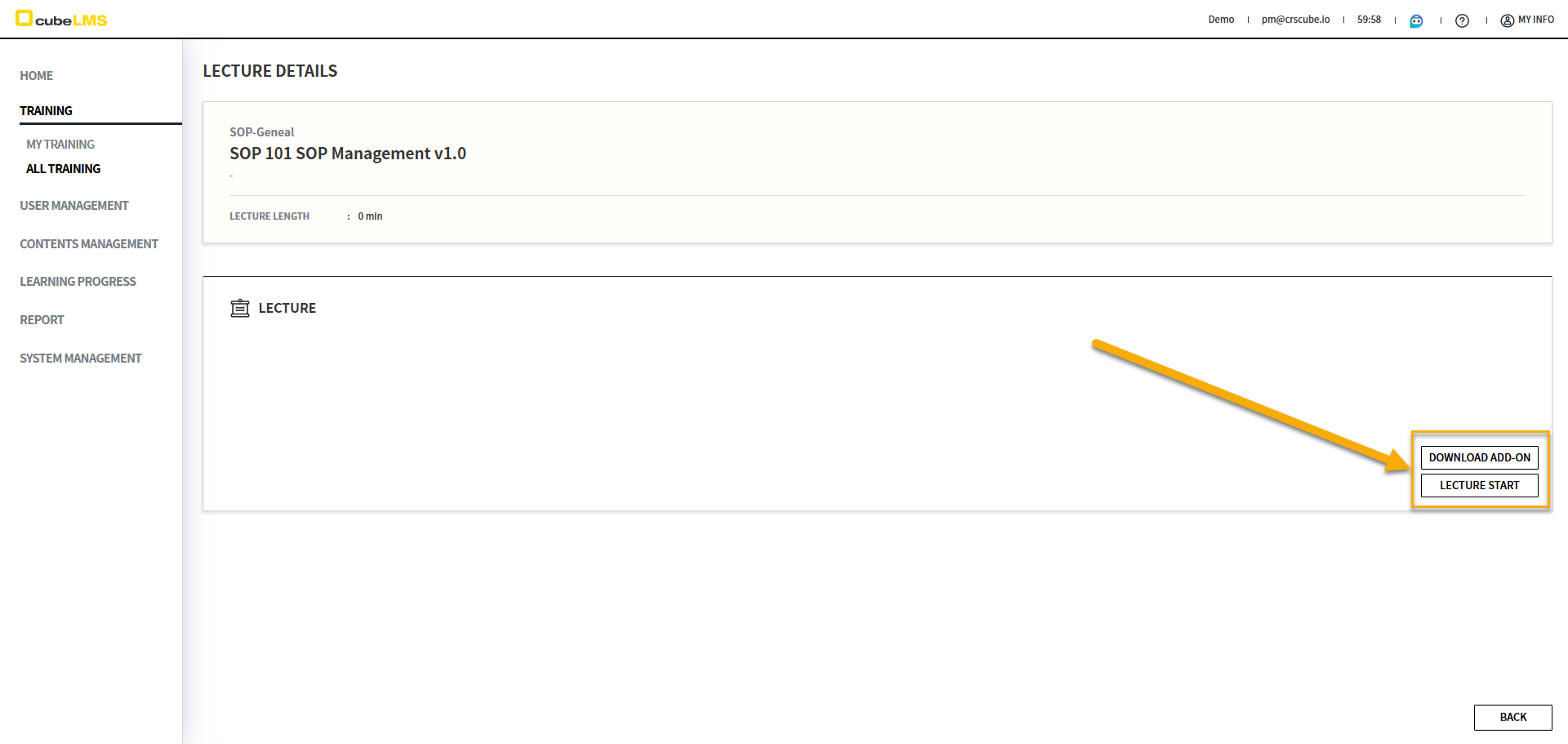
If you select a Lecture whose VISIBILITY is shown as YES, you are taken to the detail screen. On that screen, you can view the Lecture's Contents. If ADD-ON FILE is set to be displayed for that Lecture, that item is also displayed.
-
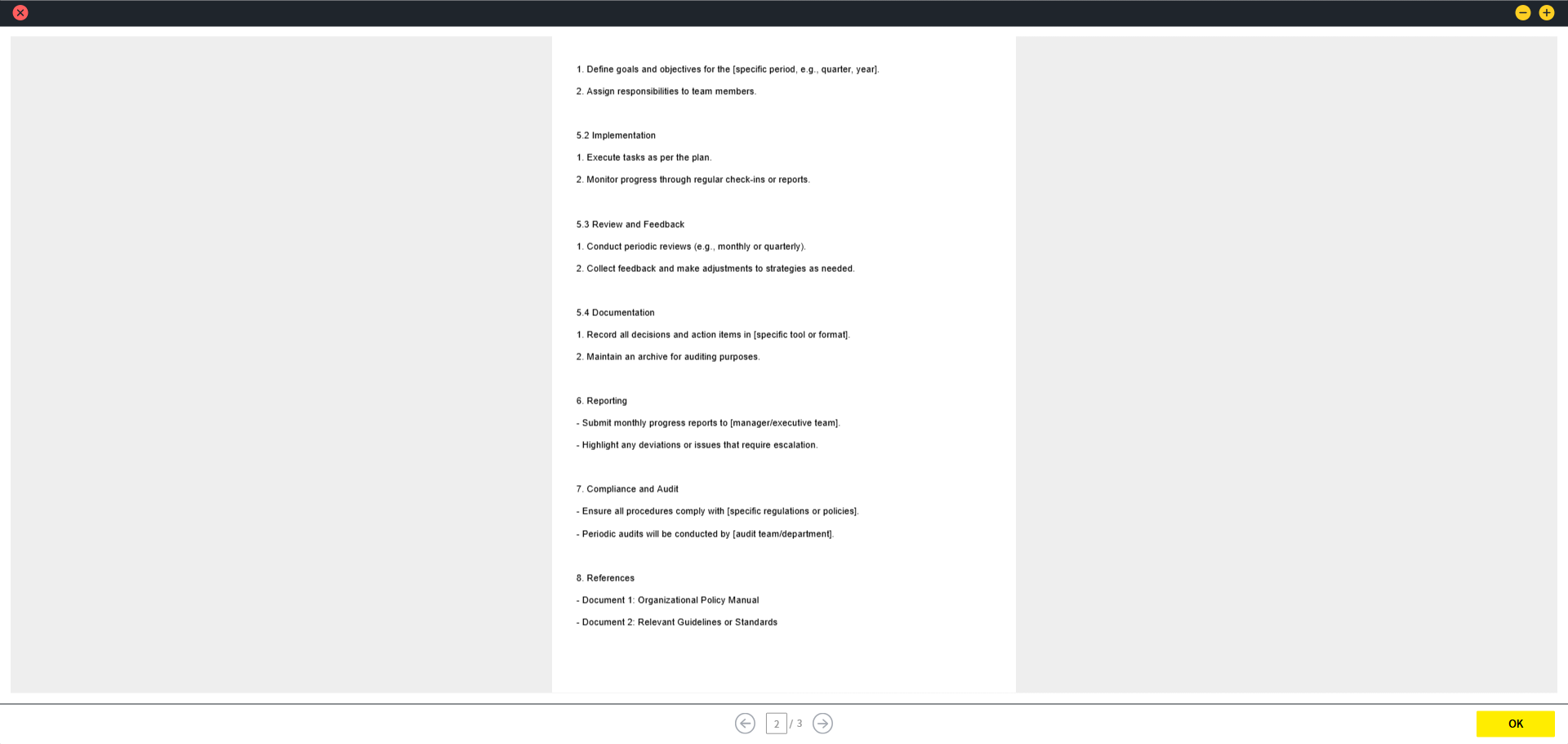
Select the LECTURE START button to view the Contents of that Lecture.
-
However, even if a Lecture belongs to a Category with MAKE LECTURE’S PUBLIC checked, if Status is INACTIVE, viewing is restricted and a 'Viewing is limited to lectures that are in an active or expired status.' warning pop-up is displayed.
Notes
-
Lectures in a Category where MAKE LECTURE’S PUBLIC is not checked are restricted from viewing as before.
-
The same restriction also applies to every Course.
IMPROVEMENTS
Release Date: 2024-12-22
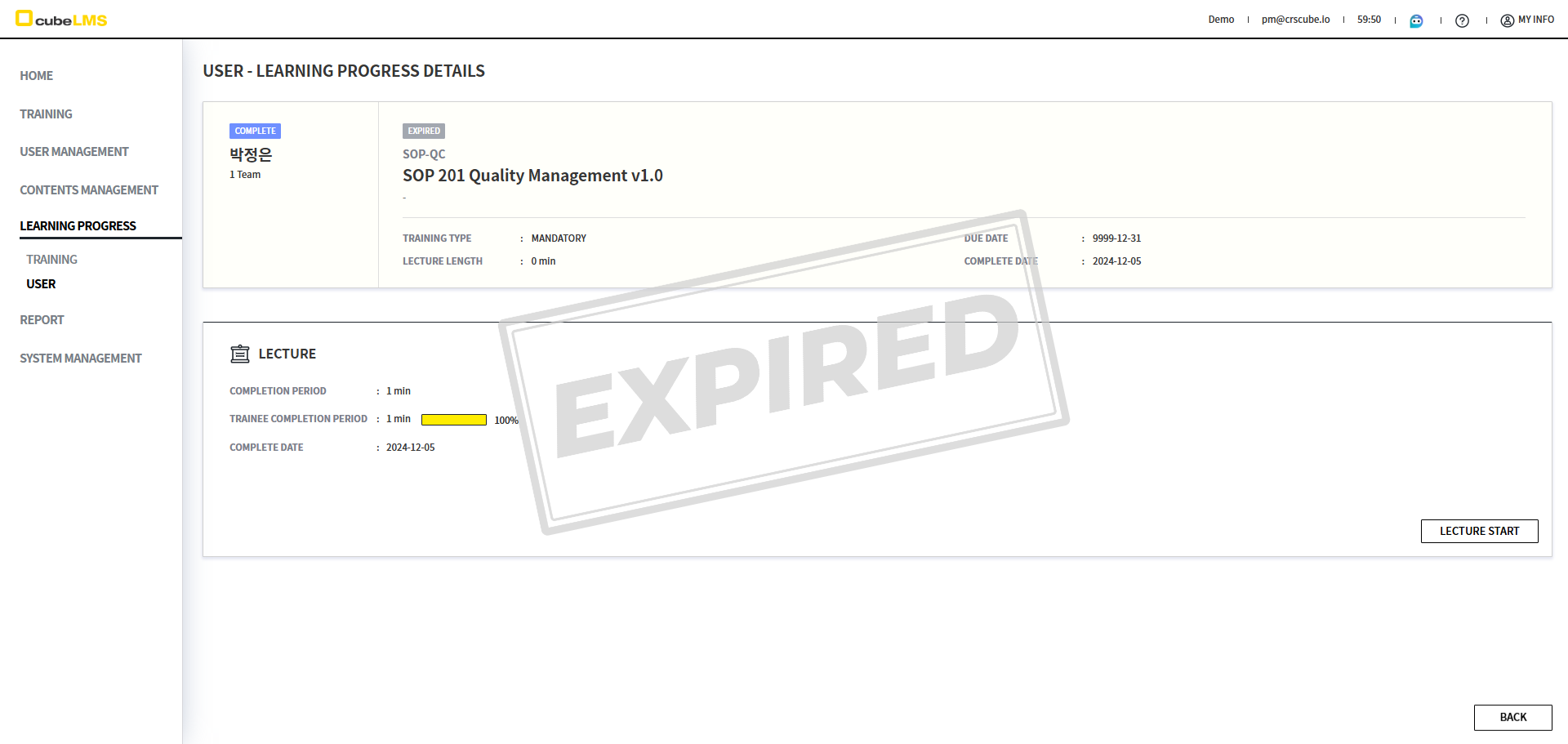
[Training] If the status of Training is Expired, a watermark is displayed.
Previously, the Expired status indicator was small, so Trainee could not easily recognize Expired Training. With this improvement, a watermark has been added to the detail screen, allowing Trainee to check the Expired status more clearly.
[GENERAL] It has been improved so that you can access the Online Manual through url even without going through cubeLMS.
Previously, to restrict access so that only authenticated users could access the Online Manual, users had to go to cubeLMS and log in before they could open the page, even if they had a link to the Online Manual page. To improve this inconvenience, now even when you are not logged in to cubeLMS, clicking the URL displays the login page, and after you log in, you can go directly to that page.
AS-IS
-
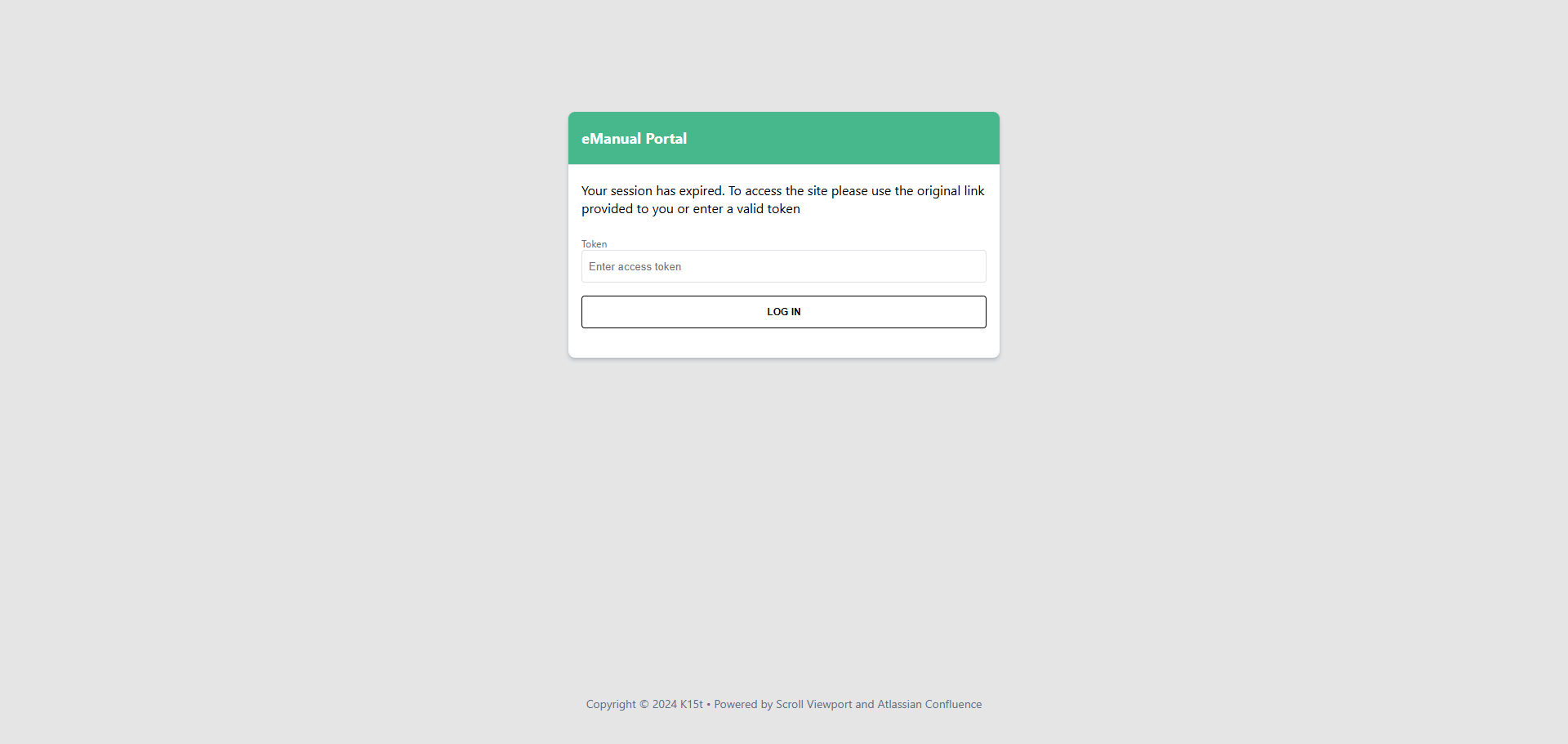
After logging in to cubeLMS, if you do not click the toolbar's Online Manual, access to the online manual through the link (URL) was not possible. (The token input page is displayed)
TO-BE
-
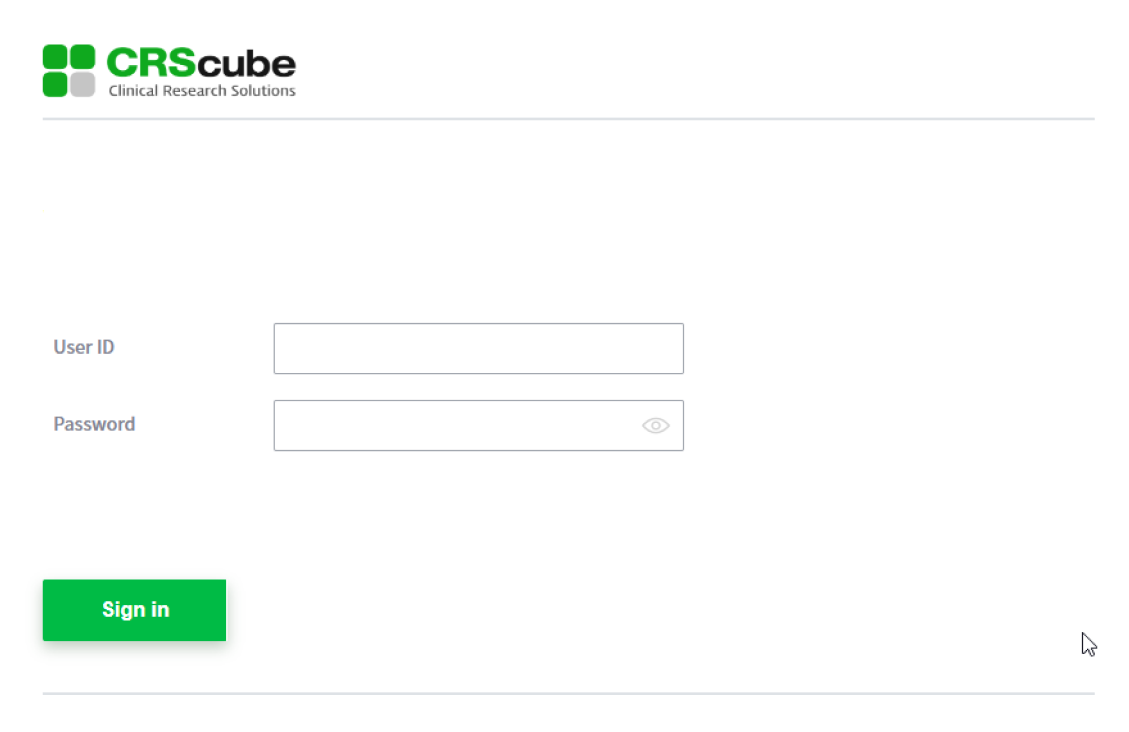
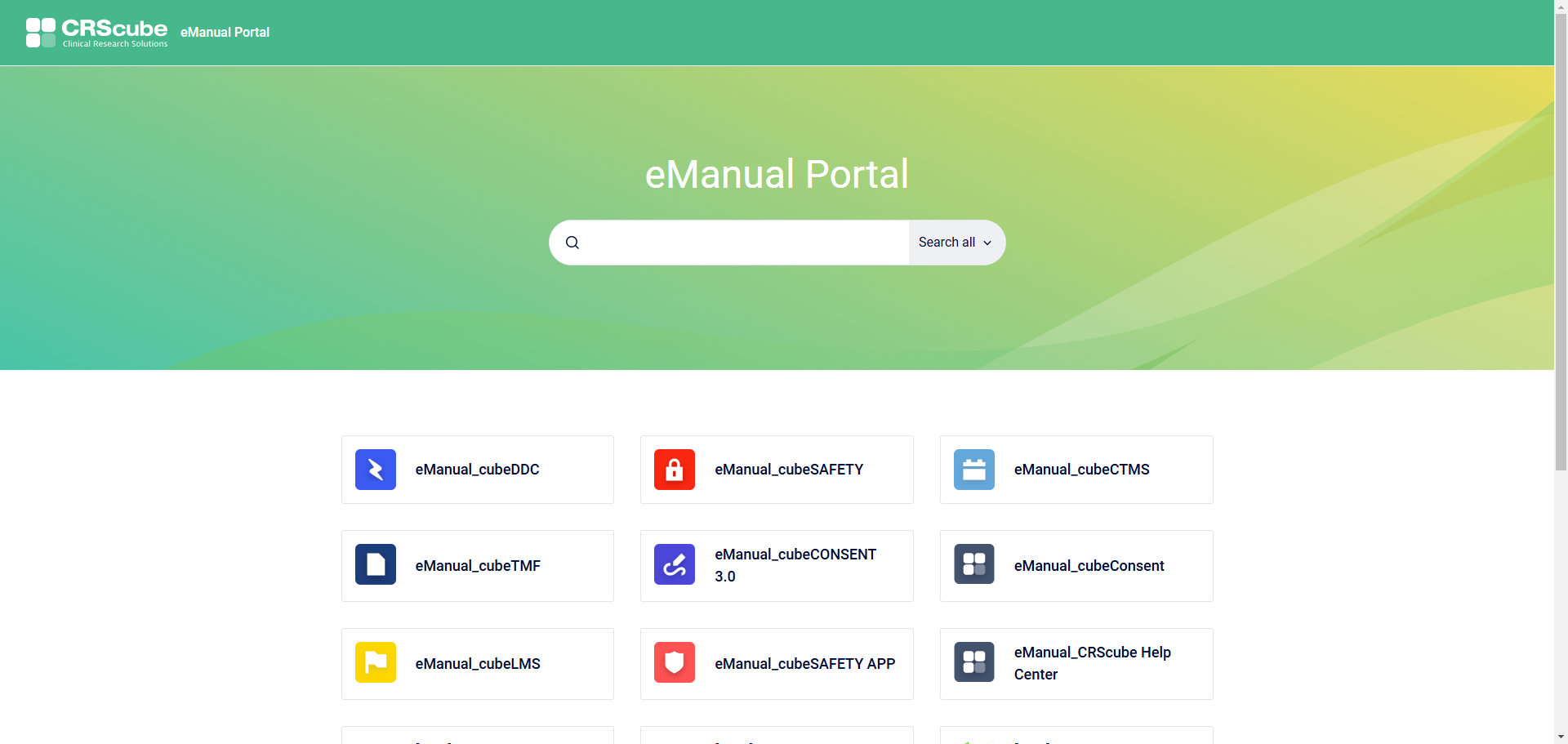
Even if you do not access it by clicking Online Manual in cubeLMS, you can access the Online Manual through the link (URL). The login page is displayed, and after logging in, you are taken directly to the page linked from that URL.
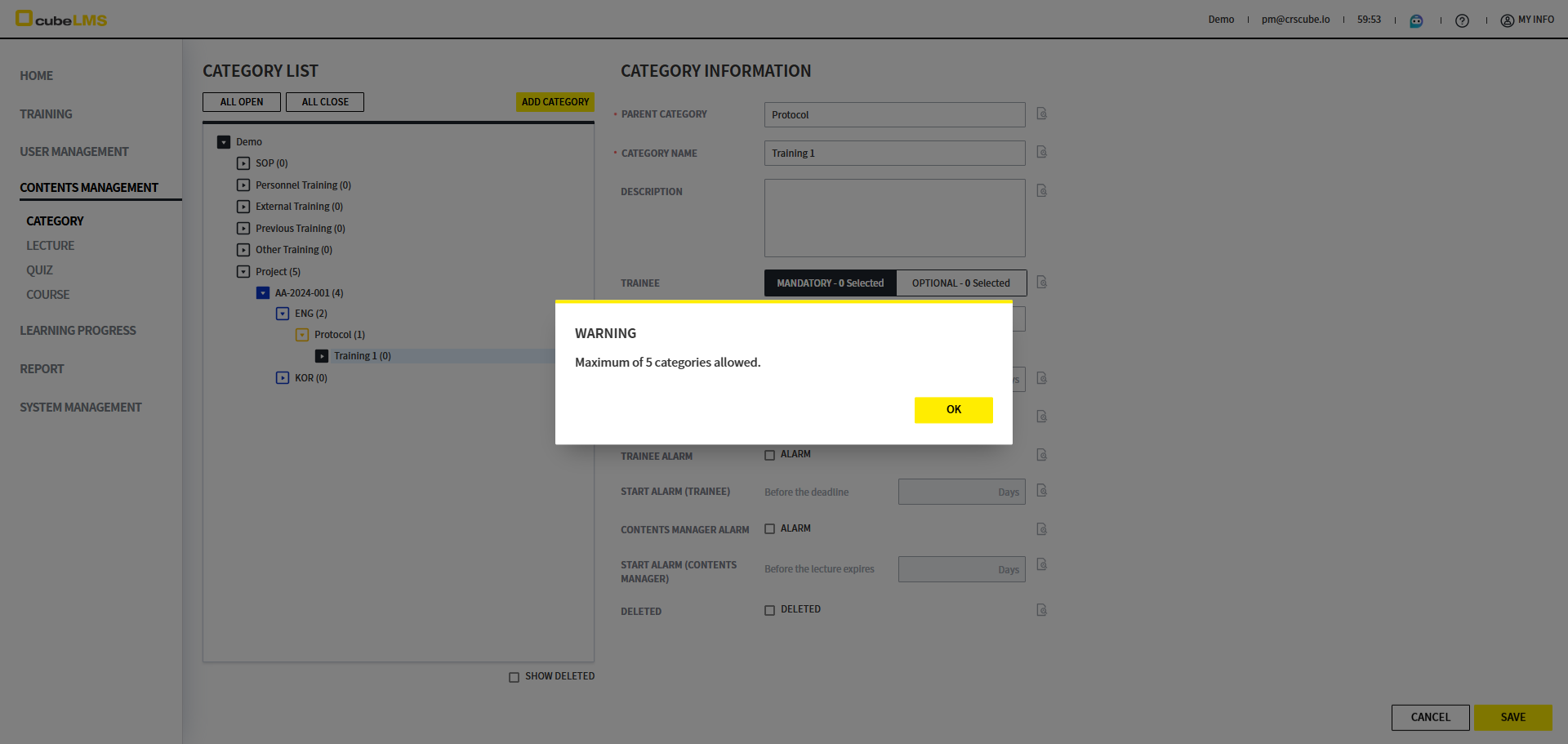
[Category] Category creation and editing are limited to a maximum of 5 Depth.
If the Category Depth exceeds 5 and you select the ADD CATEGORY button, or if the total Depth of the Category to be moved exceeds 5 due to a change in PARENTS CATEGORY, the 'Maximum of 5 categories allowed.' Warning pop-up is displayed.
Release Date: 2024-09-29
[LMS] The chatbot cubeBot will be added.
Previously, when searching for solution-related keywords in the existing eManual, there were many pages, making it difficult to find what you needed.
A new feature called cubeBot has been added so you can resolve LMS-related inquiries on your own.
In cubeBot, inquiries about manual content related to the current quarter's migration can be answered after the regular migration.
Please note that cubeBot responses may contain errors, and if there are no related materials in the cubeBot response, you may not receive the answer you want.
Here's how to use cubeBot.
-
Click the cubeBot icon at the top right of the LMS Toolbar.

-
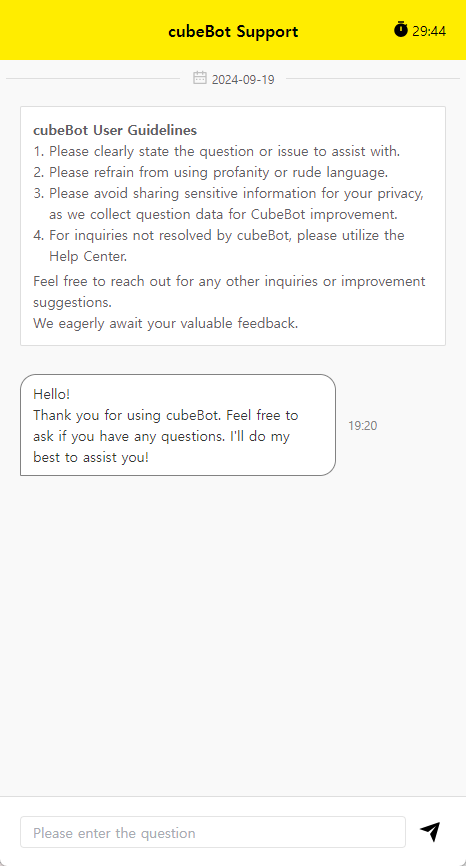
cubeBot opens in a new window. When you view it for the first time that day, the guidelines and greeting are displayed.
-
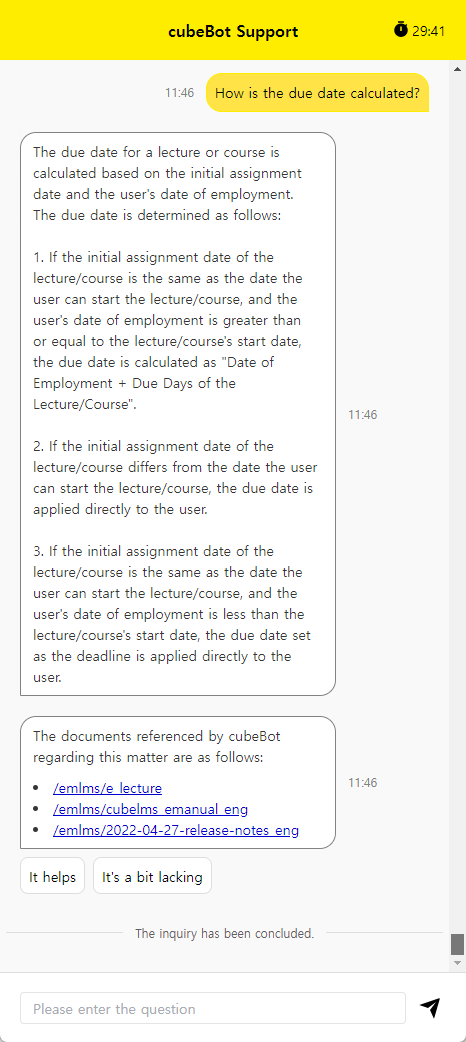
You can ask questions about setup and operation. Because answers are based on eManual, responses are limited for questions unrelated to the solution. You can also view the three eManuals referenced in the answer along with the cubeBot response, and click to go to the corresponding eManual.
(Example question: How is Due date calculated?)
-
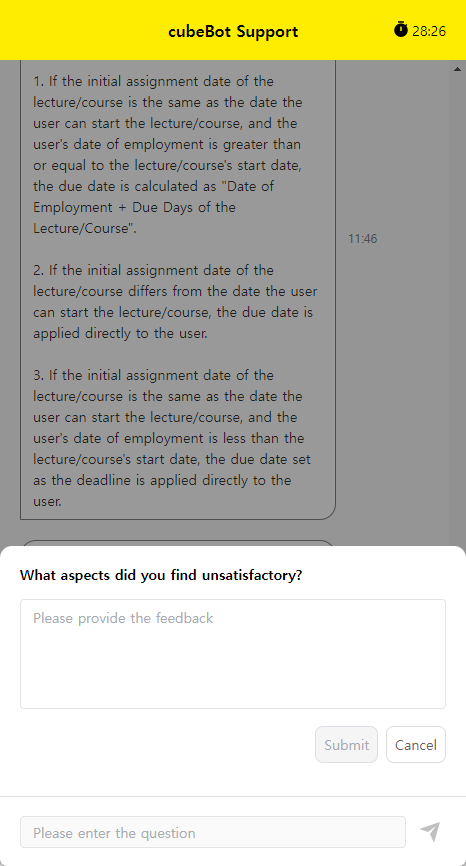
After the answer is generated, a button for leaving feedback appears, and you can enter your comments by clicking the 'It's a bit lacking' button.
MISCELLANEOUS
Release Date: 2024-12-22
-
Fixed an issue where selecting a card in Summary information on the Admin Dashboard did not navigate to Learning progress.
Release Date: 2024-07-09
-
[LMS] It has been modified so that a duplicate query is displayed when the parent Group name is entered the same as the child Group name within 1depth.