You can register and manage Quiz in this menu.
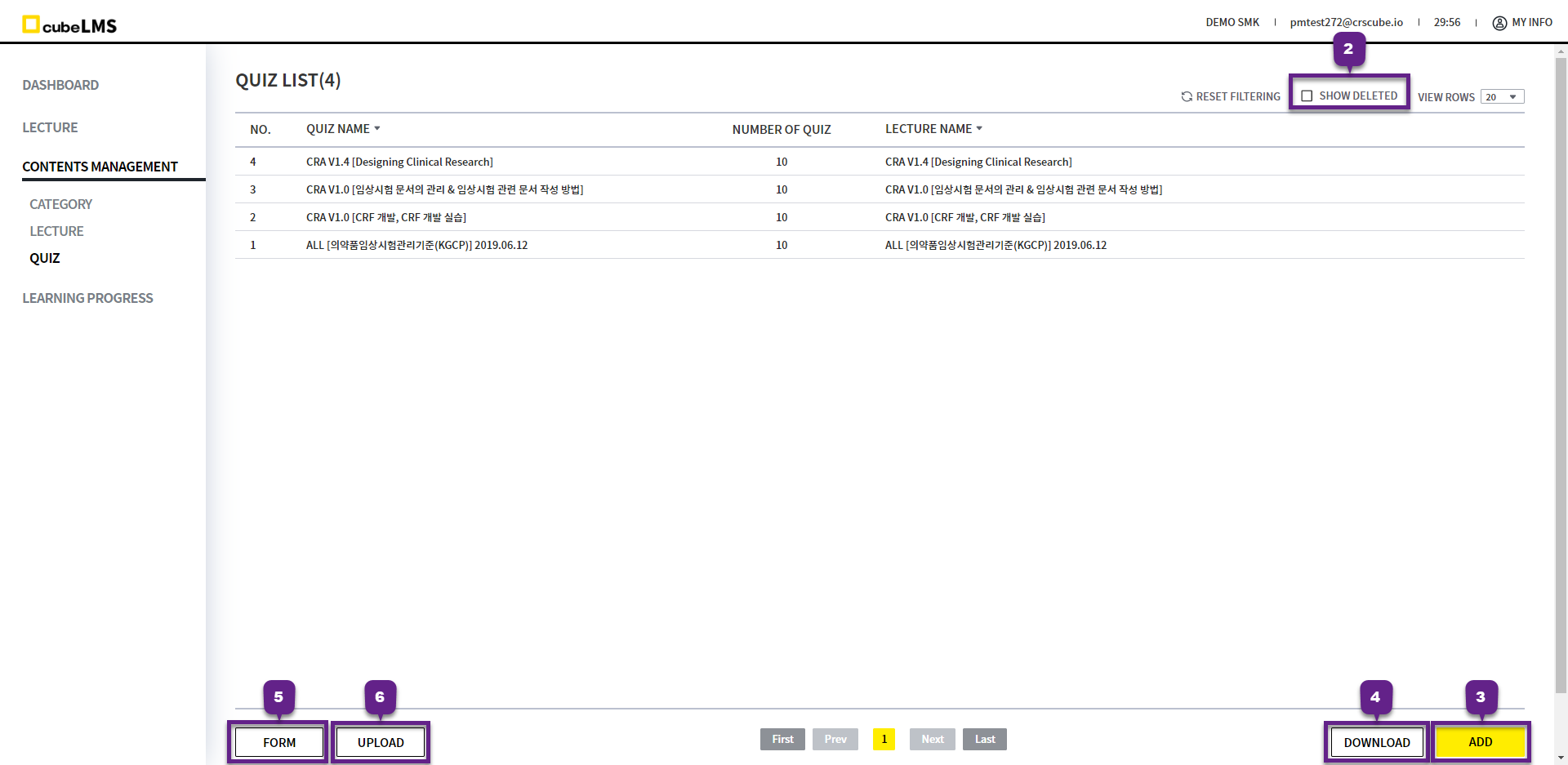
QUIZ LIST
1. Click each row to open the quiz details page.
2. Show Deleted: If checked, you can view deleted quizzes.
3. Add button: You can add a new quiz.
4. Download button: Click it to download the current quiz list as an Excel document.
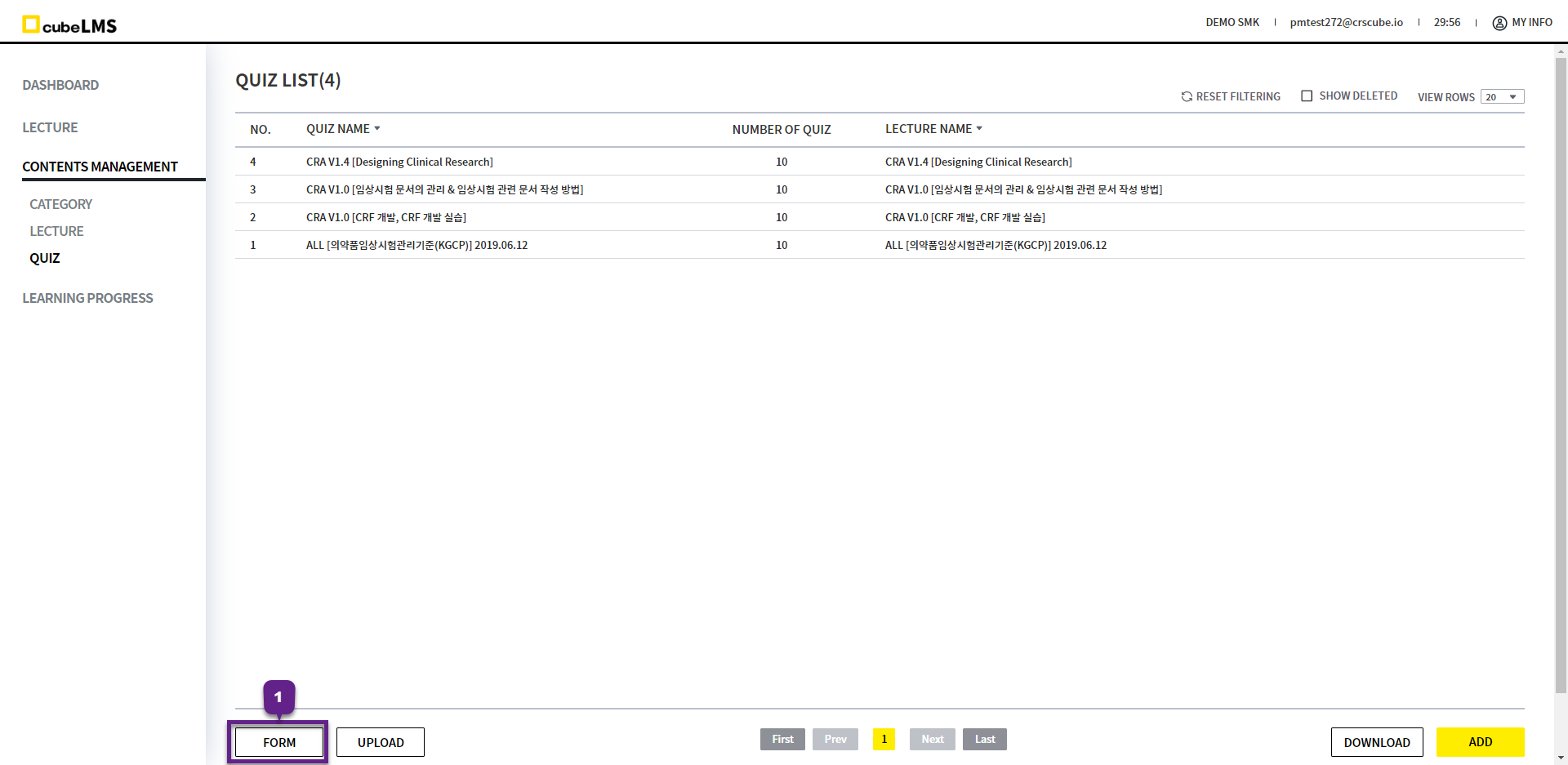
5. Form button: Clicking this will let you download an Excel Template for uploading multiple quizzes at once.
6. Upload button: Click to upload the entered Excel Form.
ADD QUIZ(MANUAL)
1. Click the Add button to create a quiz.
2. '*' indicates a required field.
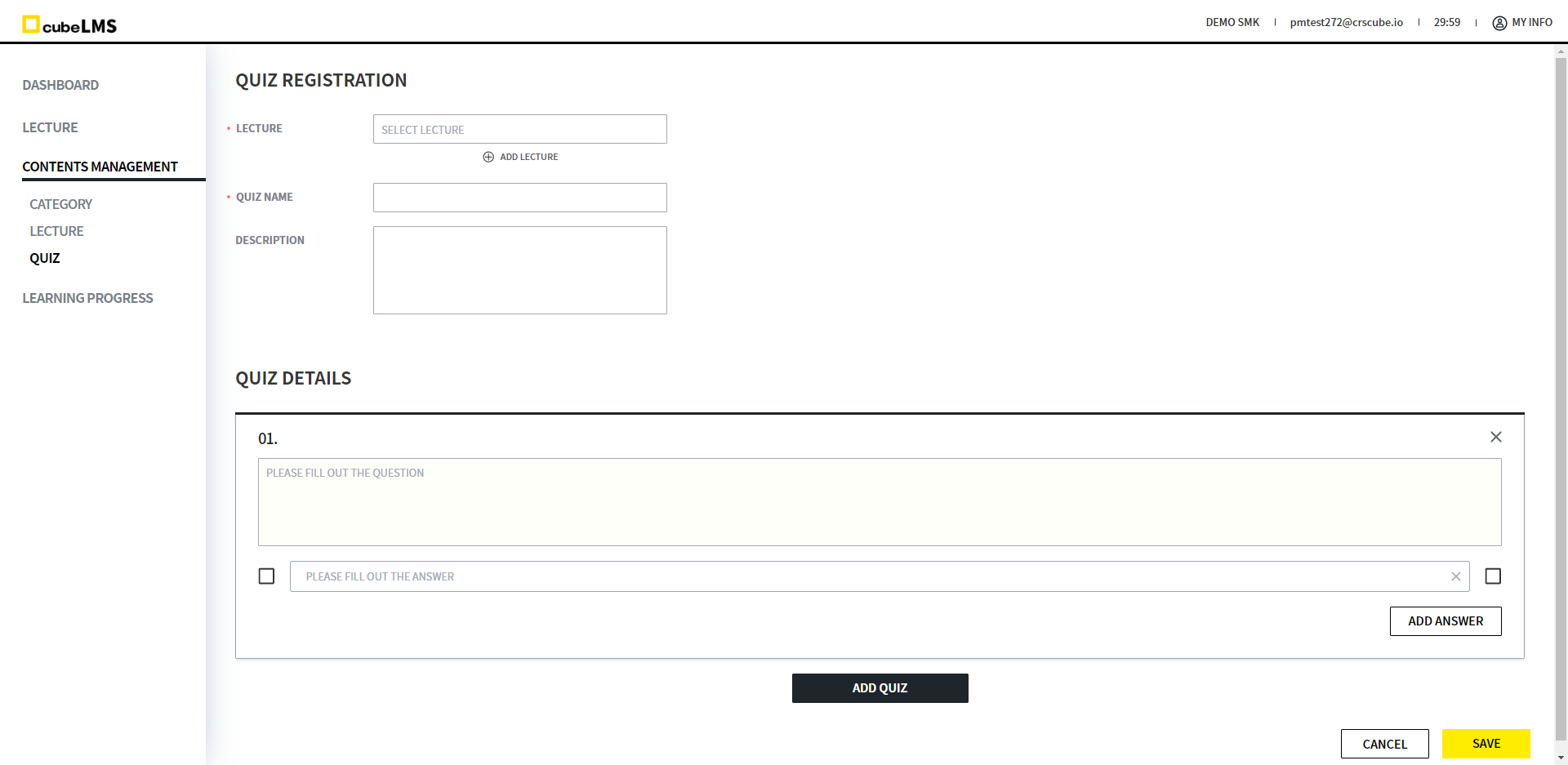
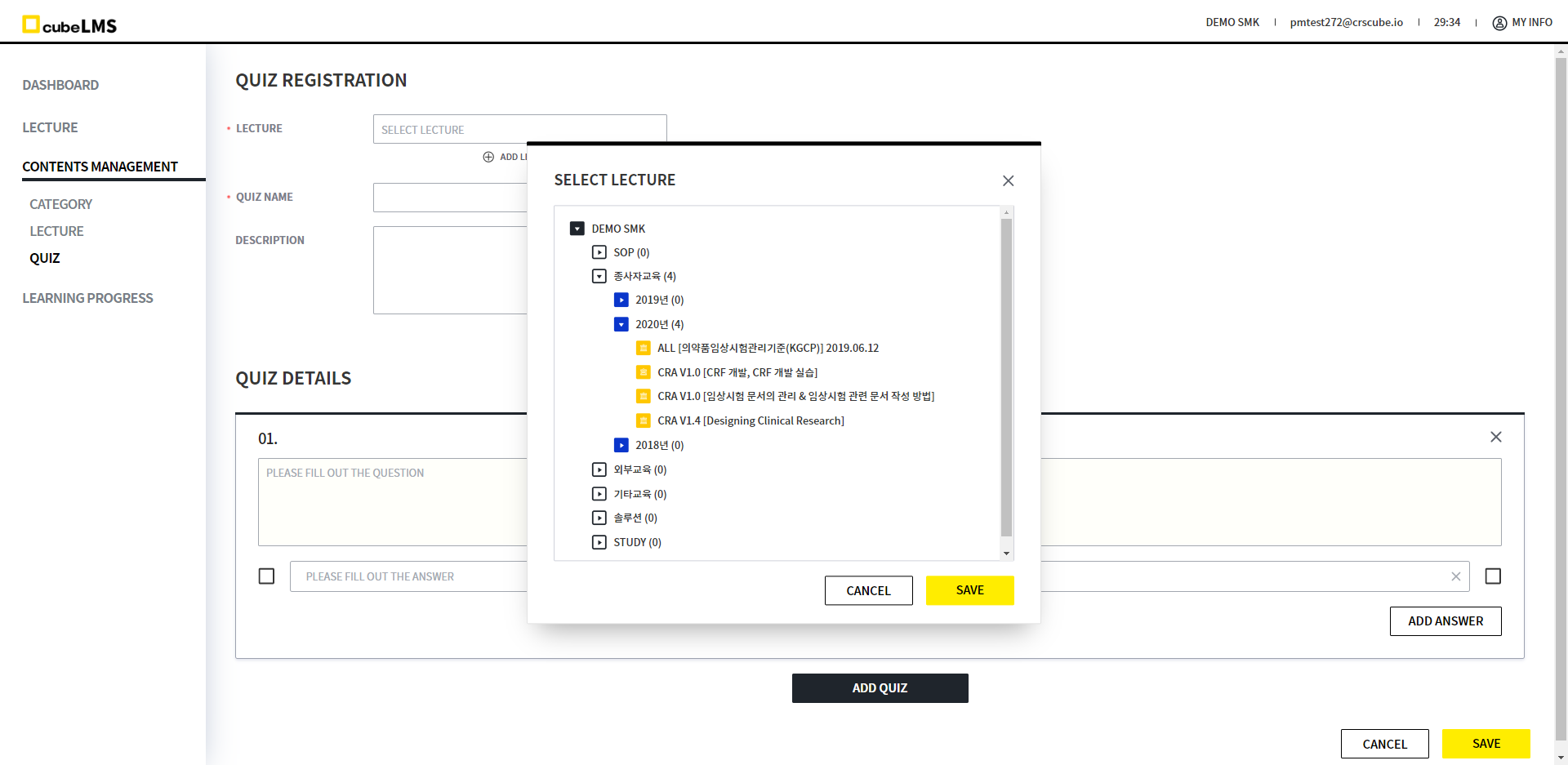
3. Lecture field: Clicking it displays the hierarchical structure shown in the image below. Expand the category to view the lectures where you can register quizzes. You can also use the same quiz for multiple lectures.
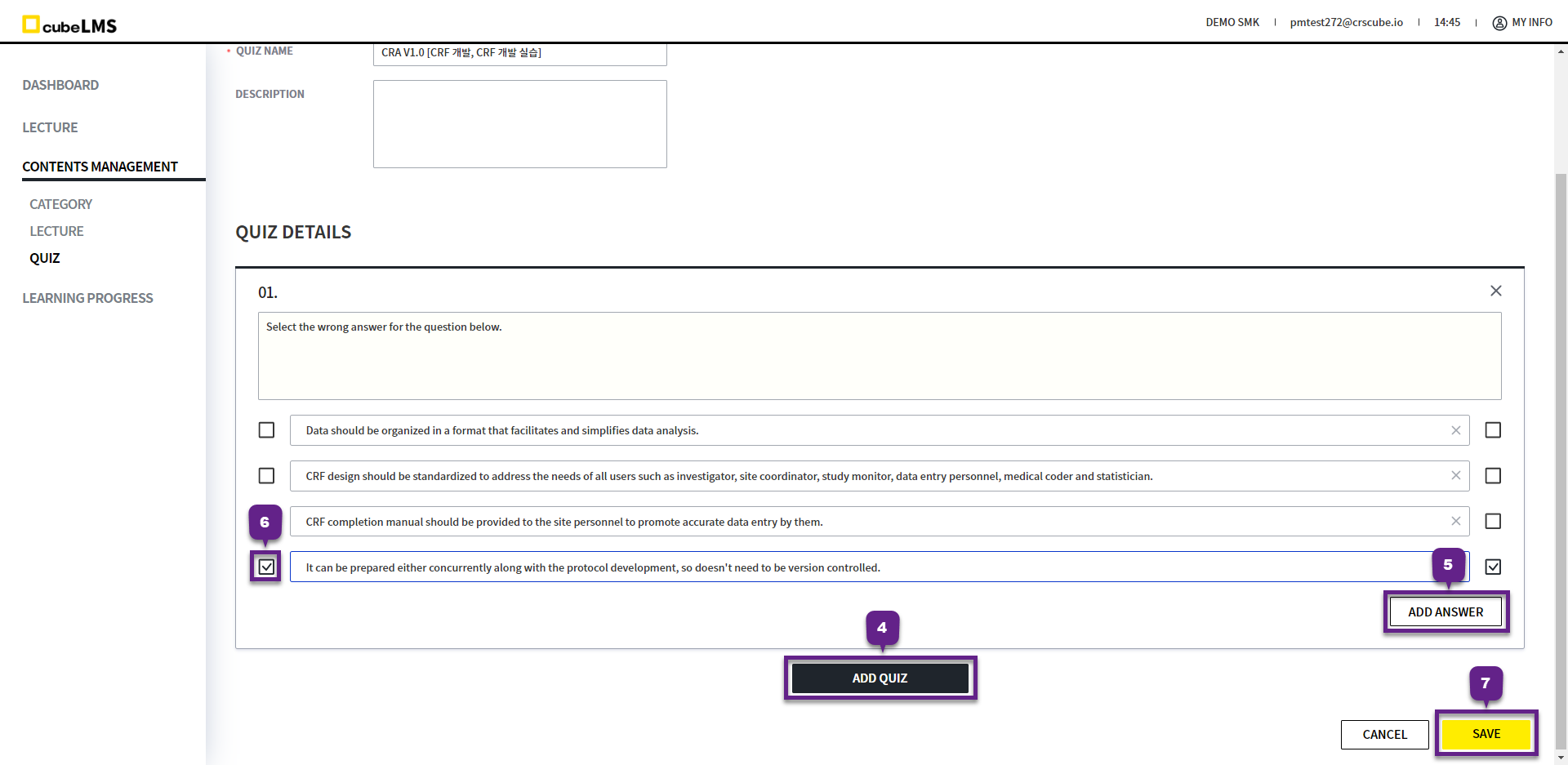
4. Add Quiz button: Click to add a question.
5. Add Answer button: Click to add options.
6. One question can have multiple correct answers. Please check the checkboxes on either side of the choices for the correct answers.
7. Save Button: If all the information for the quiz to be registered has been entered, click this button to save it.
ADD QUIZ(EXCEL)
1. Form button: When uploading a quiz, you can register the questions and answer choices at once. Download the Excel Template for upload.
There are 3 sheets in the downloaded Excel Form, and the description of each sheet is as follows.
-
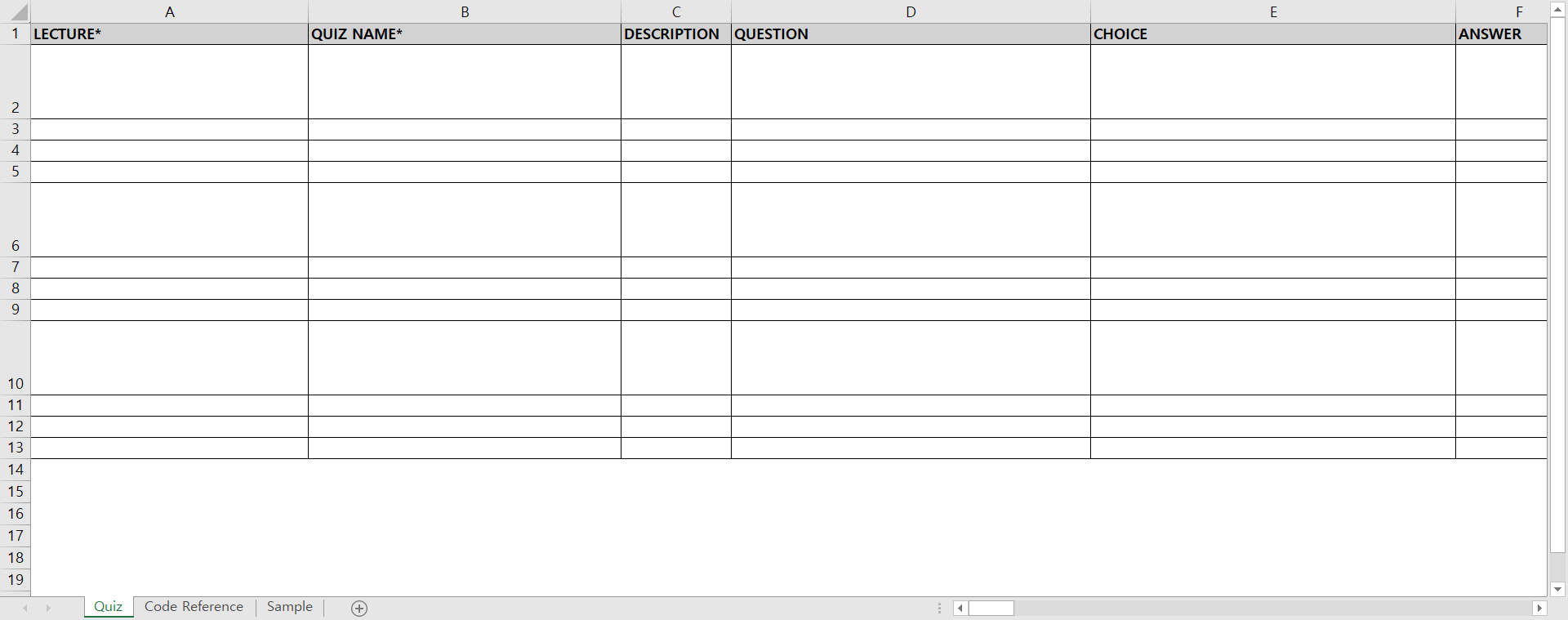
Quiz sheet:This is the sheet for entering the quiz information to upload.
-
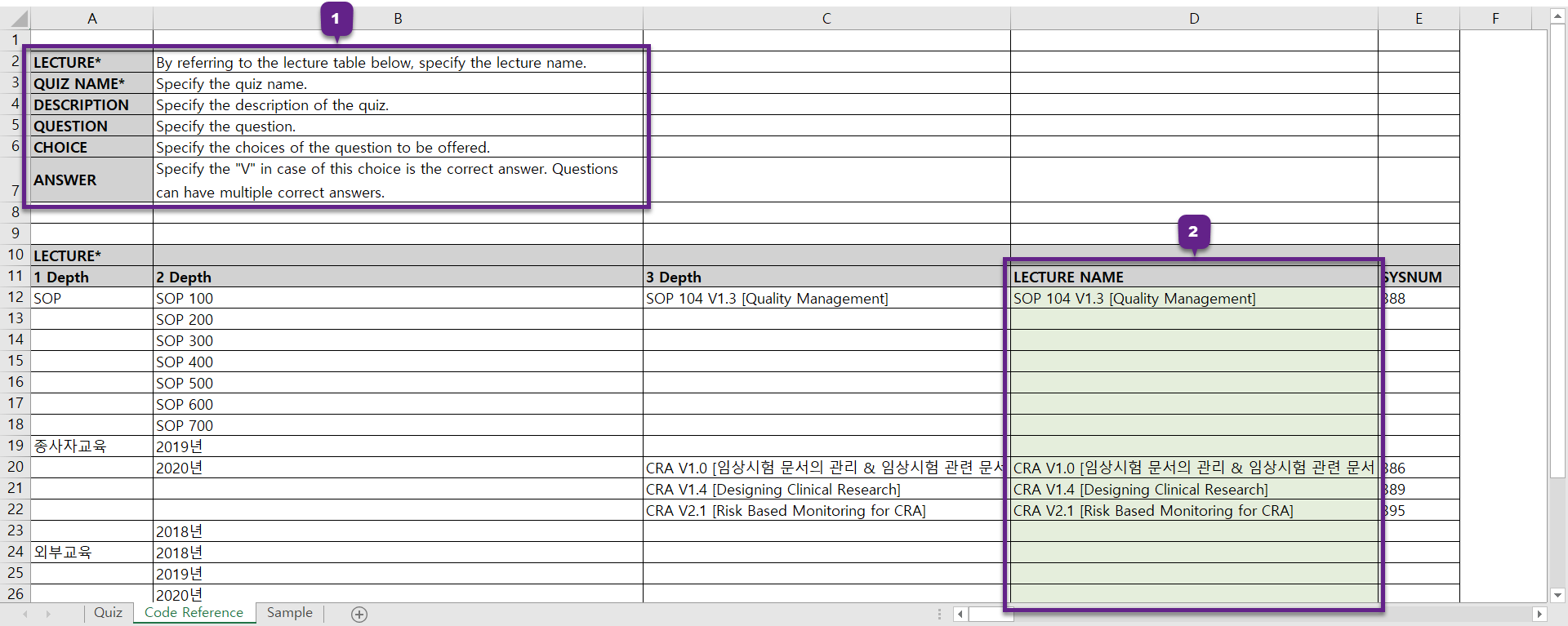
Code Reference sheet: Quiz sheetYou can check the descriptions of the columns and the Lecture information that can be entered. Please refer to this content and enter it in the Quiz sheet.
Lecture column: Only the content shown in the green area on the right side of the second sheet (Code Reference) should be entered.
Only Lecture that meet the following conditions are displayed in the Lecture List.
-
Quiz = Yes
-
Validity = No
-
Sample sheet:This is the sheet with examples.
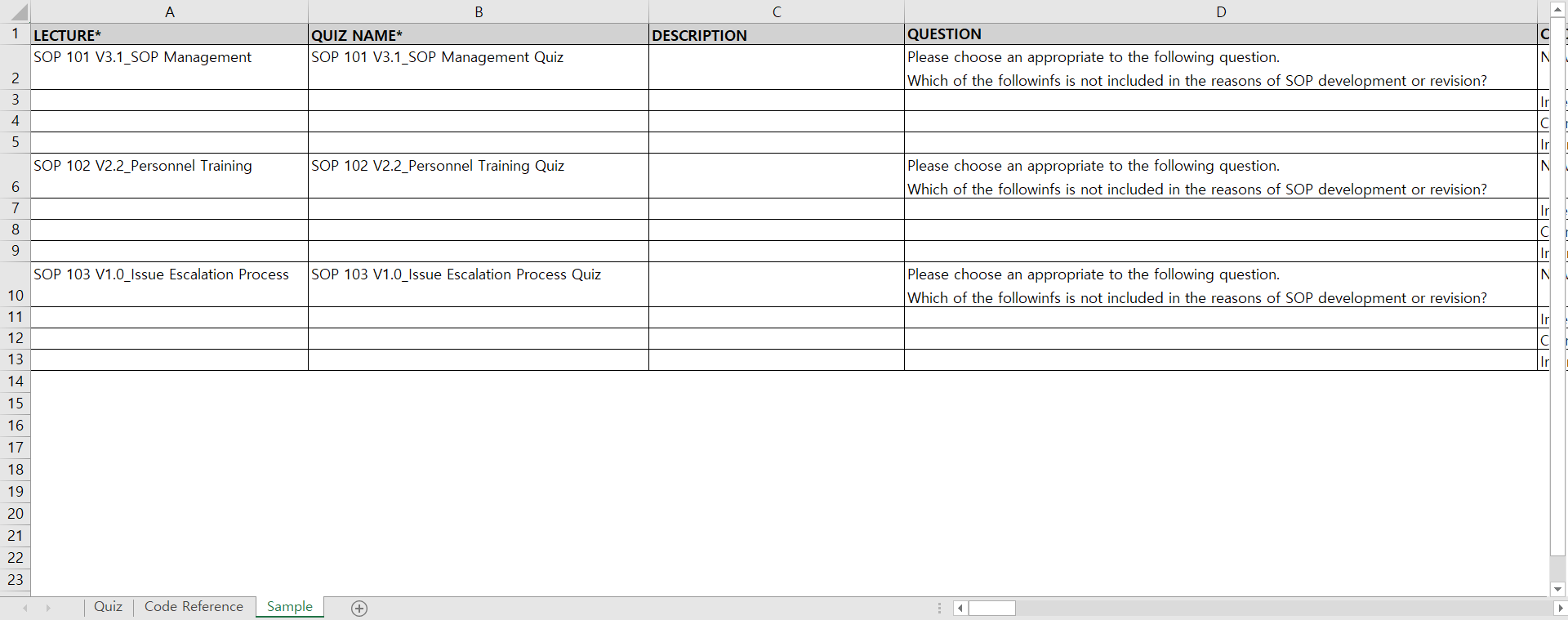
3. UPLOAD button: A popup appears where you can upload the Excel file containing the quiz information. Select the Excel document and upload it.
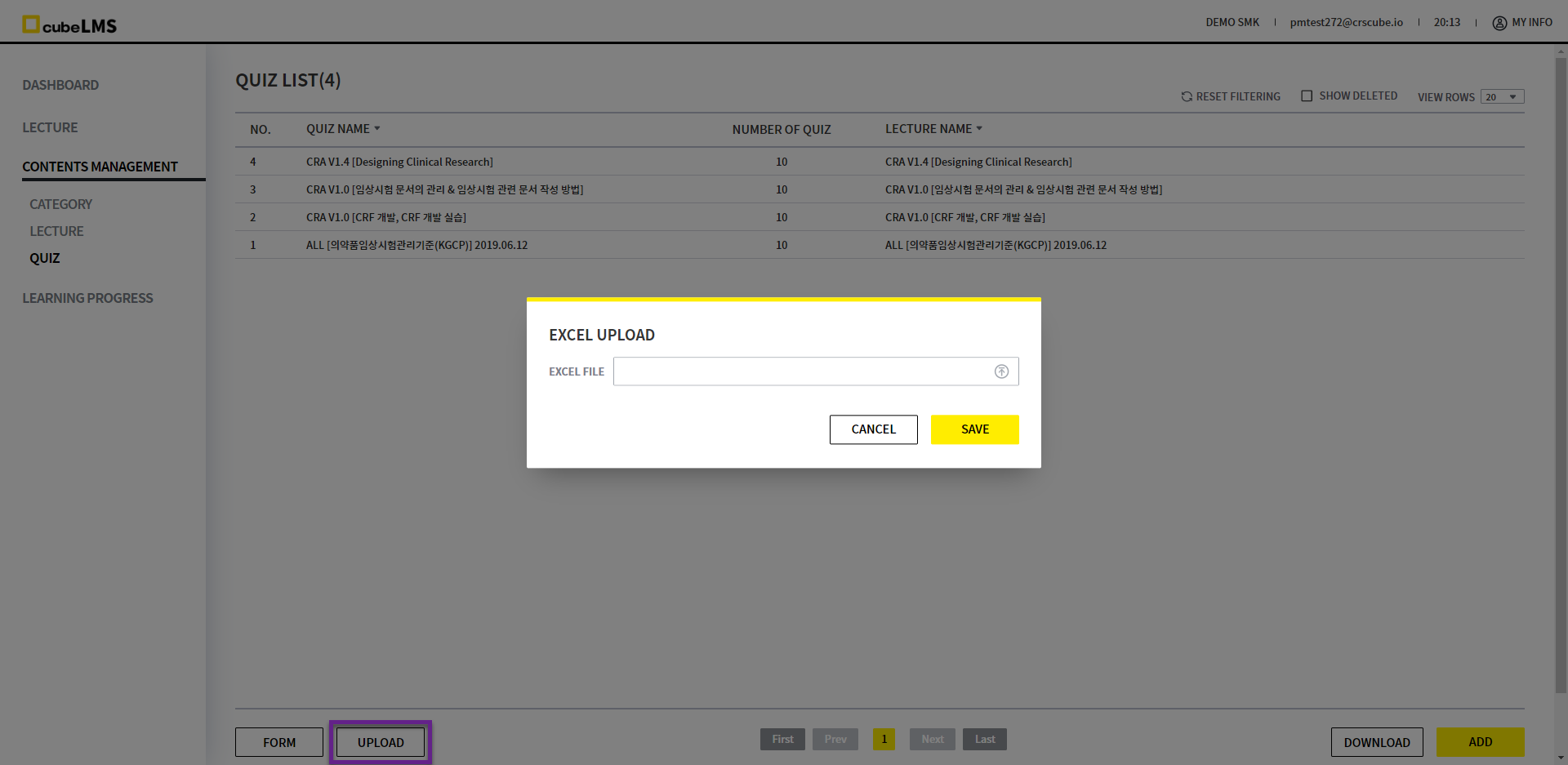
-
Quiz sheetcontains content that does not match the upload format, an error message appears in the pop-up.
Please review the error message, revise the file, and upload it again.
Upload may fail in the following cases.
1) If it is entered differently from the second sheet (Code Reference), or if there is missing data even though it is a required item.
2) When you enter a quiz name that duplicates an already registered quiz
3) When entering a duplicate quiz name in the Upload Form
4) If the item is entered in a data format that does not match (e.g., entering data other than 'V' in the ANSWER column)
5) Excel Form in which the specified input format is not 'General' or 'Text'
6) Excel Form after downloading it, the Lecture or category changes and the file is no longer the latest version
7) Excel Form contains formatting or formulas that the system cannot recognize
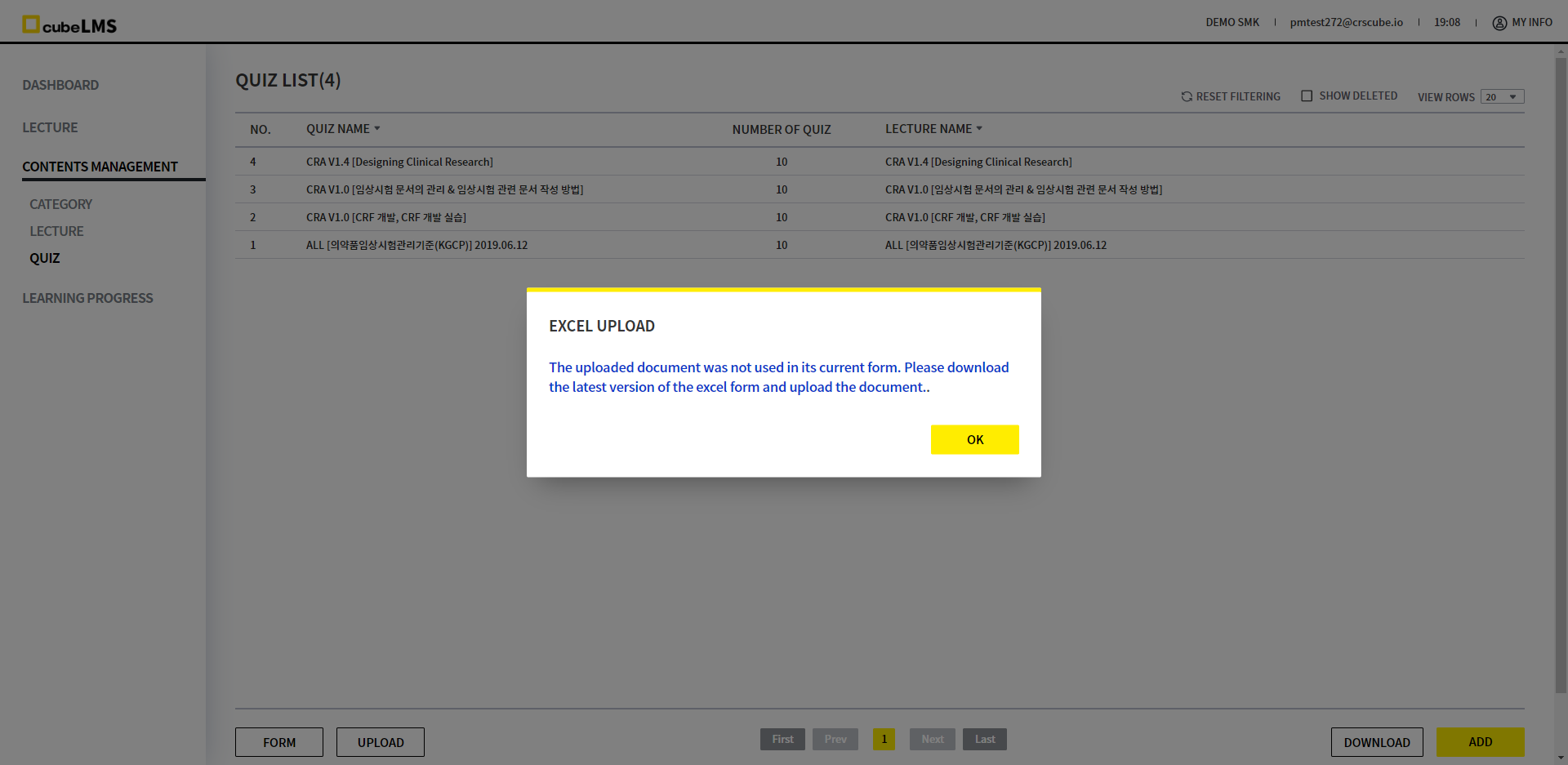
4. When the final upload is complete, the uploaded quiz will be displayed in the List.
When the quiz is successfully registered, the corresponding Lecture changes from Invalid to Valid, and the activated Lecture is automatically assigned to the Trainee.
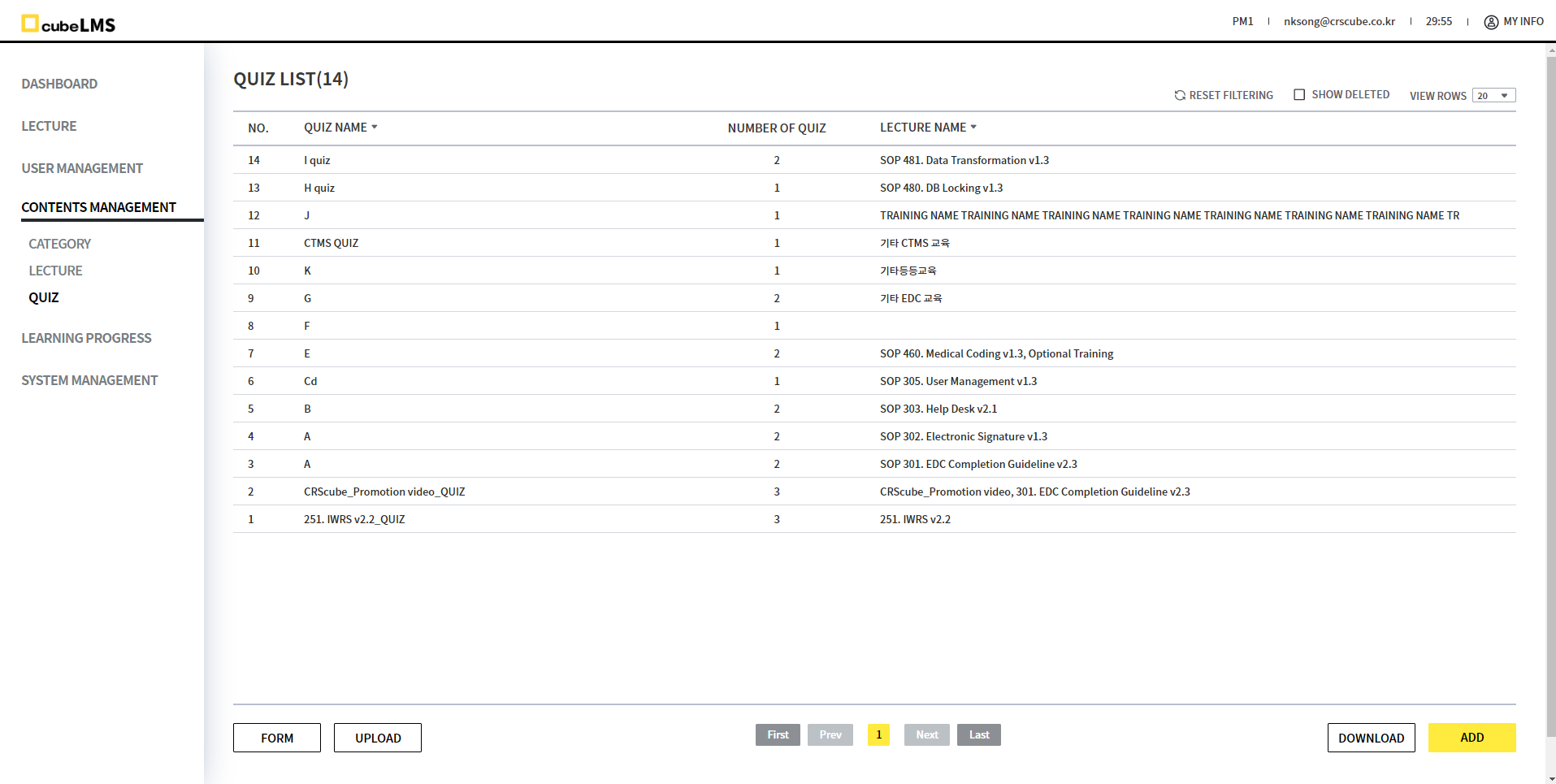
EXAMPLE
These are the matching fields between the Excel file and the quiz registration screen.
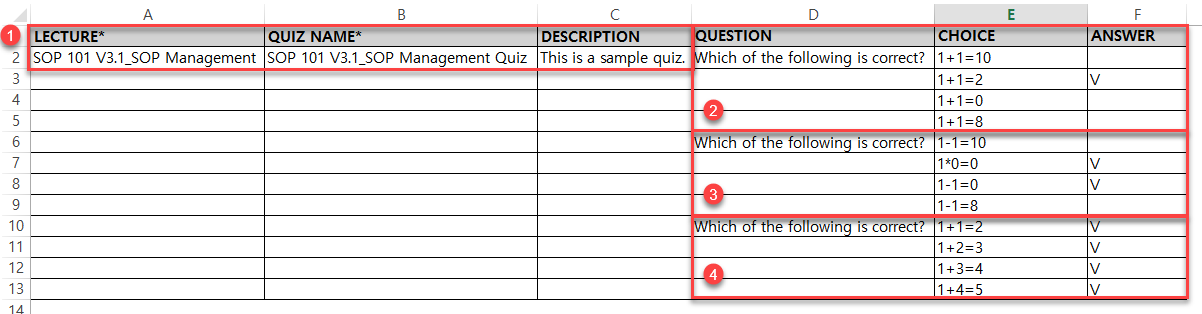
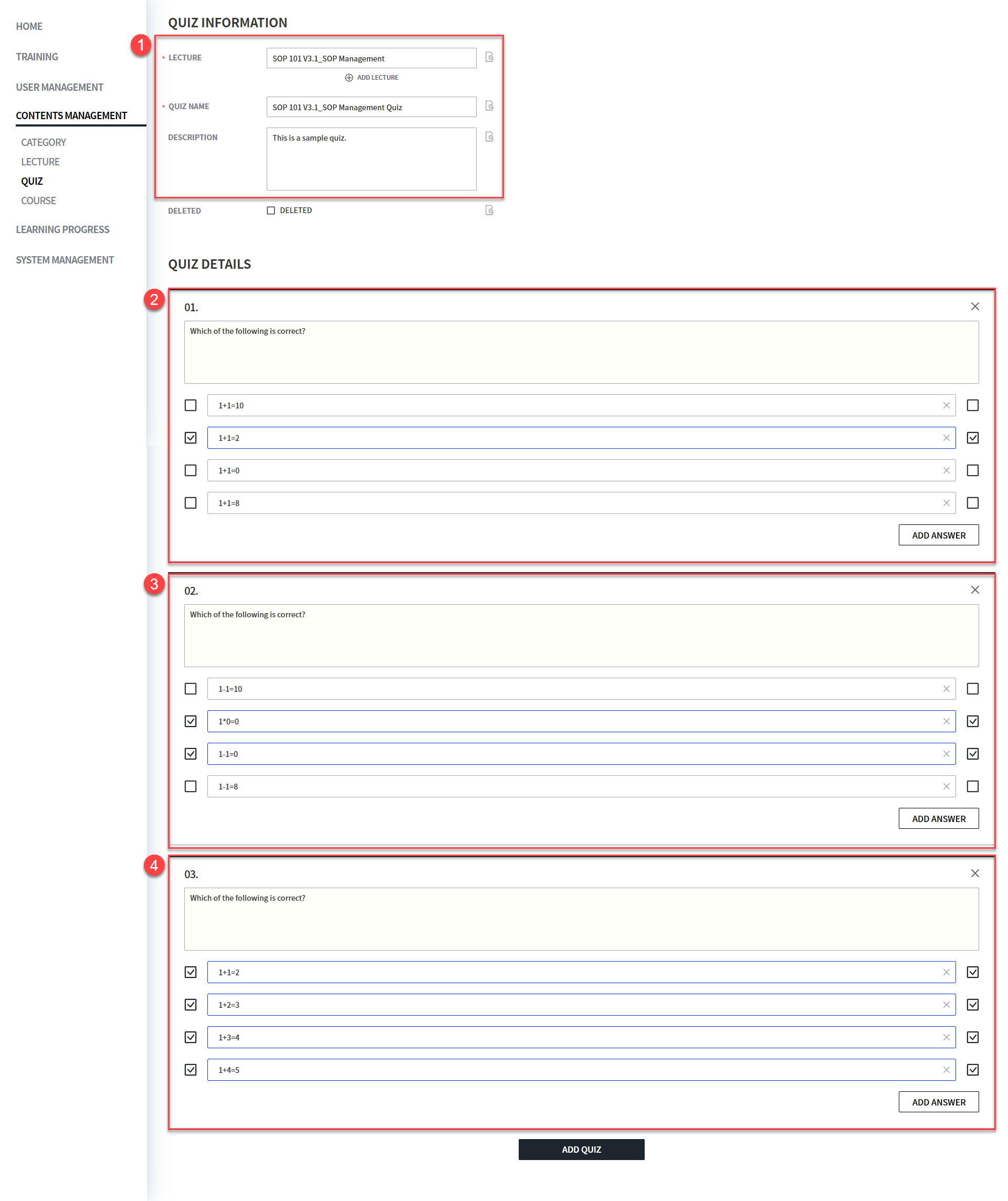
EDIT QUIZ
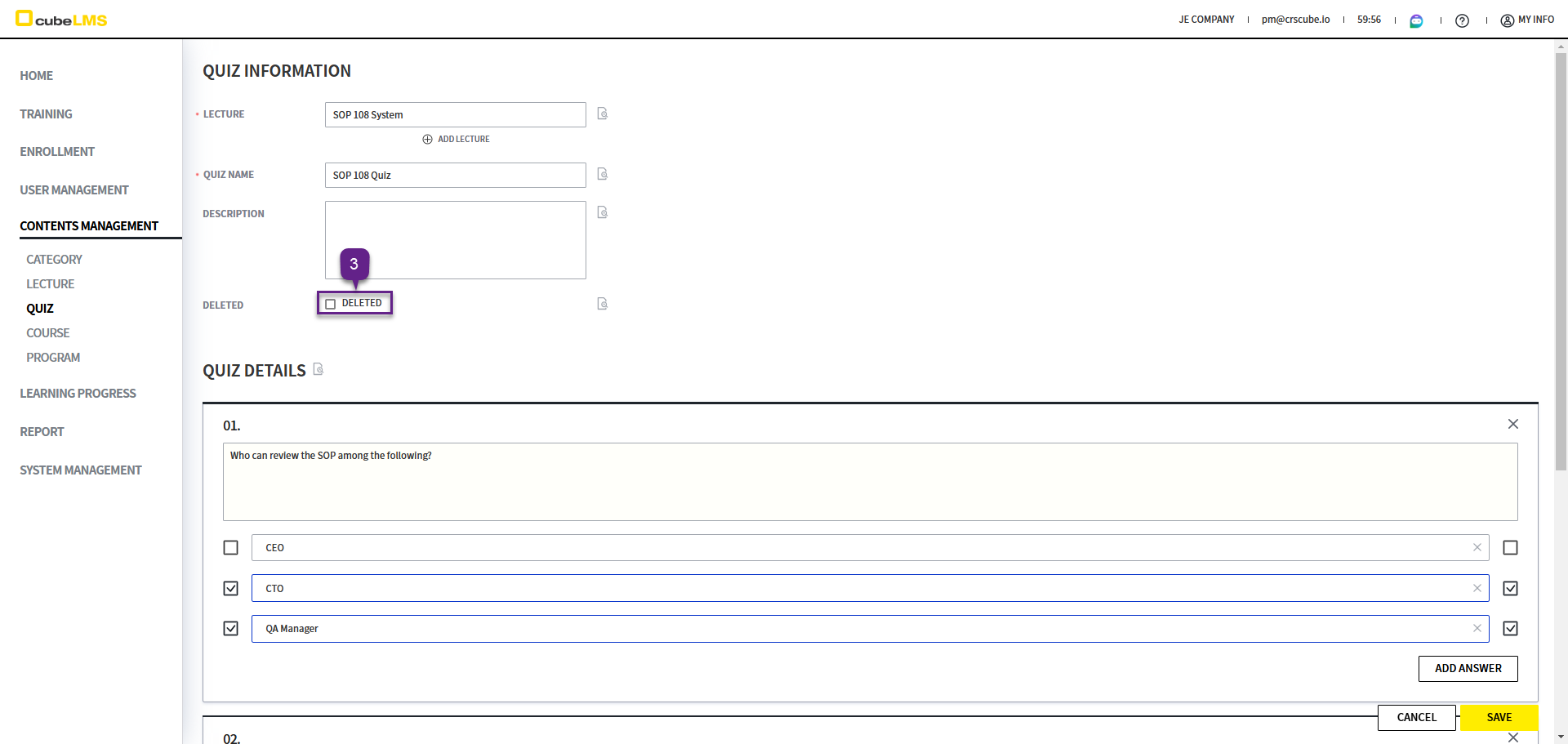
Click each row to open the detail page where you can edit the quiz information.
2. Deleted: If checked, you can delete the quiz.
However, deletion is not allowed if there is at least one Trainee who is currently in progress (In Progress) in the Lecture linked to the quiz.
3. Quiz Details: You can edit the quiz questions and answer choices.
If you edit this item, all previously attempted quiz data will be reset. Since it cannot be restored after modification, please contact CRScube if you need to make changes.