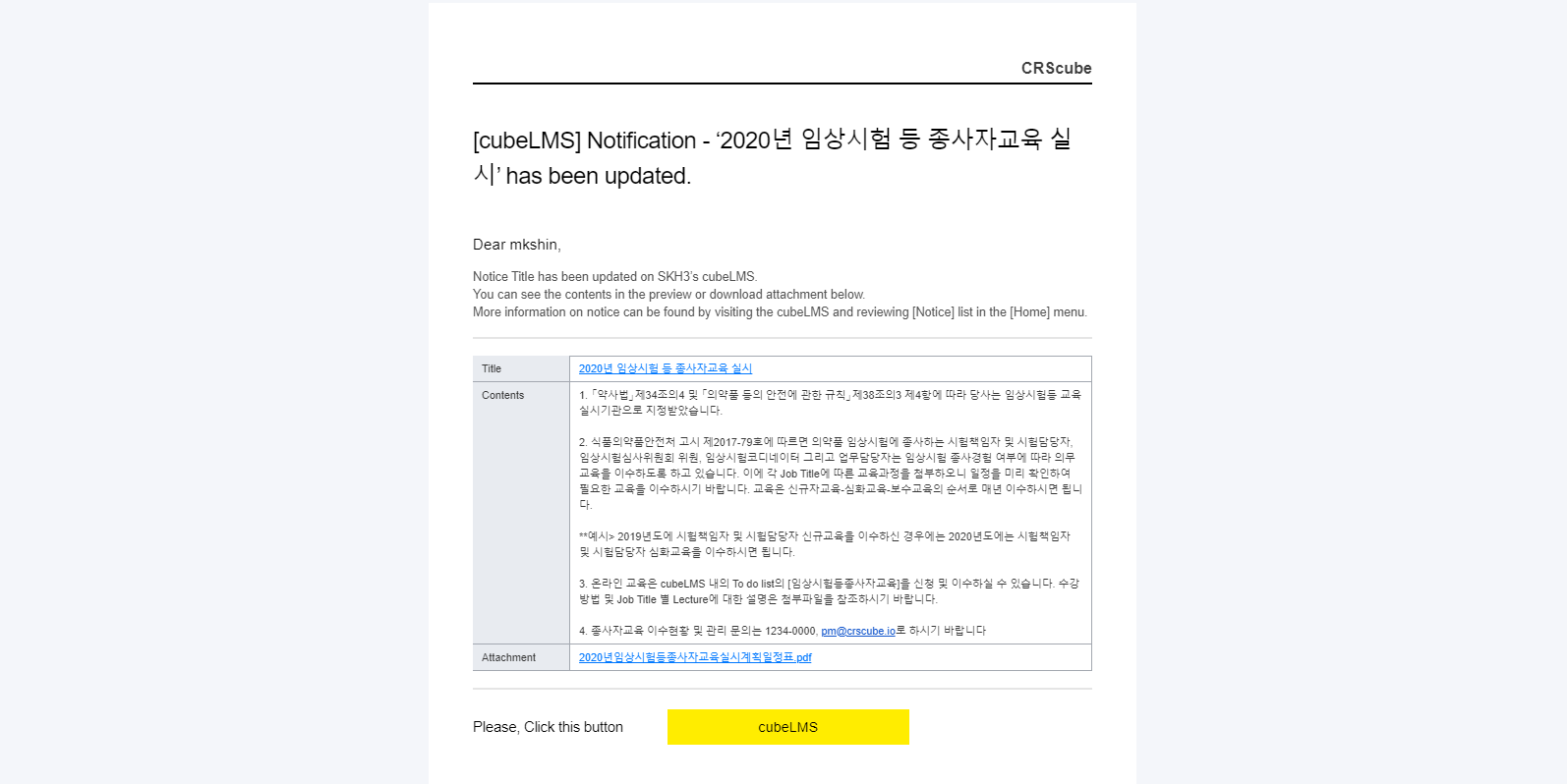
You can create notices that Trainee can view and send emails to designated Trainee.
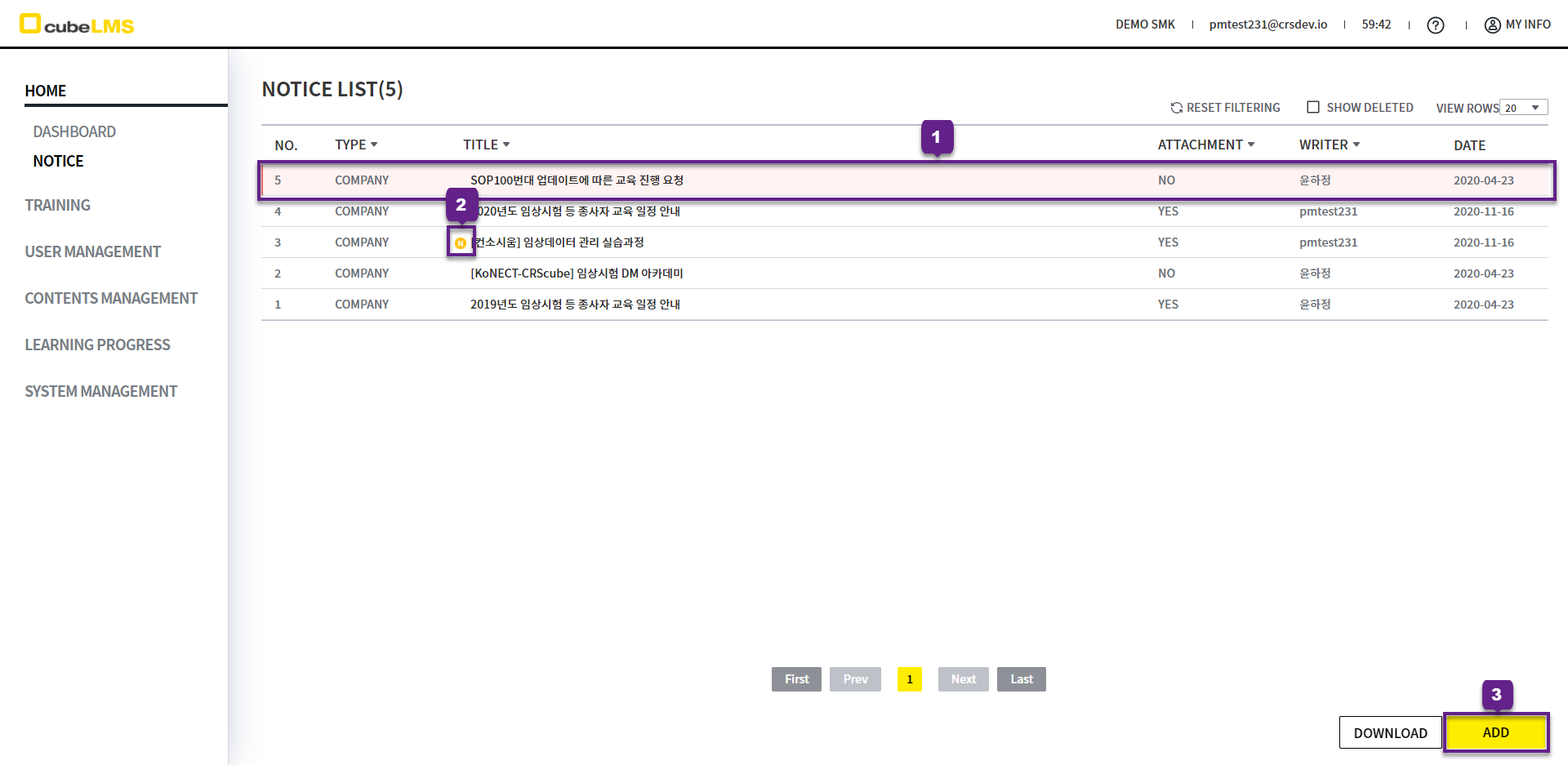
NOTICE LIST
You can view all notices registered with the company.
1. Pin To Top Checked Notice: listed at the top with a red highlight, and the rest are sorted by creation date.
2. The N icon is displayed for notices registered within 7 days.
3. Add button: You can go to the Notice registration page.
4. Download button: You can download the list as an Excel document. If you set filters, only the filtered results are downloaded.
5. Click each row to go to the detail page for the corresponding Notice.
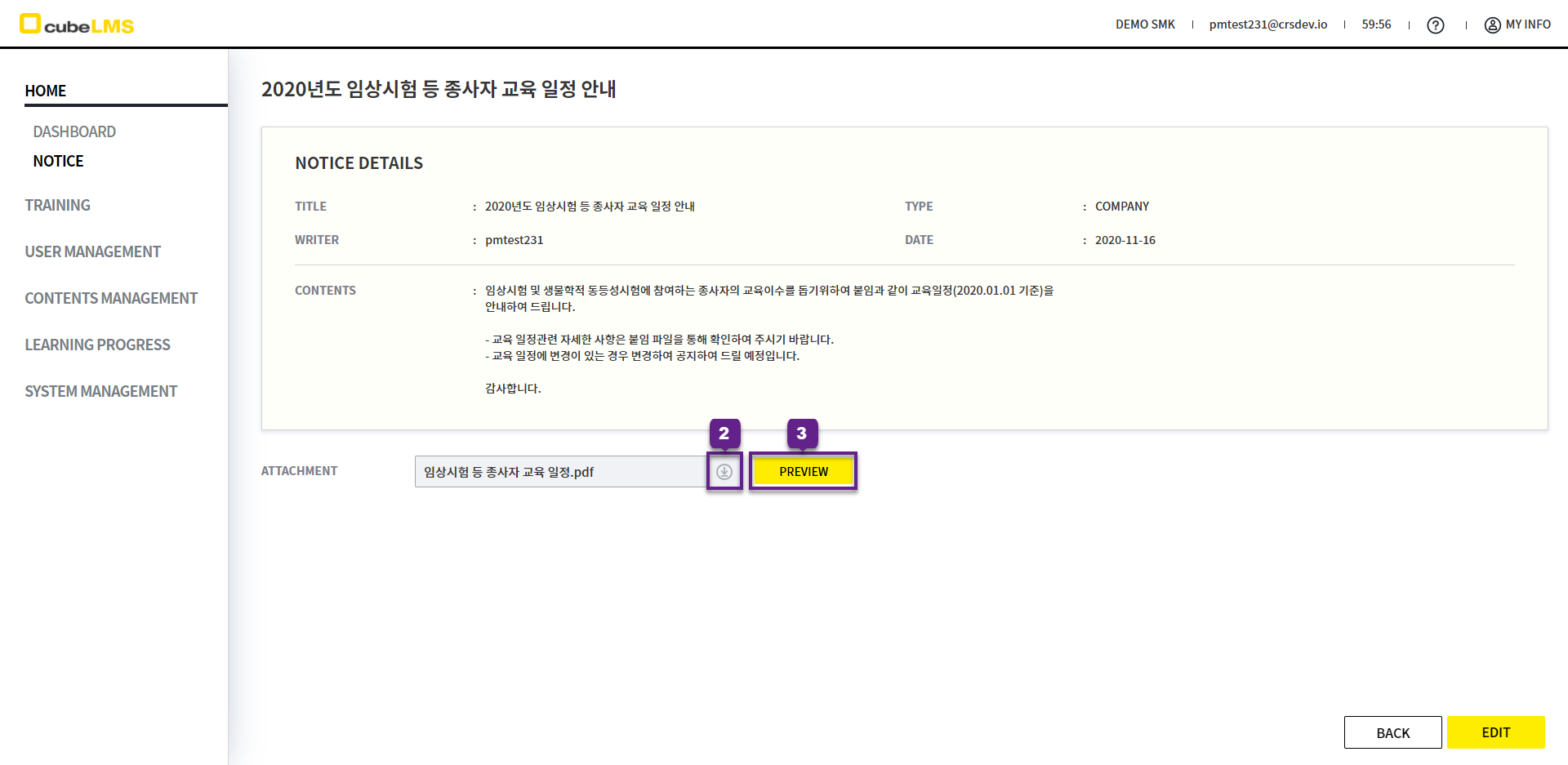
NOTICE DETAILS
1. You can view the detailed information of the Notice.
Depending on the Notice settings, there are also Notices without Attachment.
2. Click the download icon: You can download the attached Attachment.
3. Preview button click: you can view the Attachment directly in the new pop-up window.
4. Preview popup works as follows.
1) You can adjust the screen size by clicking the -, + buttons in the upper right of the popup.
2) Click the x button at the upper left of the popup to close it.
3) Enter a number in the box at the bottom to go to that page. If you enter a number greater than the total number of pages, you will not be moved.
ADD NOTICE
1. Enter the Title of the Notice to be registered.
2. Enter the Contents of the Notice to be registered.
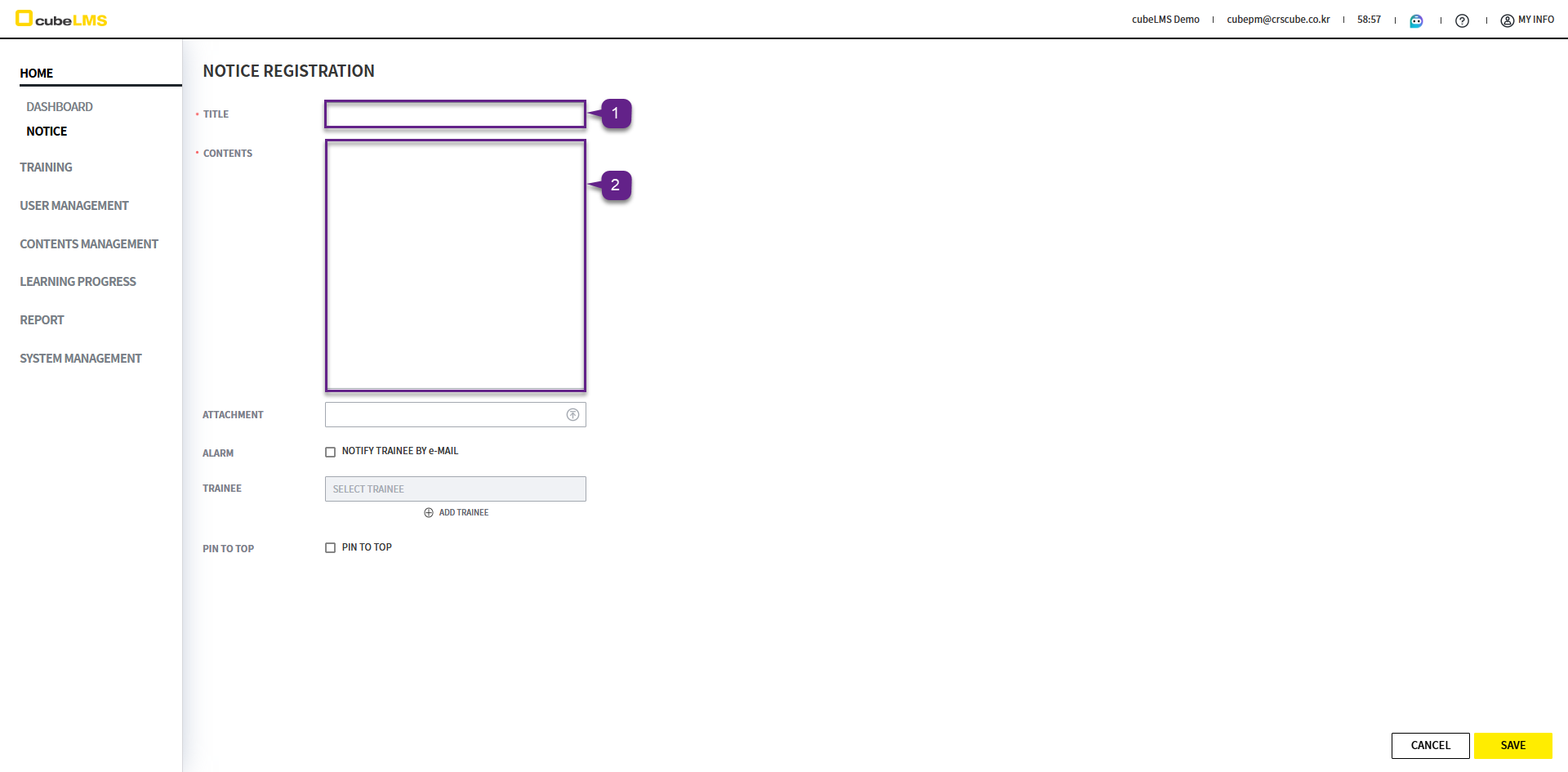
3. Upload the Attachment to be attached to the Notice you are registering. You can reset or change the file even after uploading.
-
Reset file: After uploading, click the File Upload field and, in the popup window, click the - icon to reset
-
Change file: After uploading, click the File Upload field and, in the popup window, click the File field to change the file
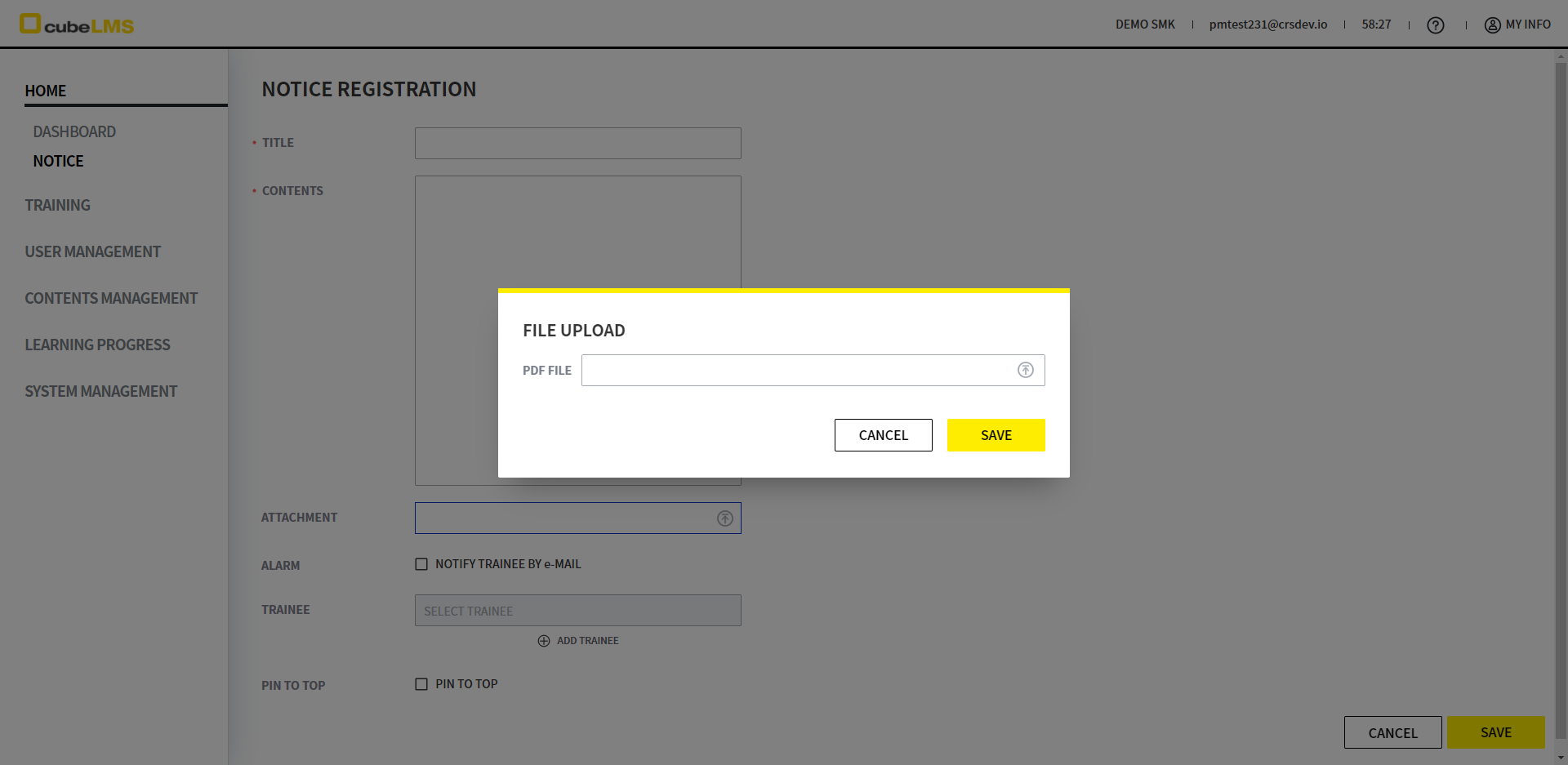
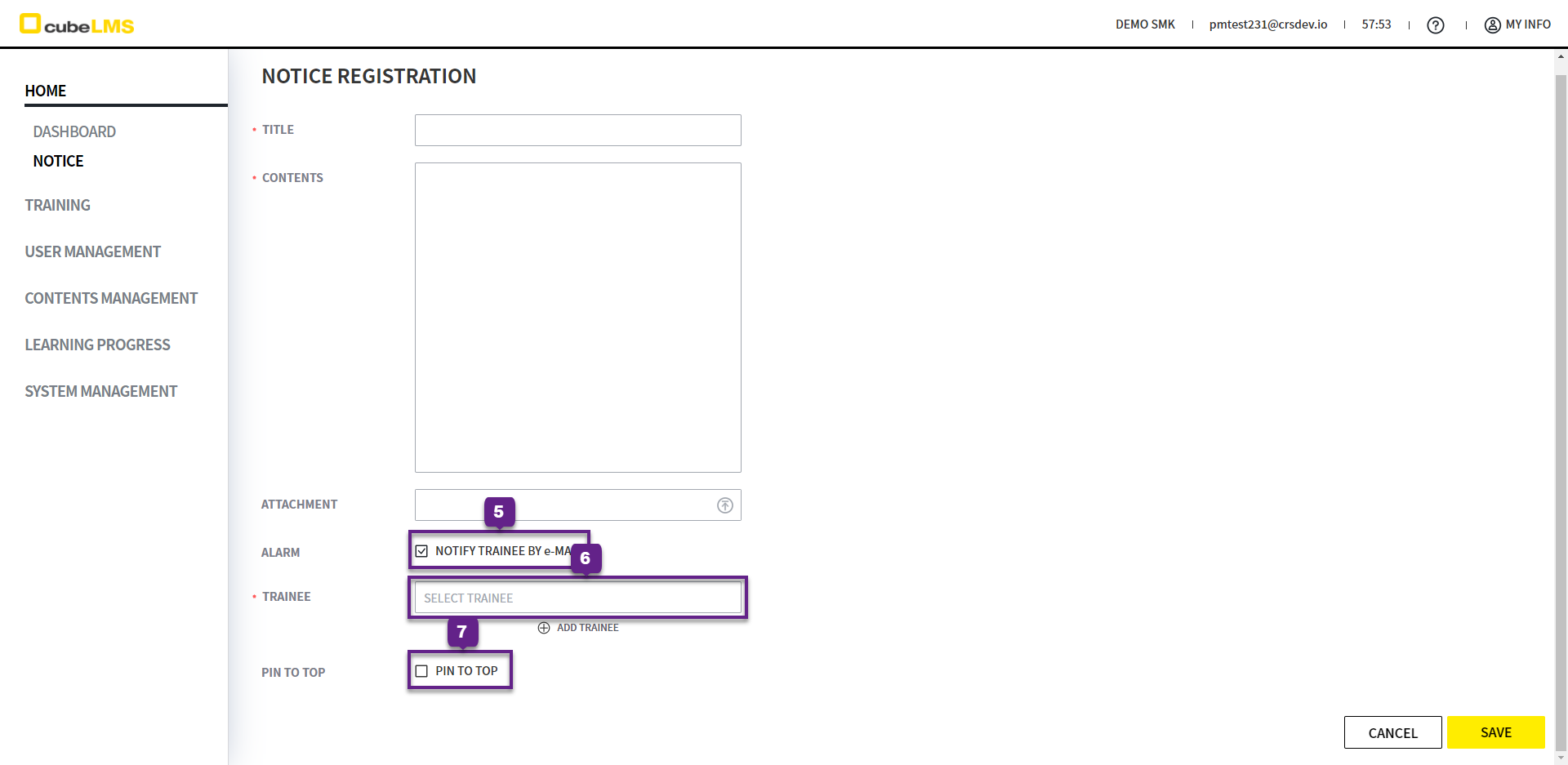
4. Select whether to receive Alarm Mail.
5. Alarm Check: The Trainee field is activated. In the popup that appears when you click it, you can select the Trainee who will receive the Notice Alarm Mail.
6. PIN TO TOP: You can choose whether to pin the Notice to the top. When checked, it is listed at the top with a red highlight.
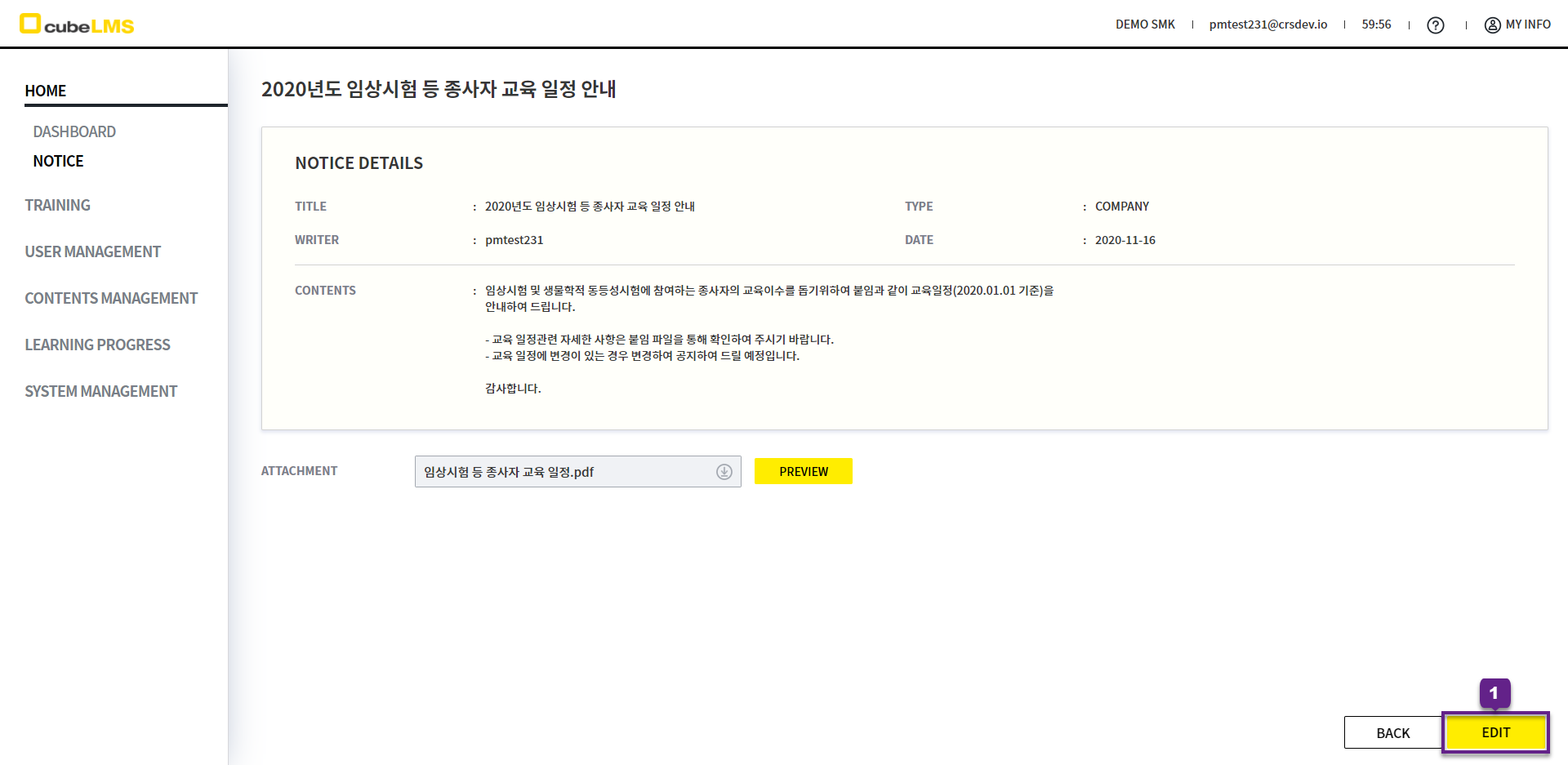
EDIT NOTICE
-
Click the Edit button in the lower right to make changes.
-
For Users with the Admin Role, the Edit button is displayed for all registered Notices, and for Users with the Contents Manager Role, the Edit button is displayed only for the Notices they registered.
-
For Users with only the Trainee Role, the Edit button is not displayed.
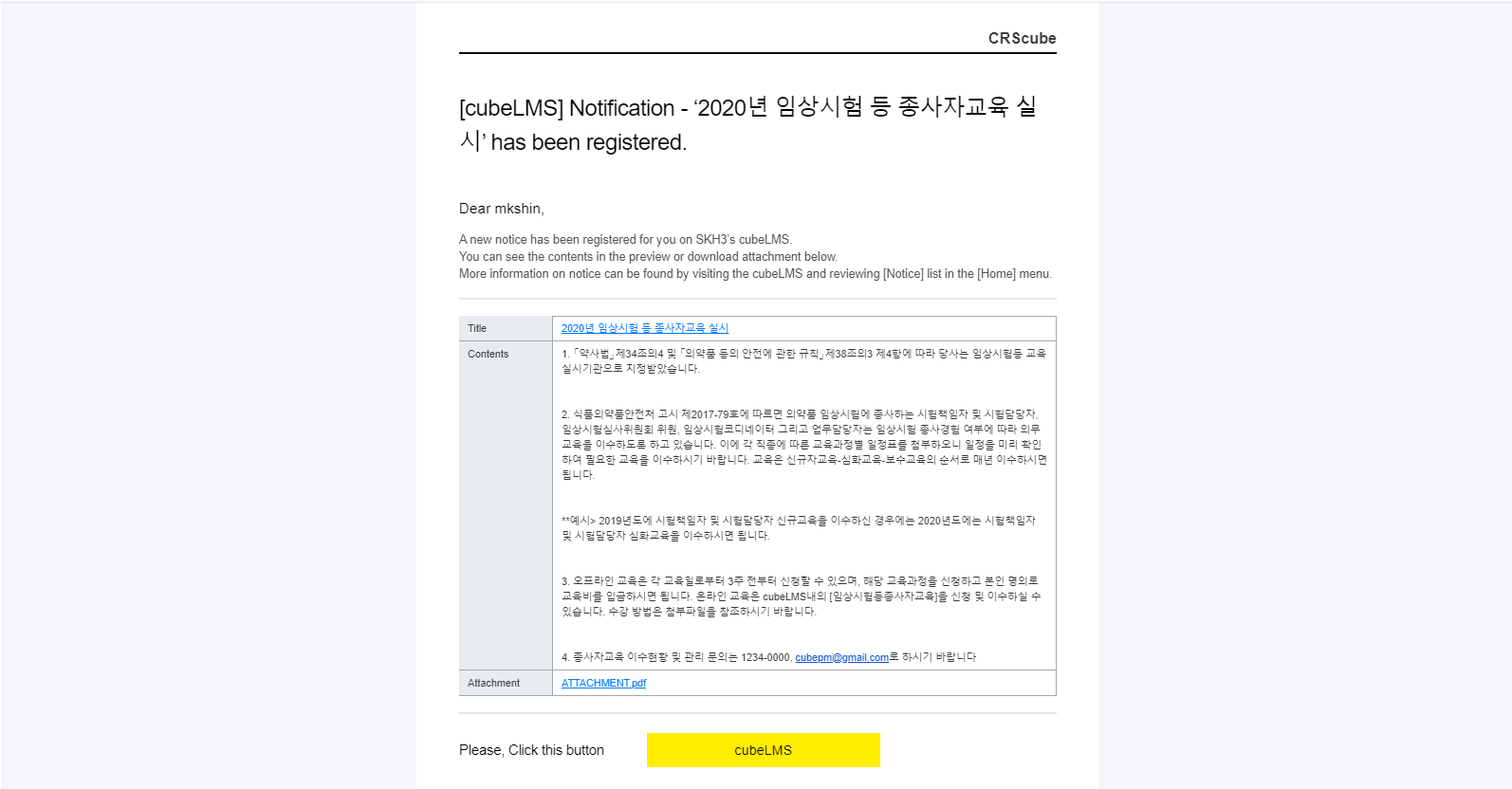
ALARM MAIL - Notice has been registered.
Notice Registration page, if you click the Save button after satisfying all of the conditions below, you will receive the following Mail.
-
Alarm: Check, -
when Trainee is selected
If the Notice has no Attachment, the Attachment row is not displayed in the email body.
ALARM MAIL - Notice has been updated.
Notice Information page, if you click the Save button after meeting all of the following conditions, you will receive the following Mail.
-
Alarm: Check, -
when Trainee is selected