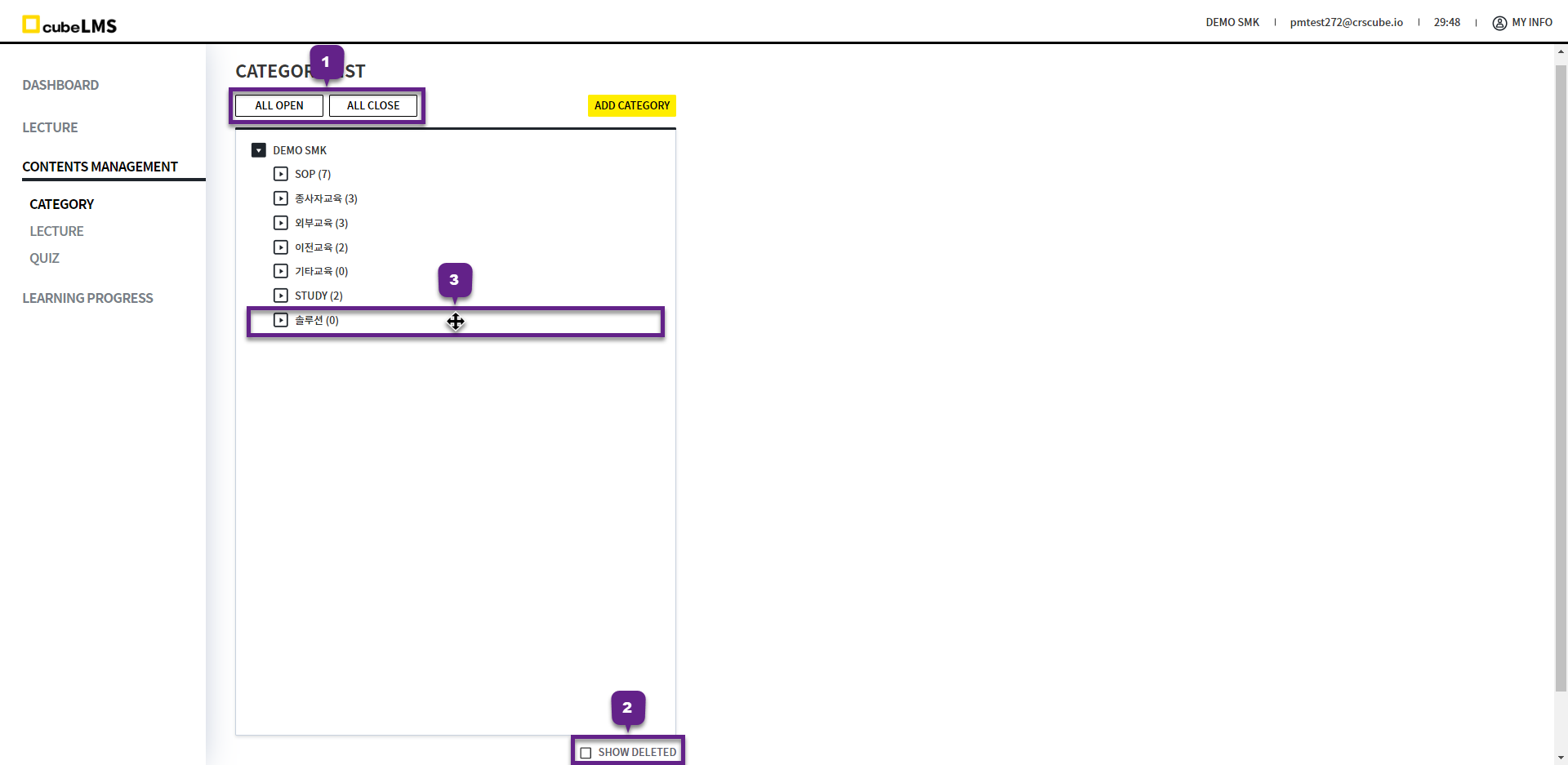
CATEGORY In the CATEGORY menu, you can register and manage CATEGORY.
CATEGORY LIST
1. All Open, All Close button: You can expand or collapse the category hierarchy in bulk.
2. Show Deleted Check: You can view deleted Category.
3. Categories added by the company can be reordered within the same Level by Drag & Drop.
-
The order of the default categories SOP, Employee Training, External Training, Previous Training, and Other Training is fixed and cannot be changed.
-
Sub Category entries are sorted by creation order and cannot be reordered.
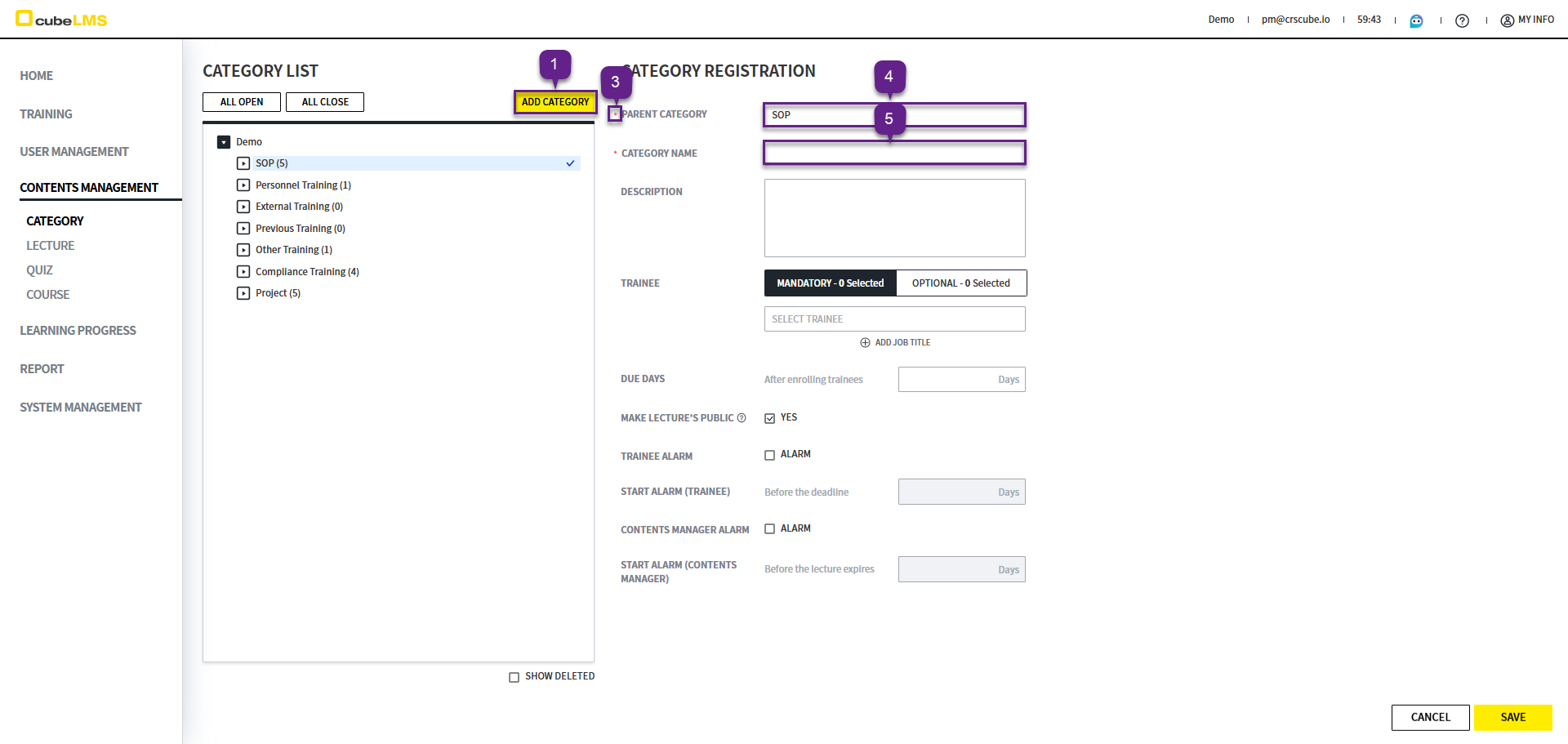
ADD CATEGORY
1. Add Category: Clicking it displays a screen on the right where you can enter Category information.
2. Company name is not selected.
3. '*' is a required field.
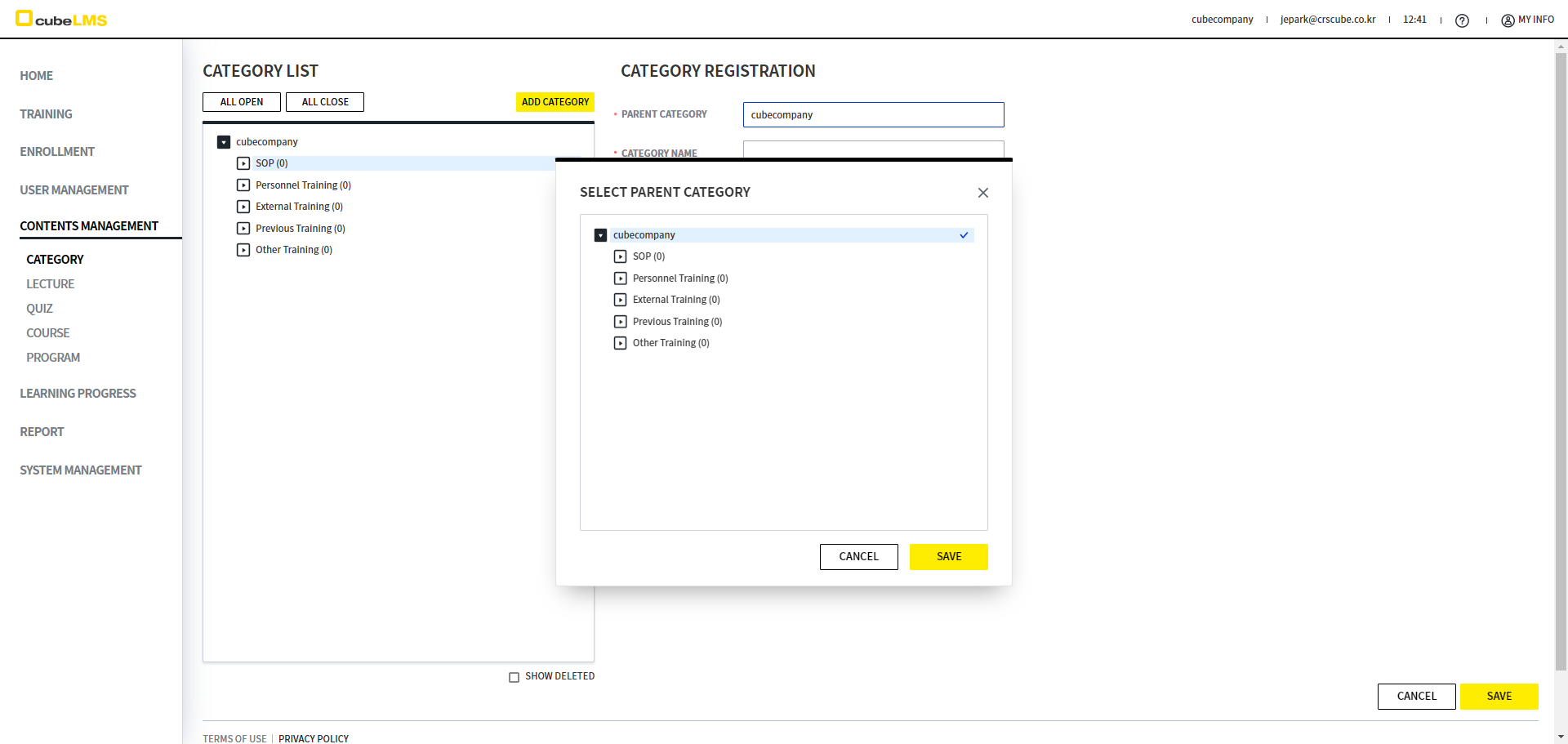
4.Parent Category: Select the parent Category for the Category to be created. If there is no parent Category, select the company name.
-
When selected, the Category hierarchy is displayed in a popup, and you can select it directly.
5. Enter the Category Name to create.
Category Name: It cannot be the same as the parent Category.
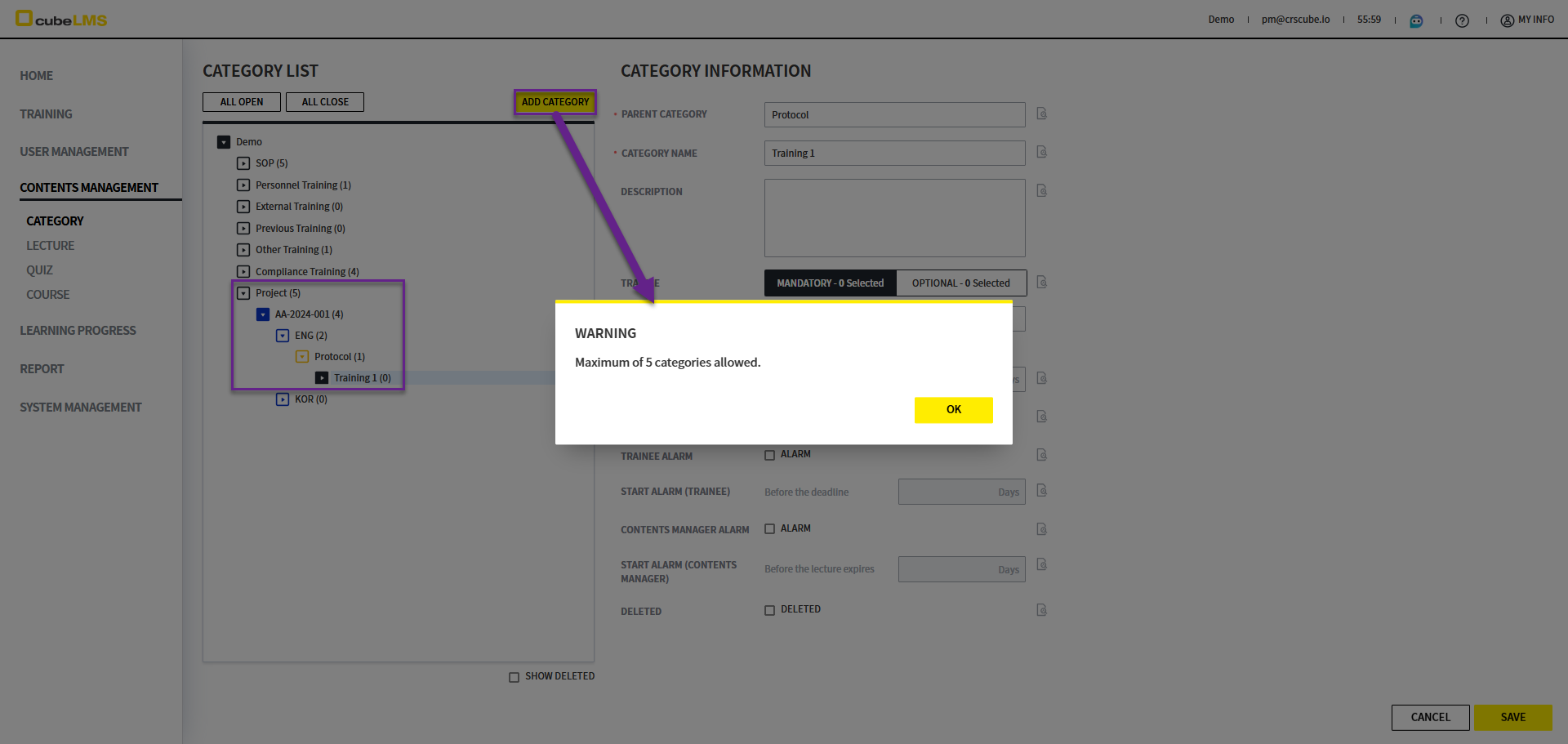
However, categories can be created up to 5 levels. If you click the Add Category button while a 5-level Category is selected, the 'Maximum of 5 categories allowed.' warning popup is displayed.
6. Parent Category Click: The hierarchy of the Category is displayed, and you can directly select the Parent Category.
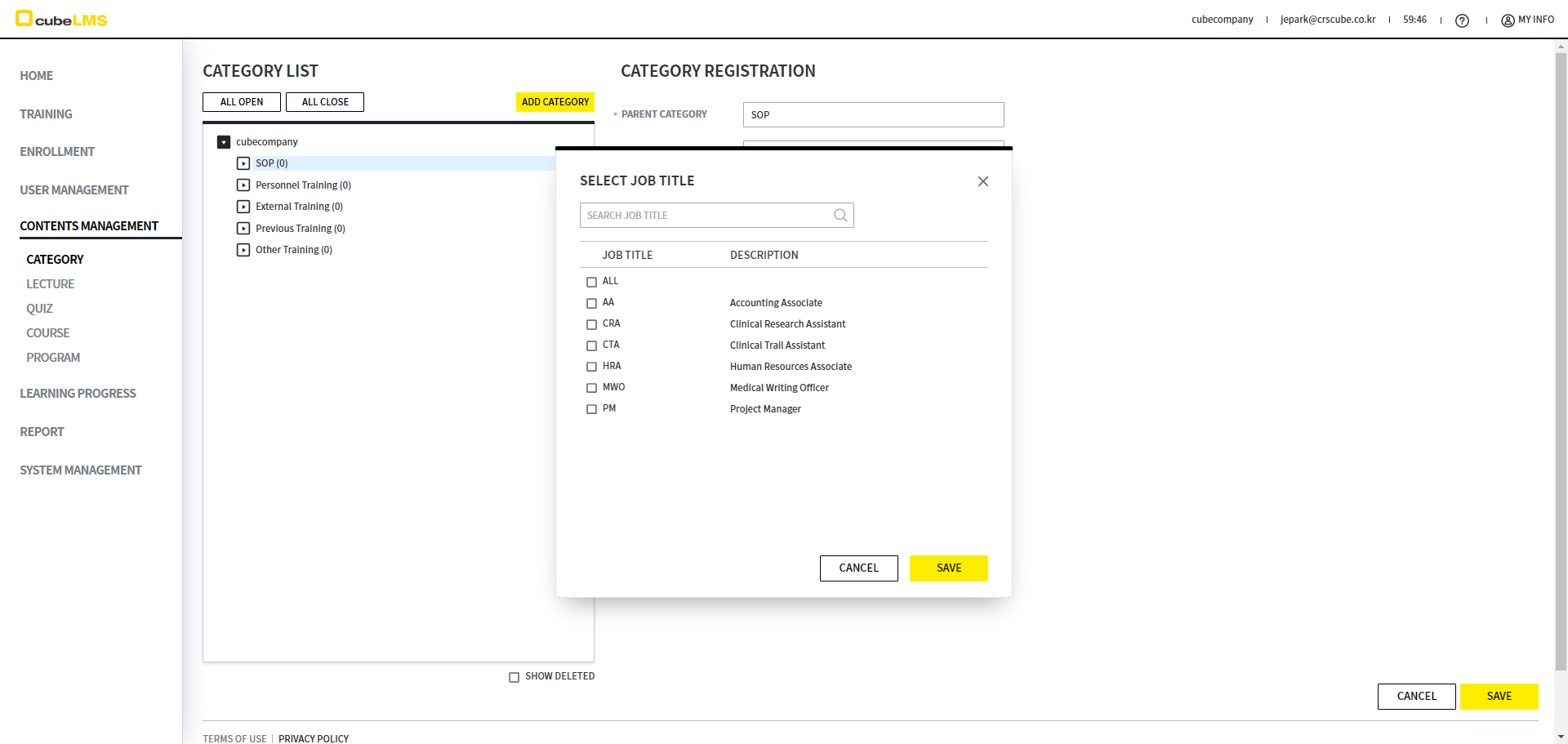
7. Trainee Click: The registered Job Title List is displayed, and you can select a Job Title. The settings are automatically applied when registering a Lecture in that Category, and you can modify them on the Lecture registration and detail screens.
The Trainee field is not displayed in Previous Training and its subcategories.
8. If you have two or more Job Title entries, you can select multiple Job Title options in the popup List or click the Add Job Title button to add Job Title.
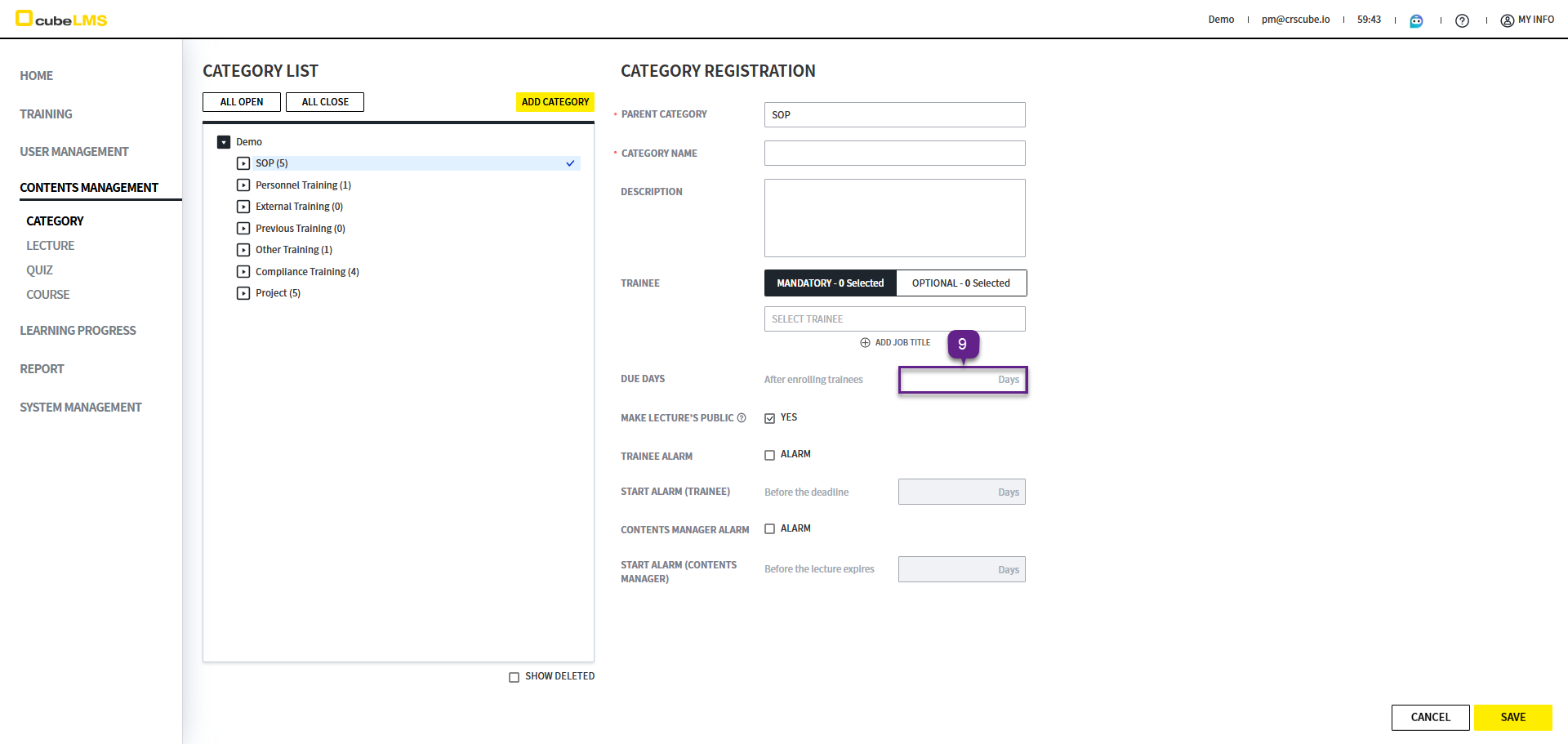
9. Due Days: You can set the period within which the User must complete the Lecture after the User's employment date, and the setting entered when registering a Lecture belonging to that category is automatically applied and can be edited on the lecture registration and details screens.
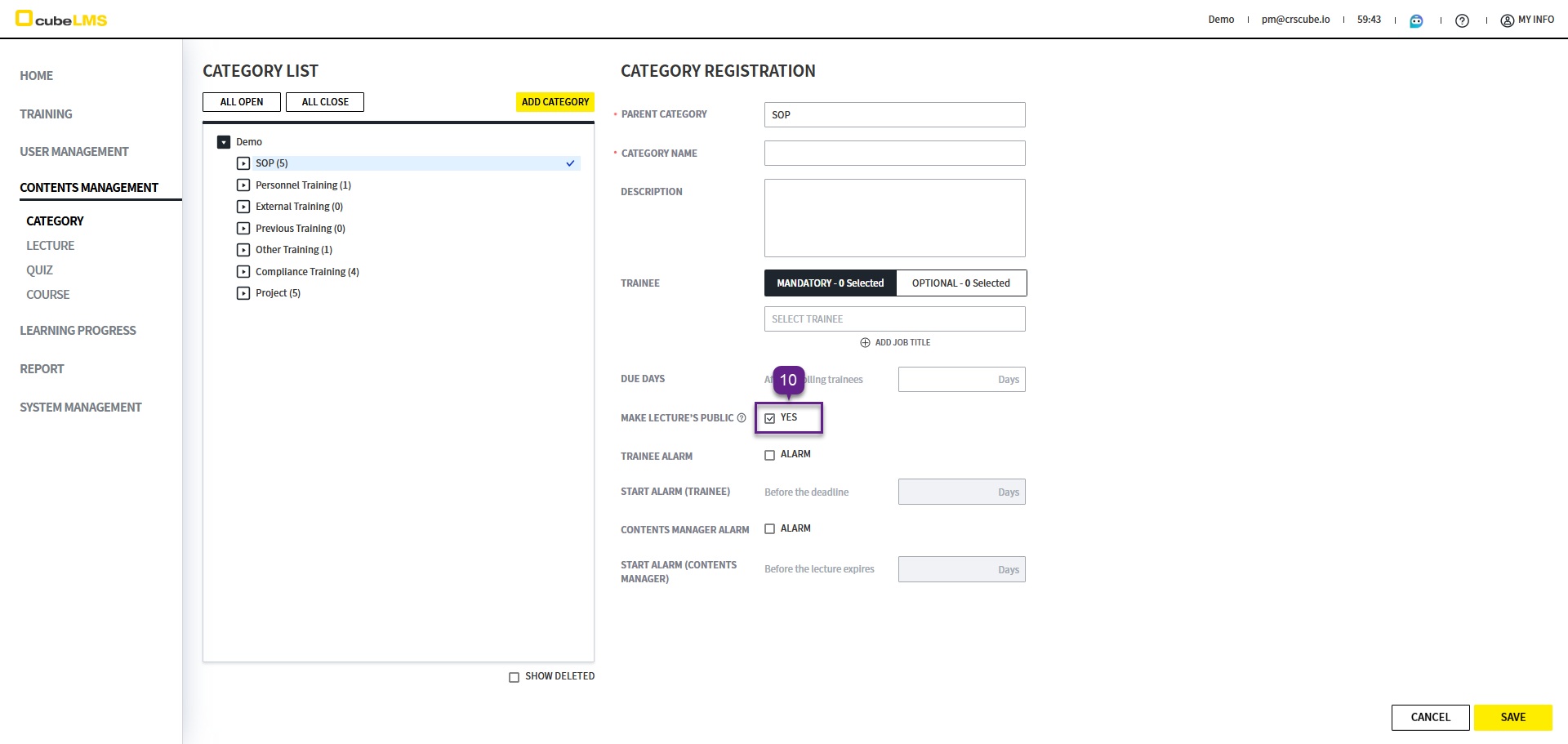
10. Make Lectures Public: If you check this option, the Contents of Lectures in the corresponding Category and subcategories are made available to all Trainees.
-
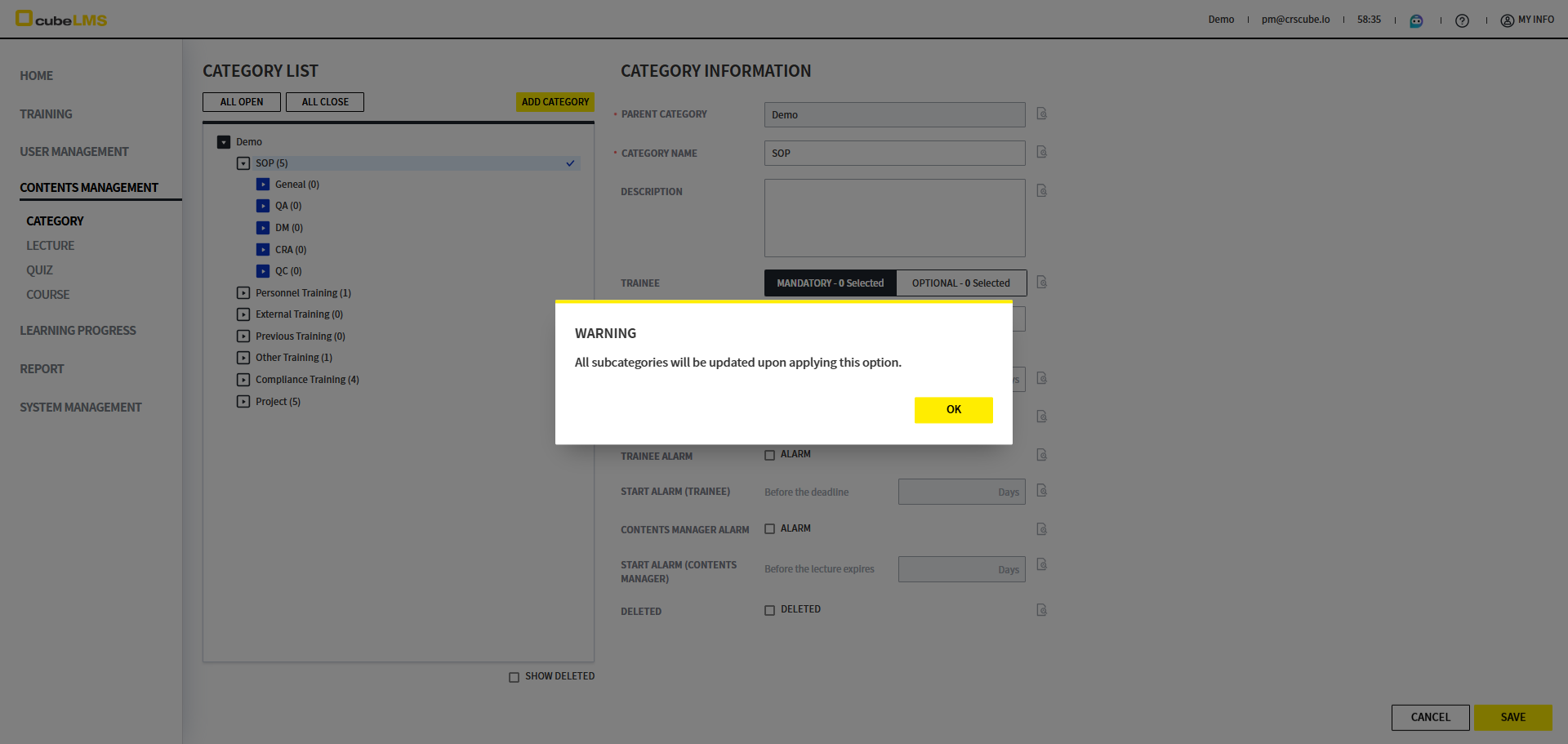
This item is also applied to all subcategories, and when you check or uncheck it, the 'All subcategories will be updated upon applying this option.' pop-up appears.
-
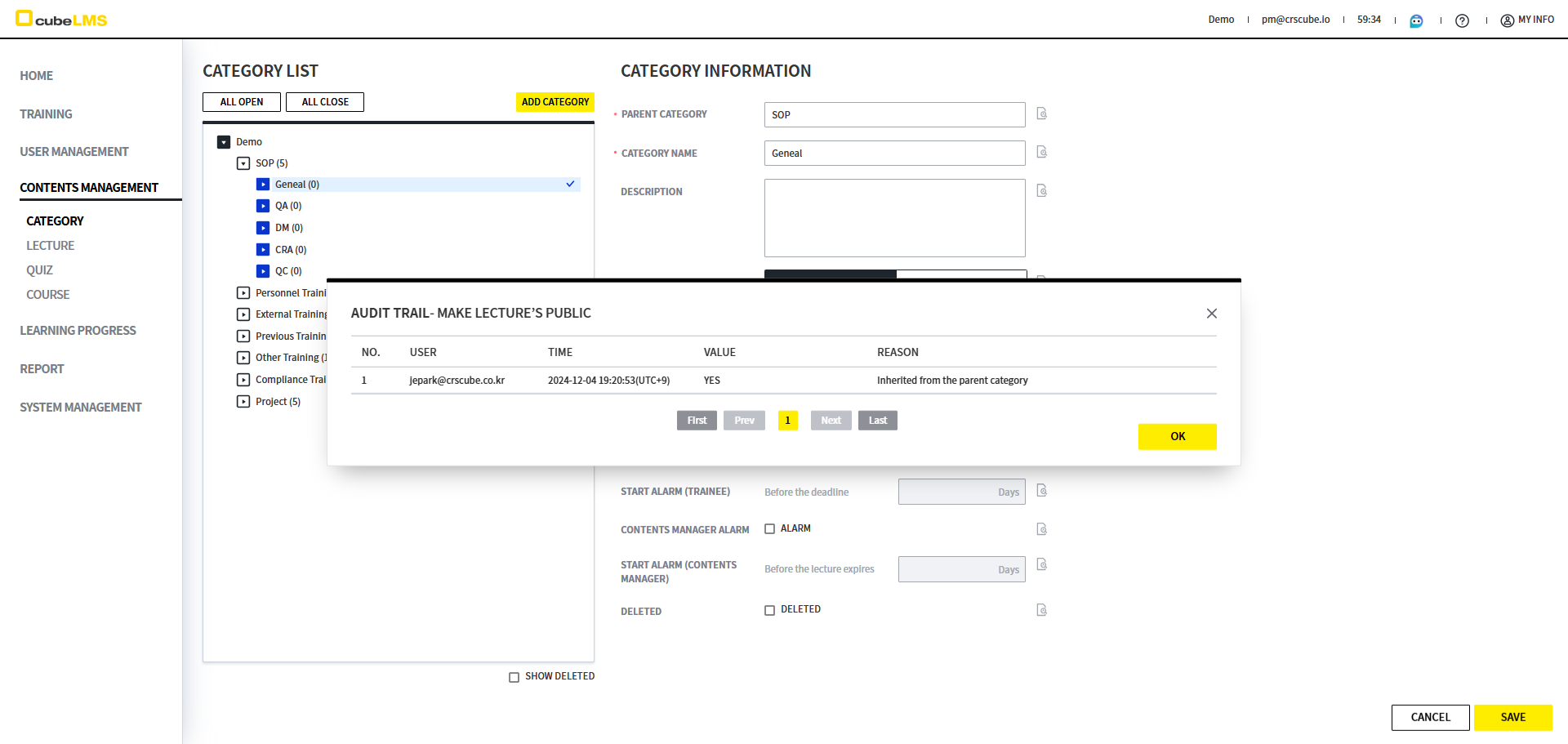
The phrase 'Inherited from the parent category' is displayed in the Audit trail of subcategories.
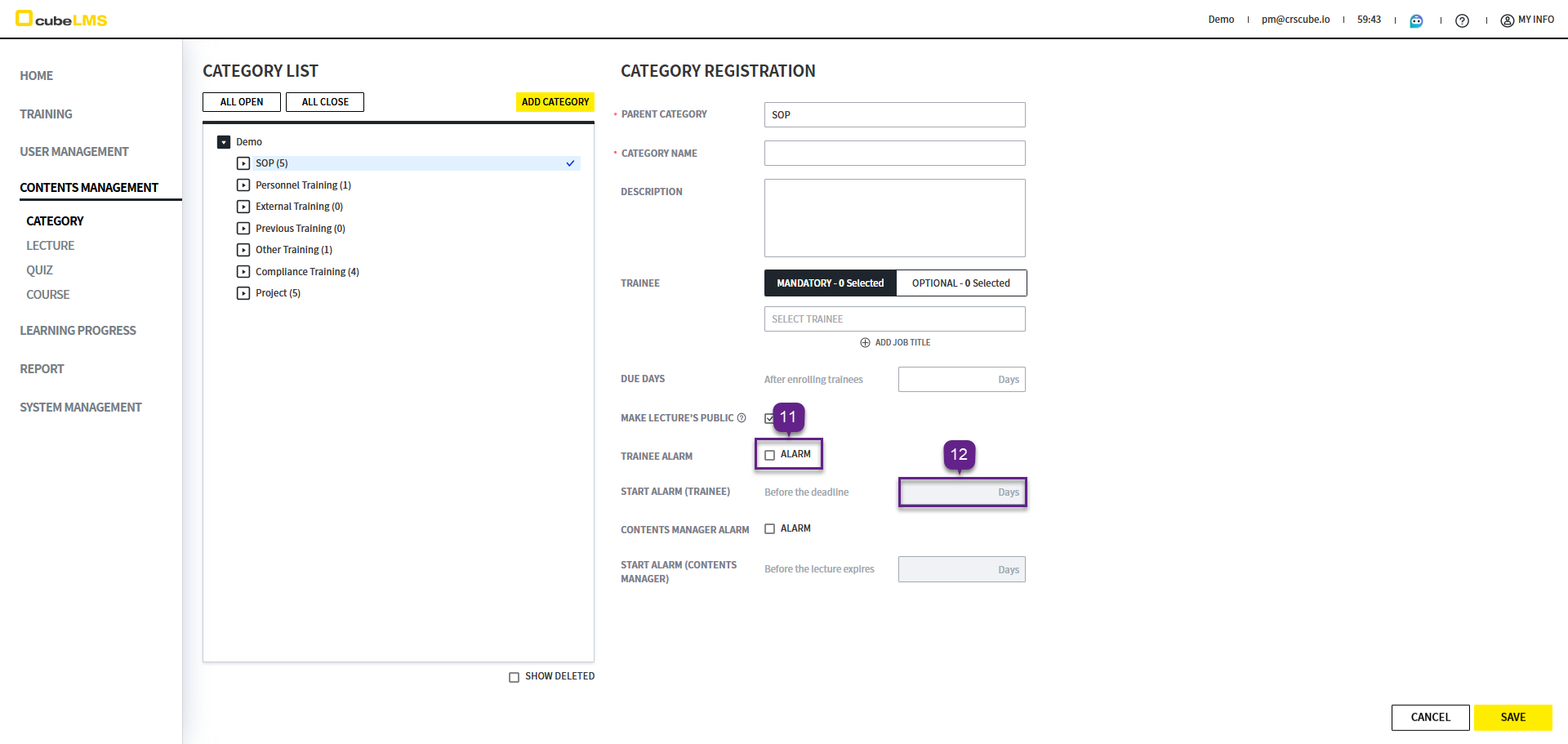
11. Trainee Alarm: When checked, notification emails are sent when the lecture due date approaches, and the settings entered when registering lectures belonging to the category are automatically applied and can be edited on the lecture registration and details screens.
12. Start Alarm(Trainee): You can set the sending deadline for notification emails about Lecture completion. The deadline is calculated and applied based on the Due Date of the registered Lecture. For example, if you set Start Alarm(Trainee) to 3 Days, notification emails are sent starting 3 days before the Due Date. The settings entered for the relevant Category are applied automatically when registering a Lecture in that category, and you can modify them on the lecture registration and details screens.
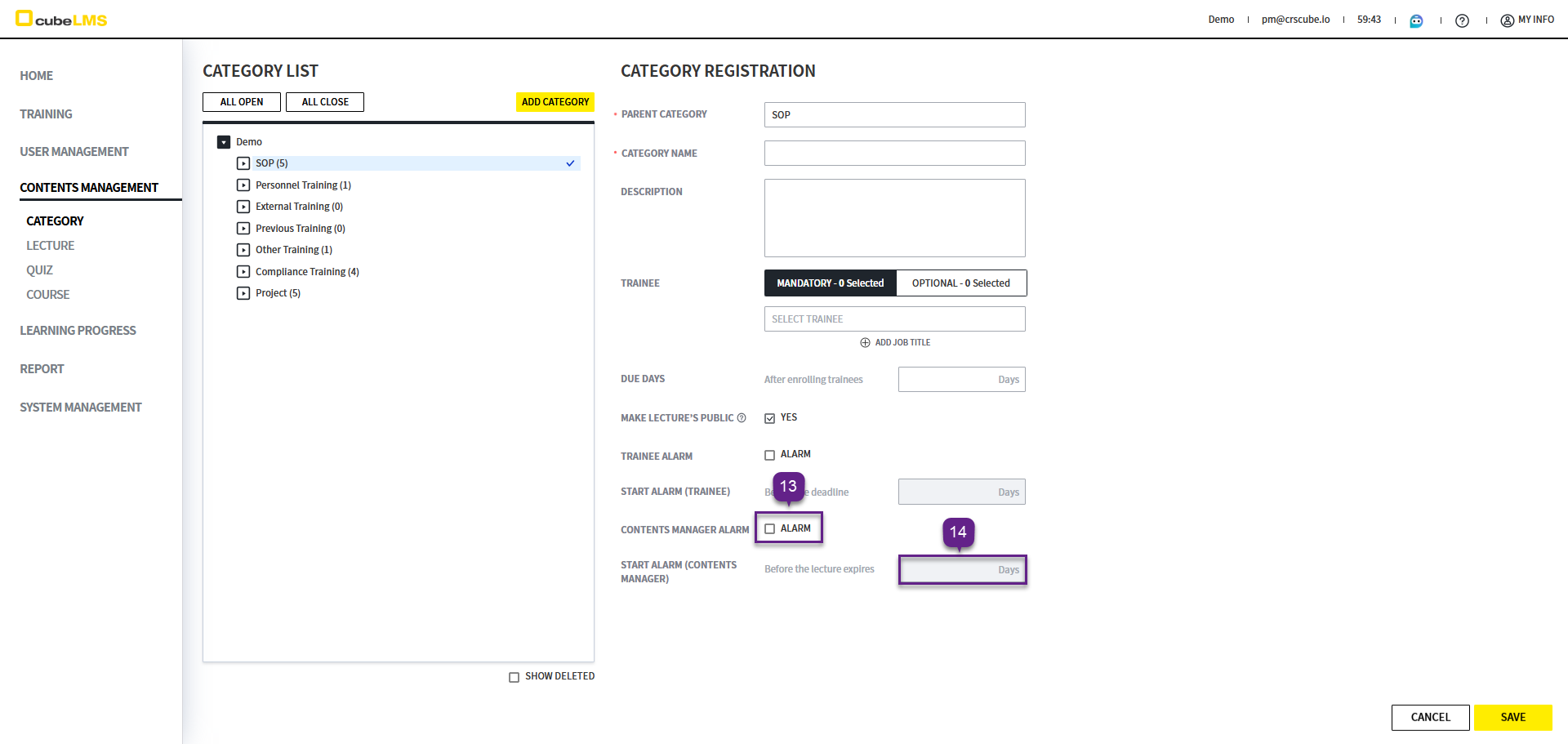
13. Contents Manager Alarm: When checked, an alert email is sent when the Lecture expiration date approaches, and the settings entered when registering Lectures in the relevant Category are automatically applied and can be edited on the Lecture registration and detail screens.
14. Start Alarm(Contents Manager): You can set the notification email sending deadline for Lecture expiration. It is calculated and applied according to the registered Lecture's Active Period > End Date. For example, if Start Alarm(Contents Manager) is set to 3 Days, alarm emails are sent starting 3 days before the Active Period End Date. The setting is automatically applied when you register a Lecture in the category, and you can change it on the Lecture registration and details screens.
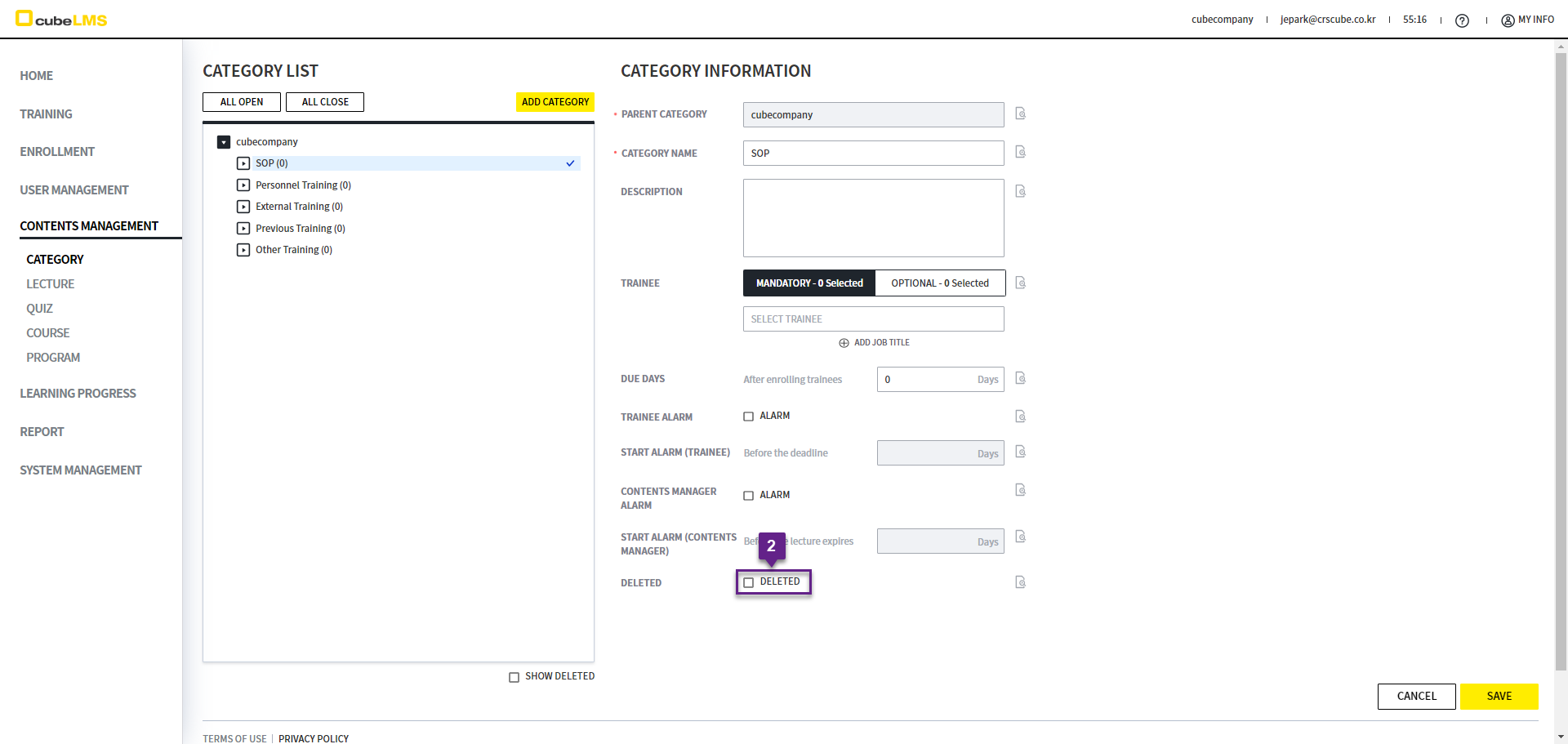
EDIT CATEGORY
1. Click the Category you want to edit.
2. Deleted checkbox: Category can be deleted. It can only be deleted if no Training exists under the Category.