

-
You can create tickets and submit inquiries through CRScube Help Center.
-
In CRScube Help Center, alert emails are sent for ticket registration or Update notifications.
-
Please check your email to confirm that the ticket was received successfully.
-
The access methods for CRScube Help Center are as follows, and for instructions on how to use it afterward, please refer to the eManual_CRScube Help Center page.
Access CRScube Help Center
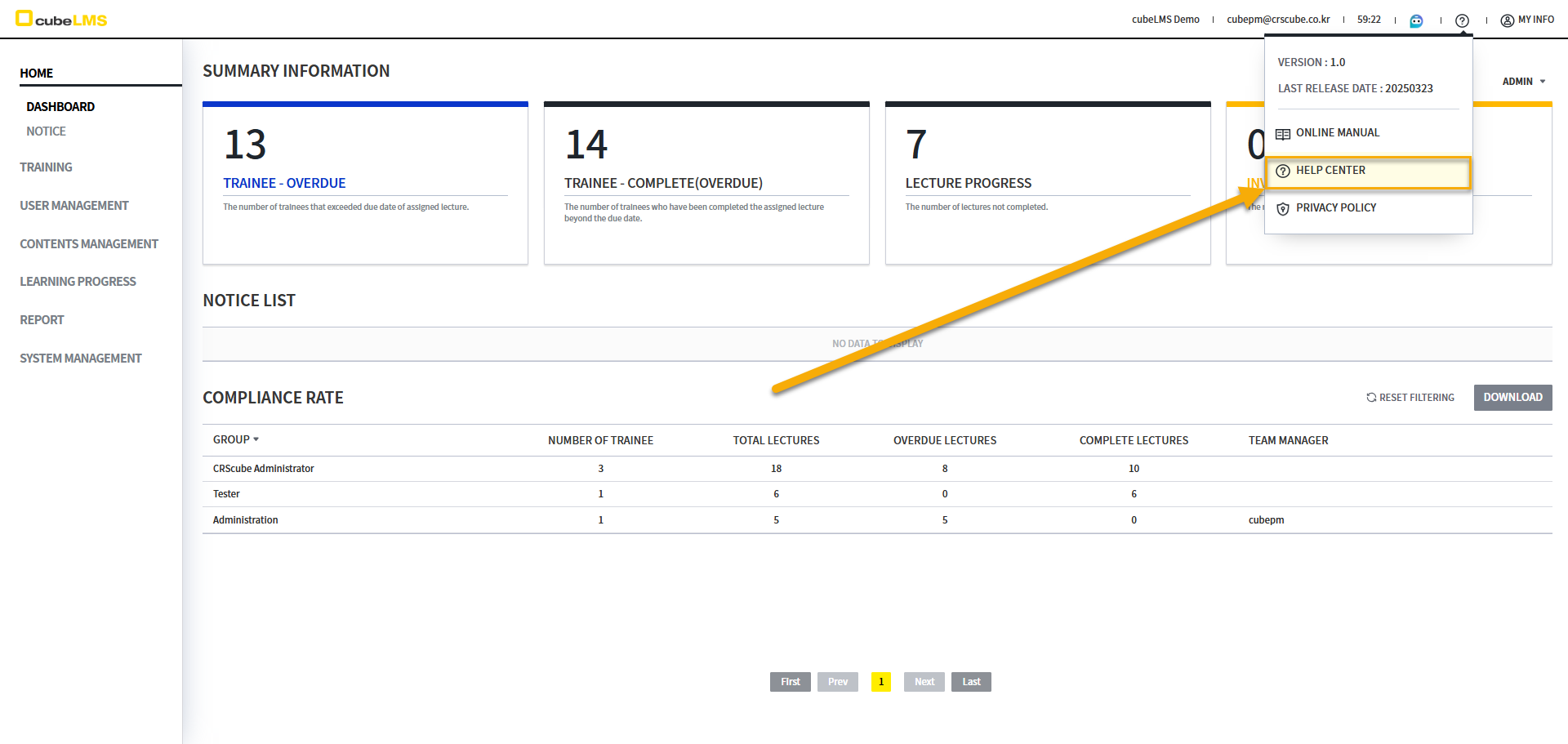
1. Access via cubeLMS
-
cubeLMS After logging in, at the upper right corner of the screen
-
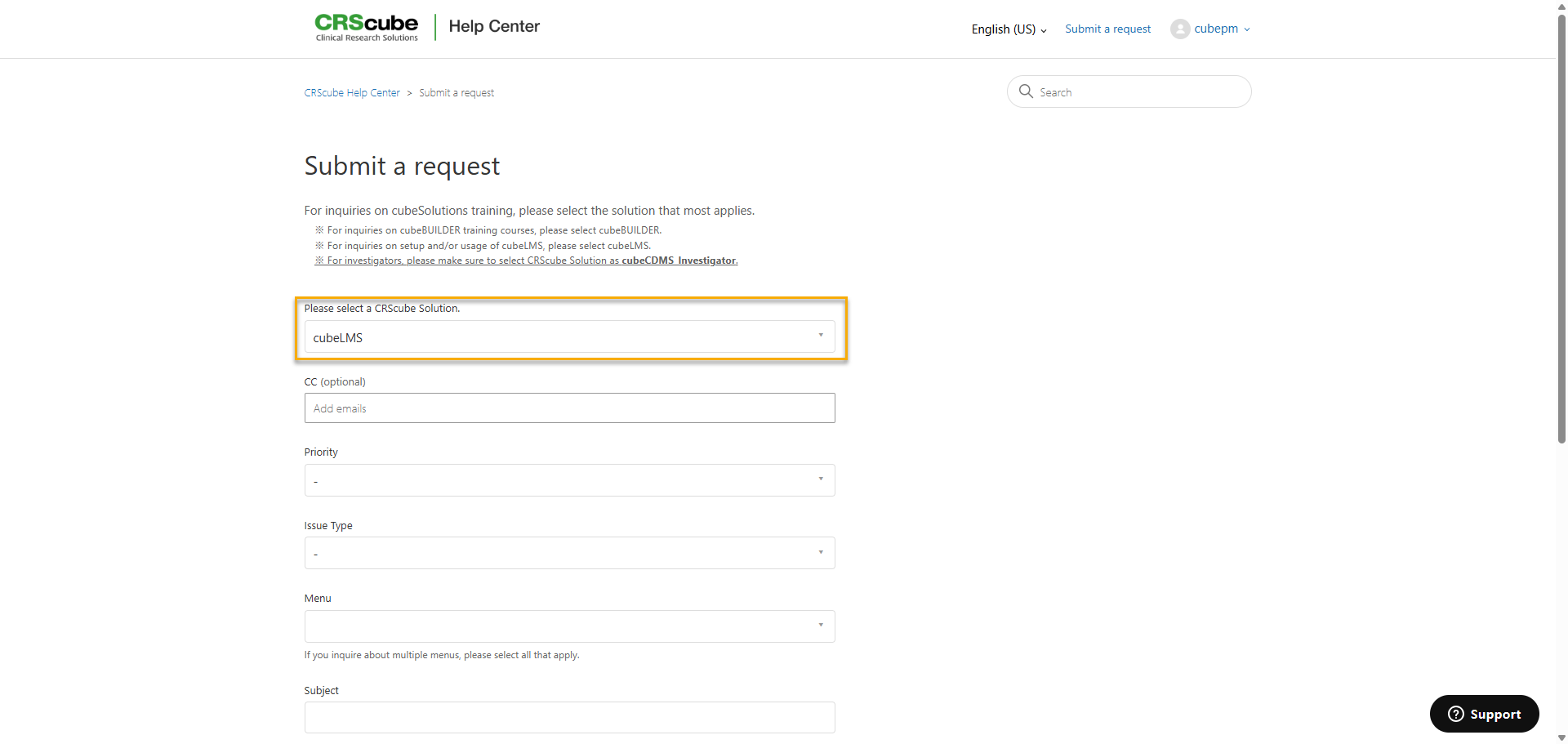
cubeLMS Solution selected Submit a request screen is displayed, and you can submit your inquiry after entering the required information.
2. Access via URL
-
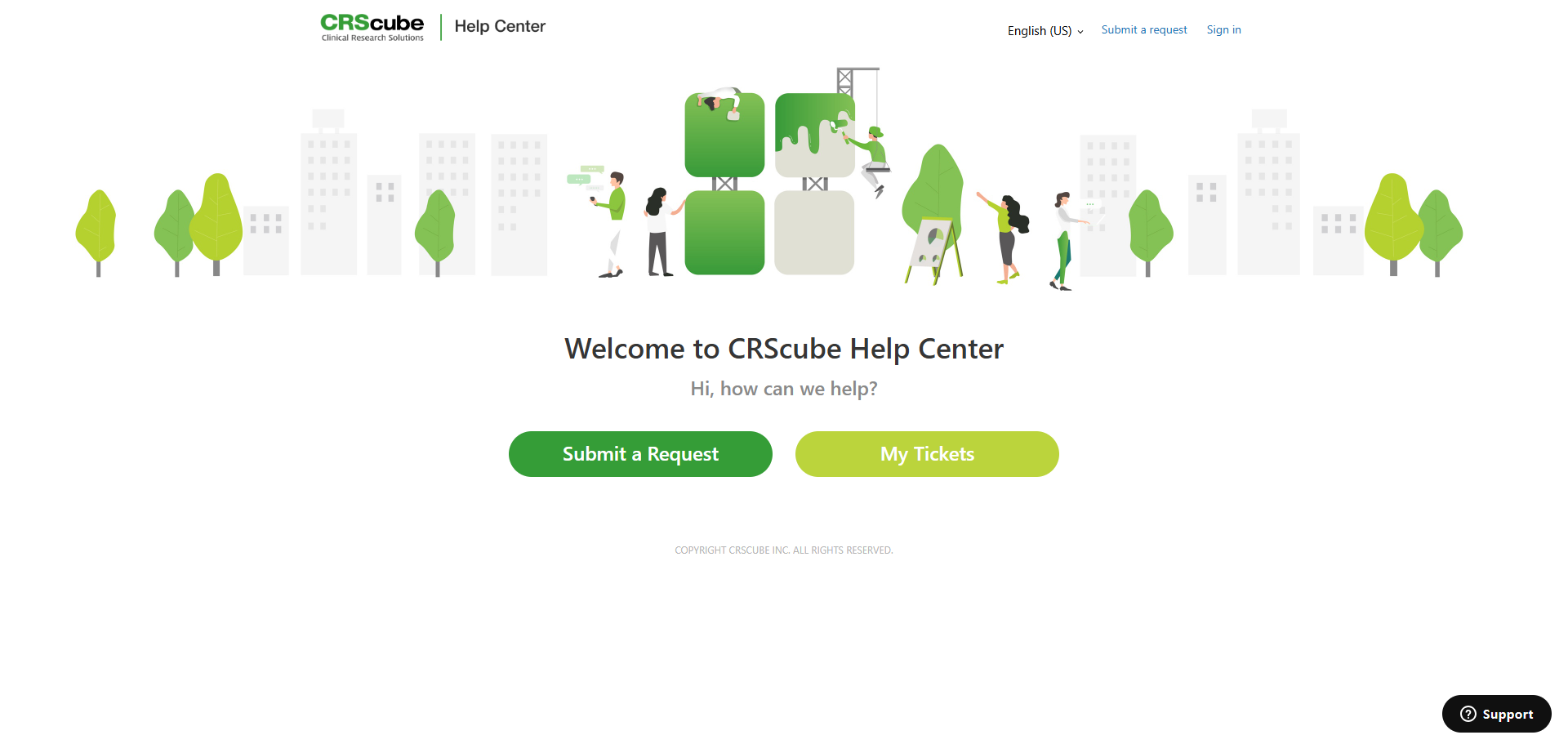
Enter the URL for CRScube Help Center in the browser address bar.
-
The CRScube Help Center appears when you are not logged in.
-
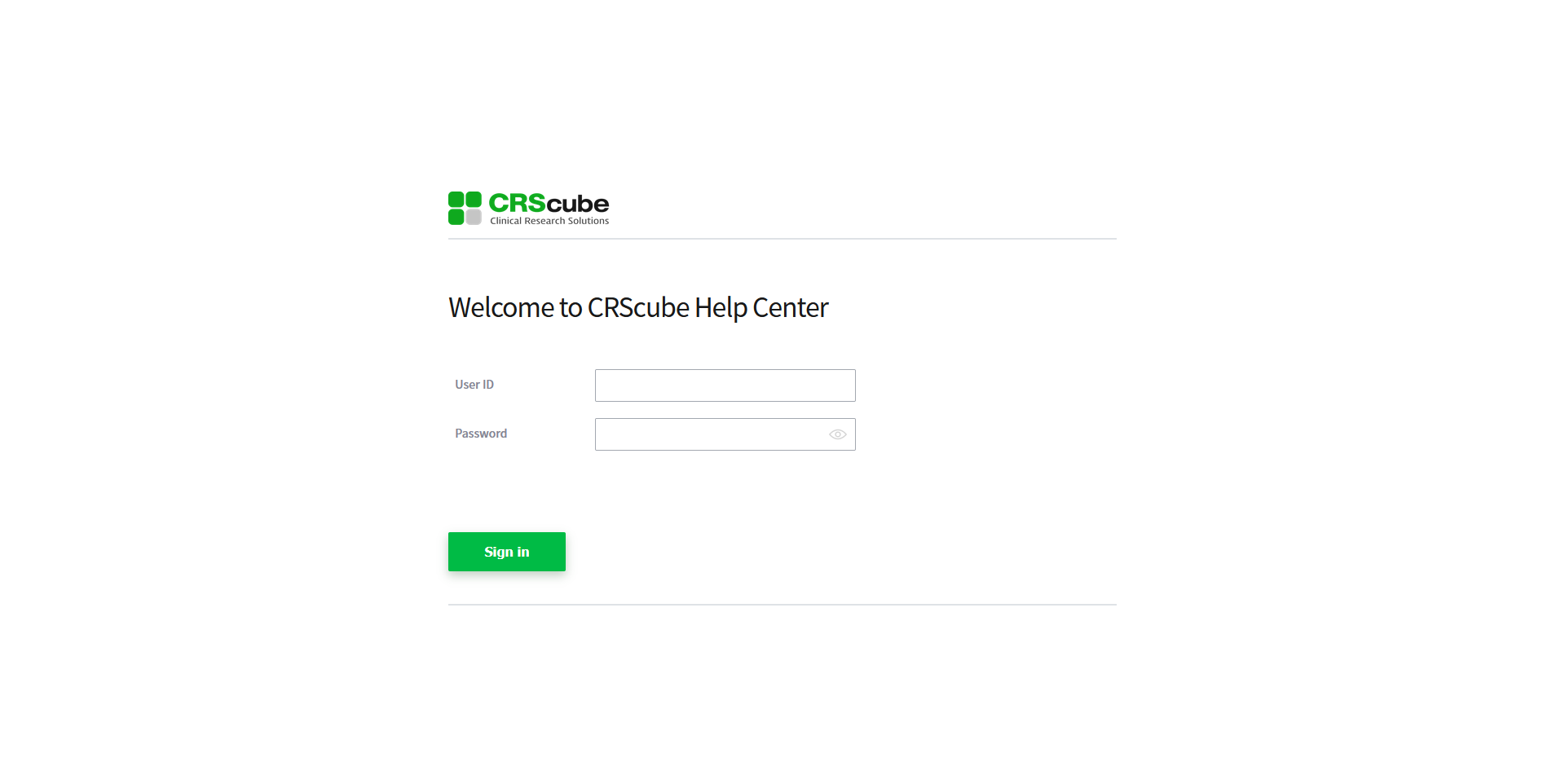
You can log in to CRScube Help Center using an account registered in cubeLMS.
-
Click the Sign in button in the upper-right corner of the Help Center to go to the login page.
-
Enter your cubeLMS ID and Password, then click Sign in to log in.
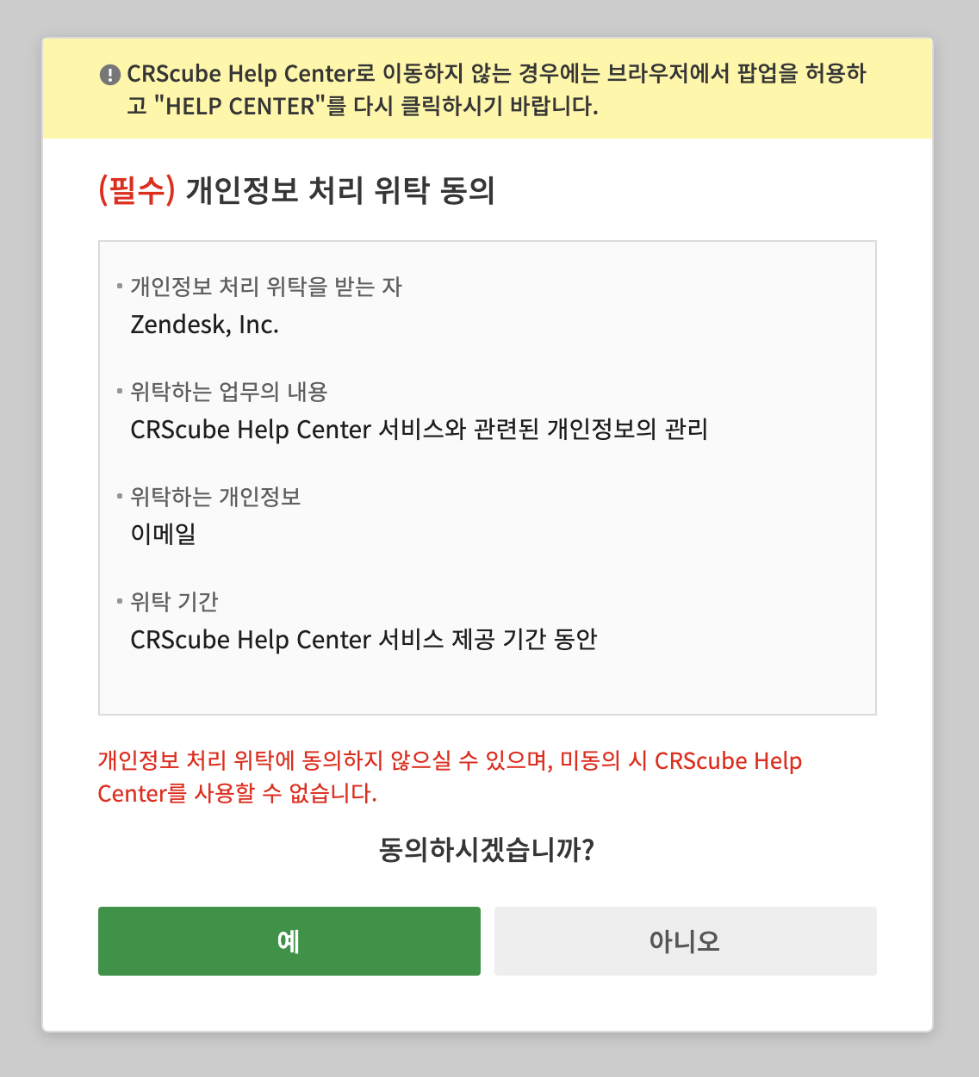
⊙ Consent to Personal Information Processing Entrustment
-
In accordance with the Personal Information Protection Act, a popup asking for consent to the entrustment of personal information processing appears when you first access CRScube Help Center.
-
You can use CRScube Help Center only if you agree to transfer your email (personal information) to Zendesk (the contractor).