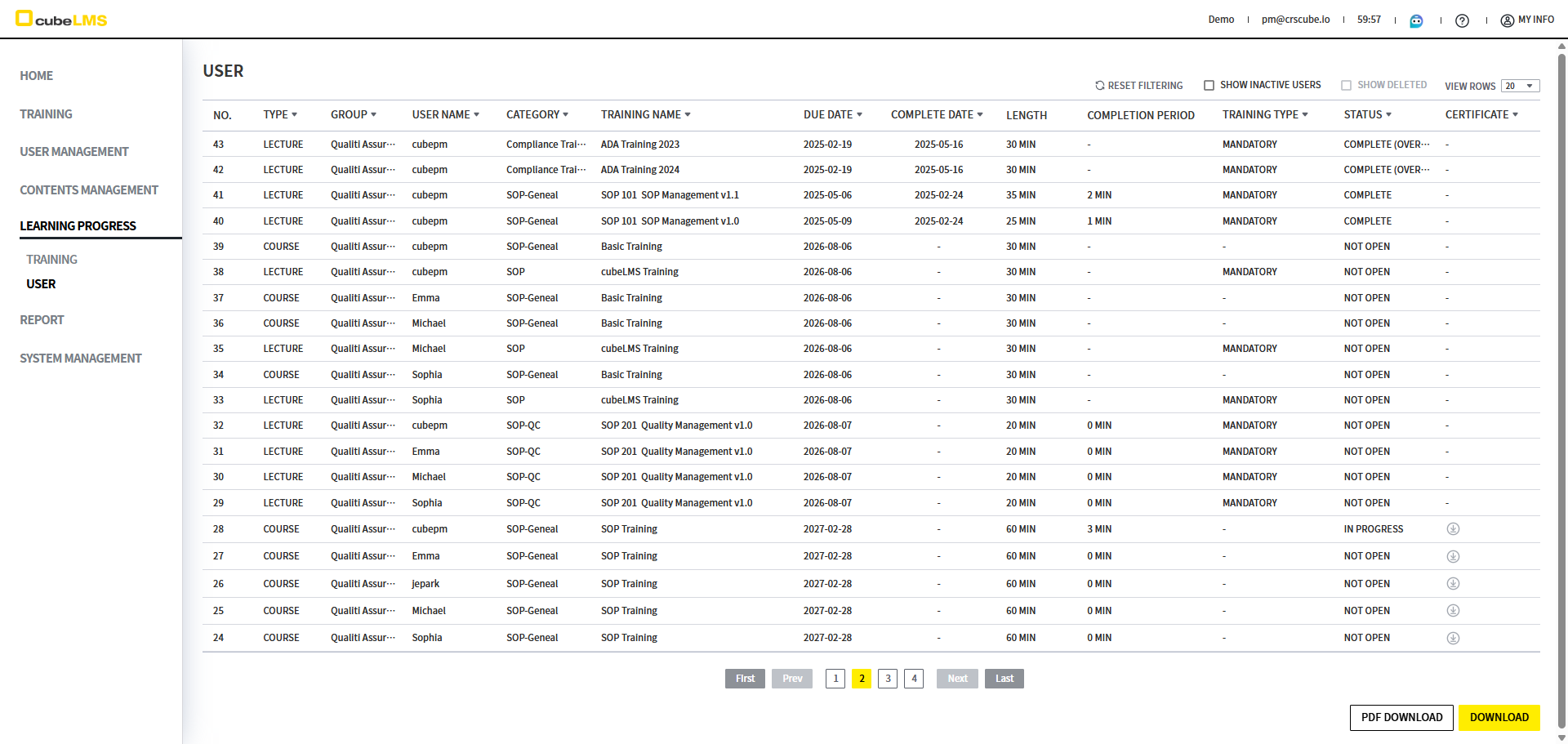
In this menu, you can monitor the learning status of all User.
USER LIST
1. You can check the Training status and due date for each User. Click a specific User row to view details.
2. Role and Group privileges determine the scope of Learning Progress review.
|
|
|
|
|---|---|---|
|
|
|
You can view the overall learning status of all Users in your company. |
|
|
Self |
You can view only your own learning status. |
|
|
Users belonging to the Group and its subordinate Groups |
You can view the learning status of Users belonging to your Group. |
|
|
Users belonging to the Group and other Groups at the same Group level |
You can also view the learning status of Users belonging to other Groups at the same level, as well as your own Group. |
|
|
Self |
You can view only your own learning status. |
3. Download button: Clicking it lets you download the List as an Excel file. If you set a filter, only the selected items are downloaded.
4. PDF Download button: Click the button to download the list in pdf format.
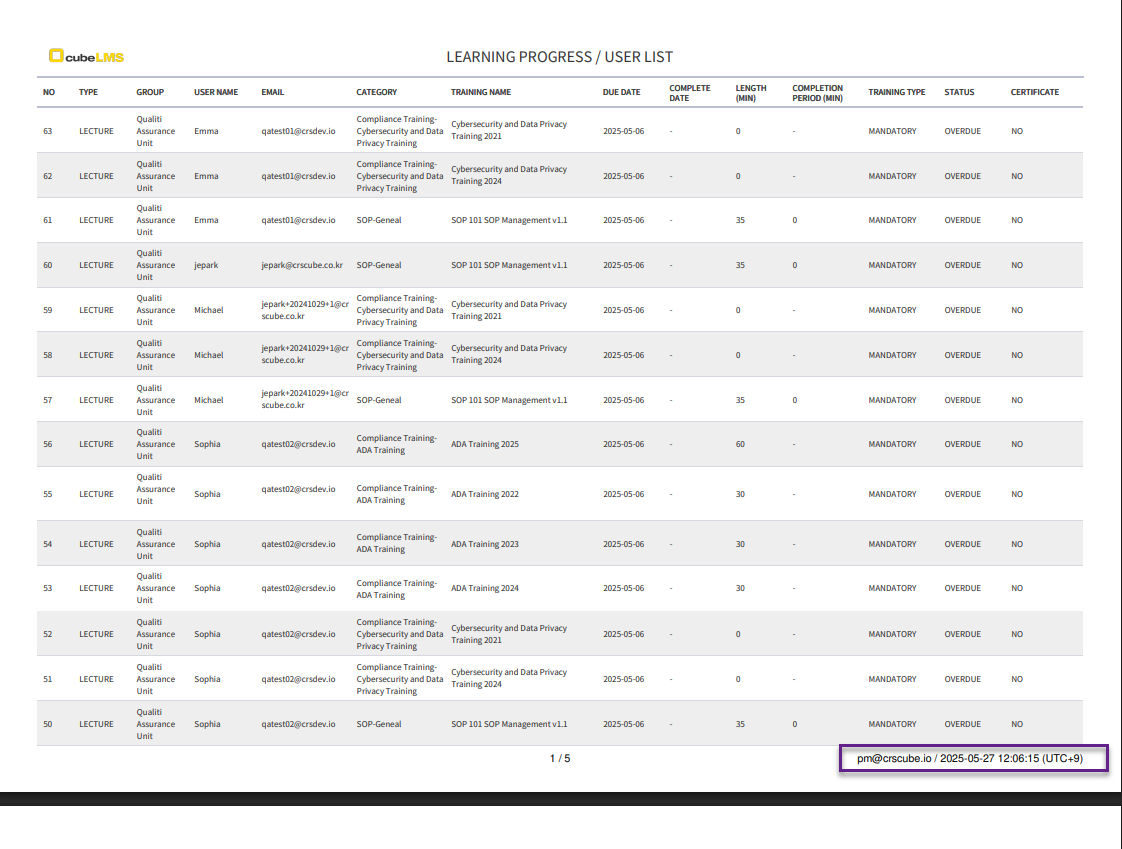
5. The bottom right of the exported PDF displays information on 1) the User's Email, and 2) the creation date and time of the export.
LECTURE DETAILS
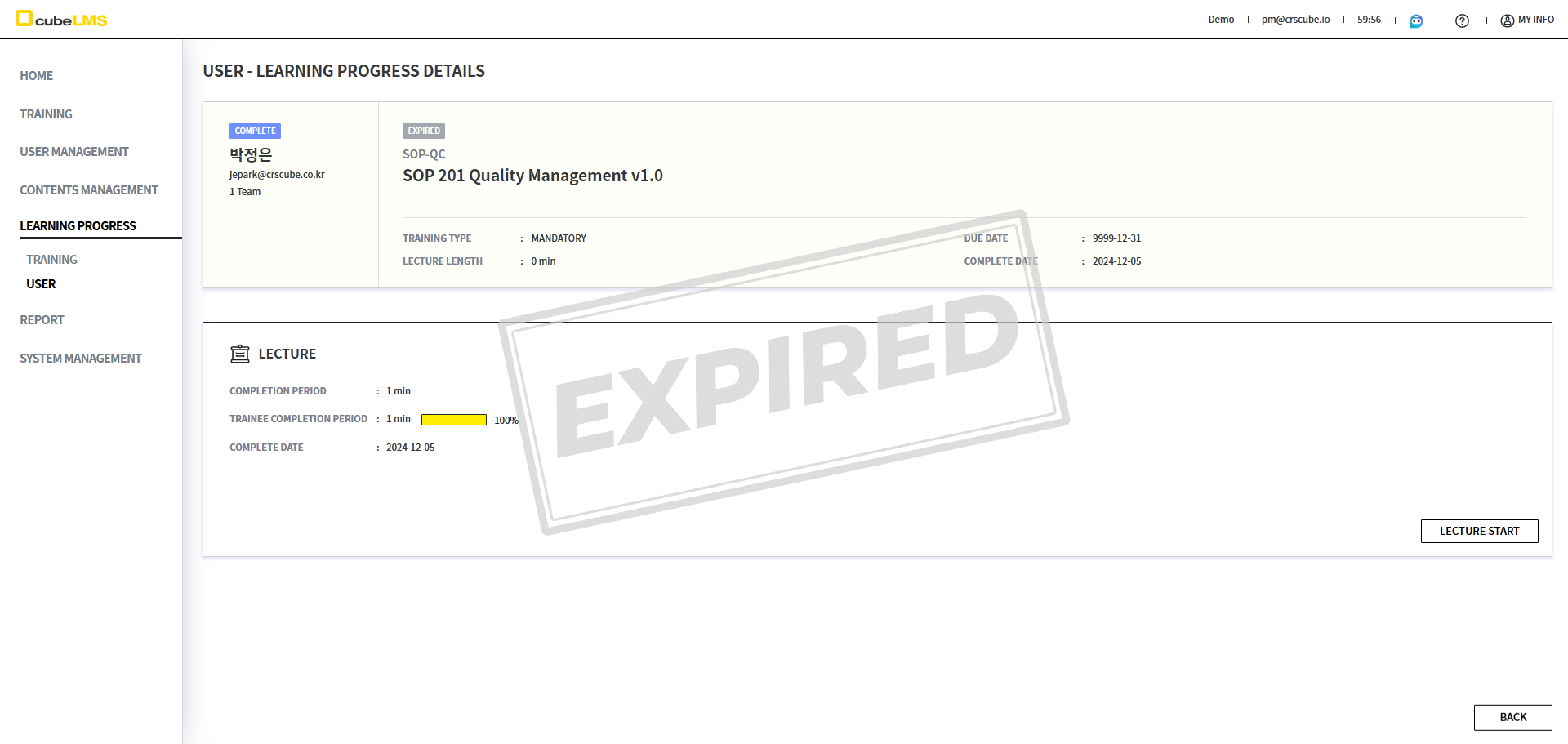
1. Click a specific Lecture item to view the User's Lecture progress.
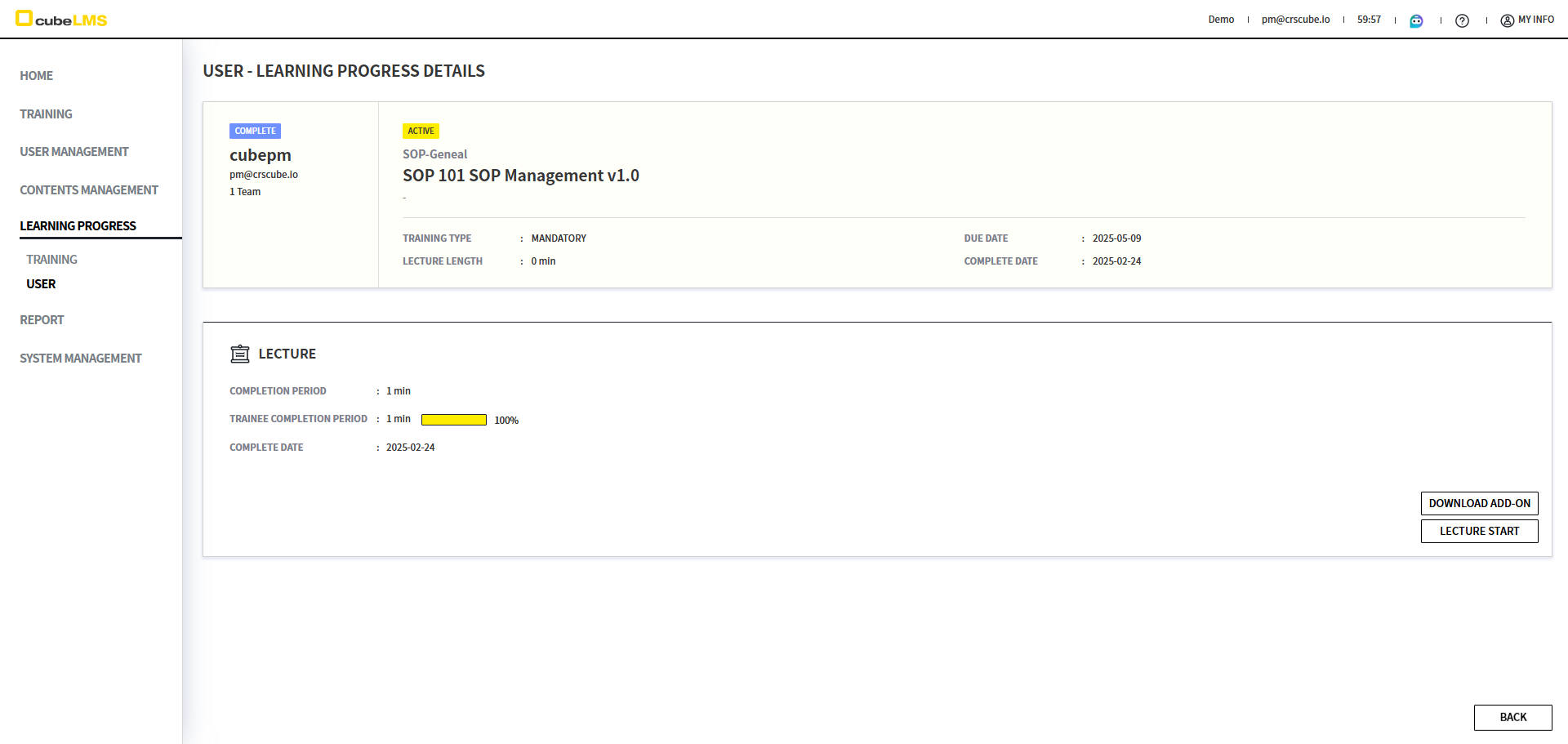
2. If the Training status is Expired, a watermark is displayed.
LECTURE DETAILS-EDIT COMPLETE DATE
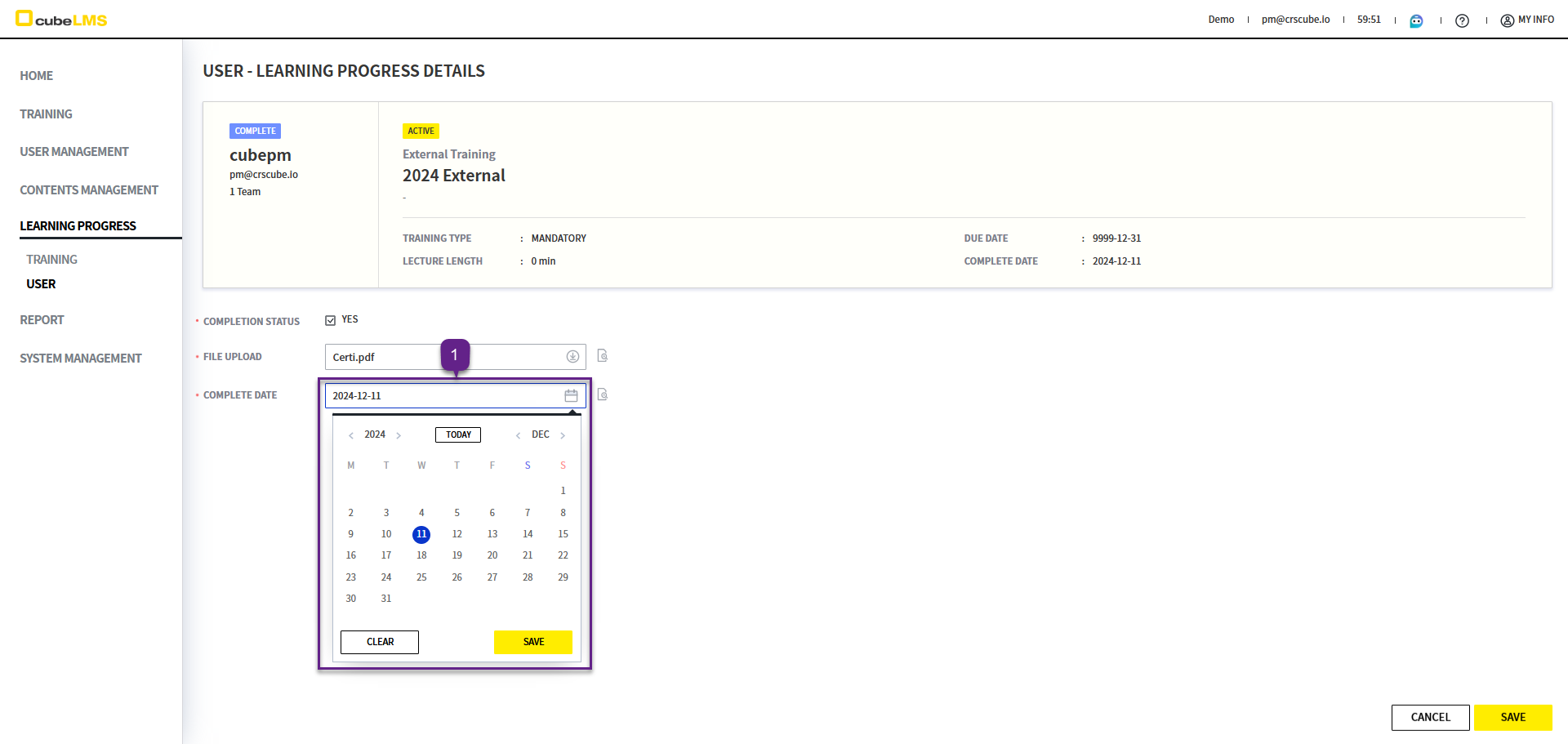
1. Admin and Contents Manager can edit the completion date of a User's Lecture that meets the following conditions.
-
User's Lecture status
: Complete, Complete(Overdue) -
the value of the Complete Date field on the Lecture details screen
: Trainee Assign -
User status
: Active
2. When you click the Save button, it is updated to the selected date.
LECTURE DETAILS-EDIT PREVIOUS LECTURE
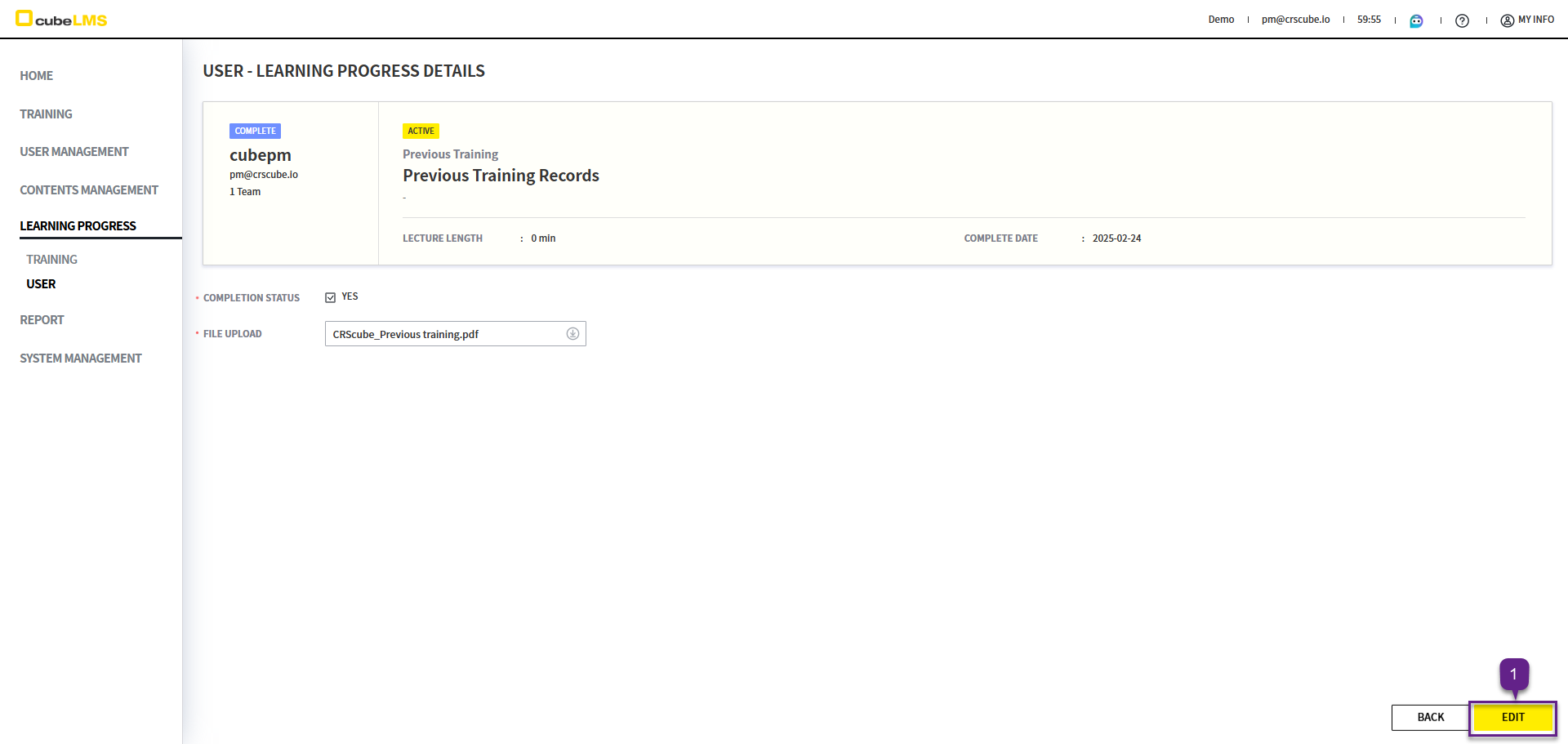
1. Admin can access the edit page to modify/delete previous lecture by clicking the Edit button in the lower right corner.
However, only previous training items and previous training items in the subcategories of previous training can be edited.
If the Trainee status is inactive, you cannot edit the previous training.
COURSE DETAILS
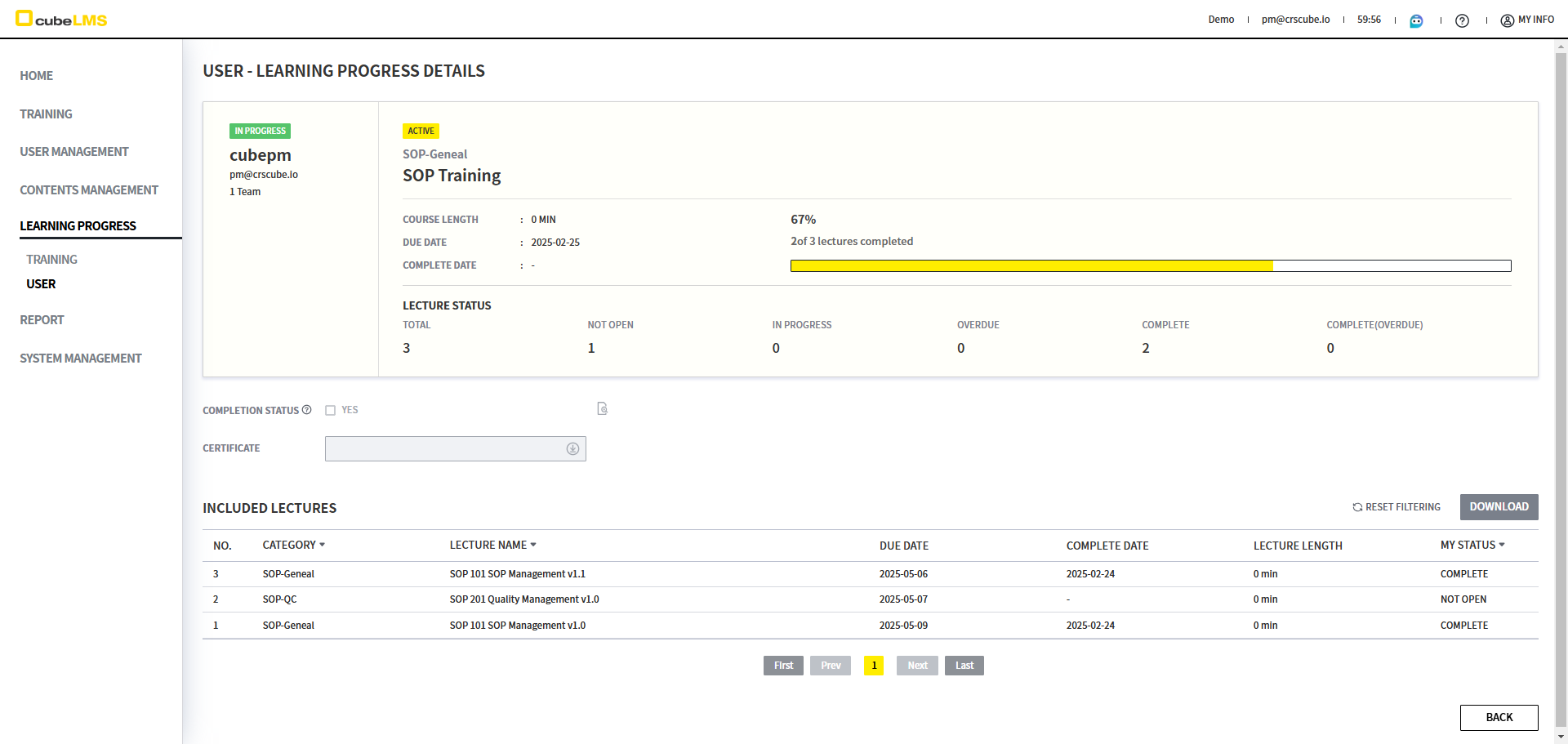
Click a specific Course item to view that User's Course progress.
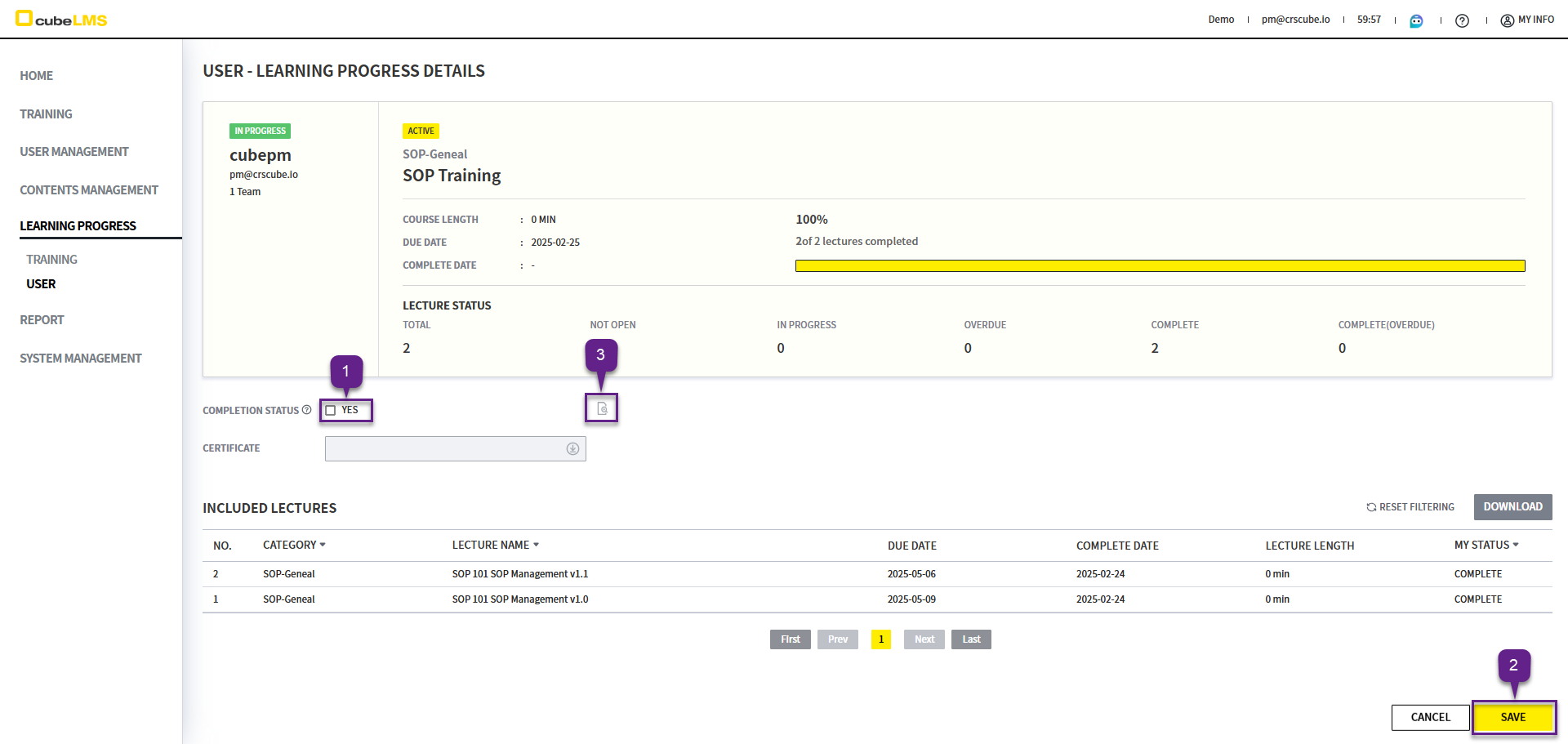
COURSE DETAILS-EDIT COMPLETION STATUS
1. Content Manager Check Course: Contents Manager can review it directly and complete it.
After checking the Completion Status item, click the Save button in the lower right.
2. The Completion Status item is enabled when the following conditions are met.
-
The signed-in account has Contents Manager privileges.
-
Lecture, Course Status:-
All included Lecture
: Complete -
Course: Not Complete
-
-
Trainee status is Active.
3. Click the Audit Trail icon on the right to view the information and time of the Contents Manager who completed the Course.