You can register and manage Program in this menu.
This menu and related functions are provided only to companies operated by CRScube.
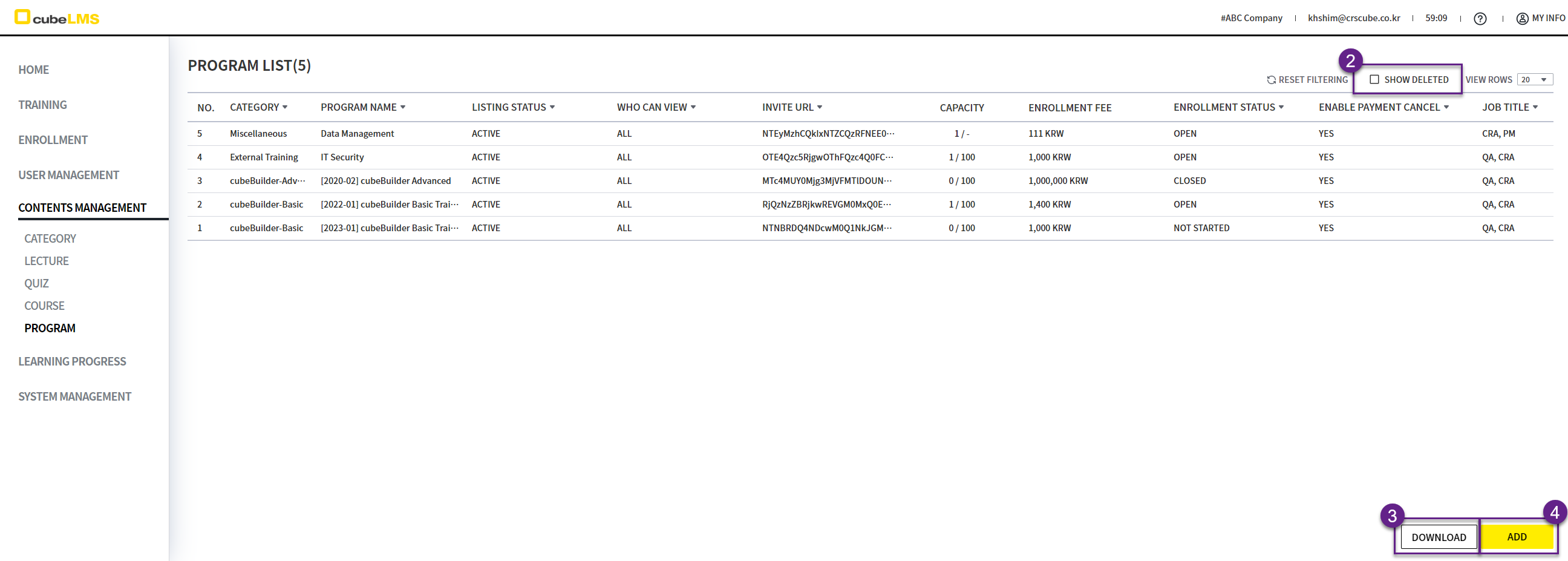
PROGRAM LIST
1. This is a list of programs created within the company. Click a row to go to the screen for viewing and editing details.
2. Show Deleted: If checked, you can view deleted programs.
3. Download button: You can download the program list as an Excel document.
4. Add button: You can go to the screen to create a program.
ADD PROGRAM
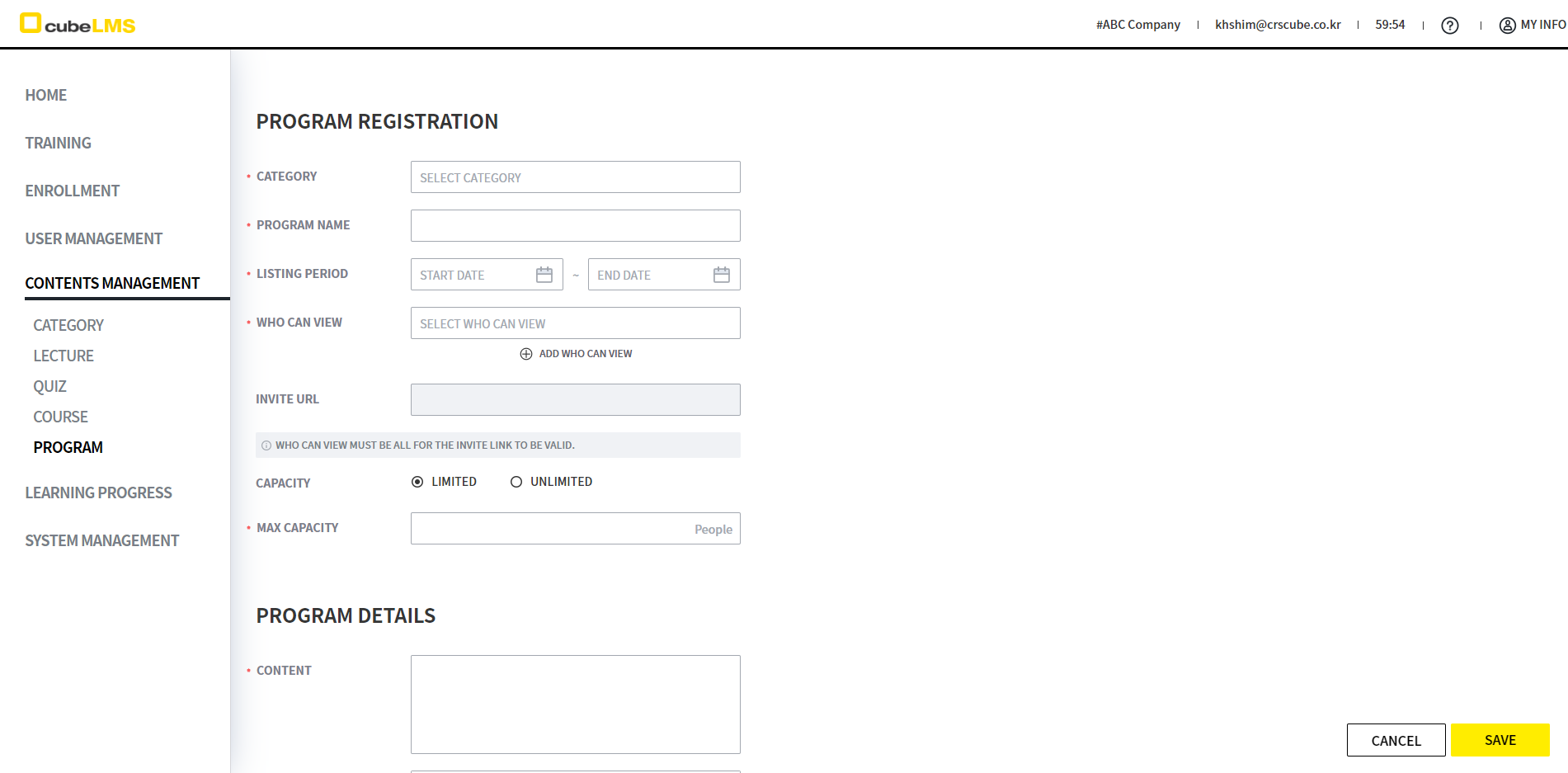
1. This is the screen for creating a program.
ADD PROGRAM-PROGRAM INFO
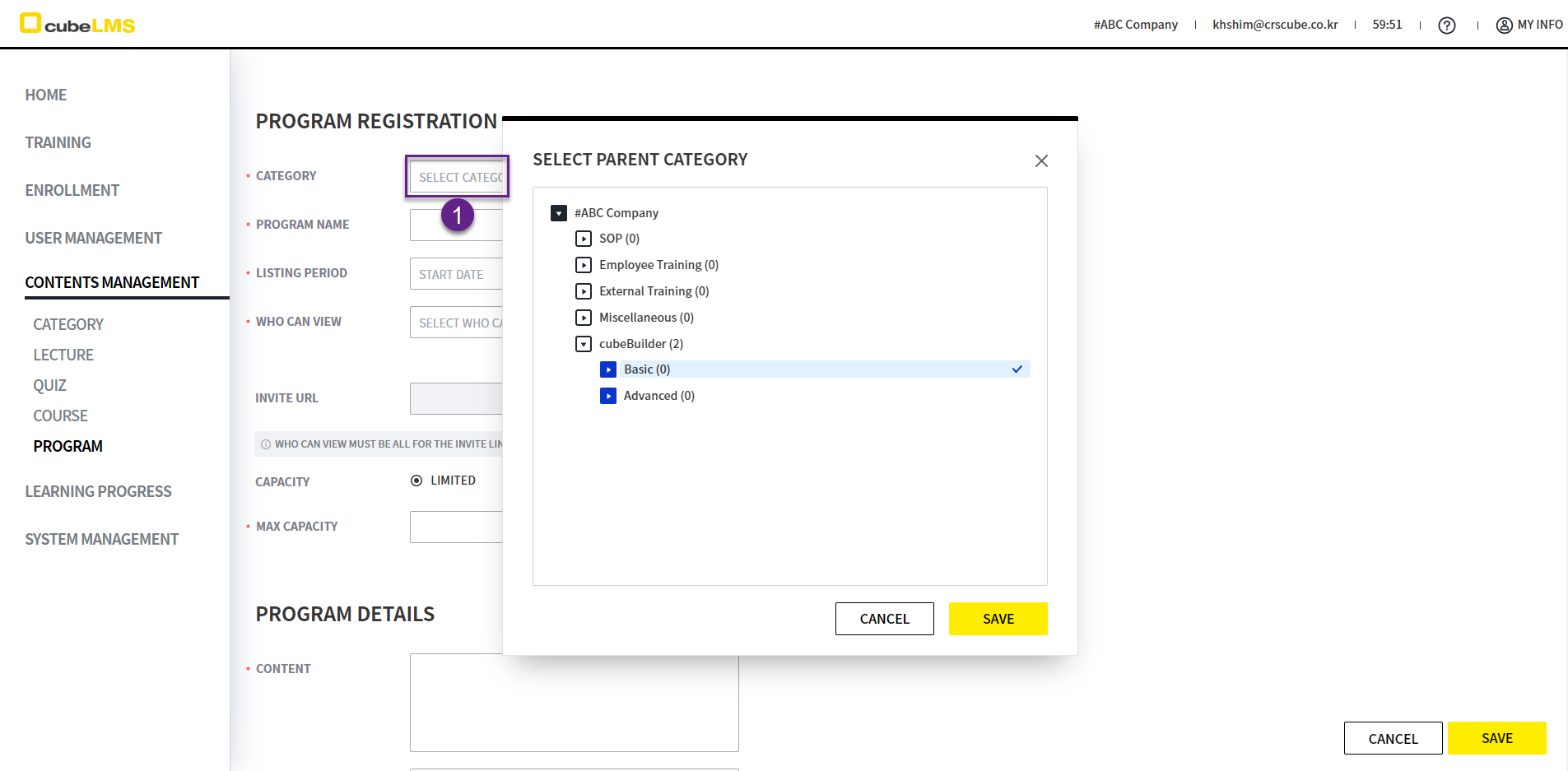
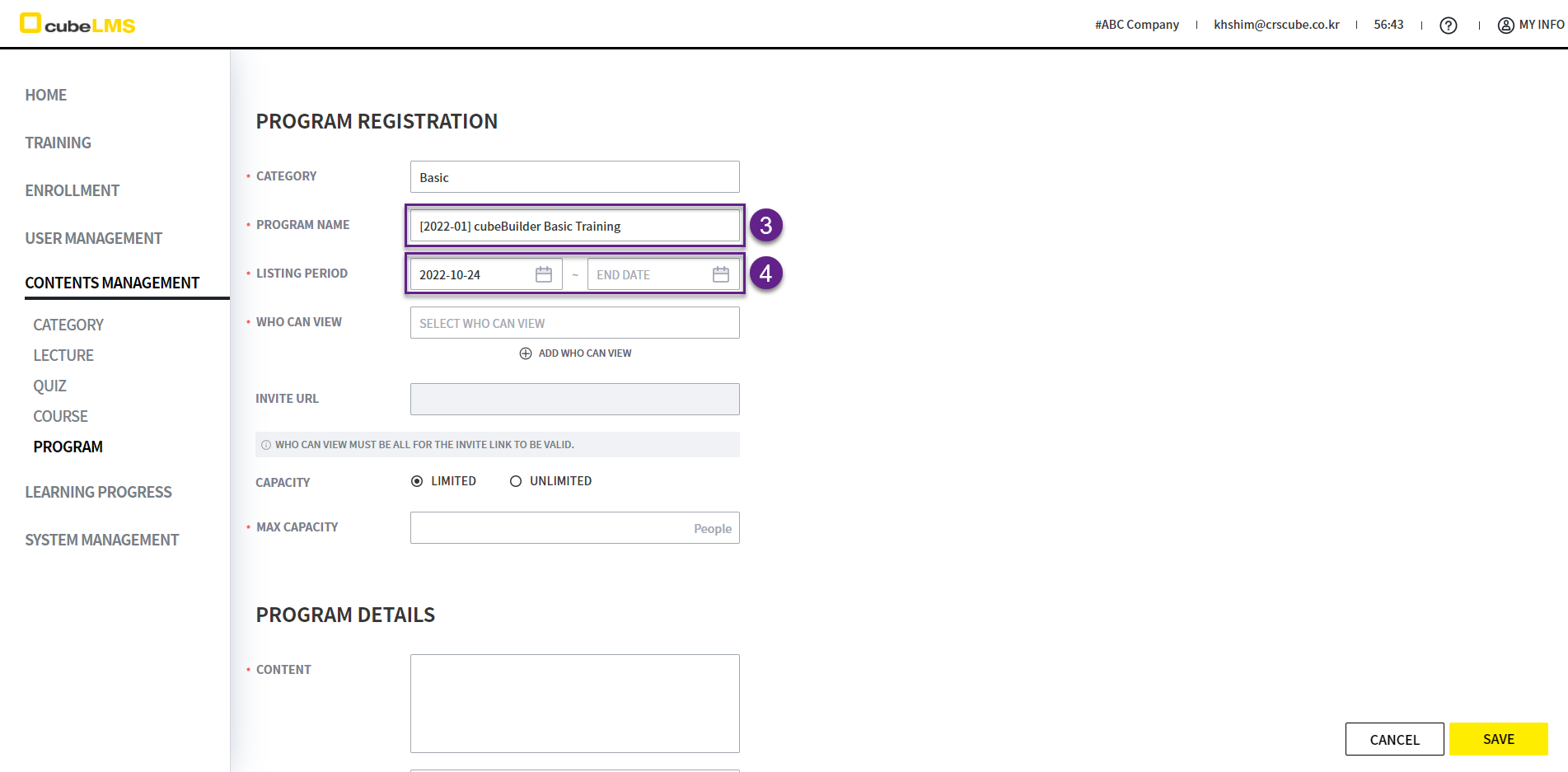
1. Category: Click it to display the category hierarchy. Select the category the program belongs to.
2. '*' indicates a required field.
3. Enter the program name.
4. Listing Period: Set the period during which the program will be posted to trainees.
-
Start Date:Required. -
End Date:It is optional, but if you submit this screen without entering a value, 9999-12-31 is entered automatically.
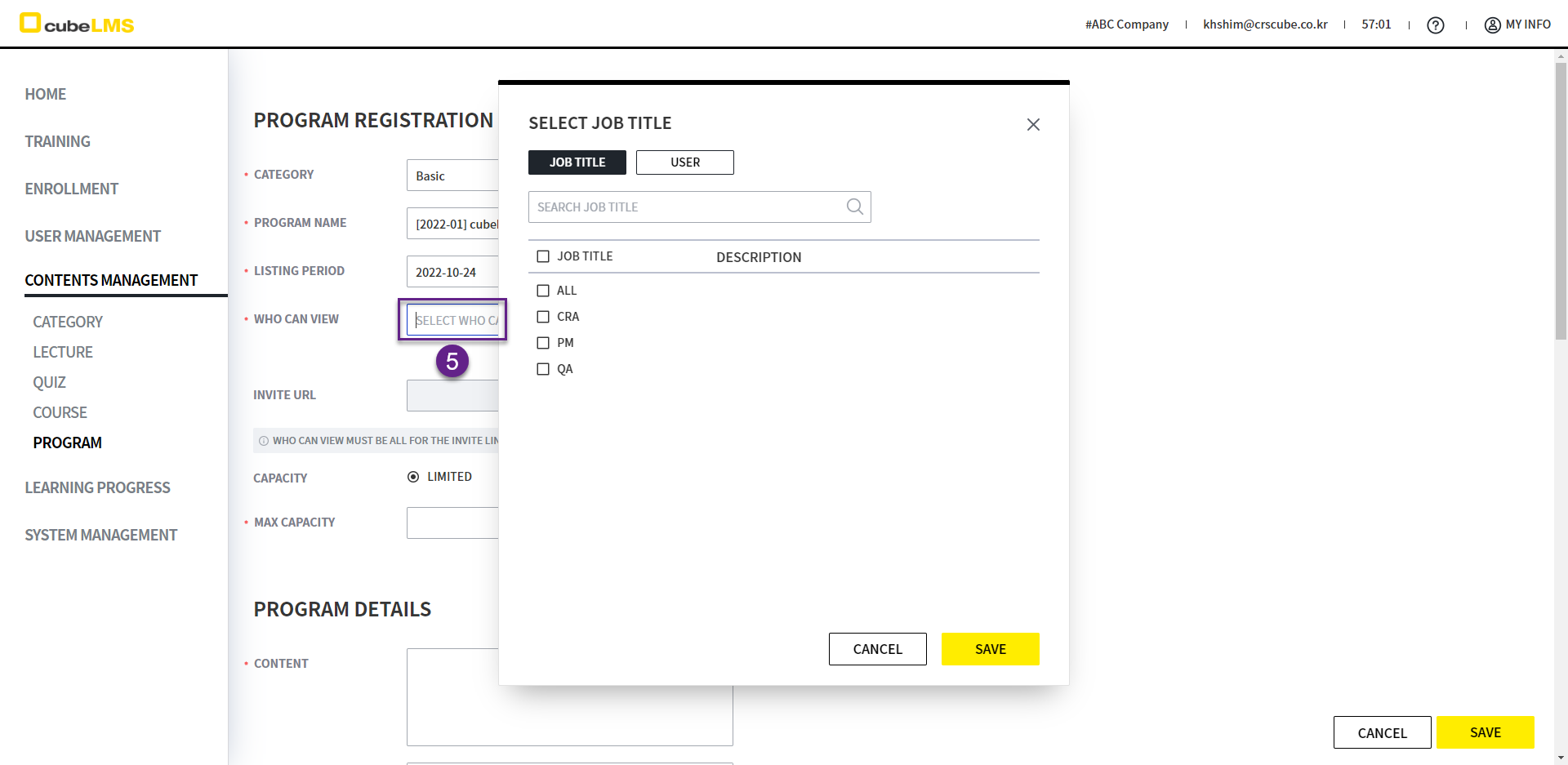
5. Who Can View: during the listing period Set the Job Title or User who can view the program.
-
To allow anyone to view and purchase the program, set this item to All.
-
For programs used as a personal payment window, you can set this item to one specific User.
-
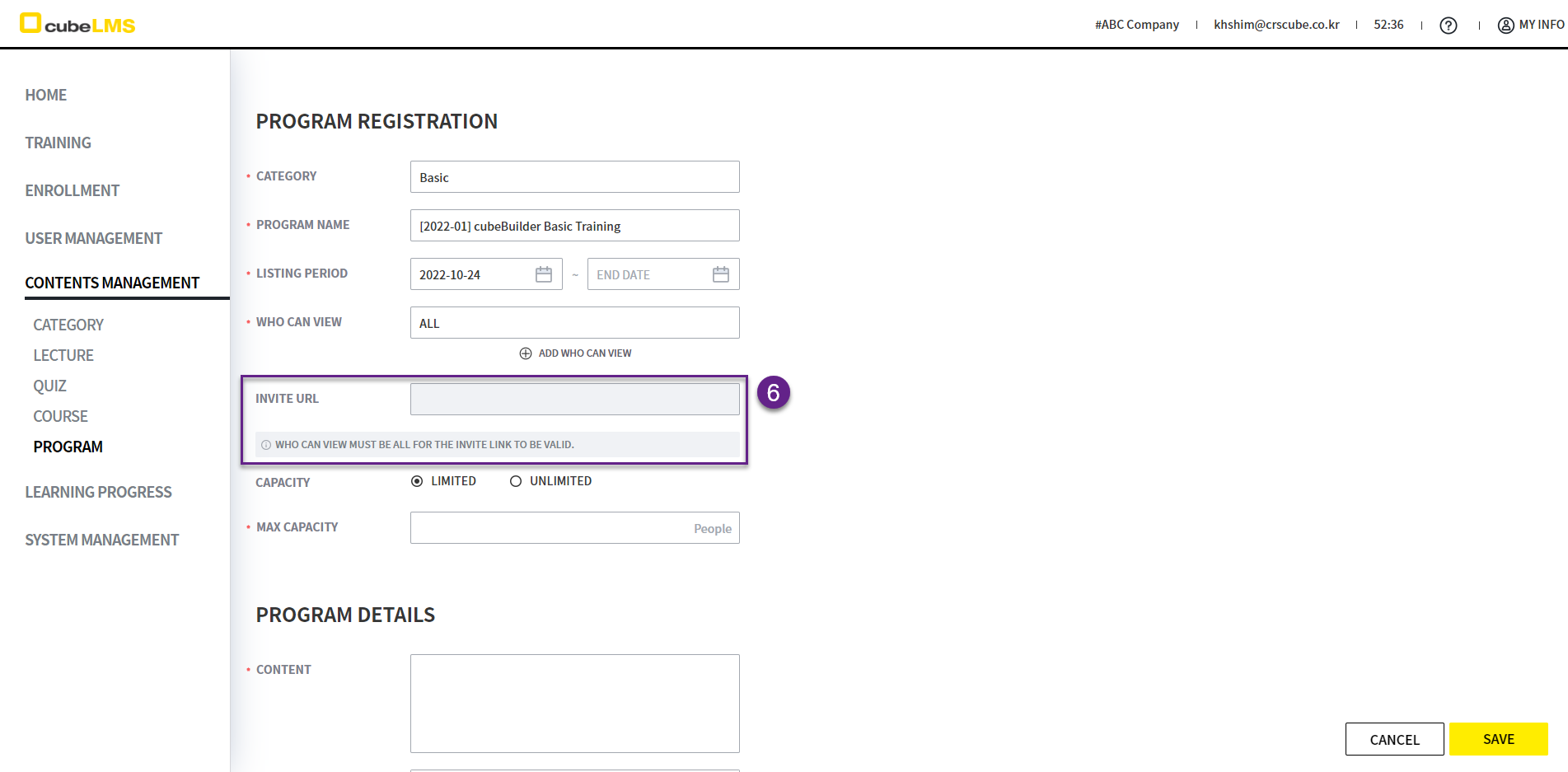
6. Invite URL: This is a URL that can be used to externally share the details page of the program. Do not enter it, as it will be automatically entered by the system after the program is created.
-
For more details, refer to the EDIT PROGRAM section of this document.
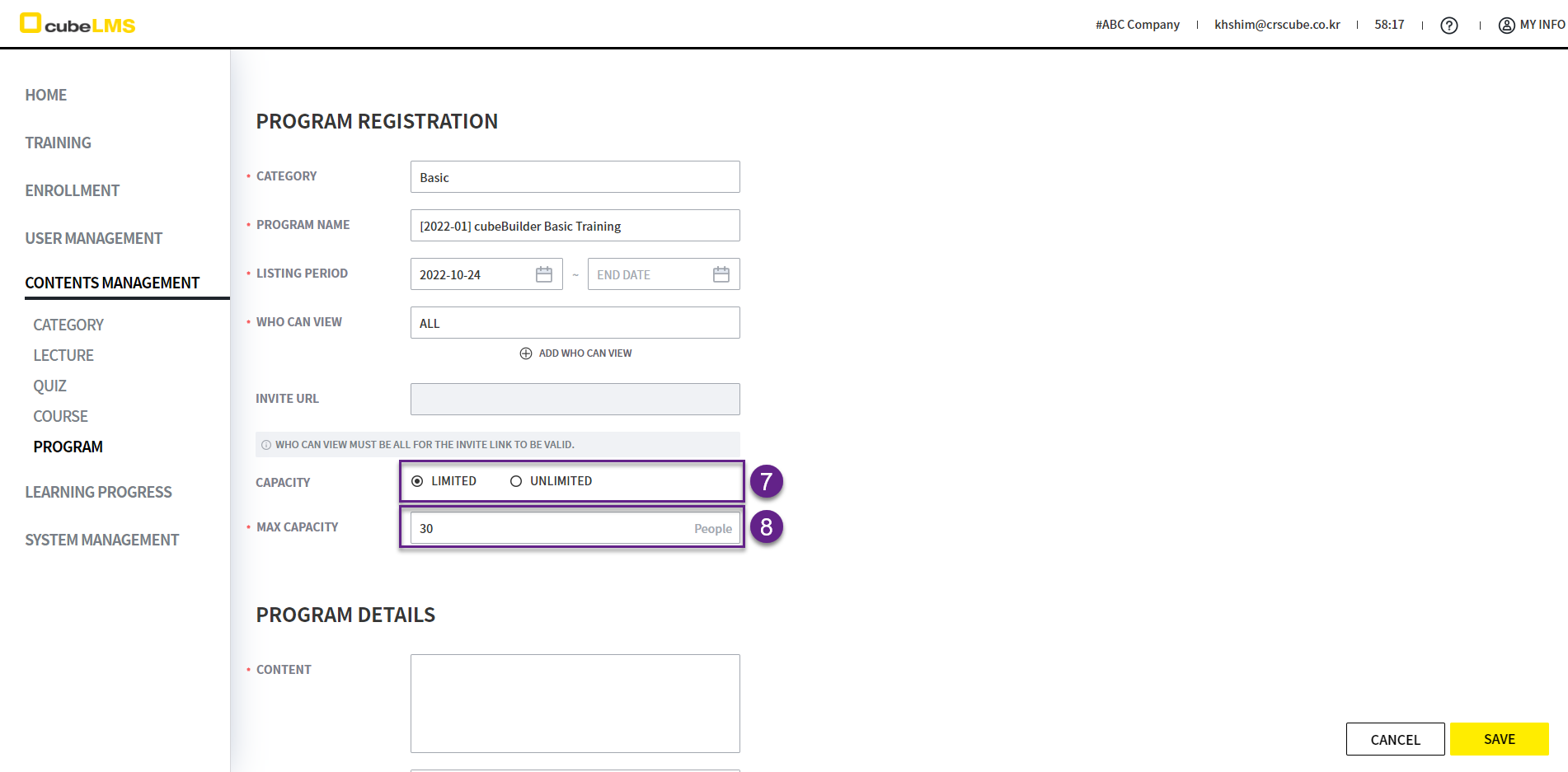
7. Capacity: Configure whether to limit the number of people who can purchase.
-
Limited:Select this if there is a limit on the number of people who can purchase. -
Unlimited:Select this if there is no limit on the number of people who can purchase.
8. Max Capacity: This field is used to enter the number of users, as a numeral, if there is a limit on the number of users who can purchase the program. This field can be entered only when Capacity is set to Limited.
-
A User who is changed to Inactive or Deleted status after purchasing the program is also counted among the people who purchased the program.
-
If a program is purchased and later fully canceled (Canceled) or partially canceled (Canceled (Partial)), it is not counted among the people who purchased the program.
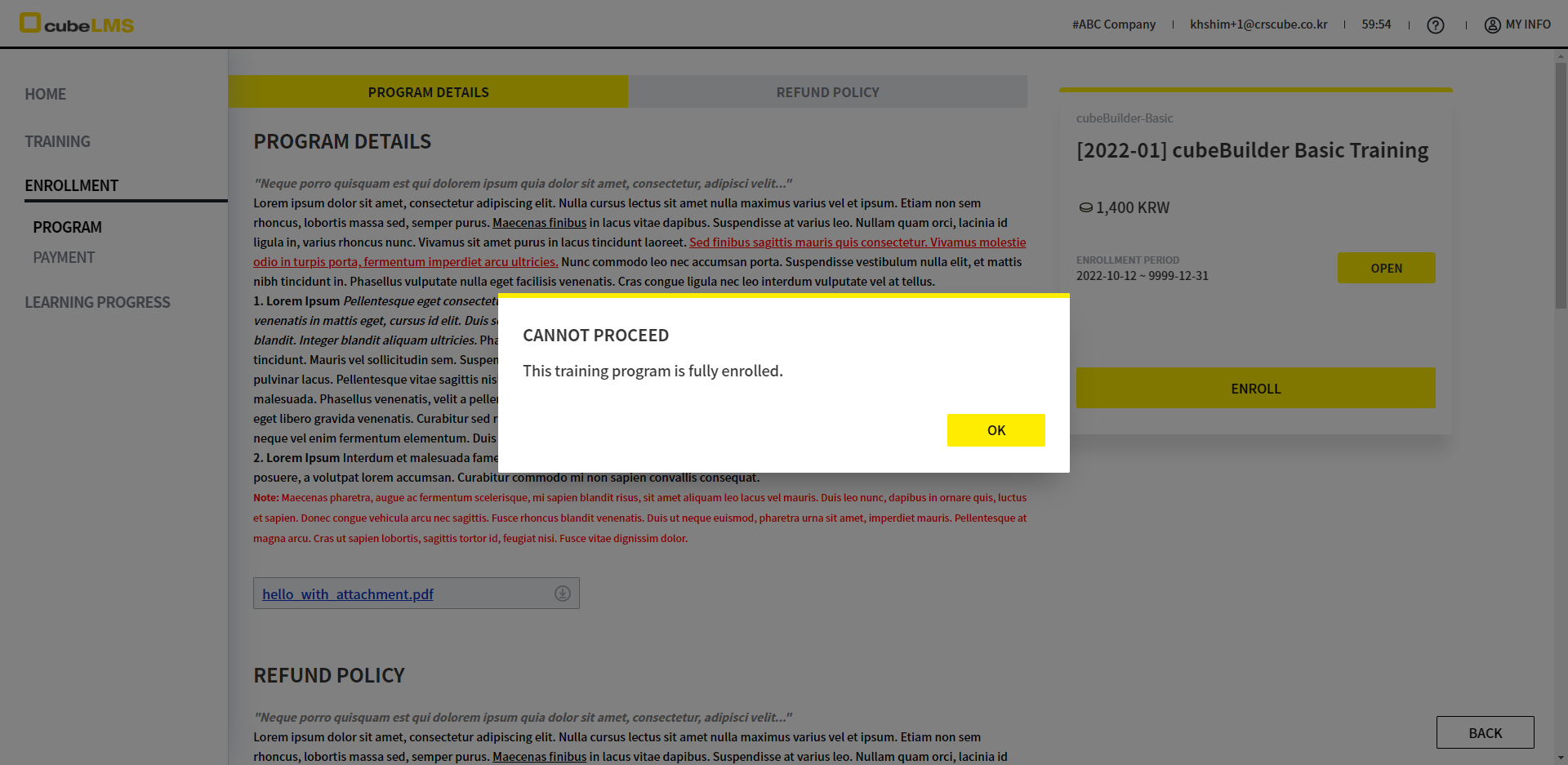
When Max Capacity is reached, a message is displayed to inform the User who later attempts to purchase the program that enrollment is full, and the program cannot be purchased. Even after the program is created, Max Capacity is an item that can be modified at any time, so you can decrease or increase the number as needed later.
프로그램 정원이 찼을 때 User에게 표시되는 화면...
ADD PROGRAM-PROGRAM DETAILS
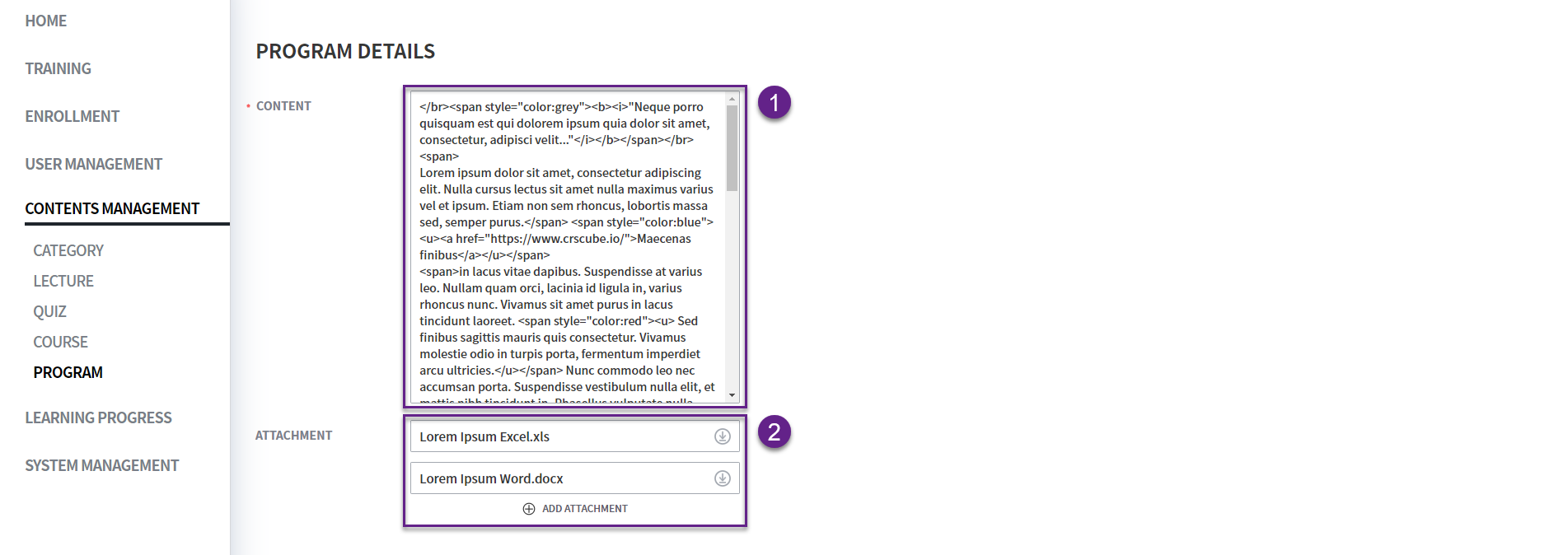
Enter the Program Details to be provided to the User.
-
For example, program objectives, prerequisites, curriculum, instructor introduction, etc.
-
This field allows some system-supported HTML tags to be used to style text, such as changing font size or applying font color. For more details, Link please refer to it. (However, https://crscube.atlassian.net/wiki/x/ZoD1xg the content is only available in the Description field on the Lecture detail screen and does not work in this field.)
2. If you want to add an attachment for the program details (Program Details), upload it.
-
Allowed file extensions:
.doc, .docx, .gif, .hwp, .jpeg, .jpg, .pdf, .png, .ppt, .pptx, .txt, .xls, .xlsx, .zip -
You can upload multiple files.
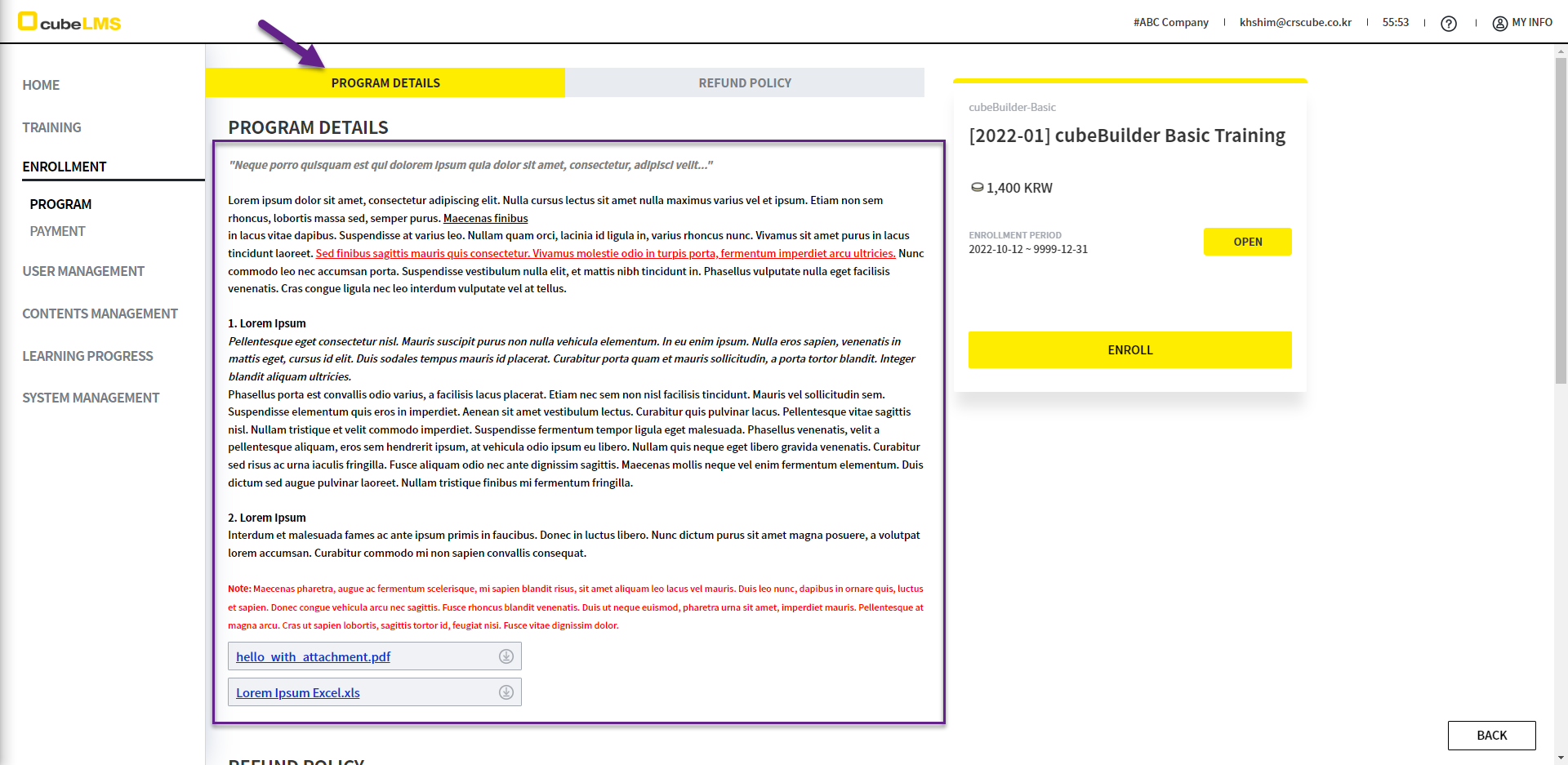
User가 보는 프로그램 상세 화면과 첨부 파일
ADD PROGRAM-REFUND POLICY
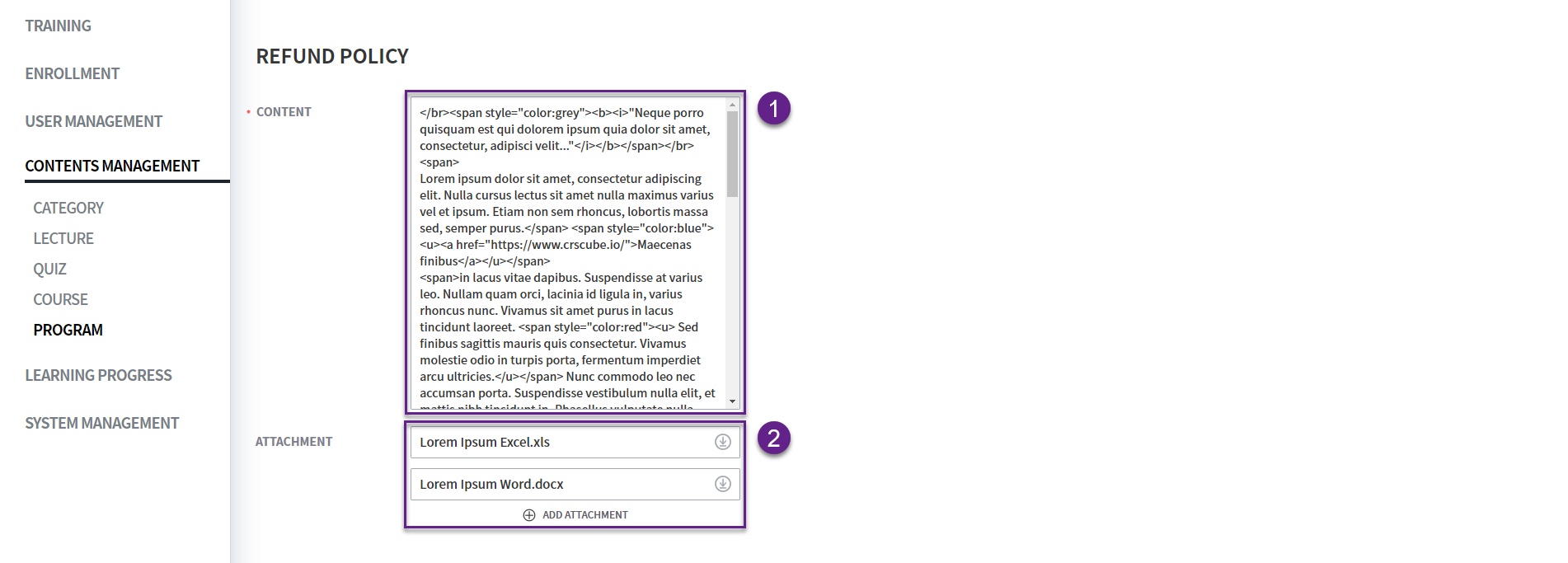
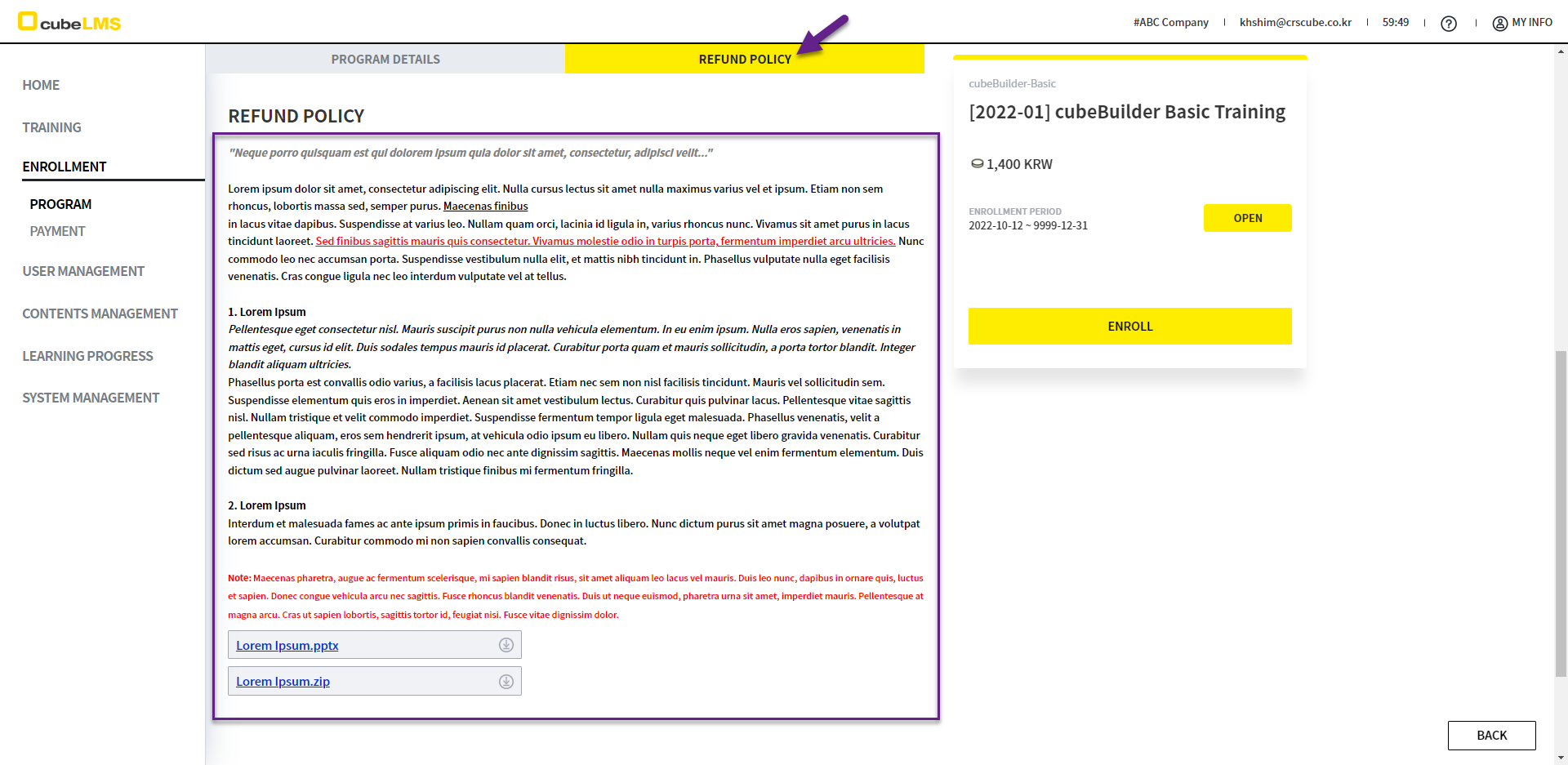
1. Write the program's Refund Policy to be provided to the User.
-
For example, A full refund is available up to 30 days from the purchase date. (Refund can be processed on the Enrollment > Payment History > Payment Details screen) From 31 to 90 days after the purchase date, a 50% partial refund can be requested. (Please contact CRScube Help Center.)
-
This field allows the use of HTML tags that are permitted by some systems for text styling, such as changing font size or applying font color. For more details, please refer to Link. (However, https://crscube.atlassian.net/wiki/x/ZoD1xg the content is only available in the Description section of the Lecture detail screen and does not work in this field.)
2. Upload a file if you want to add an attachment for the program's Refund Policy.
-
Allowed file extensions:
.doc, .docx, .gif, .hwp, .jpeg, .jpg, .pdf, .png, .ppt, .pptx, .txt, .xls, .xlsx, .zip -
You can upload multiple files.
User가 보는 프로그램 환불 정책과 첨부 파일
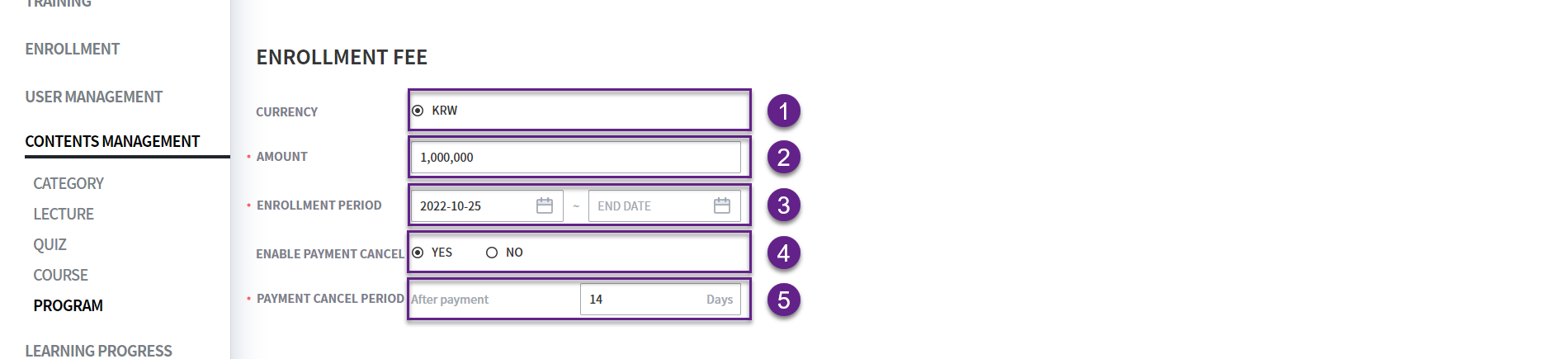
ADD PROGRAM-ENROLLMENT FEE
1. Currency: This field sets the currency of the program payment amount. Currently, only Korean won (KRW) is supported.
2. Amount: Enter the enrollment fee to be paid when taking the program.
-
Only numbers can be entered.
-
For KRW, the amount must be at least 100 won.
3. Enrollment Period: This field sets the program enrollment period.
-
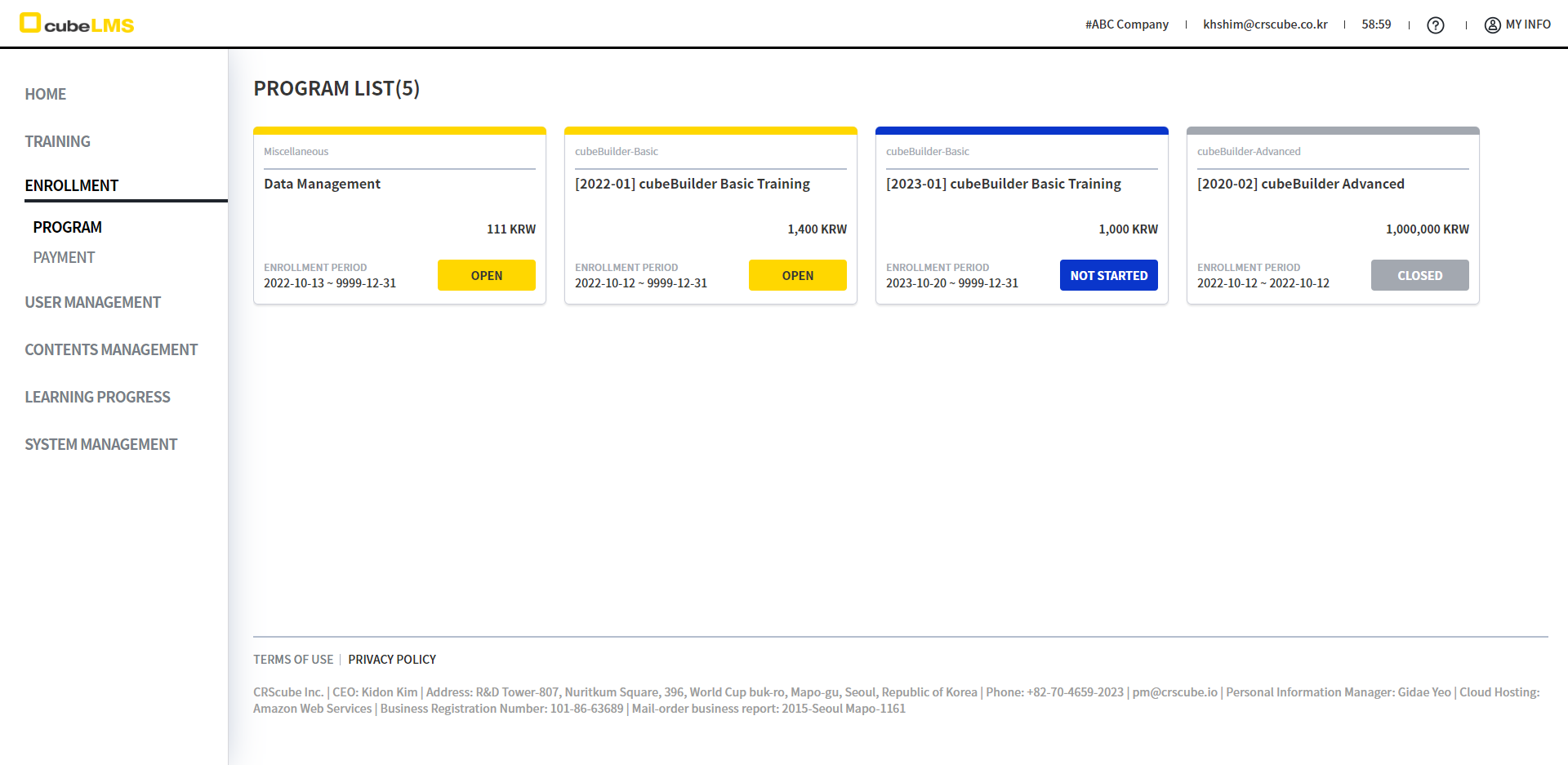
The period set in this item determines the program's Enrollment Status as follows.
-
Not Started:The enrollment period has not started yet, and even during theListing Period, actual payment and enrollment are not possible. -
Open:Payment and enrollment are possible. -
Closed:The enrollment period has ended, and even during theListing Period, actual payment and enrollment are not possible.
-
-
Start Date:Required. -
End Date:It is optional, but if you leave it blank and submit this screen, 9999-12-31 is automatically entered.
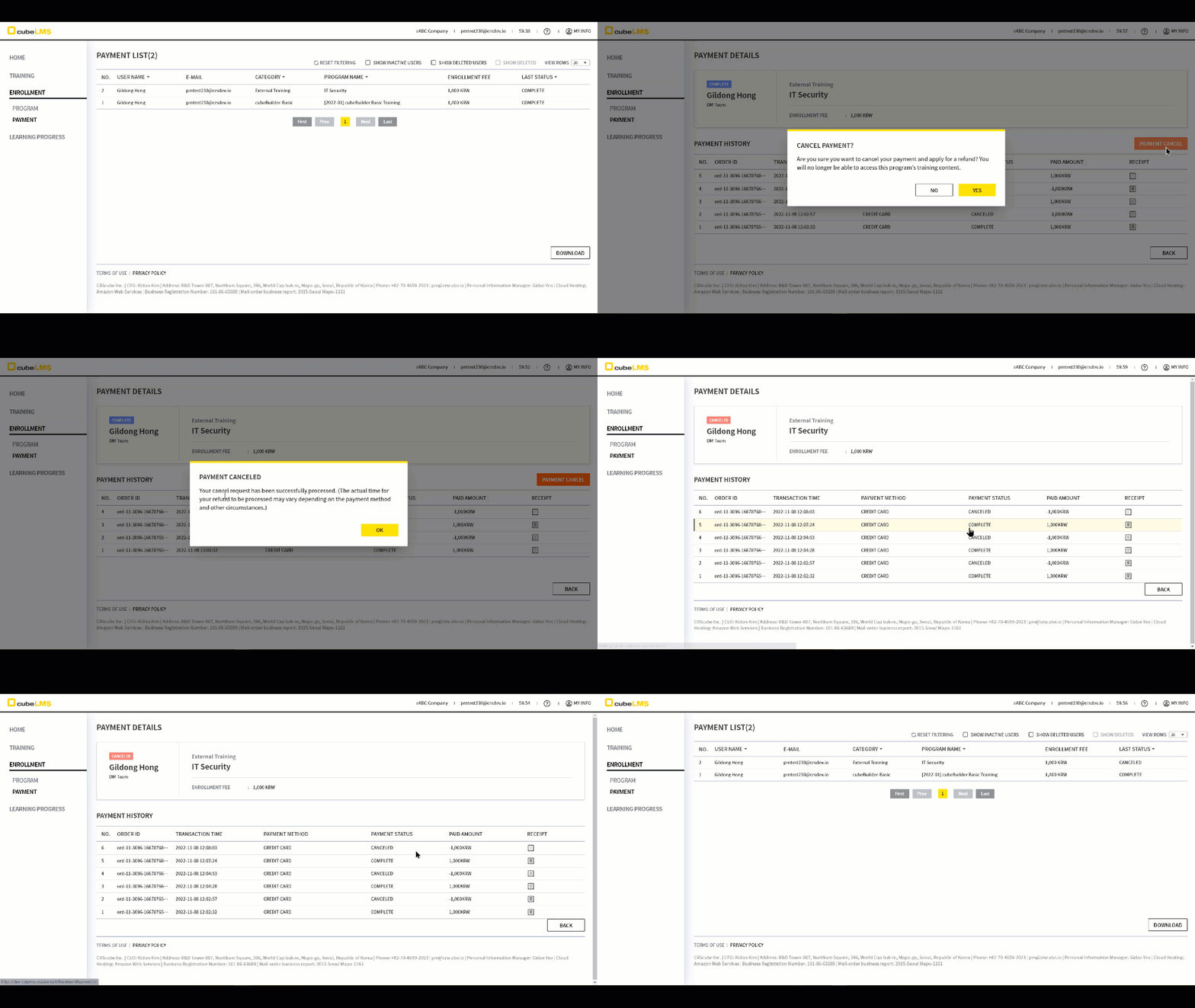
4. Enable Payment Cancel: By setting it to Yes, you can provide the Payment Cancel feature to Users who purchased the program.
-
If the Payment Cancel feature is available, the User who purchased the program can cancel the full payment for the program without a separate approval process.
-
If the full cancellation is processed through the Payment Cancel feature, the Job Title that was automatically assigned due to the program purchase is automatically unassigned. In other words, the User can no longer access the purchased training content (Course and Lecture).
-
The program fully canceled through the Payment Cancel feature can be repurchased later.
-
Payment Cancel Period:This field sets the period, in days, during which the User can cancel the purchase on their own after the purchase date.
If you want to allow Payment Cancel only on the day of payment, be sure to set Period to "0". If you set it to "1", Payment Cancel is also available until the next day after the payment completion date.
-
You cannot enter a period longer than 365 days.
In addition to system restrictions, the limits on the refund period and the time until the actual refund is processed vary by payment method, so please refer to this item(Payment Cancel Period) when configuring and operating it.
Credit Card
-
Refund period: Usually 1 year, but for some card issuers it is exceptionally limited to 3 months, so please check with the card issuer for details.
-
Refund date
- For a full cancellation on the day of payment → same-day cancellation possible
- For a partial cancellation on the day of payment → cancellation is processed after 3 to 5 business days (card issuer cancellation settlement process required)
- For a full/partial cancellation after the day of payment → cancellation is processed after 3 to 5 business days (card issuer cancellation settlement process required)
Real-time bank transfer
-
Refund period: About 3 months
-
Refund date:
- Same-day cancellation → same-day refund
- For cancellations after the same day → refund within the next business day (No fee for same-day transactions)
Payment Cancel only allows full refunds. If a partial cancellation is needed for a specific payment, please contact CRScube Help Center.
Precautions for partial cancellation
-
If a payment made by a User who purchased through the Payment Cancel function is fully canceled, the Job Title that was automatically assigned through the program purchase is automatically unassigned. However, if CRScube fully or partially cancels the payment, the Job Title is not automatically unassigned. In that case, the company's Admin must directly edit the Job Title field on that User's detail screen.
-
A program that has been fully canceled can later be repurchased by the same User, but a partially canceled program cannot be repurchased by the same User. If the same User needs to repurchase the program in this case, create a separate program for use as a personal payment page, and set 'Who Can View' to that User only.
'Enrollment > Program' 메뉴에서 본 Enrollment Status: Not Started, Open, Closed 상태의 프로그램...
Enable Payment Cancel 설정을 한 경우에 User에게 제공되는 Payment Cancel 기능 예시...
ADD PROGRAM-AUTO ASSIGN RULES
1. This field sets the Job Title that the User is automatically assigned when the User completes payment for the program.
-
Multiple Job Titles can be selected
-
-
cubeLMS does not automatically assign Training to a User who completes payment for a program. Instead, it automatically assigns the Job Title set in this item to the User. As a result, when a User purchases a program and is assigned a new Job Title, all Training for which that Job Title is set as Trainee are newly assigned and become accessible to the User, which means that access to the relevant training content is effectively "purchased".

EDIT PROGRAM
1. Click the registered program row to go to the detail page where you can edit the program information.
2. Copy: Click this item to copy the program's Invite URL.
-
The Invite URL does not require login, so even without a cubeLMS account, you can view the content registered in the program. If you want to purchase the program, it includes a link to the screen where you can sign up for that company. For more details, please refer to INVITE URL.
3. You can delete or restore the program.
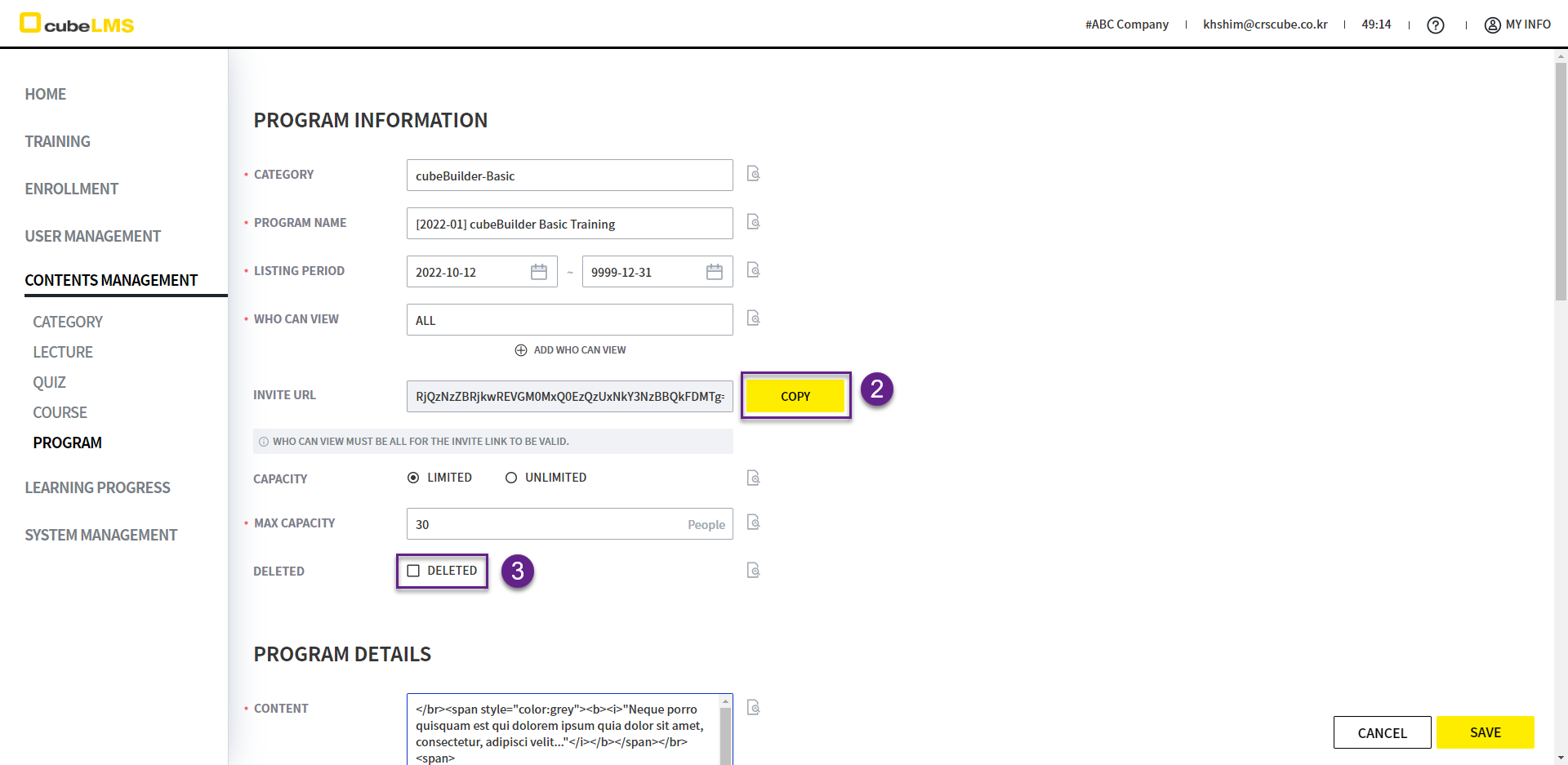
4. The Job Title set for the program can only be viewed and cannot be edited.

SYSTEM EMAIL
The following describes the emails related to payments that are sent by the system to Contents Manager.
-
It is sent not only to the Contents Manager who created the program, but also to all Contents Managers in the company.
SYSTEM EMAIL-PAYMENT COMPLETE
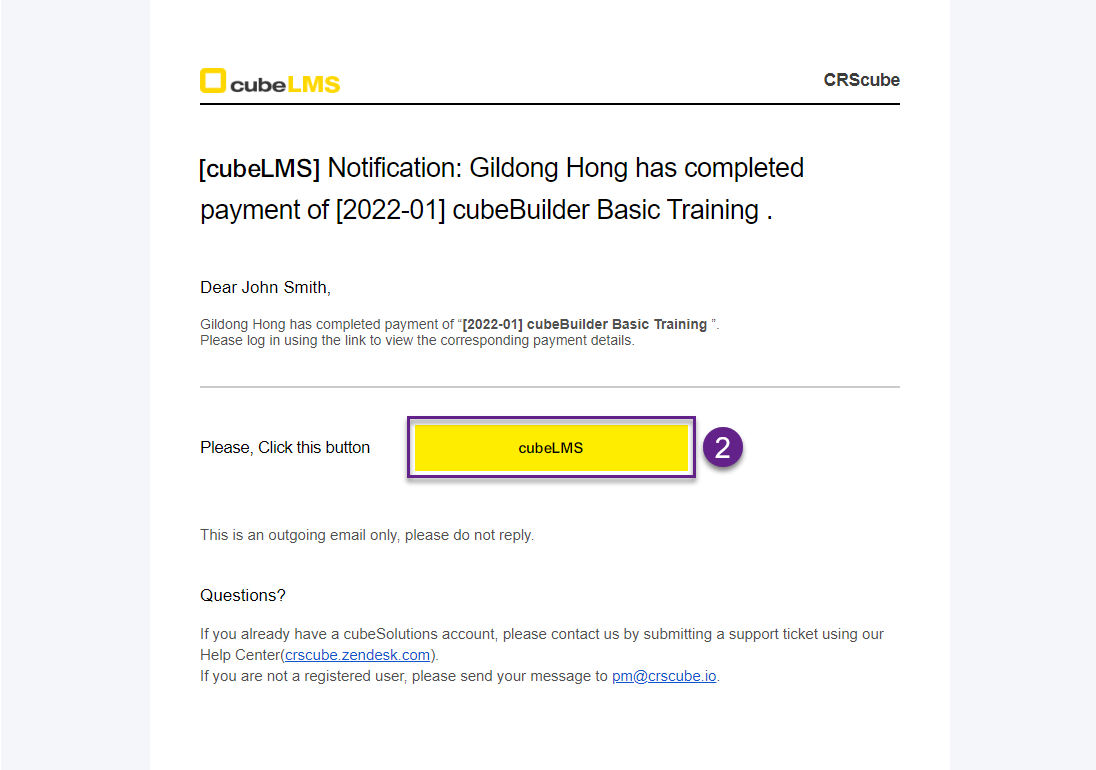
1. This is a notification email sent to the company's Contents Manager when User completes payment for the program.
2. Click the cubeLMS button to go directly to the Payment Details screen for the corresponding payment.
SYSTEM EMAIL-PAYMENT CANCELED
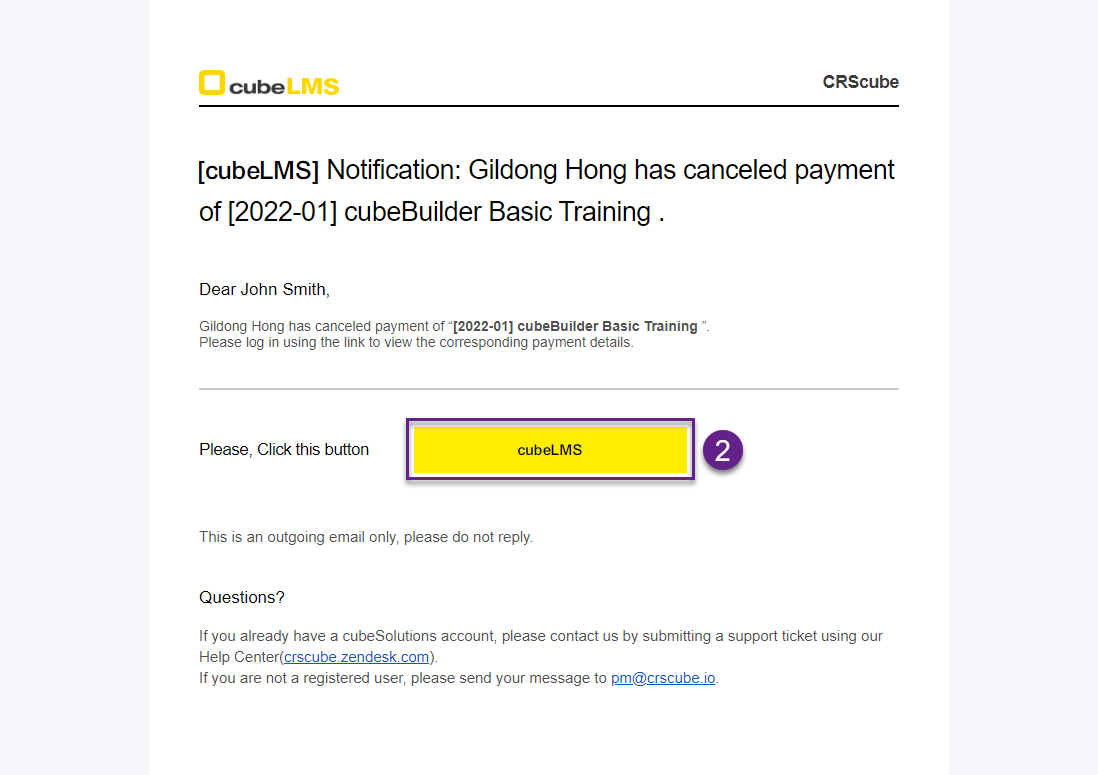
1. This is a notification email sent to the company's Contents Manager when a User fully cancels a program using the Payment Cancel feature.
2. Click the cubeLMS button to go directly to the Payment Details screen for the corresponding payment.