Description에서 Html의 태그를 기입하여 목차를 생성할 수 있습니다.
기존의 Lecture Details에서 Description은 평문으로 인식되었으나, Html 태그를 인식할 수 있도록 반영되었습니다.
1. Hyper Link 적용
<a href="URL">Text</a>
텍스트를 클릭시 함께 입력된 URL 주소로 이동하는 a 태그입니다.
<a href="http://cubelms.crscube.io">Clicking this link will direct you to the LMS login page.</a>
Description에는 입력된 'LMS 로그인 화면으로 이동합니다.'에 마우스 오버시 커서가 포인터로 변경됩니다.
이는 하이퍼링크가 적용된것이며, 클릭시 지정된 URL주소인 LMS 로그인 화면(http://cubelms.crscube.io)으로 이동합니다.
*참고 : 해당 기능은 Contents Type이 Video일 경우에만 사용이 가능합니다.

2. Video의 지정된 시점으로 이동
<button onclick="javascript:window.open( 'URL/#/MyLectureVideo?lecture=' + window.location.href.split('/').pop() + '&video=Playback start time (seconds)' , '_self')">Text</button>
-
URL:io, kr, co.kr까지의 URL을 입력하면 됩니다. -
LMS의 서버별 도메인 URL 주소는 다음과 같습니다.
-
SVC:https://cubelms.crscube.io -
EDU:https://edu-cubelms.crscube.io
-
-
Playback start time (seconds): 재생이 시작될 시점을 말합니다. 초 단위로 입력하며, 예를 들어 3:14로 이동하고자 하는 경우 194로 입력하면 됩니다. -
Text:Description에 표시될 문자를 말합니다. 해당 텍스트 클릭 시 Video 팝업이 열리며 재생됩니다.
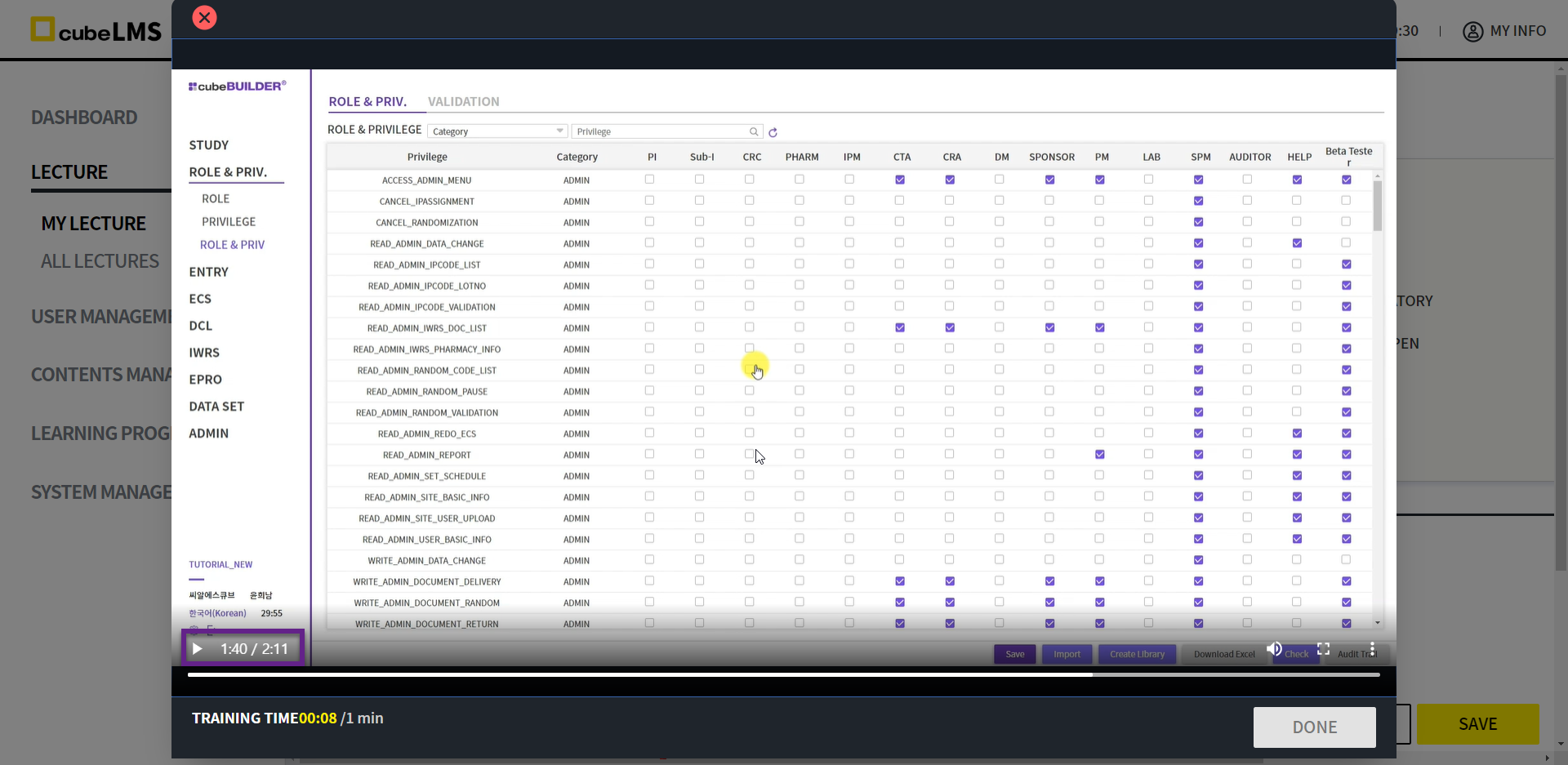
<button onclick="javascript:window.open( 'https://cubelms.crscube.io/#/MyLectureVideo?lecture=' + window.location.href.split('/').pop() + '&video=100' , '_self')">Clicking this will start playback from the specified timestamp.</button>
이렇게 입력된 코드는 위 문장 클릭시, 'http://-cubelms.crscube.io'에 등록된 현재 Lecture의 Video의 100초부터 재생이 시작되는것을 의미합니다.
*참고 : 해당 기능은 Lecture의 Contents Type이 Video일 경우에만 사용이 가능합니다.

3. 텍스트 꾸며주기
1) 서식을 적용할 영역 지정
<span>Text to apply/span>
Span 태그를 활용하여 해당 시작 태그<span>와 끝 태그 </span> 사이의 입력된 Text의 서식을 지정할 수 있습니다.
Plain text without formatting
<u><span style="color:green">Text with formatting applied</span></u>

2) 글자색 변경
<span style="color:Color name">Text to apply</span>
color에 입력될 색상 이름을 영어로 기재하면 적용이 가능합니다.
색상을 지정하기 위해서는 색상의 영어 이름을 기입하거나, 색상코드를 기입하여 지정할 수 있습니다.
대표적인 색상은 blue, red, yellow, pink 등이 있으며, 이외의 다양한 색상코드에 대해서는 다음 URL을 참고하여 주시기를 바랍니다.
https://www.w3schools.com/colors/colors_names.asp
<span style="color:red">Text to be changed to red</span>
<span style="color:blue">Text to be changed to blue</span>

3) 글자 크기 변경
<span style="font-size:size">Text to apply</span>
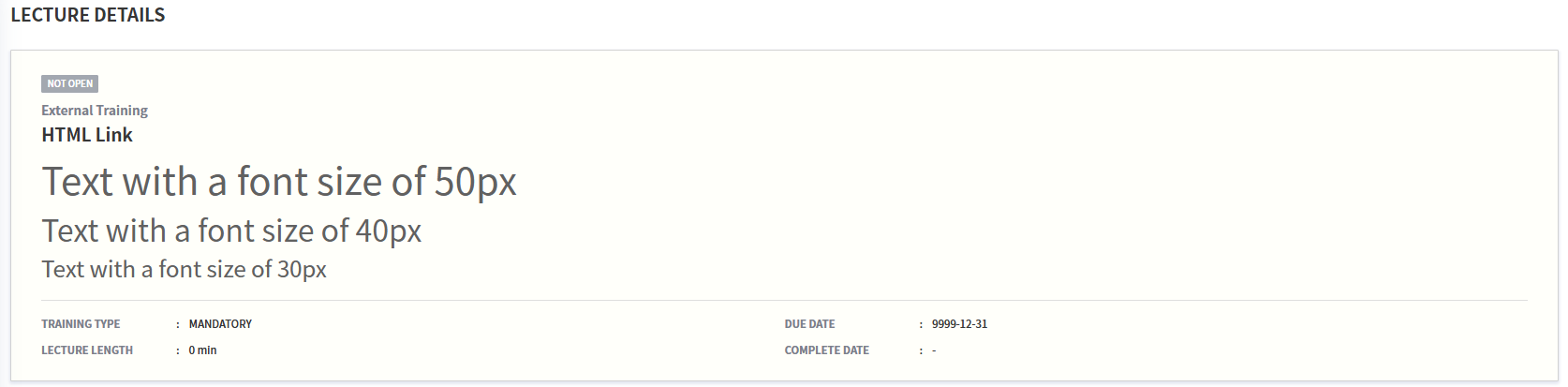
font size 태그에 지정된 폰트 크기를 입력하여 텍스트의 크기를 변경할 수 있습니다.
기본적으로 px을 기입하여 입력된 숫자만큼 텍스트 크기를 조정이 가능합니다.
<span style="font-size:50px">Text with a font size of 50px</span>
<span style="font-size:40px">Text with a font size of 40px</span>
<span style="font-size:30px">Text with a font size of 30px</span>
4) 굵기 적용
<b>Text to apply</b>
굵기를 다르게 적용할 텍스트를 b 태그 사이에 기입합니다.
Text with normal weight
<b>Bold text</b>

5) 밑줄 적용
<u>Text to apply</u>
밑줄을 적용할 텍스트를 u 태그 사이에 기입합니다.
Non-underlined Text
<u>Underlined text</u>

6) 텍스트 기울임 적용
<i>Text to apply</i>
기울여서 적용할 텍스트를 i 태그 사이에 기입합니다.
Non-italic text
<i>Italicized text</i>

4. 태그를 조합해서 사용하는 경우
텍스트에 글자색과 크기를 함께 변경하고자 하는 경우 다음과 같이 ;로 구분하면 함께 적용이 가능합니다.
큰 따옴표 내에서 적용할 서식을 세미 콜론(;)으로 구분하여 입력합니다.
<span style="font-size:40px; color:red">Text in red with a font size of 40px</span>

태그들을 중첩하여 입력하는 경우 여러개의 서식을 함께 지정할 수 있습니다.
시작 태그와 끝 태그만 잘 기입한다면, 순서는 고려하지 않아도 동일하게 적용이 가능합니다.
<u><b><i><span style="color:red">Enter text using multiple tags</span></i></b> </u>
<i><b><u><span style="color:blue">Enter text using multiple tags</span</u></b></i>

5. 활용
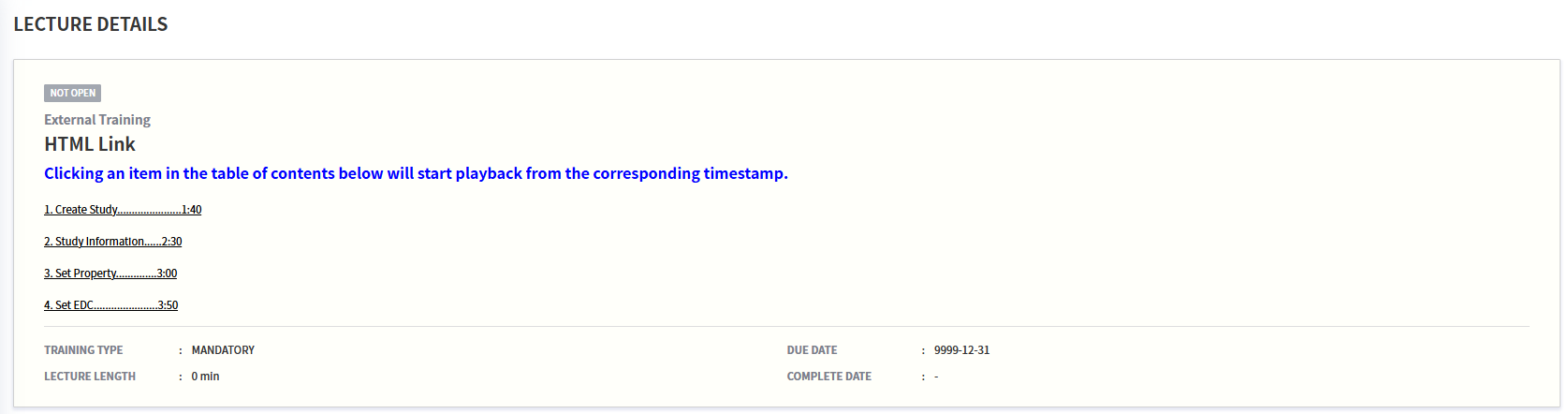
지정된 시점부터 재생하는 코드와 텍스트를 꾸며주는 태그를 적용하여 다음과 같이 활용할 수 있습니다.
<b><span style="color:blue; font-size:20px">Clicking an item in the table of contents below will start playback from the corresponding timestamp.</span></b>

<button onclick="javascript:window.open( 'http://cubelms.crscube.io/#/MyLectureVideo?lecture=' +window.location.href.split('/').pop() + '&video=100' , '_self')"><u>1. Create Study......................1:40</u></button>

<button onclick="javascript:window.open( 'http://cubelms.crscube.io/#/MyLectureVideo?lecture=' +window.location.href.split('/').pop() + '&video=150' , '_self')"><u>2. Study Information......2:30</u></button>

<button onclick="javascript:window.open( 'http://cubelms.crscube.io/#/MyLectureVideo?lecture=' +window.location.href.split('/').pop() + '&video=180' , '_self')"><u>3. Set Property..............3:00</u></button>

<button onclick="javascript:window.open( 'http://cubelms.crscube.io/#/MyLectureVideo?lecture=' +window.location.href.split('/').pop() + '&video=230' , '_self')"><u>4. Set EDC......................3:50</u></button>