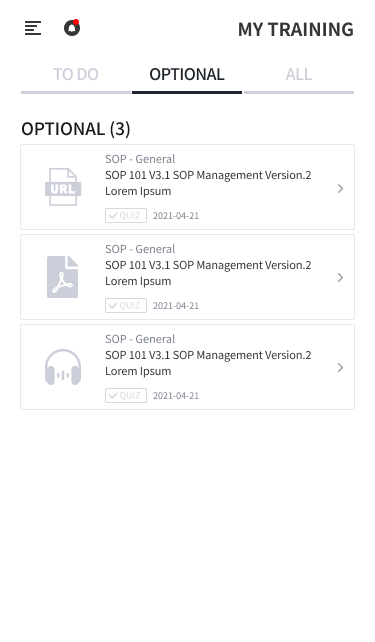
OPTIONAL
This screen lets you view LECTUREs that are optional rather than required.
-
Optional LECTUREs are listed and sorted by DUE DATE in order of earliest due date.
REGISTRATION
-
Click LECTURE to go to the details page and view the lecture details.
-
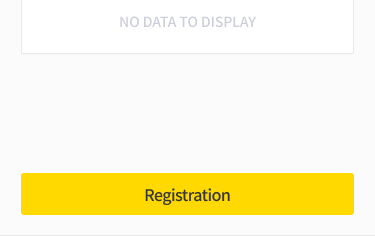
To register the lecture, click the REGISTRATION button at the bottom of the LECTURE DEATILS screen.
3. A popup appears, as shown on the right, stating that this lecture can be found in the TO DO LIST tab.
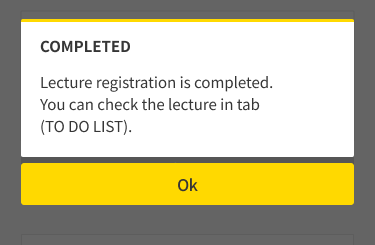
4. Click the OK button in the popup, and the LECTURE moves to the TO DO LIST. USER can take the LECTURE in the TO DO LIST.
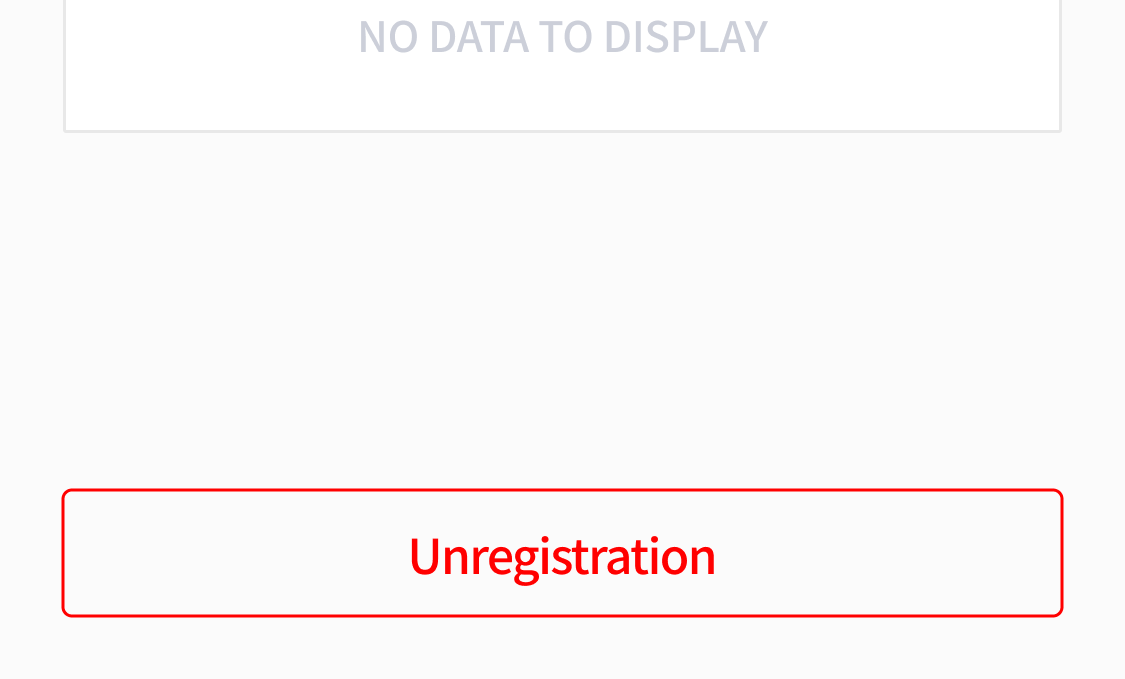
5. After clicking the registered LECTURE in TO DO LIST and entering the LECTURE DEATILS screen, click Unregistration to move back to the OPTIONAL tab.