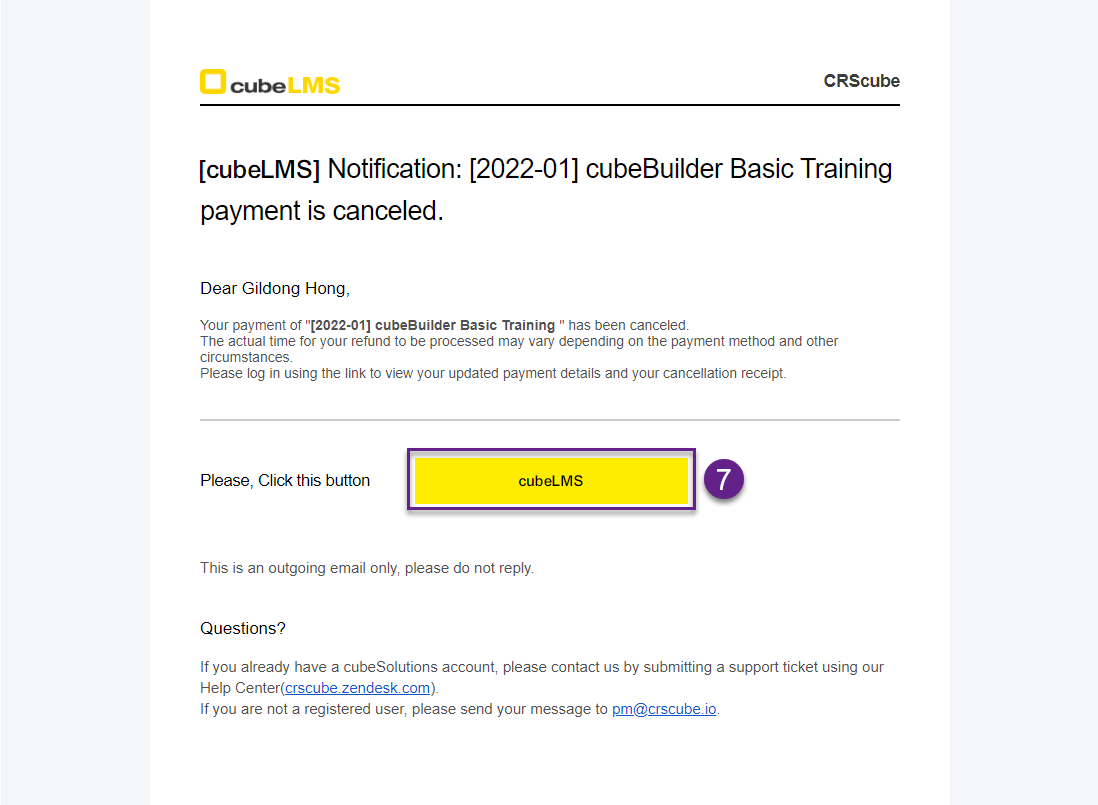
In PAYMENT, you can view purchase history.
PAYMENT LIST
1. This list lets you view purchase history, and the accessible scope varies by role.
-
Trainee:You can view only the purchase history of your own account. -
Contents Manager:You can view the purchase history of all User accounts. -
Admin:You can view the purchase history of all User accounts.
Click each row to go to Payment Details, where you can view the details of the corresponding purchase history.
3. Show Inactive Users: Check this item to view the purchase history of Inactive Users. (Contents Manager, Admin only)
4. Show Deleted Users: Check this item to view the purchase history of Users in Deleted status. (Contents Manager, Admin only)
5. Download button: You can download this list as an Excel file.
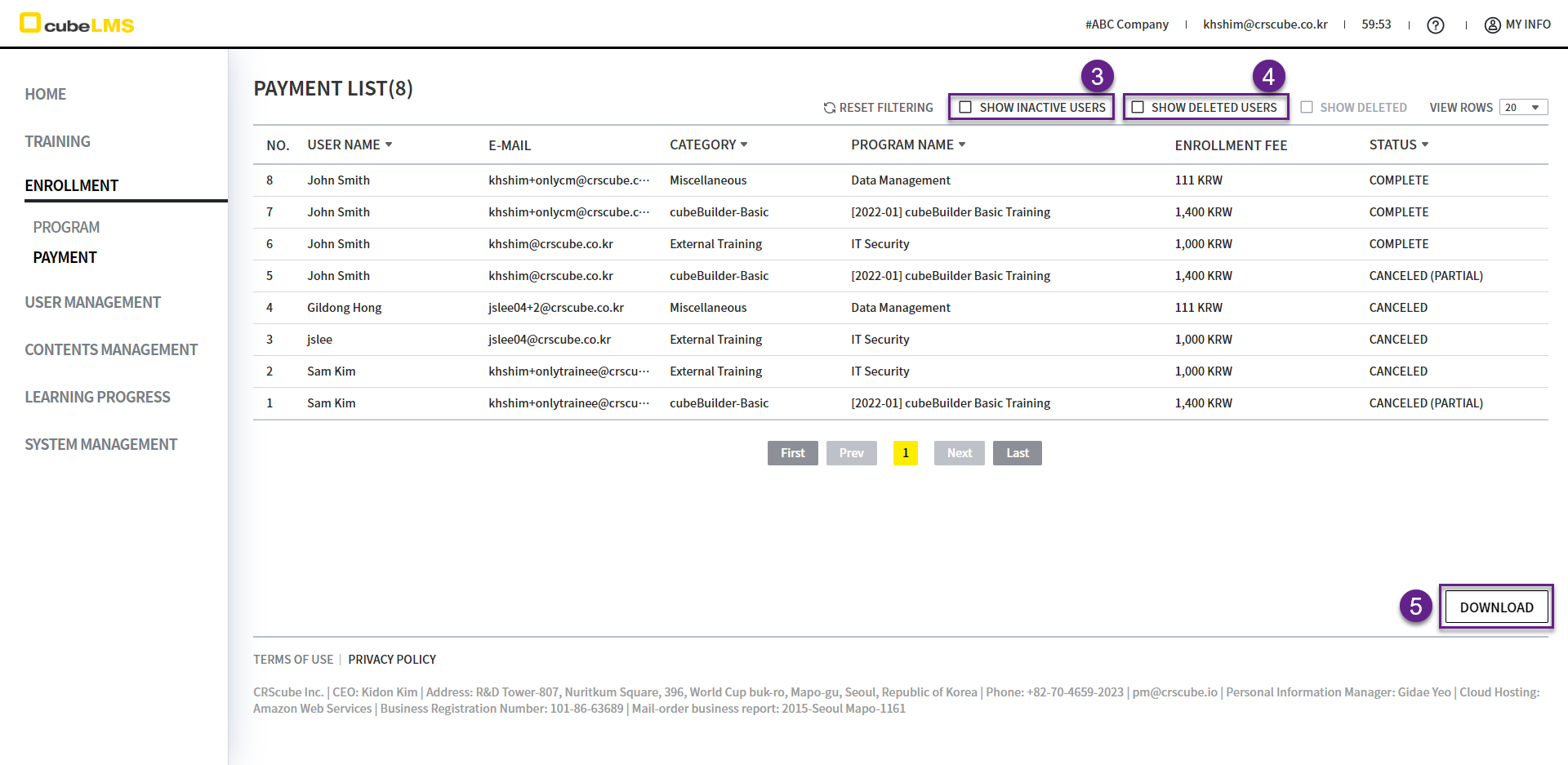
PAYMENT DETAILS
1. This screen lets you view the details of the payment history.
2. You can briefly view the related User and Program information at the top.
3. Payment Cancel button: You can refund the full amount paid.
-
-
This function is available only to users who purchased the Program.
-
This function may not be available depending on the Program's refund policy.
-
Depending on the Program's refund policy, this function may no longer be available after a certain period has elapsed from the purchase date.
-
In general, the refund is processed on the same day the full cancellation is completed, but this may vary depending on the payment method or the card issuer.
-
A Program fully canceled using this function can be repurchased.
4. Payment History: You can view purchase and cancellation history and receipts.
5. Back button: Go back to the previous screen. (Payment List)
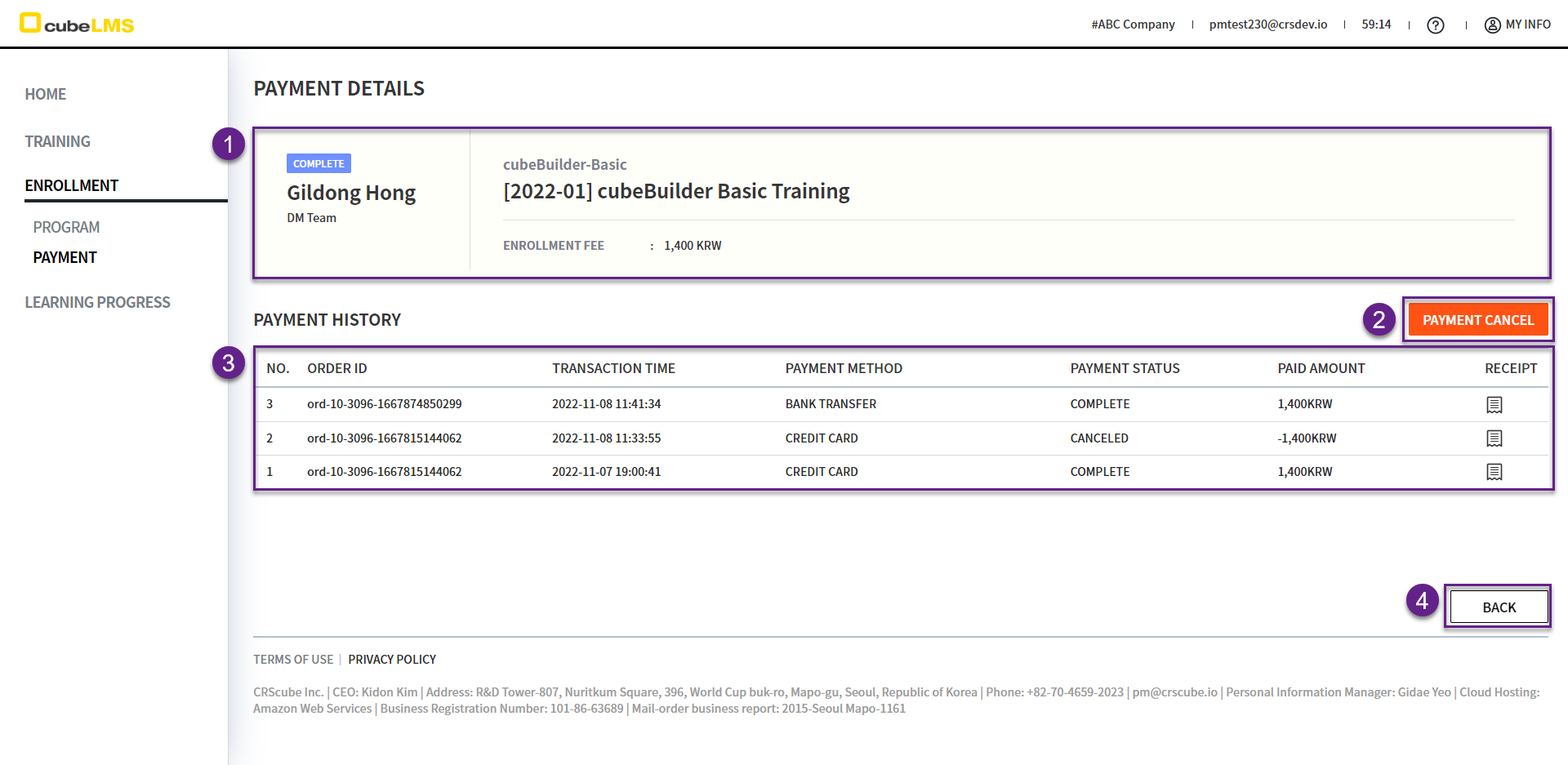
6. Once the full cancellation is completed, you will receive the payment cancellation email on the right.
7. cubeLMS button: Go to the Payment Details screen where you can view the canceled payment history.