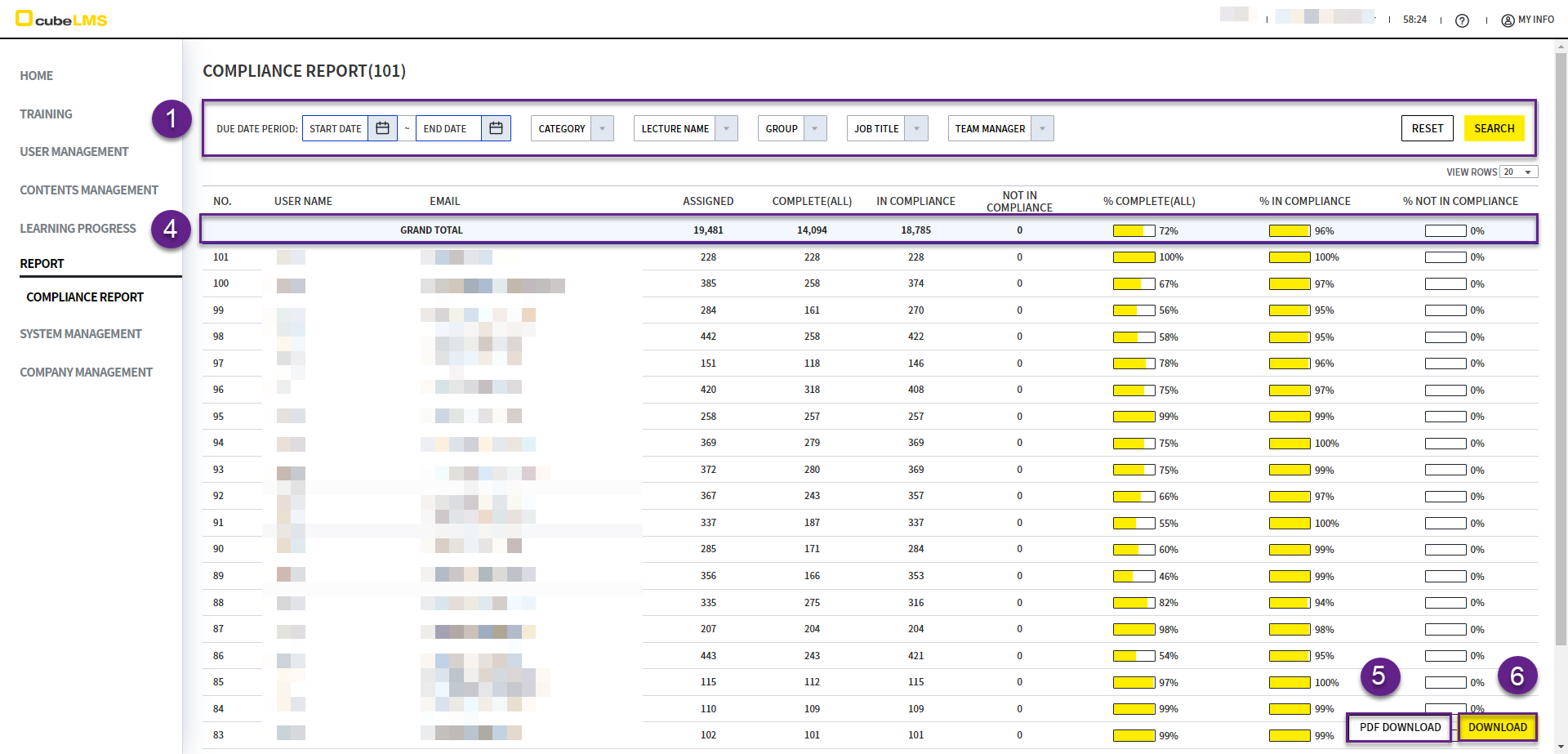
In this menu, you can check the status of whether every registered User is learning in compliance with the Due Date.
COMPLIANCE REPORT
-
Access is available only to Admin, and you can set Filter to view only the Trainee information you want to review.
-
If no Filter is applied, all data is displayed.
-
After you apply Filter, select the Search button on the right to apply the setting.
-
Grand Total:The total and percentage for all columns are displayed. -
PDF Downloadbutton: Click to download the list as PDF. If you set a Filter, only the items matching the Filter are downloaded. -
Downloadbutton: Click to download the list as Excel. If you set a Filter, only the results matching the Filter are downloaded. -
The aggregation includes only Lectures and Users that meet the following conditions.
-
User Status: Active -
Lecture Status: Active, Expired
-
-
Column details are as follows.
|
|
|
|---|---|
|
|
Total number of assigned Lecture |
|
|
Number of Assigned Lecture with the following User statuses
|
|
|
Number of Assigned Lecture with the following User statuses
|
|
|
Number of Assigned Lecture with the following User statuses
|
|
|
The result of the calculation below is displayed as an integer
|
|
|
The result of the calculation below is displayed as an integer
|
|
|
The result of the calculation below is displayed as an integer
|
EXCEL
-
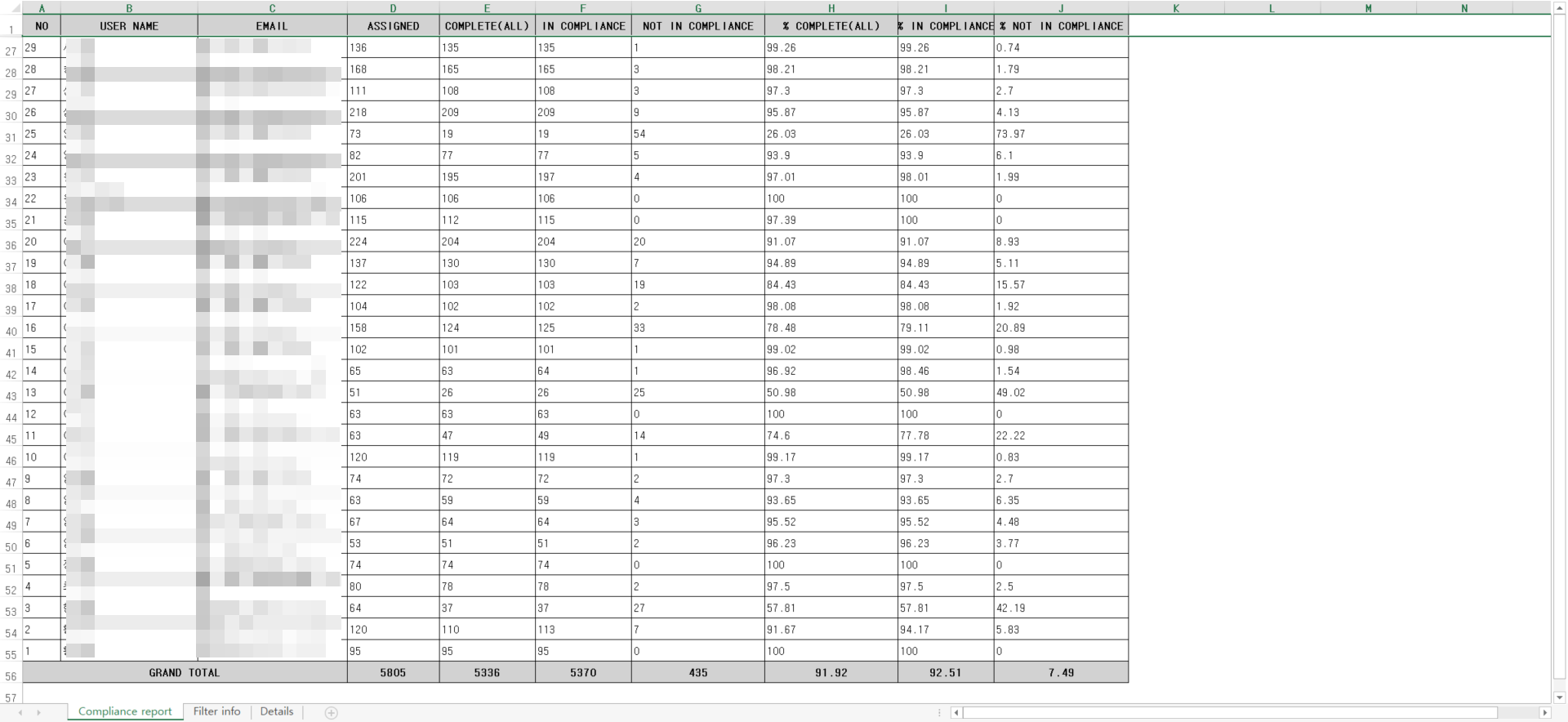
Compliance report Sheet:The same list as on the screen is displayed.
-
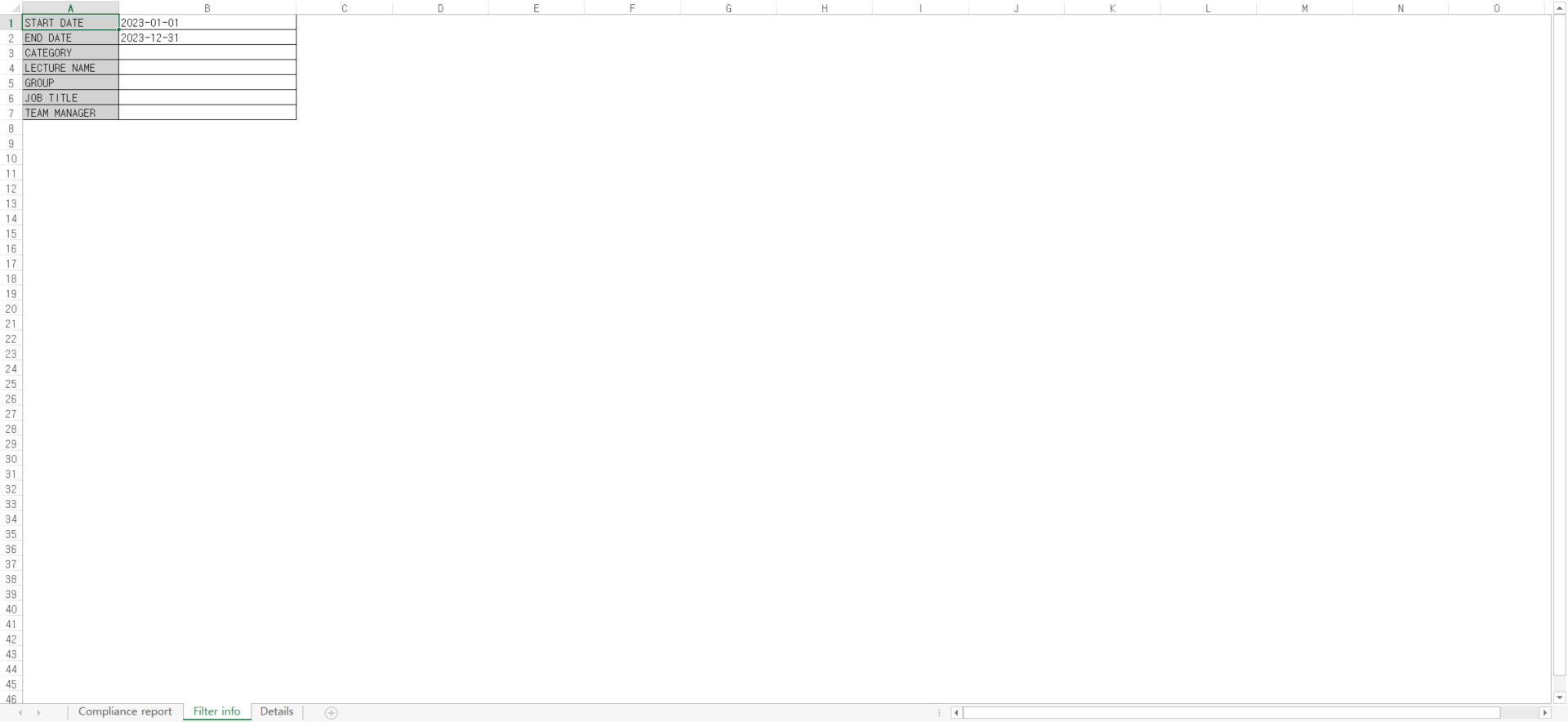
Filter info Sheet:If there are filtered values at the time of Download, the corresponding information is displayed.
-
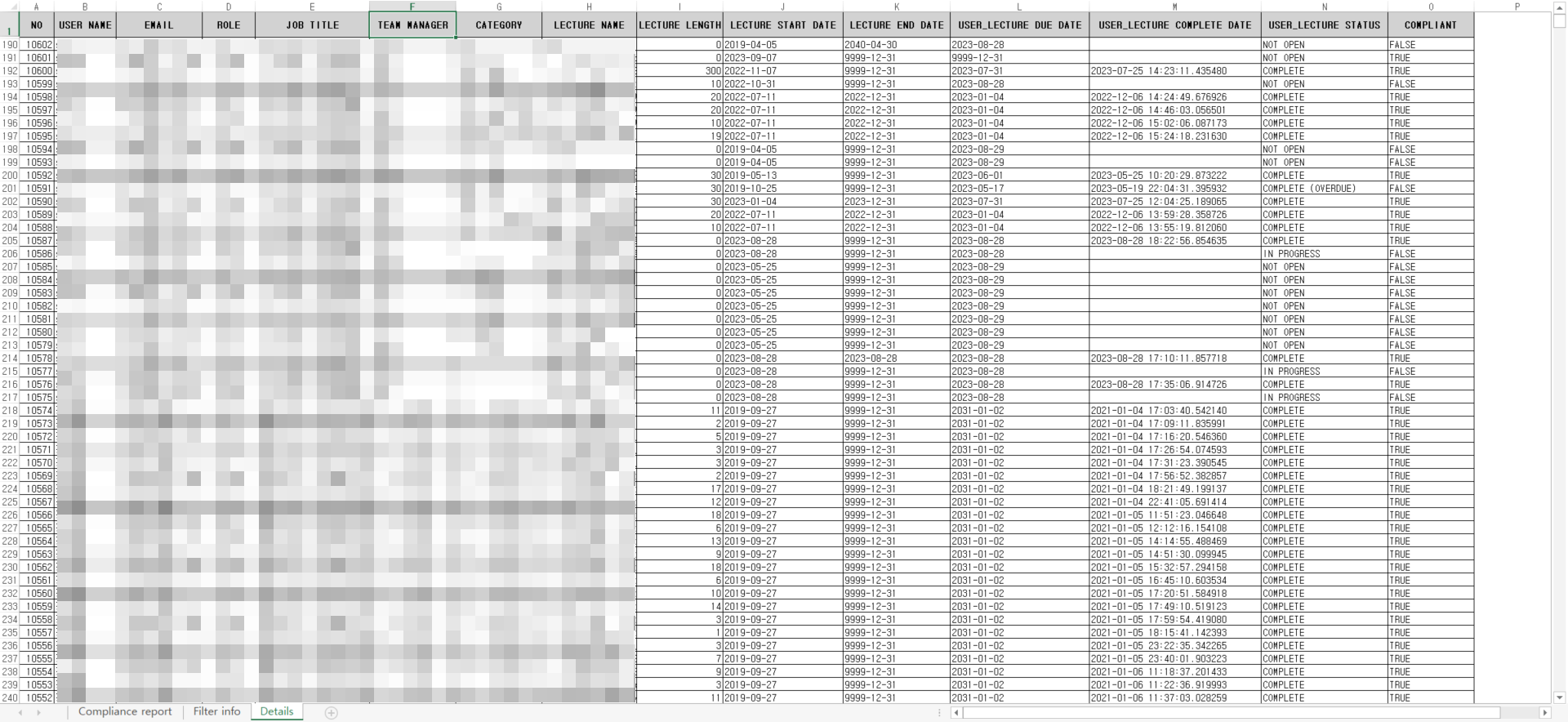
Detail Sheet:Information about Lectures assigned to Users in Active status is displayed.
|
|
|
|---|---|
|
|
The User's name is displayed. |
|
|
The User's Email is displayed. |
|
|
The User's Role is displayed. |
|
|
The User's Job Title is displayed. |
|
|
The Team Manager of the group the User belongs to is displayed. |
|
|
The category of the Lecture is displayed. |
|
|
The Lecture Name is displayed. |
|
|
The Lecture Length is displayed. |
|
|
The Lecture Start Date is displayed. |
|
|
The Lecture End Date is displayed. |
|
|
The User Due Date for the Lecture is displayed. |
|
|
The date on which the User completed the Lecture is displayed. |
|
|
The User's status for the Lecture is displayed. |
|
|
You can check whether the User completed the Lecture within the due date.
|
PDF
-
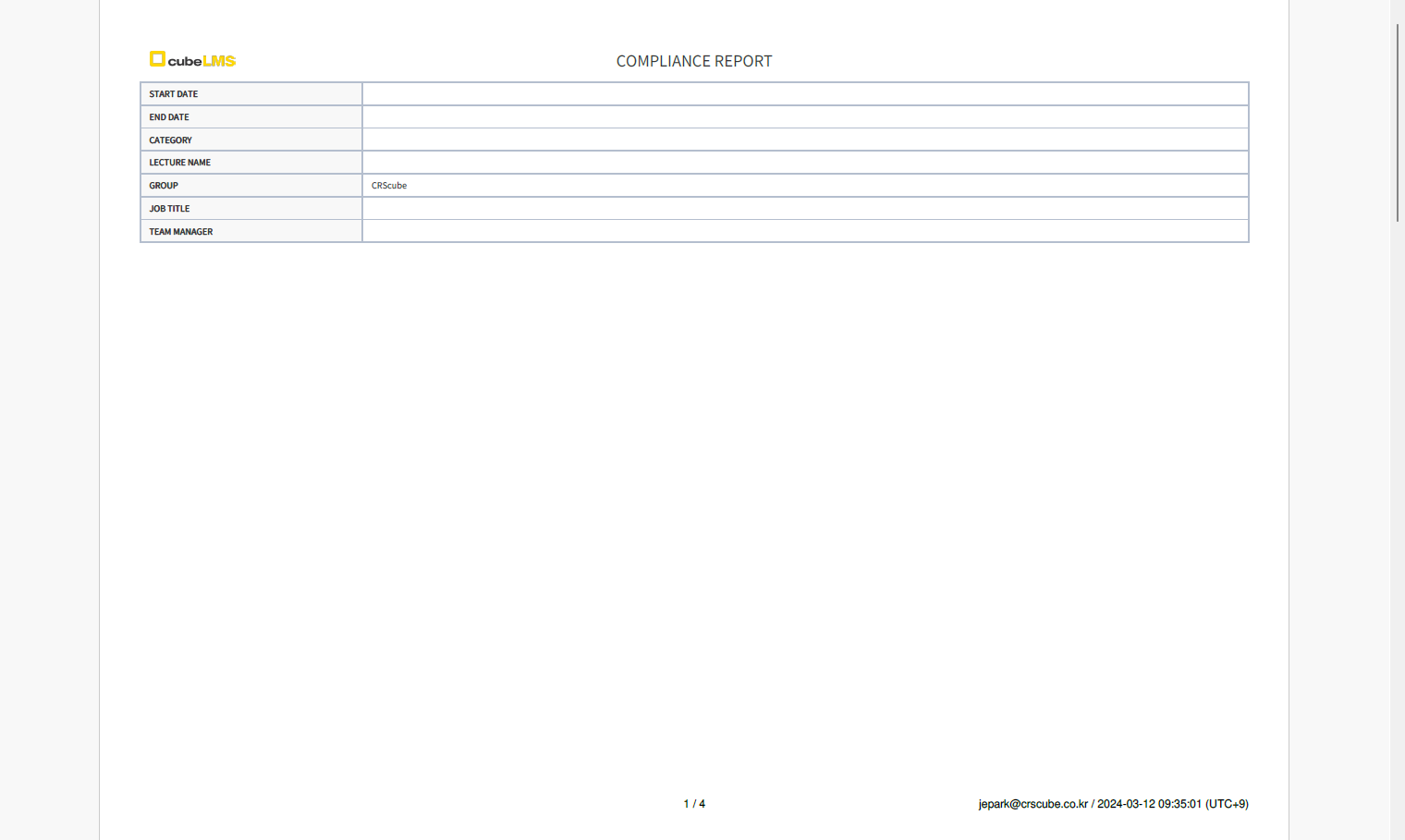
First page: If there are any filtered values at the time of Download, that information is displayed.
-
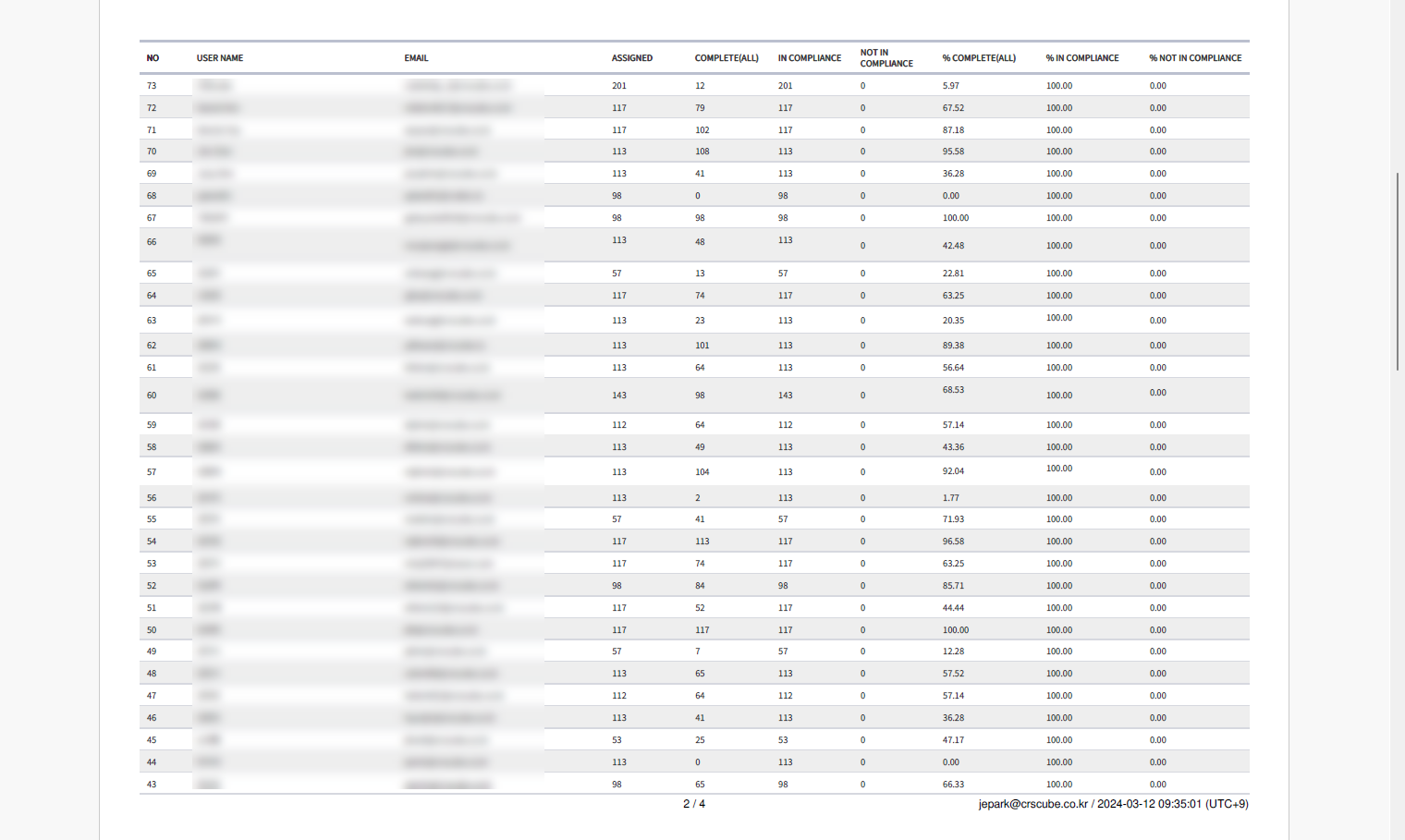
At the bottom right of the exported PDF, 1) the User's Email and 2) information about the creation date and time are displayed.
-
From the second page onward, the same list as on the screen is displayed.