

-
The following new, improved, and changed items will be reflected in the system through the scheduled cubeLMS migration.
-
April 27 (Wed) 11:00 (KST)from the system migration will proceed, and the changes can be checked starting the next day April 27 (Wed) 13:00 (KST)from.
-
Please avoid accessing the system if possible, as system functionality may be limited during the migration.
NEW FEATURES
Release Date:
[LMS] Backup Email feature added to view User training history and Certificate
The Backup Email feature has been added so User can back up all completed Lecture and Course records, as well as the Certificate included in a Course.
For detailed setup instructions, please refer to eManual - 02. Backup Email Initial Setup Method item.
The backup steps are as follows.
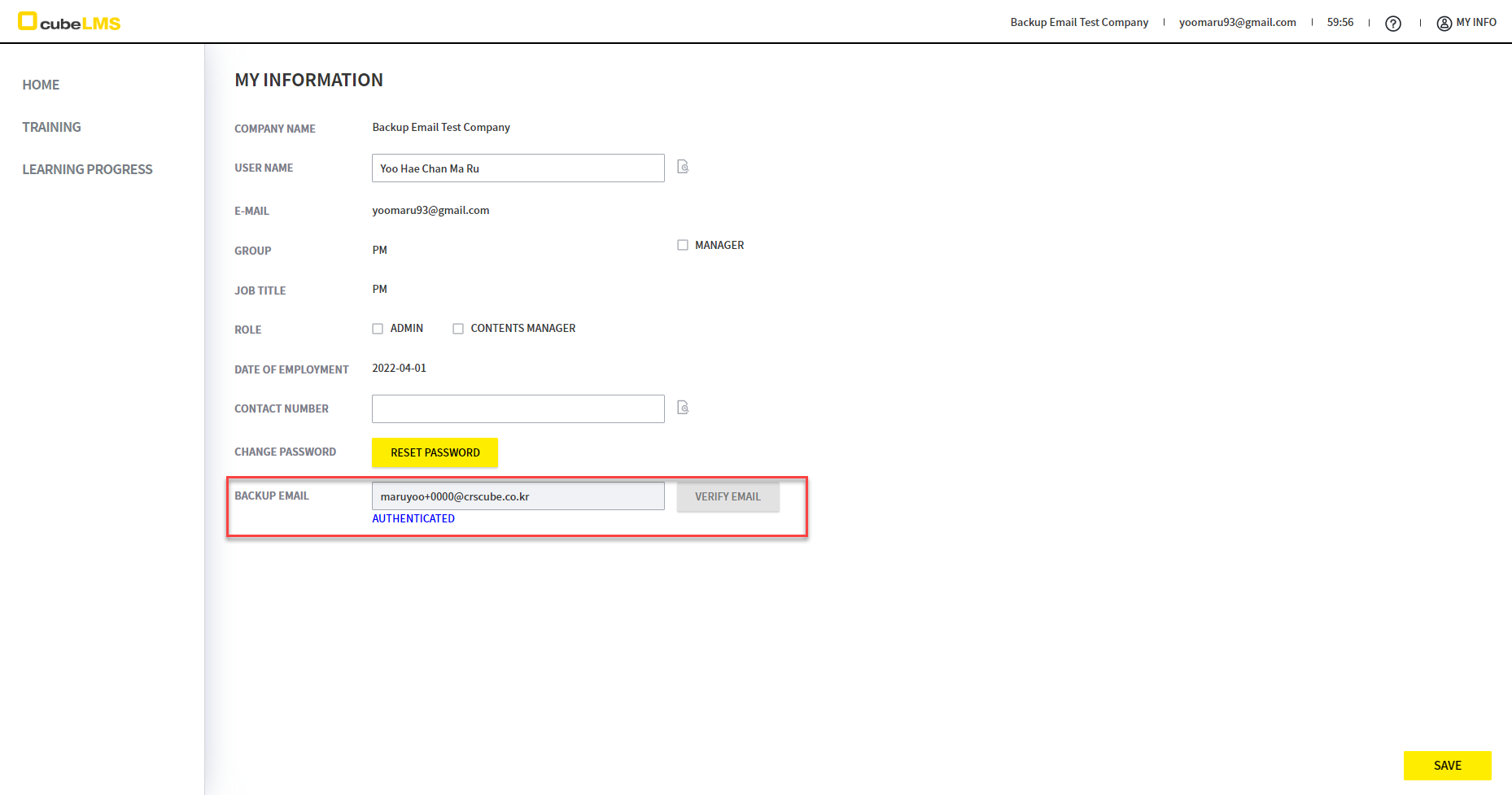
1. After logging in with the account you want to back up, open MY INFORMATION from the <MY INFO> menu at the top right.

2. In the 'BACKUP EMAIL' field in MY INFORMATION, enter the account you want to use as the backup account.
Backup Email Precautions
-
Backup Email can only be set at the following COMPANY levels :
-
CRScube Training
-
CRScube Training CHN
-
CRScube Training JPN
-
CRScube Training ENG
-
-
Only accounts in Email format can be used.
-
If the Email you want to enter is already registered as a User in cubeLMS, it cannot be used as a Backup Email.
-
Once Backup Email has been set, it cannot be changed.
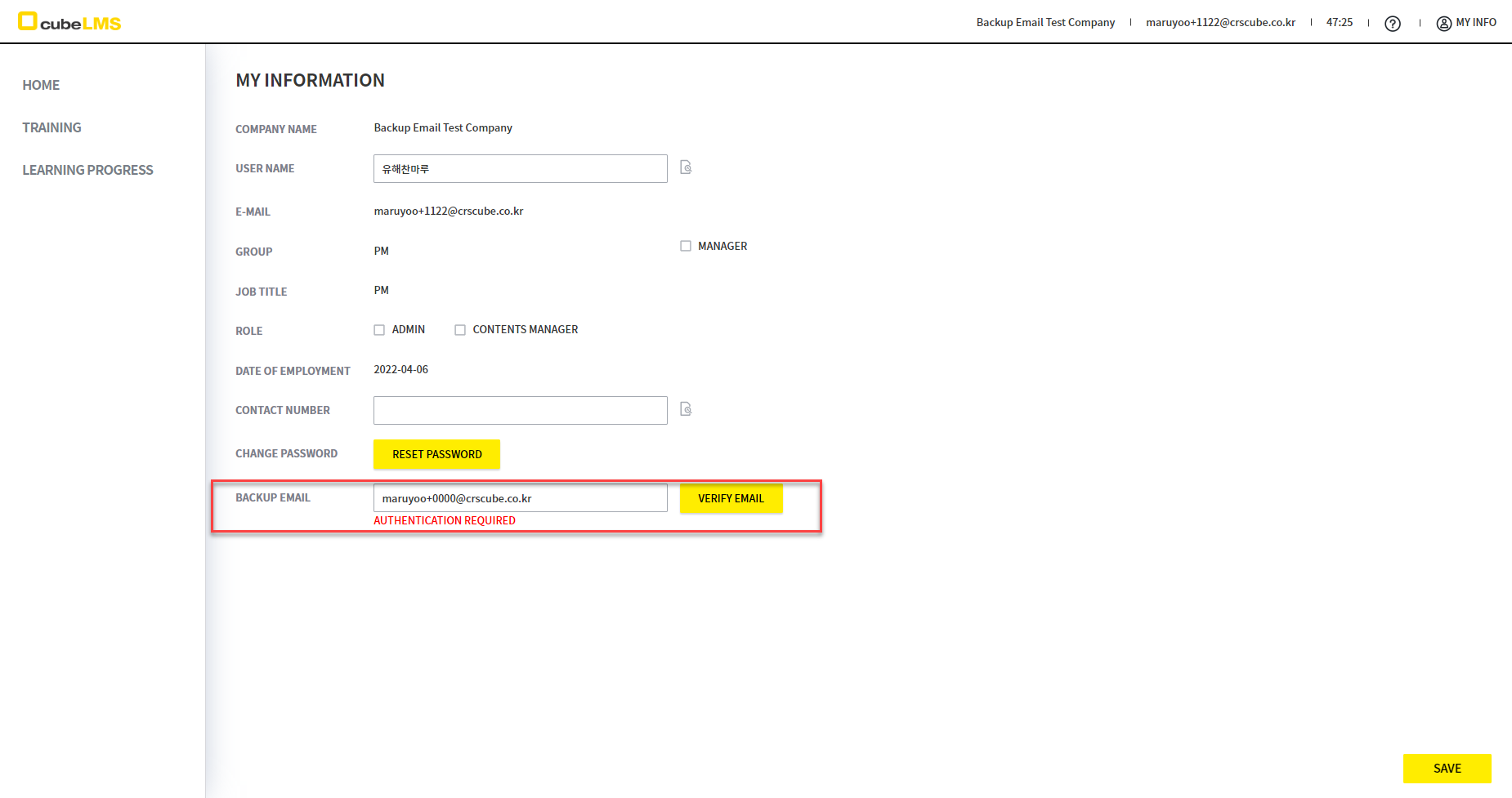
3. After entering the Email account, click the 'VERIFY EMAIL' button to send a verification email to that account.
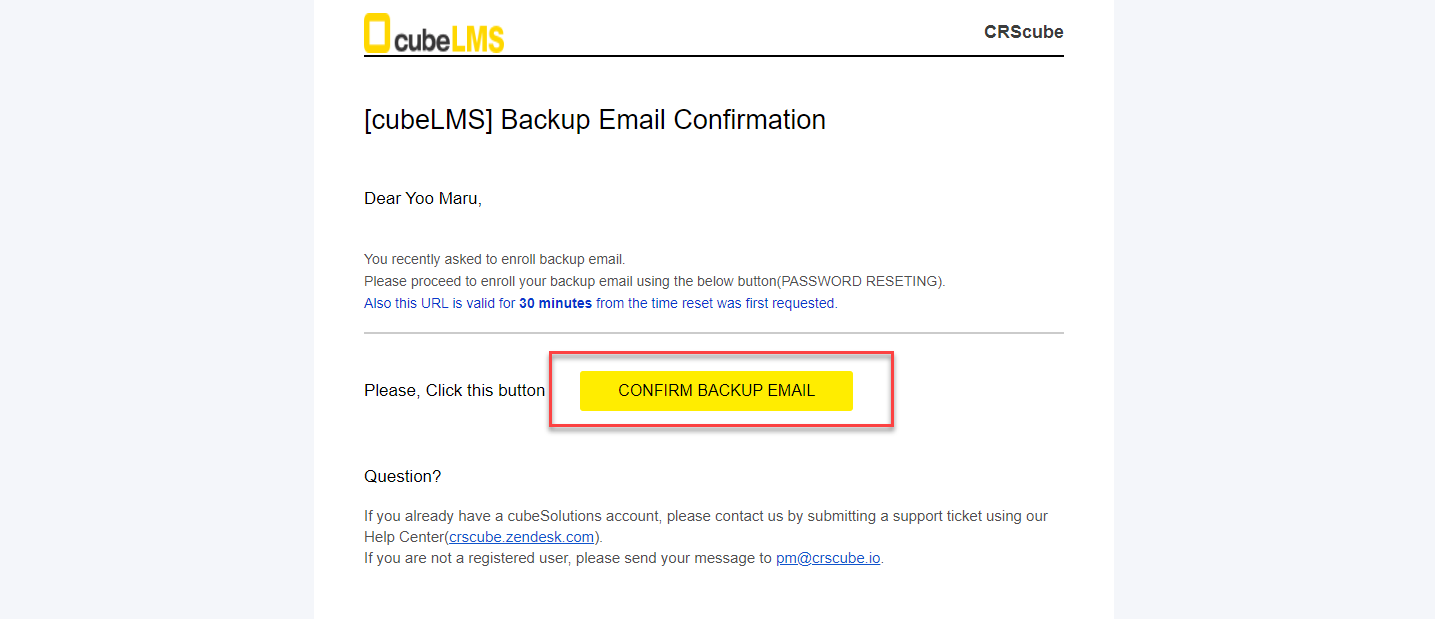
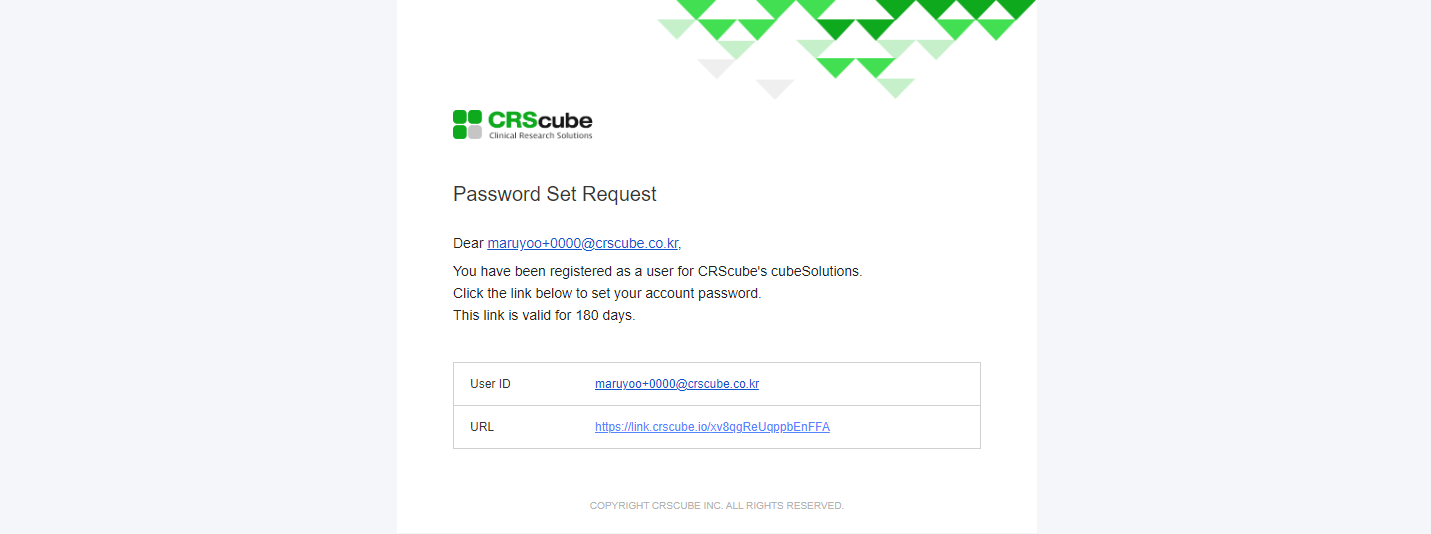
4. In the Backup Email Confirmation email, click the 'CONFIRM BACKUP EMAIL' button to send a Password Set Request email to that account.
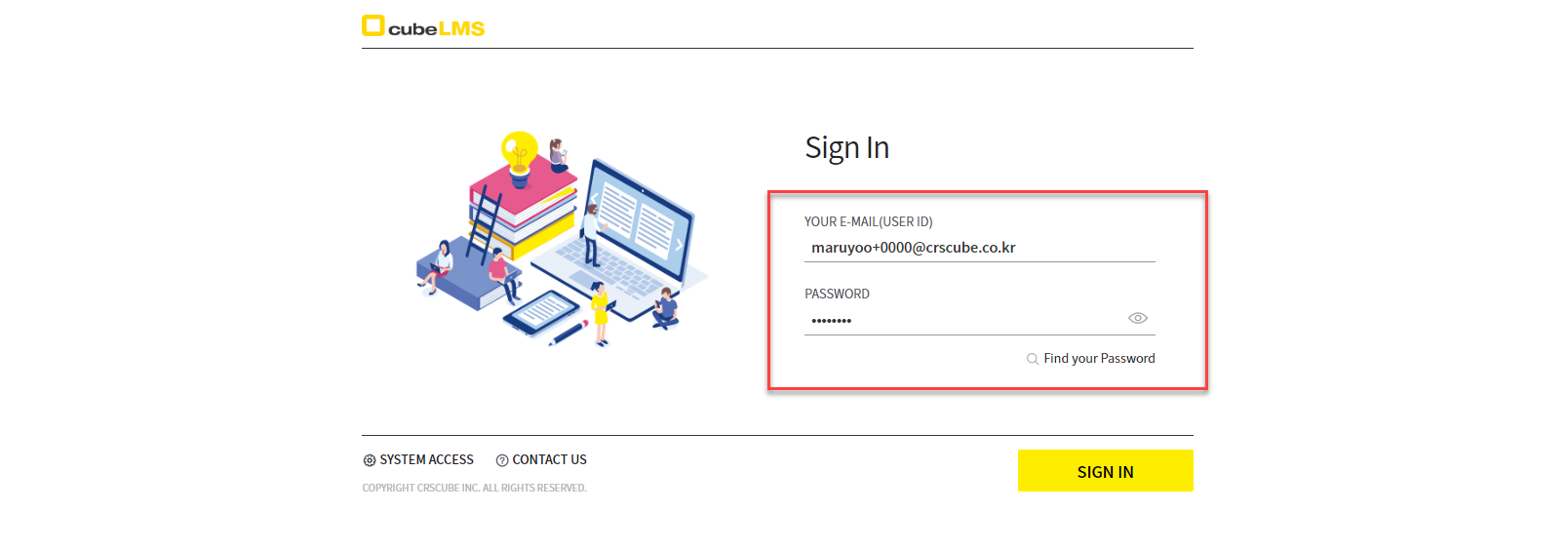
5. Once the Backup Email account password has been set, go to the cubeLMS login screen, enter the Backup Email, and proceed to log in.
6. In the TRAINING HISTORY menu, you can view all completed Lecture and Course records and download the list and the Certificate.
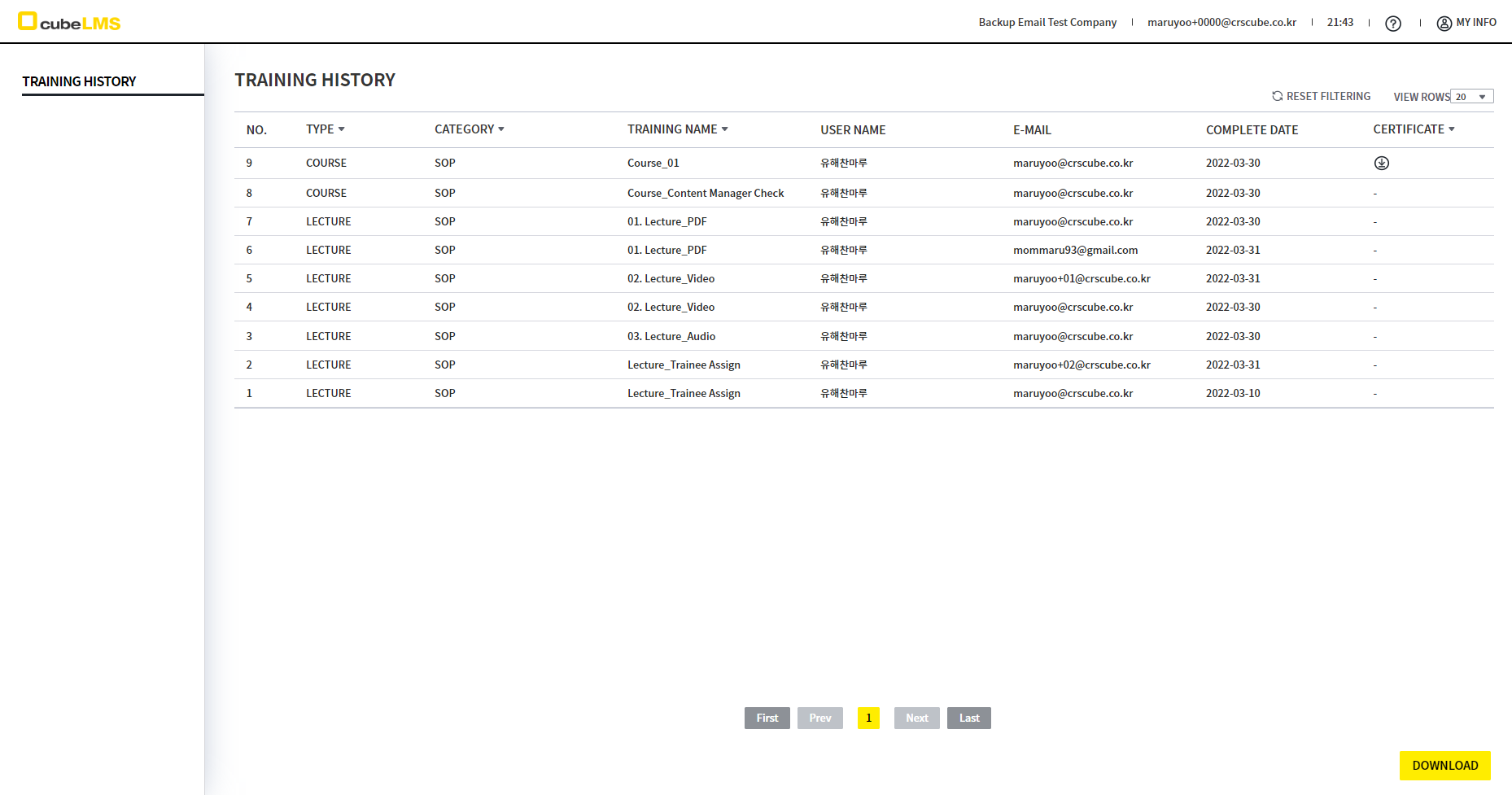
[LMS] Synchronize Training History Using Backup Email
If the Lecture or Course assigned to User matches the completed Lecture or Course recorded in Backup Email, you can synchronize it and complete the assigned Lecture or Course immediately.
For more details, eManual - /wiki/spaces/EMLMS/pages/3337978751 please refer to the item.
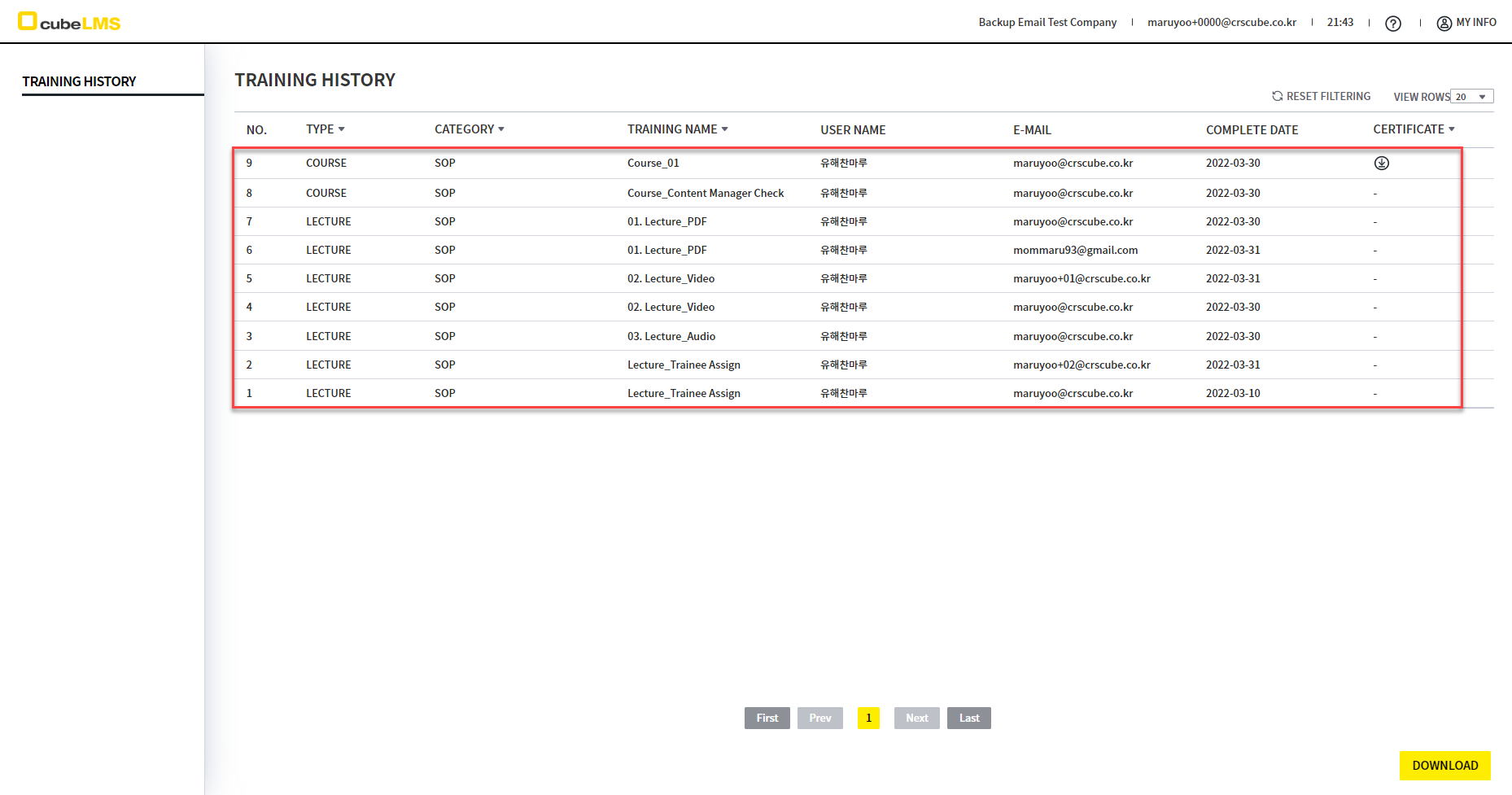
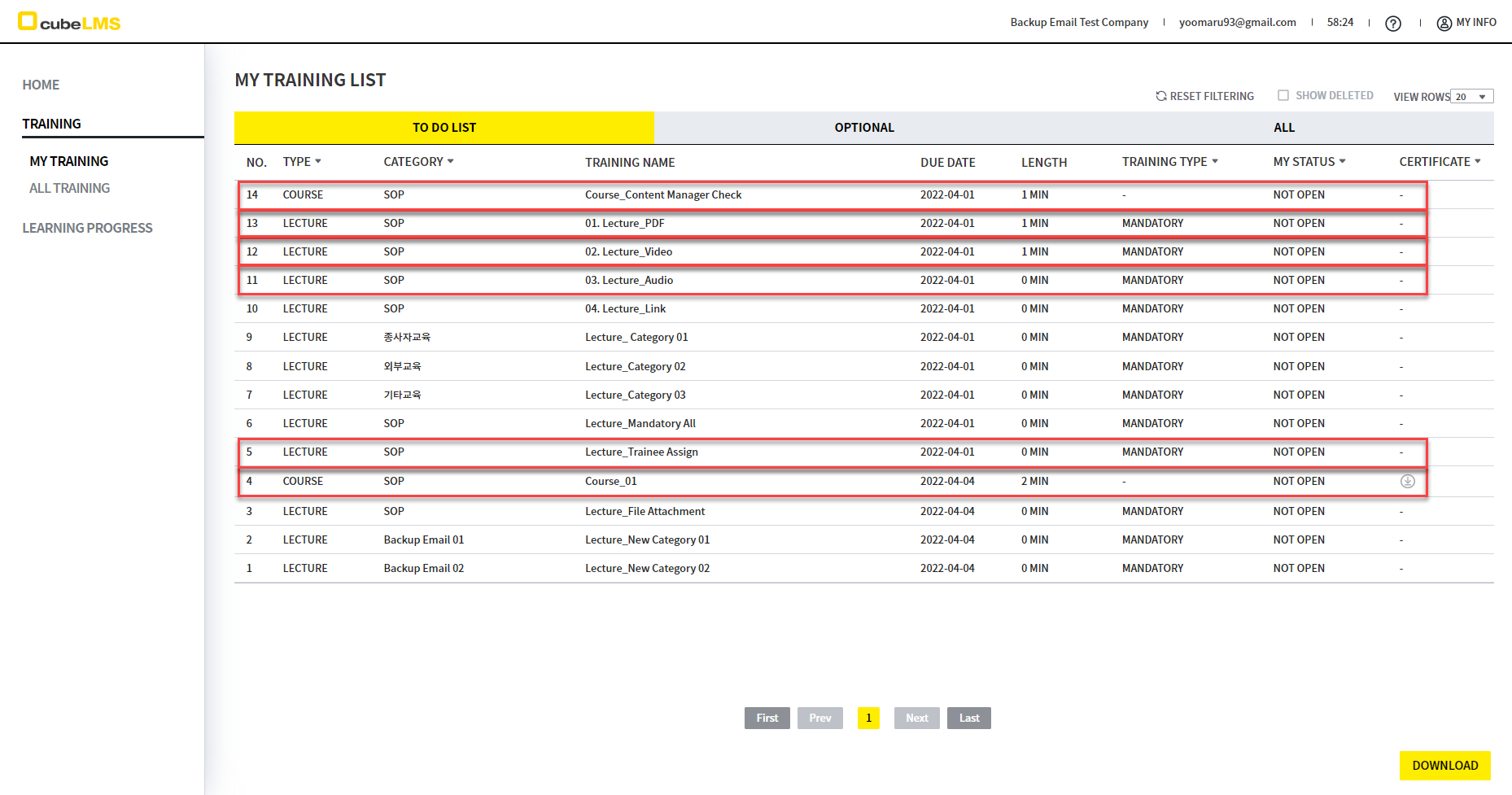
1. Before proceeding with synchronization, first check whether there is any Lecture or Course that matches between the completed Lecture or Course recorded in Backup Email and the Lecture or Course assigned to the User.
▼ Backup Email Training History screen
▼ User-assigned Training - To Do List screen
2. Set Backup Email in MY INFORMATION in the same way as the backup procedure.
Setup notes
-
Because Backup Email cannot be changed, be sure to enter the Backup Email account used as the backup for the previous account in the MY INFORMATION>BACKUP EMAIL field.
-
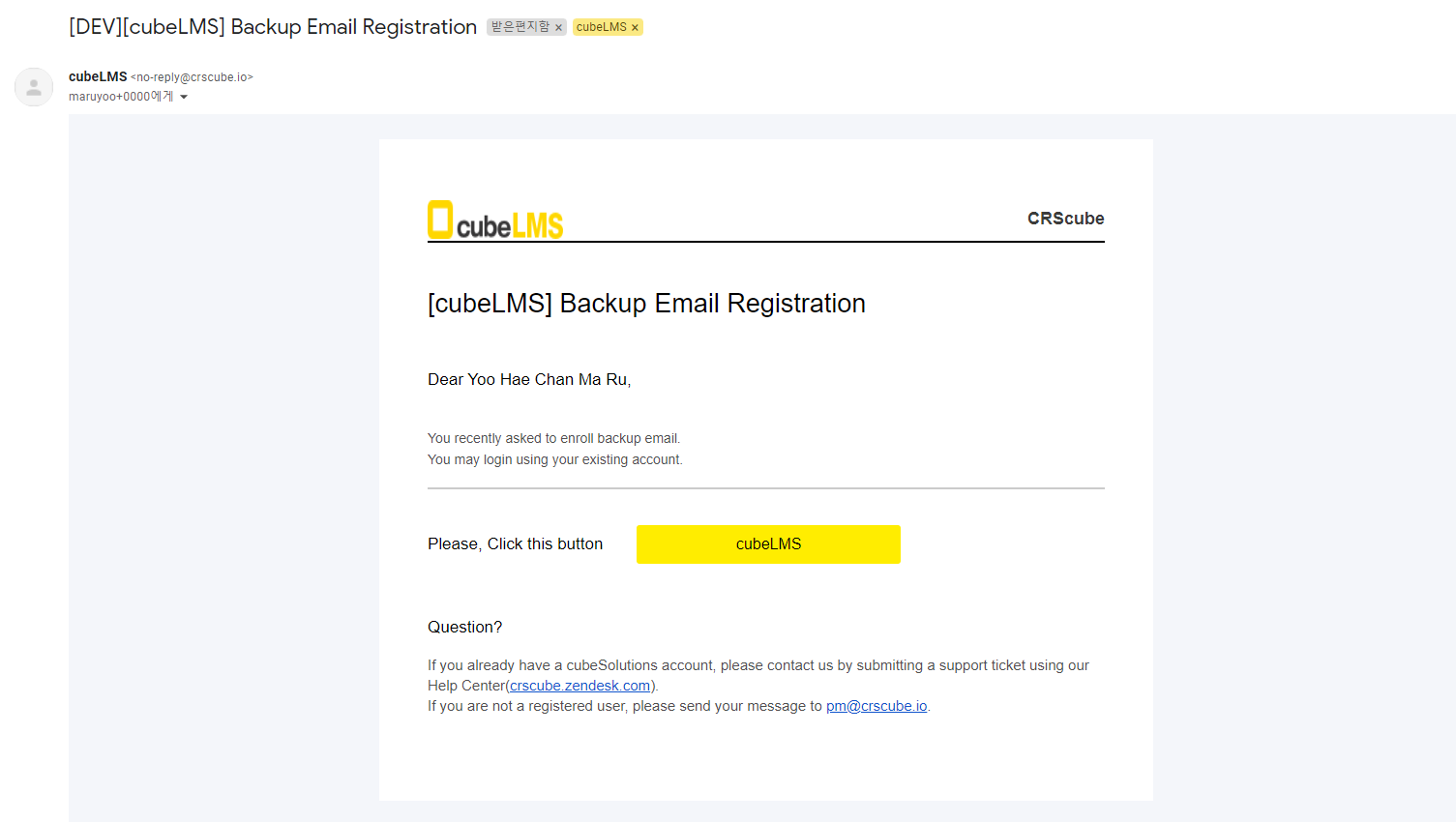
After entering it, if you click the 'VERIFY EMAIL' button, the existing Backup Email Confirmation mail is not sent, and you will receive the Backup Email Registration mail instead.
3. After completing the Backup Email registration, when you enter the All tab in the Training menu, you can see that the same Lecture and Course have been completed.
.png?cb=2f7e09fb261e3a6967009d7ab2bc88bc)
IMPROVEMENTS
Release Date:
Bug Fixes
-
[LMS] Fixed the issue where the NO. column was cut off in the LEARNING PROGRESS>USER menu.
Release Date:
Bug fixes
-
[LMS] Fixed an issue where clicking Today in the Datepicker used for setting dates in LMS selected a different date.
-
[LMS] Fixed the slow loading speed of the LEARNING PROGRESS>USER menu.
-
[LMSm] Fixed an issue where text was cut off on the screen when the Catrgoy length of a Course or Lecture was long.
-
[LMSm] Fixed a bug where Complete Date could still be edited even after a Lecture was completed when the User manually selected Complete.
-
[LMSm] Fixed an issue where a PDF was not displayed on the screen when the Lecture's Contents Type was PDF and the PDF had only one page.
-
[LMSm] Fixed a bug where File could not be downloaded on Android.
Release Date:
Bug fixes
-
[LMSm] Fixed an issue where, when the password had expired after 90 days and the pop-up window was displayed, it could not navigate to the password change webview.
-
[LMSm] Fixed an issue where the UNREGISTRATION button was not displayed in the TO DO LIST after registering an Optional Lecture.
-
[LMSm] Fixed an issue where Completion Status was not displayed in a Lecture even though Contents Time had been met.