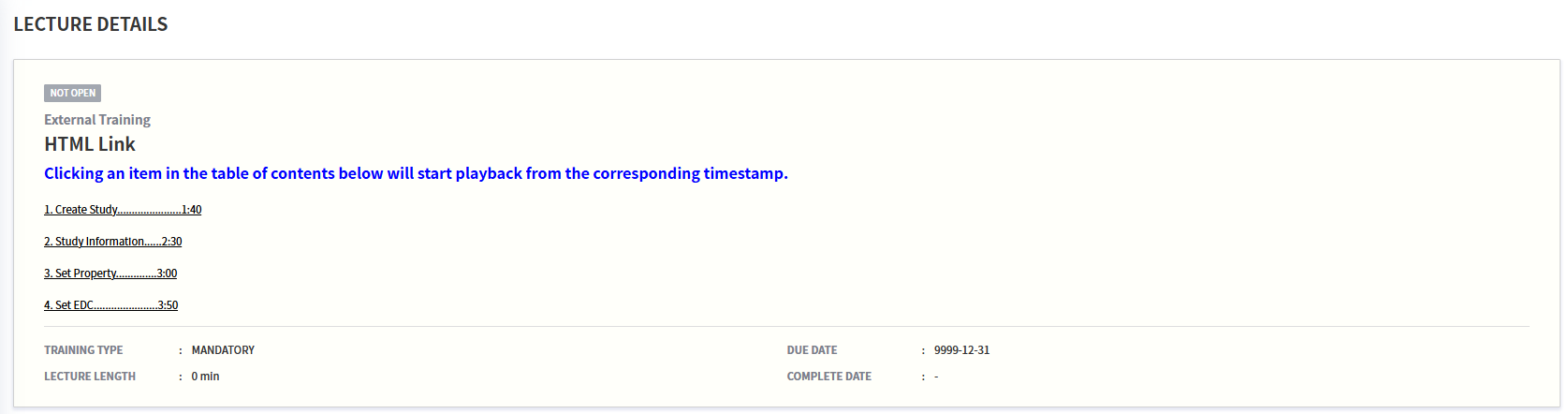
DescriptionにHtmlのタグを記入して、目次を作成できます。
既存の Lecture Details では Description はプレーンテキストとして認識されていましたが、Html タグを認識できるように反映されました。
1. Hyper Linkの適用
<a href="URL">Text</a>
テキストをクリックすると、入力されたURLアドレスへ移動するaタグです。
<a href="http://cubelms.crscube.io">Clicking this link will direct you to the LMS login page.</a>
Descriptionに入力された 'LMS ログイン画面に移動します。' にマウスオーバーすると、カーソルがポインターに変わります。
これはハイパーリンクが適用されており、クリックすると指定された URL アドレスの LMS ログイン画面(http://cubelms.crscube.io)へ移動します。
*注記 : この機能はContents TypeがVideoの場合にのみ使用できます。

2. Videoの指定された時点へ移動
<button onclick="javascript:window.open( 'URL/#/MyLectureVideo?lecture=' + window.location.href.split('/').pop() + '&video=Playback start time (seconds)' , '_self')">Text</button>
-
URL:io, kr, co.krまでのURLを入力してください。 -
LMSのサーバ別ドメインURLアドレスは次のとおりです。
-
SVC:https://cubelms.crscube.io -
EDU:https://edu-cubelms.crscube.io
-
-
Playback start time (seconds): 再生が開始される時点を示します。秒単位で入力し、たとえば 3:14 に移動する場合は 194 と入力します。 -
Text:Descriptionに表示される文字です。該当テキストをクリックすると Video ポップアップが開き、再生されます。
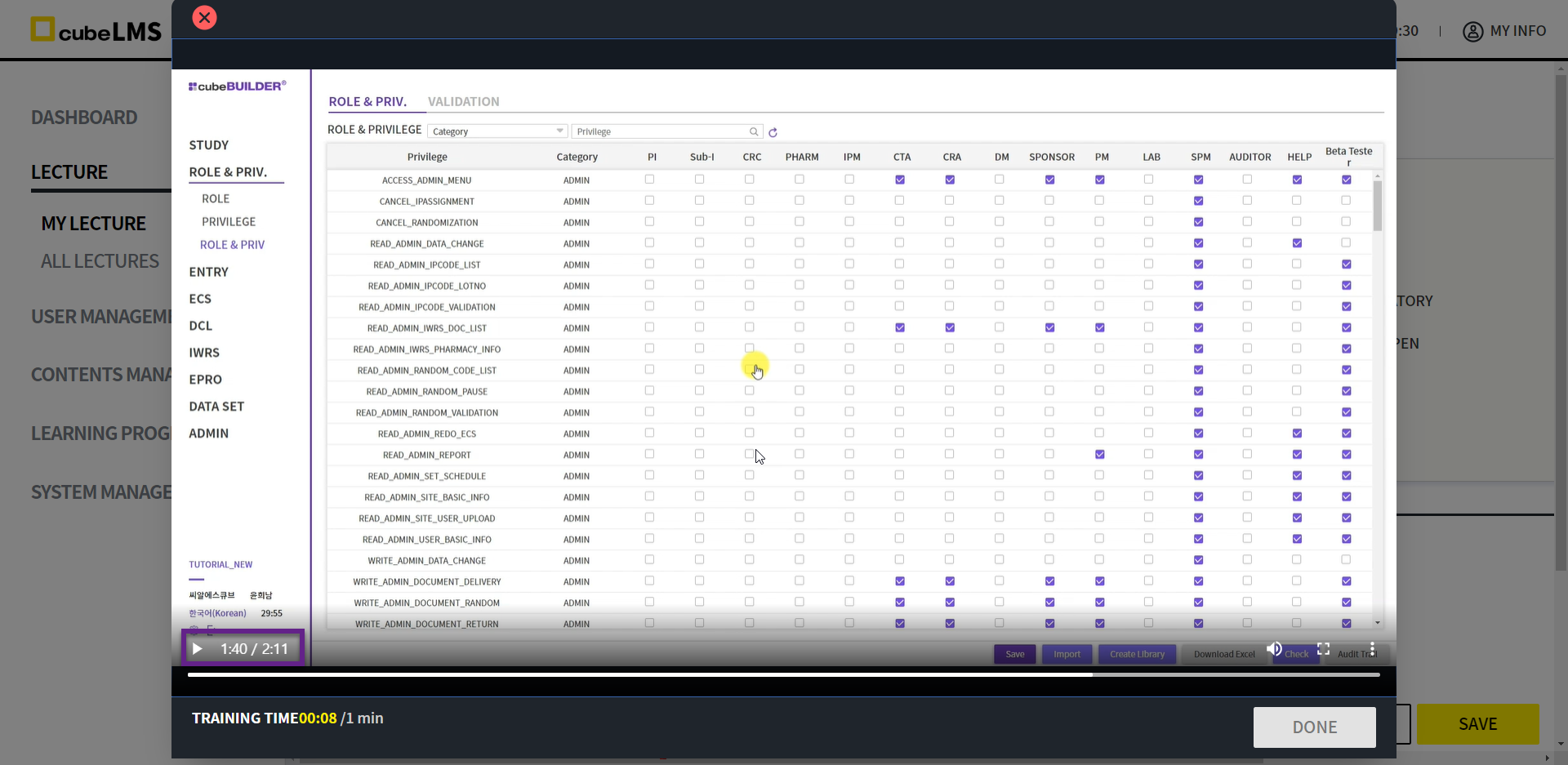
<button onclick="javascript:window.open( 'https://cubelms.crscube.io/#/MyLectureVideo?lecture=' + window.location.href.split('/').pop() + '&video=100' , '_self')">Clicking this will start playback from the specified timestamp.</button>
このように入力されたコードは、上記の文をクリックすると、'http://-cubelms.crscube.io'に登録された現在の Lecture の Video の 100秒から再生が開始されることを意味します。
*ご参考 : この機能はLectureのContents TypeがVideoの場合にのみ使用可能です。

3. テキストの装飾
1) 書式を適用する範囲を指定します
<span>Text to apply/span>
Spanタグを活用して、該当する開始タグ<span>と終了タグ </span>の間に入力されたTextの書式を指定できます。
Plain text without formatting
<u><span style="color:green">Text with formatting applied</span></u>

2) 文字色の変更
<span style="color:Color name">Text to apply</span>
colorに入力する色名を英語で記載すると適用できます。
色を指定するには、色の英語名を入力するか、カラーコードを入力して指定できます。
代表的な色は blue, red, yellow, pink などがあり、それ以外のさまざまな色コードについては、次の URL をご参照ください。
https://www.w3schools.com/colors/colors_names.asp
<span style="color:red">Text to be changed to red</span>
<span style="color:blue">Text to be changed to blue</span>

3) 文字サイズの変更
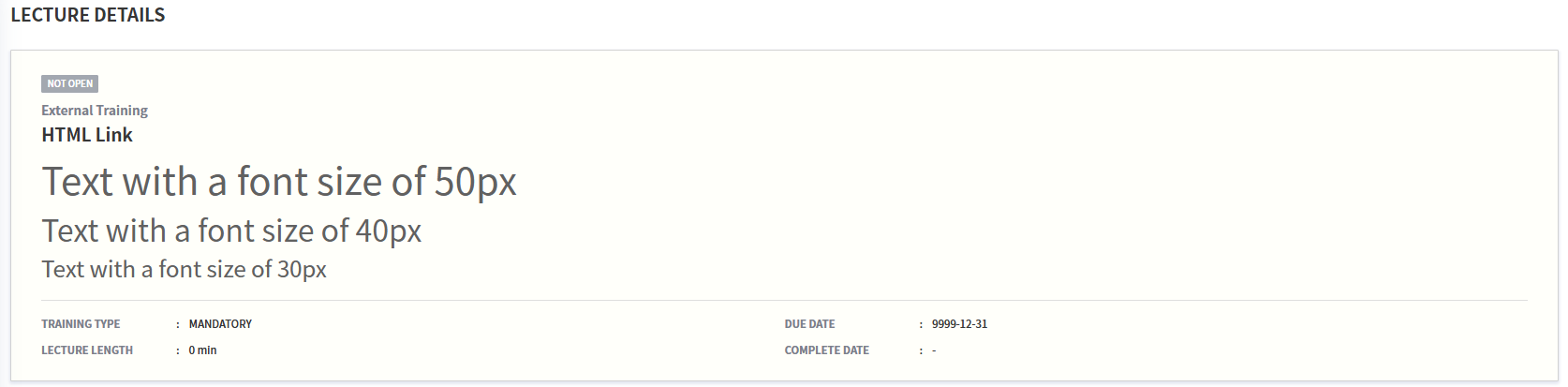
<span style="font-size:size">Text to apply</span>
font size タグに指定された font size を入力して、テキストのサイズを変更できます。
基本的にpxを入力して、入力した数値分だけテキストサイズを調整できます。
<span style="font-size:50px">Text with a font size of 50px</span>
<span style="font-size:40px">Text with a font size of 40px</span>
<span style="font-size:30px">Text with a font size of 30px</span>
4) 太字の適用
<b>Text to apply</b>
太字を適用するテキストを b タグの間に入力します。
Text with normal weight
<b>Bold text</b>

5) 下線の適用
<u>Text to apply</u>
下線を適用するテキストを u タグの間に入力します。
Non-underlined Text
<u>Underlined text</u>

6) テキストを斜体にします
<i>Text to apply</i>
斜体にするテキストをiタグの間に入力します。
Non-italic text
<i>Italicized text</i>

4. タグを組み合わせて使用する場合
テキストの文字色とサイズを同時に変更したい場合は、次のように ;で区切ると、まとめて適用できます。
二重引用符内で適用する書式をセミコロン(;)で区切って入力します。
<span style="font-size:40px; color:red">Text in red with a font size of 40px</span>

タグをネストして入力する場合は、複数の書式をまとめて指定できます。
開始タグと終了タグだけを正しく入力すれば、順序は考慮しなくても同様に適用できます。
<u><b><i><span style="color:red">Enter text using multiple tags</span></i></b> </u>
<i><b><u><span style="color:blue">Enter text using multiple tags</span</u></b></i>

5. 活用
指定した時点から再生するコードと、テキストを装飾するタグを適用して、次のように活用できます。
<b><span style="color:blue; font-size:20px">Clicking an item in the table of contents below will start playback from the corresponding timestamp.</span></b>

<button onclick="javascript:window.open( 'http://cubelms.crscube.io/#/MyLectureVideo?lecture=' +window.location.href.split('/').pop() + '&video=100' , '_self')"><u>1. Create Study......................1:40</u></button>

<button onclick="javascript:window.open( 'http://cubelms.crscube.io/#/MyLectureVideo?lecture=' +window.location.href.split('/').pop() + '&video=150' , '_self')"><u>2. Study Information......2:30</u></button>

<button onclick="javascript:window.open( 'http://cubelms.crscube.io/#/MyLectureVideo?lecture=' +window.location.href.split('/').pop() + '&video=180' , '_self')"><u>3. Set Property..............3:00</u></button>

<button onclick="javascript:window.open( 'http://cubelms.crscube.io/#/MyLectureVideo?lecture=' +window.location.href.split('/').pop() + '&video=230' , '_self')"><u>4. Set EDC......................3:50</u></button>